
When videos on your Galaxy Z Flip 6 start stuttering, freezing, or buffering, it can ruin the experience on that beautiful foldable screen. The good news is this is usually a software hiccup you can fix yourself without much fuss.
Start With a Quick Restart
Before you try anything else, give your phone a fresh start. Press and hold the Volume Down button and the Side/Power button together for about ten seconds. Keep holding until you see the Samsung logo appear on the screen.
This forces a reboot and clears out any temporary glitches in the system or apps that might be causing the video lag. It's the fastest thing to try and often solves the problem right away.
Check Your Available Storage
Your Z Flip 6 needs breathing room to process video files smoothly. If your internal storage is nearly full, the phone struggles to write data quickly, which leads to choppy playback and dropped frames.
Head to Settings > Device care > Storage. Take a look at how much free space you have. I'd recommend keeping at least 5-10GB free for optimal performance. If you're low, the built-in cleaner can help you delete junk files and unused apps.
Test Your Network Connection
If you're streaming from YouTube, Netflix, or another service, a weak connection is the most likely culprit. The Z Flip 6 supports fast Wi-Fi 6E and 5G, but signal strength matters more than the technology.
Try playing the same laggy video on both Wi-Fi and your mobile data to see if one is better. You can also run a quick speed test. If you're on Wi-Fi, try moving closer to your router or restarting it.
Update Your Software and Apps
Outdated software can have bugs that affect video decoding and playback. Samsung and Google regularly release updates that include performance fixes.
Go to Settings > Software update and tap "Download and install." Also, open the Google Play Store, tap your profile icon, and go to "Manage apps & device" to update all your apps, especially your video players and streaming services.
Close Background Apps and Enable RAM Plus
Too many apps running in the background can eat up the RAM your video player needs. Swipe up from the bottom and hold to see your recent apps, then swipe each one away to close them.
You can also give your system a little more virtual memory. Go to Settings > Device care > Memory. Here, you can enable "RAM Plus," which uses a portion of your storage as extra RAM. Setting it to the maximum 8GB can help with multitasking while watching videos.
Clear the App's Cache and Data
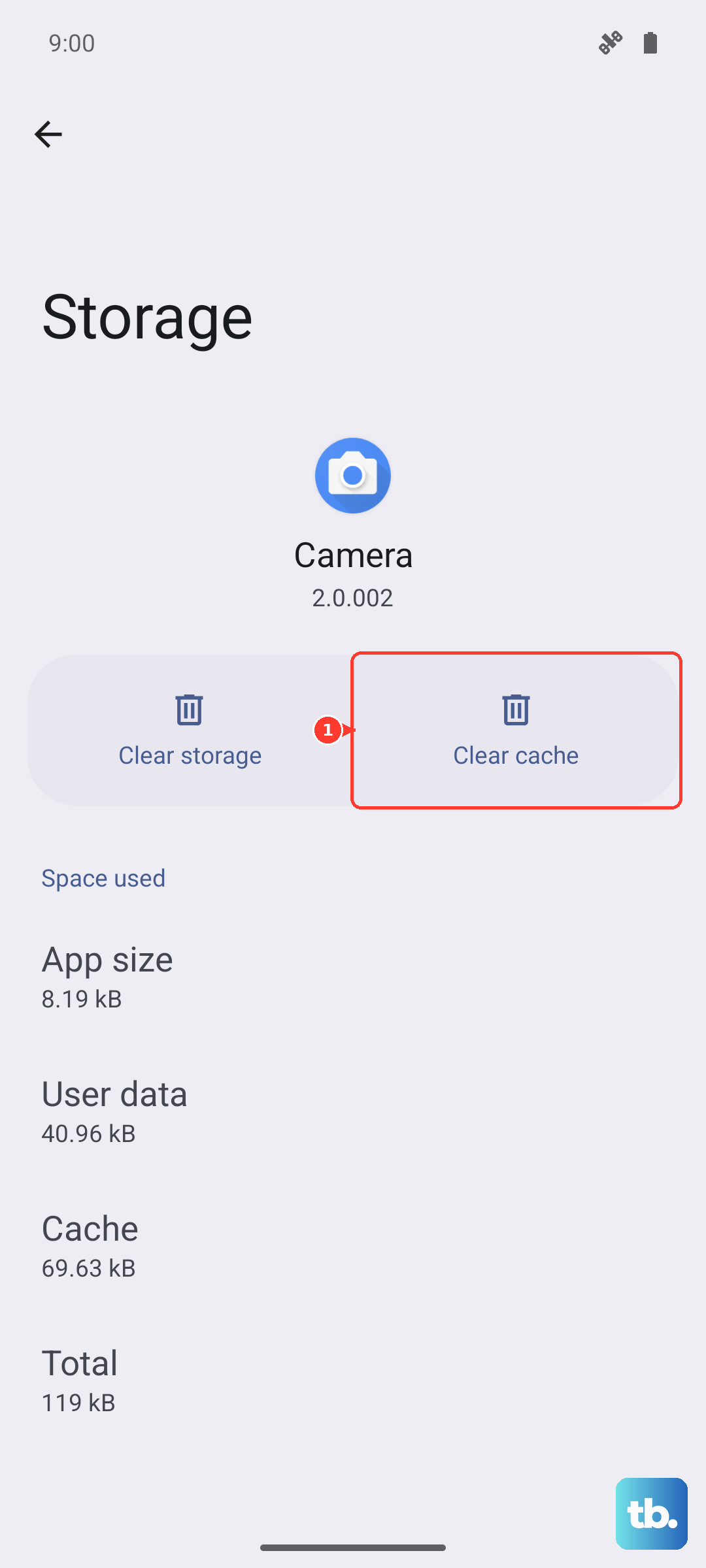
If the lag is happening in one specific app, like YouTube or your gallery, the app's cached data might be corrupted. Clearing it forces the app to start fresh.
Go to Settings > Apps, select the problematic app, and tap "Storage." Then, tap "Clear cache." This won't delete your personal data. If the problem persists, you can try "Clear data," but be aware this will reset the app and sign you out.
Disable Video Enhancements in Settings
The Z Flip 6 has some intelligent features that can sometimes interfere. It's worth turning them off to see if they're the cause.
Open Settings > Advanced features > Video brightness and toggle it off. This feature boosts brightness beyond normal limits and can cause instability. Also, check Settings > Advanced features > Labs and disable any experimental video-related options you might have turned on.
Check for Overheating
If your phone feels warm to the touch, especially near the hinge or screen, it may be throttling performance to cool down, which includes video playback. The inner display and powerful chip can generate heat during extended use.
Stop using the phone for a few minutes, unfold it completely to help with heat dissipation, and avoid using it while it's charging. Once it cools down, try playing the video again.
Try a Different Video Player
This is a great way to figure out if the problem is with a specific app or with the phone itself. If a video lags in your Gallery app, try opening it with Google Photos or a third-party player like VLC from the Play Store.
If the video plays smoothly in another app, you know the issue is with the original app's software. You can then focus on updating or reinstalling that specific app.
Reset All Settings
If you've tried everything else and videos are still lagging, this step can help without erasing your personal data. It will reset all your system settings, like Wi-Fi passwords, Bluetooth connections, and display preferences, back to default.
Go to Settings > General management > Reset > Reset all settings. Enter your PIN if prompted and confirm. After the phone reboots, you'll need to reconfigure your settings, but your photos, apps, and messages will be safe.
Consider the Video Source and Flex Mode
If you're watching a video shot in a very high resolution or an unusual format, the phone's processor might struggle to decode it in real-time. Try playing a standard 1080p video from a major streaming service as a test.
Also, if you're using Flex Mode (watching a video with the phone partially folded), try unfolding it completely. Some apps might not be fully optimized for the folded screen state, which could cause performance issues.