You went to record a voice memo or jump on a call with your Galaxy Z Flip6, and the person on the other end says they cannot hear you, or the playback comes back silent. A dead or muffled microphone on a foldable phone is especially frustrating because you rely on it for calls, the Voice Recorder, voice assistants, and the audio in every video you shoot.
The good news is that most microphone trouble on the Z Flip6 traces back to something simple, like a blocked mic hole or a misbehaving app, and you can work through the likely causes yourself before assuming the hardware has failed.
To separate a hardware fault from a settings problem, try a online mic test in your browser. Record a few seconds and play it back, and you will know exactly what you are dealing with.
The fixes below are ordered from the safest and easiest to the most involved, so start at the top and only move down the list if the problem persists. The factory reset and the service-center contact steps come last for good reason, since they are the most disruptive.
These steps are based on Samsung's own Galaxy support guidance for the Galaxy Z Flip6 (model SM-F741).
Clear the microphone hole and remove anything covering it
Before you change a single setting, look at the physical microphone. On the Z Flip6 the microphone is located at the bottom of your phone, and Samsung's guidance is direct.
Make sure that no foreign matter is blocking the microphone hole, and try again after removing anything you find. Pocket lint, dust, and grime collect in that tiny opening and quietly muffle your voice.
The other common culprit is something you added yourself. Samsung notes that a poorly placed screen protector or case is one of the most common causes of sound distortions, so make sure that nothing is covering the microphone or speaker on your phone.
Take the Z Flip6 out of any case.
Remove or reposition a screen protector that may be sitting over the mic opening.
Gently clear away any debris.
Then test a call or a Voice Recorder clip again.
Restart the phone from the Quick panel
A temporary software glitch is one of the most frequent reasons a microphone suddenly stops capturing sound, and a normal restart clears it more often than people expect. This is the gentlest reset you can do and it touches none of your data.
Swipe down from the top of your phone's screen to open the Quick panel.
Tap the Power icon.
Tap Restart.
Once the phone comes back up, open the Voice Recorder or make a quick test call to confirm whether your voice is now being picked up.
Force a restart when the screen is frozen
If the Z Flip6 is unresponsive and you cannot reach the Quick panel, a forced restart gives it a hard reboot. Use this only when a normal restart is not possible.
Press and hold the Volume down button and the Side button (or Power button) simultaneously until the device turns off and turns back on.
The screen will turn black when the device turns off, and then the Samsung logo will appear.
One Samsung guide notes holding the keys for more than 7 seconds before the phone responds, so keep your fingers on both buttons until you see that black screen and the logo. After it reboots, check the microphone again.
Install any pending software update
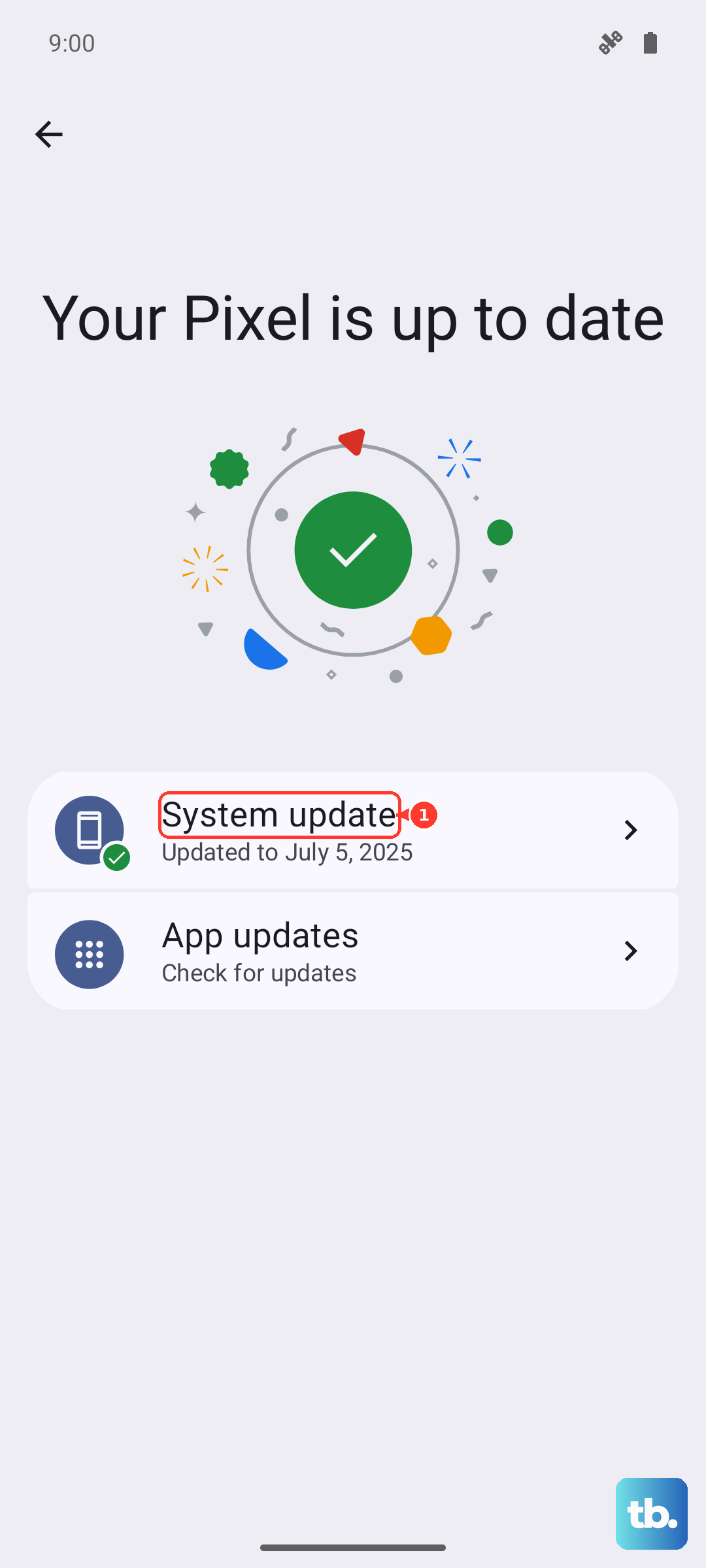
A buggy build can break microphone behavior across apps, and a maintenance update is often the fix. Connect to Wi-Fi first so the download does not eat into mobile data, then check for an update.
Go to Settings > Software update.
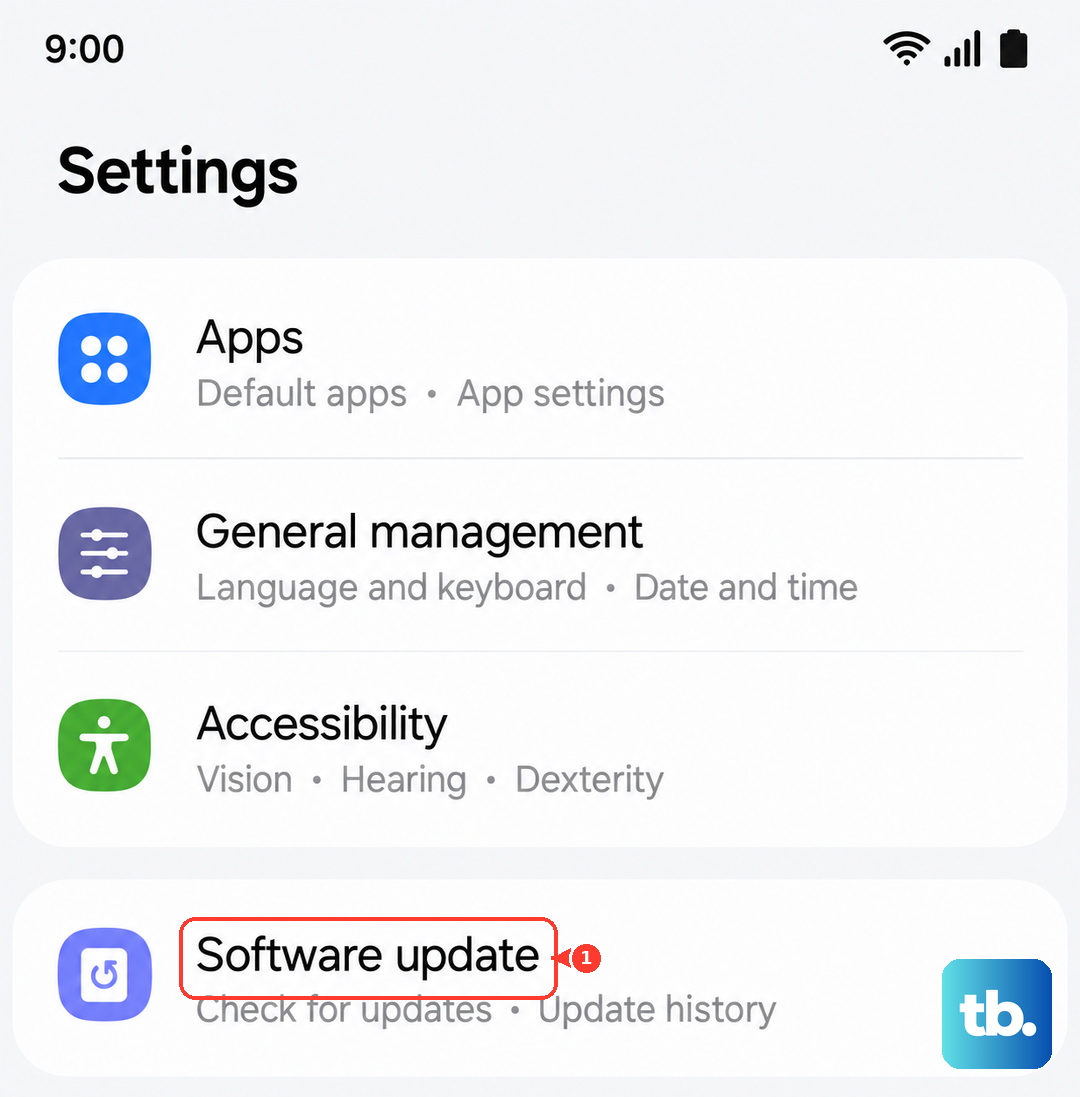
Tap Download and install.
Follow the on-screen instructions.
On some US or carrier versions of the Z Flip6 the menu may read Software update or System updates, with options such as Download and install, Check for system updates, or Check for software updates depending on your carrier.
If you want to confirm which build you are currently running, you can find it under Settings > About phone > Software information.
Test in Safe mode to rule out a downloaded app
Sometimes a third-party app grabs the microphone or interferes with it. Safe mode loads only the built-in apps that shipped with the phone, which lets you isolate whether something you installed is to blame.
Open Quick settings.
Tap the Power icon at the top of the screen.
Touch and hold Power off until the Safe mode icon is displayed.
Tap Safe mode.
With the phone in Safe mode, test the microphone using a built-in feature like the Voice Recorder.
If it works in Safe mode but fails normally, a downloaded app is the cause, so uninstall the apps you added most recently and test after each one.
To leave Safe mode, simply restart the phone normally.
Run the microphone diagnostic in Samsung Members
The Samsung Members app can test your hardware directly, which takes the guesswork out of figuring out whether the microphone itself is faulty. Samsung describes it this way: you can run diagnostic tests right from the app if you would like to check your Camera, microphone, or another of your device's functions.
Open the Samsung Members app.
Open Diagnostics.
Run the Mic test.
The test has you record your voice and then play it back so you can confirm the microphone is capturing sound.
If the playback is silent or clearly broken, that points to a hardware fault rather than a setting, and you should move toward the service options near the end of this guide.
Back up your data, then perform a factory data reset
If the microphone still fails after everything above, a factory data reset clears out any deep software corruption and returns the phone to a clean state. This step erases everything, so treat the backup as mandatory, not optional.
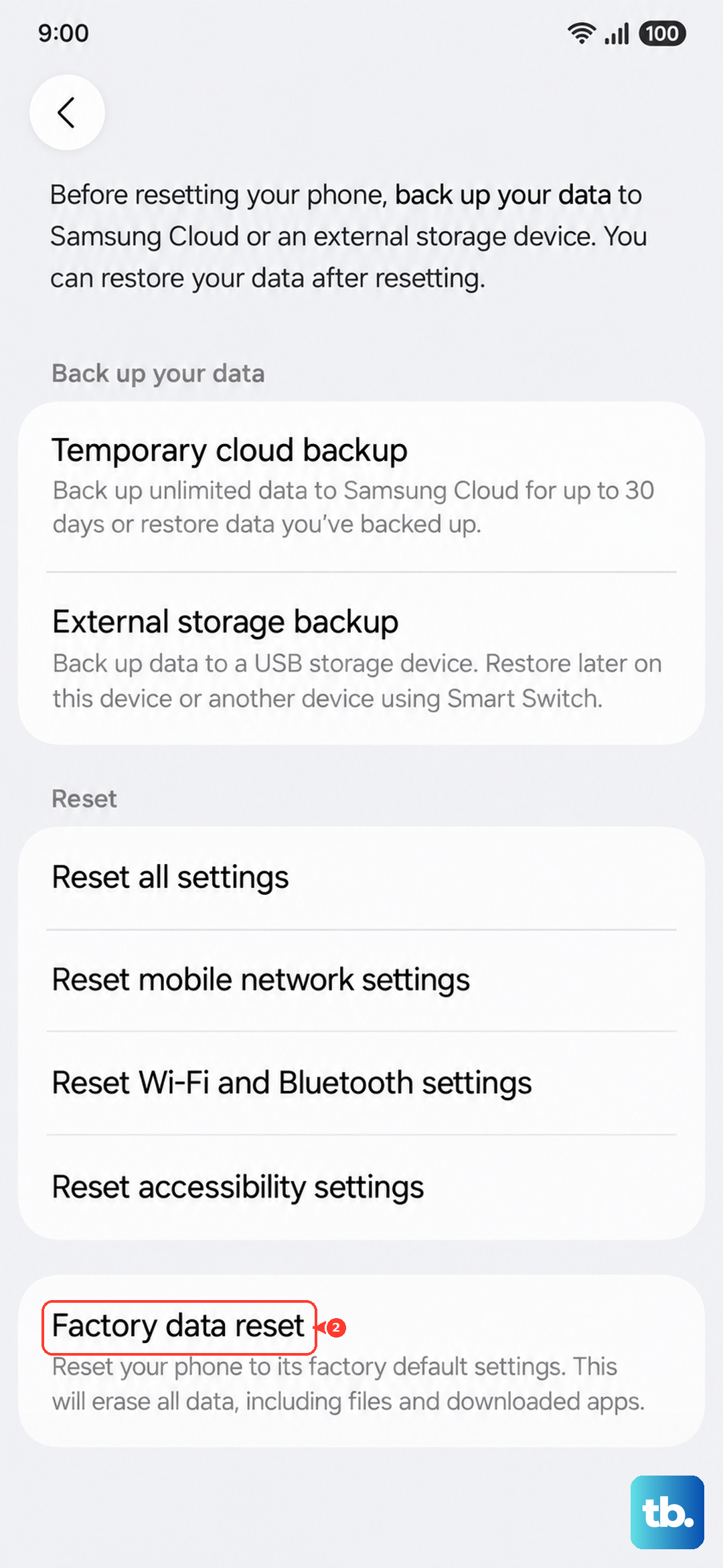
Samsung's own warning is blunt. Please save any information you need prior to the factory reset because your personal information may not be recovered.
Once you have backed up your photos, messages, and accounts, follow this exact path.
- 1.Go to Settings > General management > Reset.
- 2.Tap Factory data reset.
- 3.Tap Reset.
- 4.Tap Delete all.
A factory reset erases everything on the phone, and afterward it starts from the initial setup screen as if it were new.
If the microphone works again after you set the phone back up, the problem was software.
If it still does not work on a freshly reset device, the issue is almost certainly hardware.
Contact Samsung or visit an authorized service center
When the microphone is still not working after all of the steps above, and especially after the Samsung Members diagnostic flagged a problem, the next step is to have the phone evaluated by an authorized service center. A persistent failure on a reset phone is a strong sign that the mic component itself needs attention.
Reach out through Samsung's official support channels for your region to find a nearby authorized service center or to arrange a repair.
You can also submit a report directly from the Samsung Members app, which gives the support team detail about what your phone is doing before you hand it over.
Frequently Asked Questions
Where is the microphone located on the Galaxy Z Flip6?
According to Samsung's guidance, the microphone is located at the bottom of your phone. When you check for blockages or clean the mic opening, that bottom edge is the spot to inspect first.
How do I know if my Z Flip6 microphone problem is hardware or software?
Run the Mic test in the Samsung Members app under Diagnostics; it records your voice and plays it back. If the test fails, or if the microphone still does not work after a factory reset, the issue is most likely hardware and the phone should be evaluated by an authorized service center.
Will a factory reset delete everything on my phone?
Yes. A factory data reset erases everything on the phone and returns it to the initial setup screen. Samsung warns that your personal information may not be recovered, so back up anything you need before you reset.
What should I do if a recently installed app caused the microphone to stop working?
Boot into Safe mode, where only built-in apps run, and test the microphone there. If it works in Safe mode, a downloaded app is the cause, so uninstall the apps you added most recently. Restart the phone normally to exit Safe mode once you are done.
How do I contact Samsung if none of these fixes work?
Use Samsung's official support channels for your region to find an authorized service center or arrange a repair. You can also send a report from the Samsung Members app so the support team can see what your phone is doing.