Your Galaxy Z Flip 6 has the cellular connection covered, but the moment you flip it open and try to share that 5G data with a laptop or tablet, nothing happens. The hotspot toggle flips on and right back off, your other devices never see the network in their Wi-Fi list, or they spot it but refuse to connect. It is a frustrating gap between a phone that clearly has signal and devices that simply will not get online through it.
The good news is that Mobile Hotspot is a fully supported feature on the Z Flip 6, and most hotspot failures trace back to a handful of settings and account issues you can sort out yourself. The fixes below are ordered from the simplest and safest to the more involved, ending with the official reset and support paths. Work through them in order and stop as soon as your devices connect.
Start With Your Carrier Plan and Tethering Permission
Before you touch a single setting on the phone, confirm that your wireless account is actually allowed to share data. Mobile Hotspot rides on your cellular plan, and not every plan includes it. Samsung states plainly: "In order to use a hotspot, you must have a tethering plan on your service account with your carrier."
Verify that your account is active and in good standing with the correct data plan attached. If you recently switched carriers or changed plans, tethering may not have carried over and can quietly stay disabled. The fastest way to settle this is to contact your carrier and ask them to confirm that hotspot is enabled on your line.
Make Sure Mobile Data Is Actually On
The hotspot shares your phone's cellular data, so that data has to be flowing first. If mobile data is switched off or stalled, there is nothing for the hotspot to pass along. This is one of the most common reasons a hotspot powers on but never delivers a working connection.
To check it quickly, swipe down from the top right corner of the screen and make sure the Mobile data icon is white, not gray. A gray icon means data is off, so tap it to turn it back on. If your phone itself cannot browse or load pages over mobile data, the hotspot cannot share what is not there, so get the phone online first.
Toggle the Hotspot Off and Back On
A simple re-toggle clears a surprising number of temporary hiccups, especially when the hotspot was on but stopped serving devices. This refreshes the connection without changing any of your saved settings.
- 1.Go to Settings > Connections > Mobile Hotspot and Tethering.
- 2.Tap the switch next to Mobile Hotspot to turn it off.
- 3.Tap the same switch again to turn it back on.
When the hotspot is active, the Mobile Hotspot icon appears in the status bar. Watch for it to confirm the feature has actually started rather than failed silently.
Check the Hotspot Security and Password
If devices can see your network but the connection is rejected, the credentials are usually the culprit. A device may be holding onto an old saved password, or the security type may not match what the device expects. Reviewing these settings lets you connect with the right details.
In Mobile Hotspot and Tethering, tap Mobile Hotspot, then open the configuration area where you can set the Network name, Password, Security, and Band. Confirm the Security status is set to WPA2, and view or change the Network name and Password so the connecting device uses exactly the right credentials. If a device keeps failing, deleting the saved network on that device and re-entering the current password often does the trick.
Switch the Band Between 2.4 GHz and 5 GHz
Not every device can connect on every frequency, and a mismatch here can make your hotspot invisible to certain gadgets. The Z Flip 6 lets you choose which band the hotspot broadcasts on, and the right choice depends on what you are trying to connect.
In the hotspot configuration, set Band to either 2.4 GHz or 5 GHz. Samsung describes the tradeoff this way: "2.4 Ghz is compatible with more devices, and 5 Ghz will provide better performance." Older laptops, tablets, and smart-home gear frequently connect only on 2.4 GHz, so if a stubborn device cannot see your hotspot, switching to 2.4 GHz is the move.
Turn Off the Hidden Network Option
If your hotspot is switched on but other devices cannot find it in their Wi-Fi lists at all, the network name may simply not be broadcasting. Samsung includes a setting that hides the network, and when it is on, devices will not see the name even though the hotspot is running.
- 1.Go to Settings > Connections > Mobile Hotspot and Tethering.
- 2.Open the Advanced menu.
- 3.Turn off the switch next to Hidden network.
With Hidden network disabled, the network name broadcasts normally and should appear in the Wi-Fi list on your other devices.
Rule Out a VPN and a Damaged SIM
An active VPN can interfere with tethering and block the hotspot from sharing your connection, so if you run a VPN app on the phone, turn it off and try connecting again.
It is also worth inspecting the SIM card, because a damaged SIM can prevent a normal data connection in the first place, which in turn starves the hotspot. Power down, check the SIM for visible damage or poor seating, and reseat it if needed. If the SIM looks worn or the data connection stays unreliable, contact your carrier for a replacement.
Force Restart a Frozen or Unresponsive Hotspot
When the hotspot is stuck, unresponsive, or behaving erratically, a force restart clears temporary glitches that a normal toggle cannot. This is the official restart method for Galaxy phones and does not erase any of your data.
Press and hold the Volume down button and the Side button (or Power button) simultaneously until the device turns off and turns back on. The screen turns black, then the Samsung logo appears. Once the phone is back up, open Settings > Connections > Mobile Hotspot and Tethering and try enabling the hotspot again.
Install the Latest Software Update
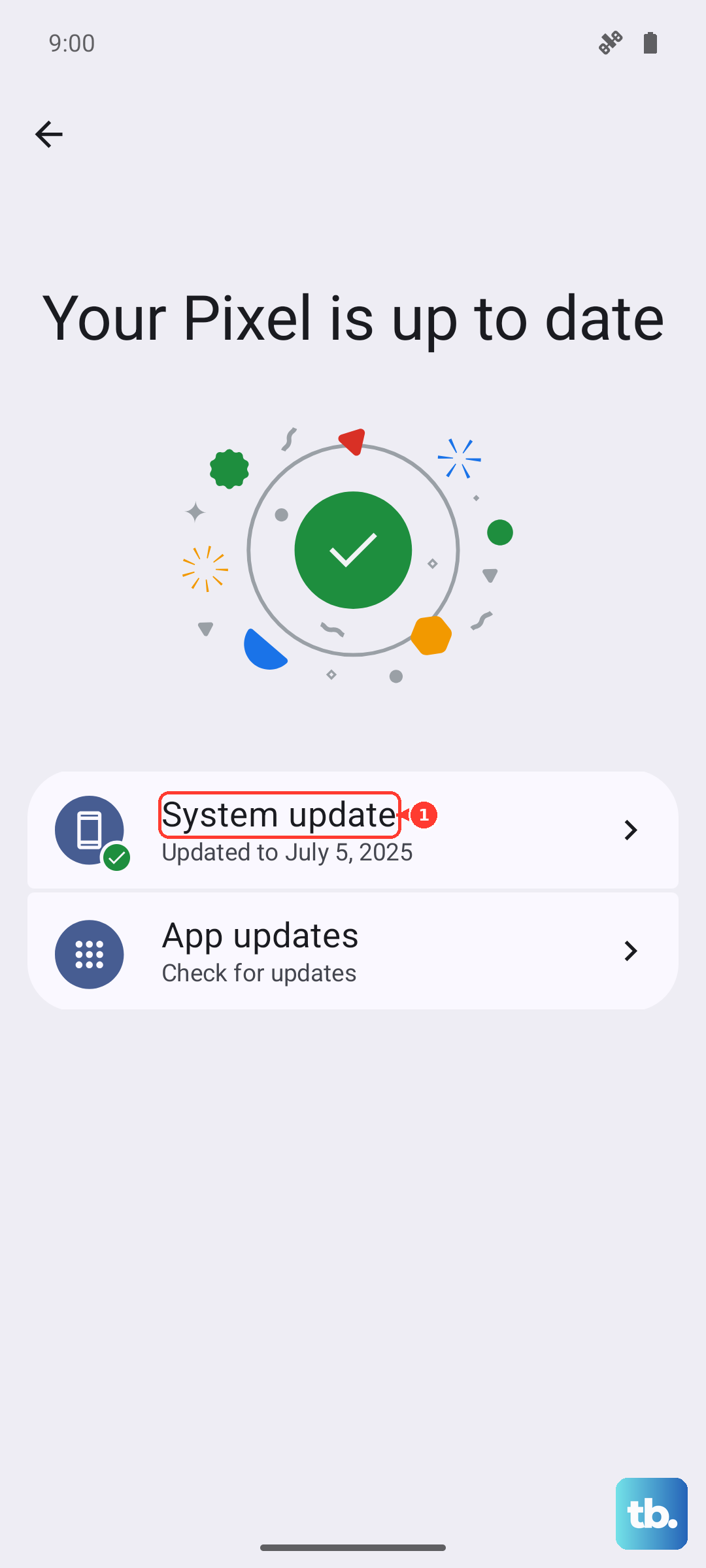
Hotspot and tethering bugs are sometimes fixed in software, so running the most current version of One UI can quietly resolve a problem that no setting change touches. The Z Flip 6 has been receiving One UI 8.5 in 2026, and keeping current is worth doing for stability as much as for new features.
Go to Settings > Software update (it may read System updates on some carriers) and tap Download and install. Depending on your carrier you may instead see Check for software updates or Check for system updates. Connect to Wi-Fi if your carrier requires it, then install whatever update is offered.
If an on-device update fails or stalls, Samsung's official Smart Switch desktop app for Windows and Mac can update the phone over USB instead. Connect the Z Flip 6 to your computer with Smart Switch installed to apply the update that way.
Reset Mobile Network Settings
If you have worked through everything above and the hotspot still will not behave, resetting the network settings restores all network-related options to their defaults and often clears a misconfiguration you cannot see. Importantly, this does not erase your apps or personal data.
- 1.Go to Settings > General management > Reset.
- 2.Tap Reset mobile network settings.
- 3.Tap Reset settings.
- 4.Tap Reset to confirm.
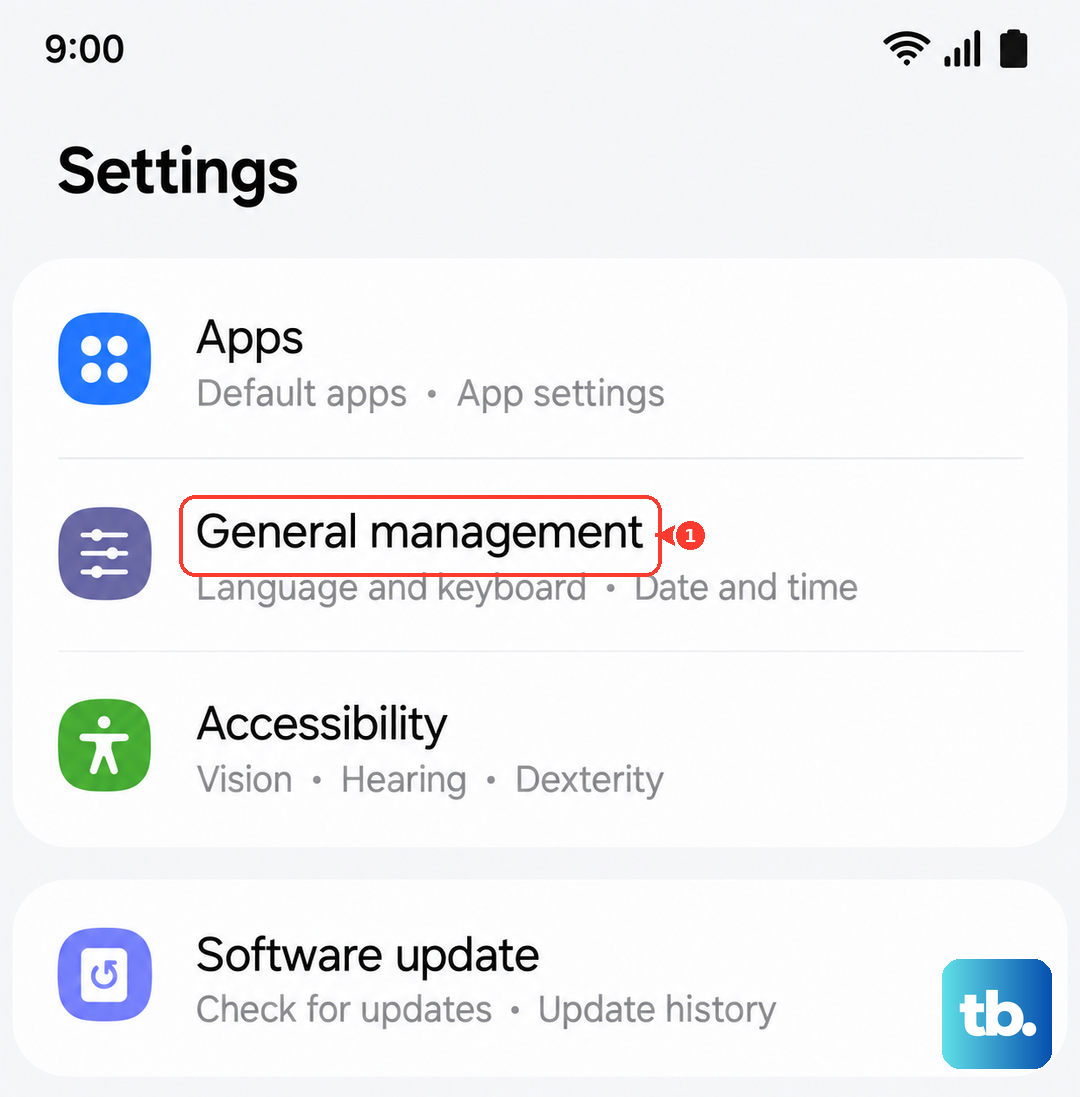
After the reset completes, your Wi-Fi, mobile, and Bluetooth settings return to default. You may need to contact your provider to re-establish the connection, so keep their support number handy. Once data is confirmed working again, set up the hotspot fresh under Settings > Connections > Mobile Hotspot and Tethering.
The Last-Resort Reset and Getting Samsung Involved
A factory data reset is the final self-service step, and it should only come after every fix above has failed, because it erases everything on the phone. Back up your data first, since a factory reset erases all apps and personal data and returns the phone to the initial setup screen, and your personal information may not be recoverable afterward.
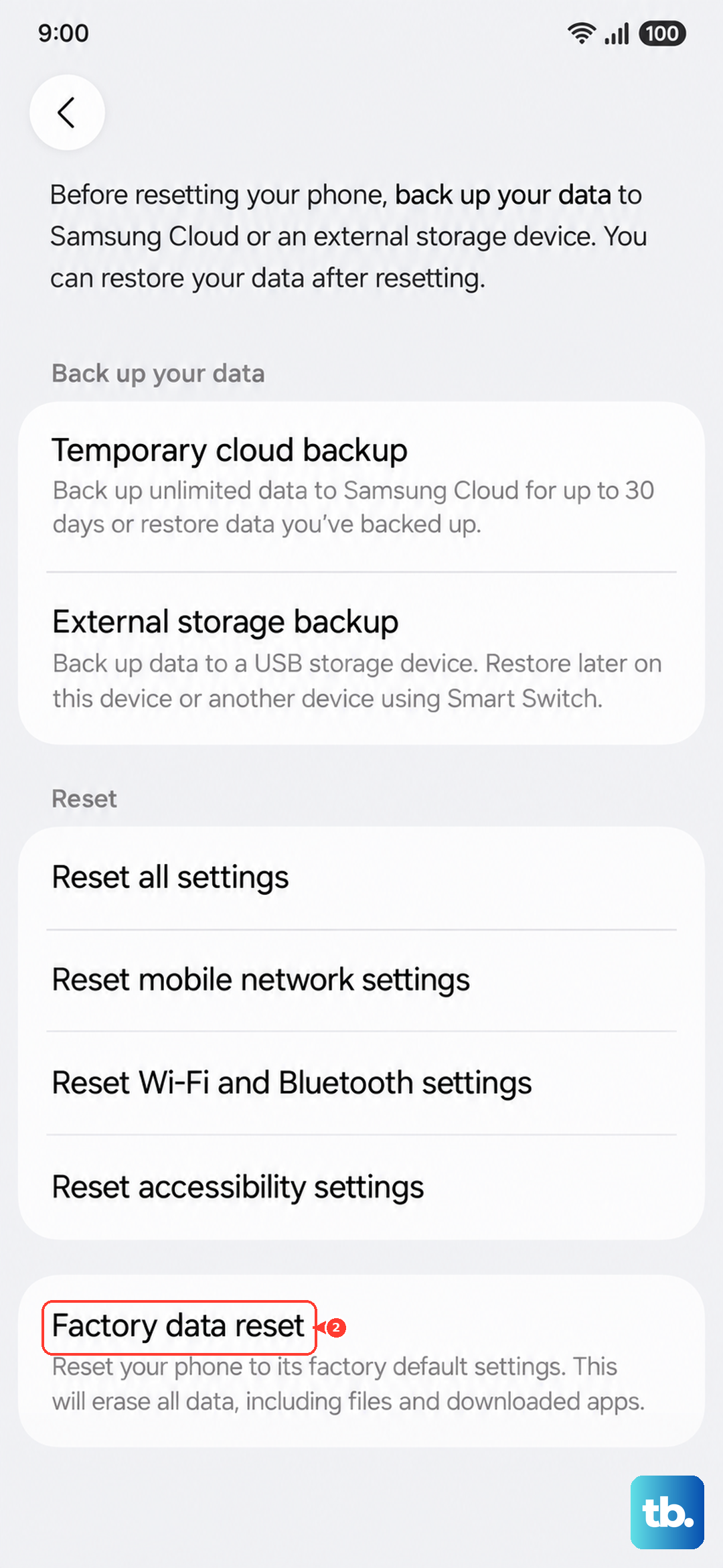
When you are ready, go to Settings > General management > Reset > Factory data reset > Reset > Delete all. Set the phone up again and test the hotspot before restoring all your apps, so you can tell whether the reset solved it.
If the hotspot still fails even after a clean factory reset, the issue likely needs a closer look than software fixes can provide. Contact Samsung Support through the official channel at samsung.com/us/support, or use the Samsung Members app on your phone, to arrange service or repair. You can also reach out to Samsung Support if you would rather have guidance before attempting the factory reset yourself.
Frequently Asked Questions
Why does my Galaxy Z Flip 6 hotspot turn on but no devices can connect?
The most common causes are credential or band mismatches. Confirm the Security status is set to WPA2 and that connecting devices use the correct Network name and Password, then try switching the Band to 2.4 GHz, since older devices often connect only on that frequency. If devices cannot even see the network, open the Advanced menu in Mobile Hotspot and Tethering and turn off Hidden network.
Do I need a special plan to use the hotspot on my Z Flip 6?
Yes. Samsung states that you must have a tethering plan on your service account with your carrier for the hotspot to work. If you are unsure whether your plan includes tethering, or if you recently changed carriers, contact your carrier to confirm hotspot is enabled on your line.
Will resetting network settings delete my photos and apps?
No. Resetting mobile network settings (Settings > General management > Reset > Reset mobile network settings) restores network-related options to default without erasing apps or personal data. A full factory data reset is different, as it erases all apps and personal data, so back up first and use it only as a last resort.
How do I force restart my Galaxy Z Flip 6 if the hotspot freezes?
Press and hold the Volume down button and the Side button (or Power button) at the same time until the device turns off and turns back on. The screen turns black, then the Samsung logo appears. This clears temporary glitches and does not erase any of your data.
The hotspot works but my older laptop cannot see it. What should I do?
Change the Band to 2.4 GHz in the hotspot configuration, since Samsung notes that "2.4 Ghz is compatible with more devices" while 5 GHz favors performance. Also make sure Hidden network is turned off under the Advanced menu so the network name broadcasts and appears in the Wi-Fi list.