Your Galaxy Tab S9 keeps insisting the software is already up to date, or the download crawls and stalls partway, or the install fails and dumps you back at the home screen with nothing to show for it. A tablet that refuses the latest One UI release misses the security patches and features Samsung ships with each version, and in most cases the cause is something small you can clear in a few minutes. The Tab S9, in both its Wi-Fi (SM-X710) and 5G (SM-X716) forms, is on Samsung's official list for the One UI 8.0 upgrade, which is based on Android 16, so the update genuinely is meant for your model. Work through the fixes below in order, starting with the safest checks and leaving the reset for last.
Rule out the two things that quietly block most updates
Samsung points to a weak or unstable internet connection and a low battery level as two of the most common reasons an update fails to download or install. Before you try anything more involved, connect the tablet to a stable Wi-Fi network and charge the battery above 50 percent.
Updating over Wi-Fi is the recommended method, and on the 5G SM-X716 model it also keeps a large download from eating into your mobile data.
Keep enough free internal storage available as well, since the update needs somewhere to land. Leave the tablet plugged in while the update runs so it does not slip below the level it needs partway through.
These three conditions on their own resolve a surprising number of stuck updates.
Check for the update by hand
If the tablet has not prompted you automatically, trigger the check yourself. The labels shift slightly between models, so follow whichever wording appears on your screen.
- 1.Swipe down with two fingers from the top-right of the screen and tap the Settings icon.
- 2.Tap 'Software update' or 'System updates' (it varies between models).
- 3.Tap 'Download and install', 'Check for system updates', or 'Check for software updates'.
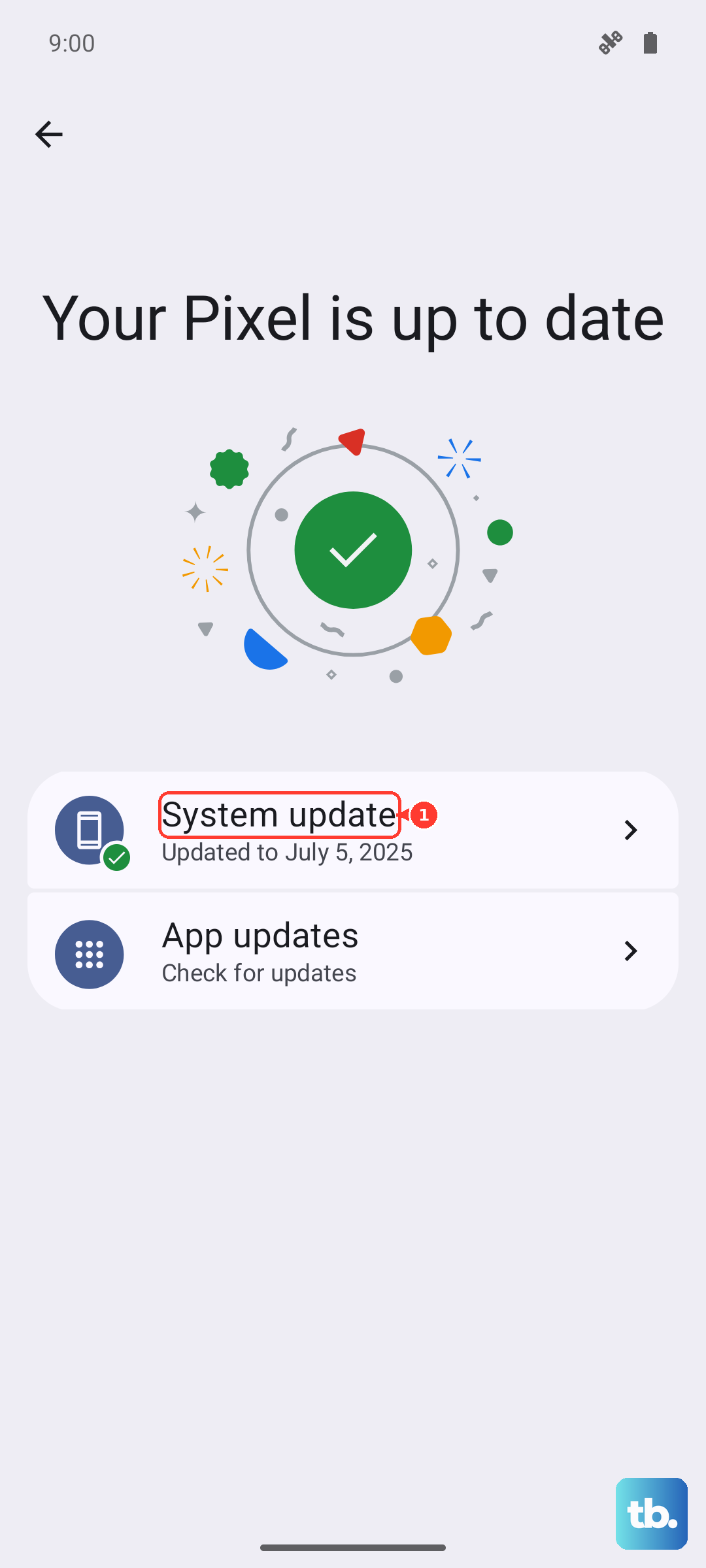
Inside the same Software update menu you can turn on the 'Auto download over Wi-Fi' switch, which means the tablet will automatically update when it is connected to a Wi-Fi network.
During the update the device cannot be used, and it may need to run several sequential updates one after another, so give it time and do not interrupt it.
Make room for the download
A Galaxy device may refuse to install an update when there is not enough free internal storage to unpack it.
To see where you stand, go to Settings > Battery and device care > Storage and review the available space.
On an earlier version of One UI the same screen lives under Settings > Device care > Storage, so use whichever label matches your tablet.
From there, clear room using the Trash or Recycle bin, Unused apps, Duplicate files, and Large files options.
You can also back data up to Samsung Cloud to lighten the load without deleting anything you want to keep.
Once you have freed up space, return to Settings > Software update and check again.
Reboot to clear a stalled download
Temporary software conflicts, an interrupted download, or corrupted cache can all stop an update from finishing.
A clean restart clears those transient states without touching your data.
To restart, press and hold the Volume down button and the Side button (or Power button) at the same time.
After a few seconds the power options will appear, then tap Restart and tap Restart again.
When the tablet comes back, head to Settings > Software update > Download and install and let it try once more.
A normal reboot resolves more update hiccups than any other single step here.
Force a restart when the screen is frozen
If the Tab S9 has frozen or is not responding to taps, you cannot reach the normal restart menu, so force it instead.
Press and hold the Volume down button and the Side button (or Power button) simultaneously until the device turns off and turns back on.
Samsung's guidance for a frozen Galaxy Tab describes holding the Power and Volume down buttons for more than 7 seconds until the device reboots.
This does not erase anything; it simply cuts power and brings the tablet back up.
Once it has restarted, open Settings and re-check for the update.
Boot into Safe mode to rule out a rogue app
If storage is sufficient but the update still fails, a third-party app may be interfering in the background.
Safe mode starts the tablet with only its built-in software running, which lets you test the update in a clean state.
Press and hold the Volume down key and the Side key, then select Power off.
After the screen turns off, press and hold the Volume down key and the Side key again.
When the Samsung logo appears, release the Side key while still holding Volume down.
Release when 'Safe mode' appears in the lower-left corner.
With Safe mode active, try the software update again.
If it goes through here, an installed app was the culprit, and you can restart normally to leave Safe mode and then remove the recently added apps one at a time.
Samsung notes that the exact key locations can vary by model.
Run the update from a Windows PC or Mac
When on-device updates keep failing no matter what you try, you can push the firmware from a computer using Samsung Smart Switch, Samsung's free official desktop tool.
Install Smart Switch on a Windows PC or Mac first, then connect the tablet by USB cable.
Open Smart Switch and let it detect the connected tablet.
Select 'Update'.
Follow the on-screen prompts to complete the installation.
Do not disconnect the USB cable or use the device until the update is complete.
This route bypasses whatever is blocking the over-the-air download and often succeeds when the tablet alone cannot.
Back up, then reset as a last resort
A factory data reset is the heaviest step and should come only after everything above has failed.
It erases all data on the tablet, and personal information may not be recovered afterward, so back up your files, photos, and accounts first using Samsung Cloud or Smart Switch.
Keep the tablet connected to a network during the reset so it can sign out of your Samsung account properly.
Go to Settings > General management > Reset > Factory data reset.
Review the information shown, then tap Reset.
Tap Delete all.
Enter your security-lock credentials and Samsung account password if prompted.
Once the tablet restarts as new, set it up, connect to Wi-Fi, and check for the update again before restoring your backup.
A reset clears any deeply corrupted system state that was standing in the way.
When it is time to call Samsung
If the update still will not install after these steps, or if you cannot complete a reset because of stored account credentials, the problem may need official help.
Samsung recommends contacting Samsung Support for assistance through the Galaxy Tab S9 support page or the Samsung Members app on the tablet.
The Members app also offers built-in diagnostics and a direct way to reach support, which is worth using before you reach out so you can describe exactly what is failing.
Frequently Asked Questions
Why won't my Galaxy Tab S9 download the update?
The most common causes are a weak or unstable internet connection, a low battery level, and not enough free internal storage. Connect to a stable Wi-Fi network, charge the battery above 50 percent, and clear some space under Settings > Battery and device care > Storage, then check again.
Does the Tab S9 really get the One UI 8.0 update?
Yes. Samsung's official One UI 8.0 page lists the Tab S9 Ultra, Tab S9+, and Tab S9 as eligible for the One UI 8.0 upgrade, which is based on Android 16. The update applies to both the Wi-Fi (SM-X710) and 5G (SM-X716) variants.
Can I update the Tab S9 without using Wi-Fi?
Wi-Fi is Samsung's recommended method for on-device updates. If you cannot get a reliable connection, you can update from a computer instead by installing Samsung Smart Switch on a Windows PC or Mac, connecting the tablet by USB cable, and selecting 'Update'.
Will a factory reset erase everything on my tablet?
Yes. A factory data reset erases all data on the device, and personal information may not be recovered afterward. Back up your data first and stay connected to a network during the reset so the tablet can sign out of your Samsung account.