Screen flickering on your Samsung Galaxy Tab S9 is incredibly distracting, turning a smooth experience into a frustrating one. You might see the display flash, blink, or show horizontal lines that come and go. This can be triggered by a software hiccup in One UI, a problematic app, or a deeper hardware concern. Let's get it fixed.
It is worth viewing a few test patterns from a monitor test before changing hardware. Faults that persist across every pattern point firmly at the display itself.
Force Restart Your Tablet
This is the quickest fix for a temporary software glitch causing the screen to act up. Press and hold the Volume Down button and the Side (power) button together for about 10 seconds. Release the buttons when you see the Samsung logo appear. I'd start with this one, as it clears the device's temporary memory and often resolves random display issues immediately.
Disable Adaptive Brightness
Your Tab S9's screen brightness automatically adjusts based on the light in your room. If the ambient light sensor gets confused, it can cause the screen to flicker as it rapidly tries to find the right brightness level. Swipe down twice from the top of the screen to open the Quick Settings panel and tap the Adaptive brightness icon to turn it off. You can also go to Settings > Display > Adaptive brightness to disable it there. After turning it off, manually adjust your brightness using the slider and see if the flickering stops.
Turn Off Eye Comfort Shield
This feature, which reduces blue light, can sometimes interact poorly with certain apps or system processes, leading to a subtle, pulsing flicker. You can quickly toggle it off by swiping down your notification panel and looking for the Eye comfort shield tile. If you don't see it, go to Settings > Display > Eye comfort shield and switch it off. Test your screen for a few minutes with it disabled to see if there's a change.
Check for Software Updates
Samsung regularly releases updates for One UI that include bug fixes and performance improvements, some of which target display stability. An outdated system can be the root cause of your flickering screen. Navigate to Settings > Software update > Download and install. If an update is available, make sure your tablet is plugged into a charger (preferably a 45W one for speed) and connected to Wi-Fi before installing it.
Boot Into Safe Mode
If a third-party app you installed is causing the problem, Safe Mode will tell you. It temporarily disables all downloaded apps. First, turn off your tablet completely. Then, press and hold the Side button until you see the Samsung logo. As soon as the logo appears, release the Side button and immediately press and hold the Volume Down button. Keep holding it until the device finishes restarting. You'll see "Safe mode" in the bottom-left corner of the screen.
If the flickering is gone while in Safe Mode, you know a downloaded app is the culprit. Restart your tablet normally to exit Safe Mode, then start uninstalling recently downloaded apps one by one until the problem stops. Pay special attention to any apps that control screen overlays, brightness, or color filters.
Close Background Apps and Clear Cache
A rogue app running in the background can sometimes cause display corruption. Swipe up from the bottom of the screen and hold to enter the recent apps view, then swipe each app card up to close it. For a deeper clean, you can clear the system cache partition, which stores temporary data that can become corrupted. Turn off the tablet, then press and hold the Volume Up and Side buttons together.
When the Android Recovery screen appears, use the volume buttons to highlight Wipe cache partition and press the Side button to select it. Confirm the action, then select Reboot system now. This won't delete any of your personal data like photos or messages.
Reset All Settings
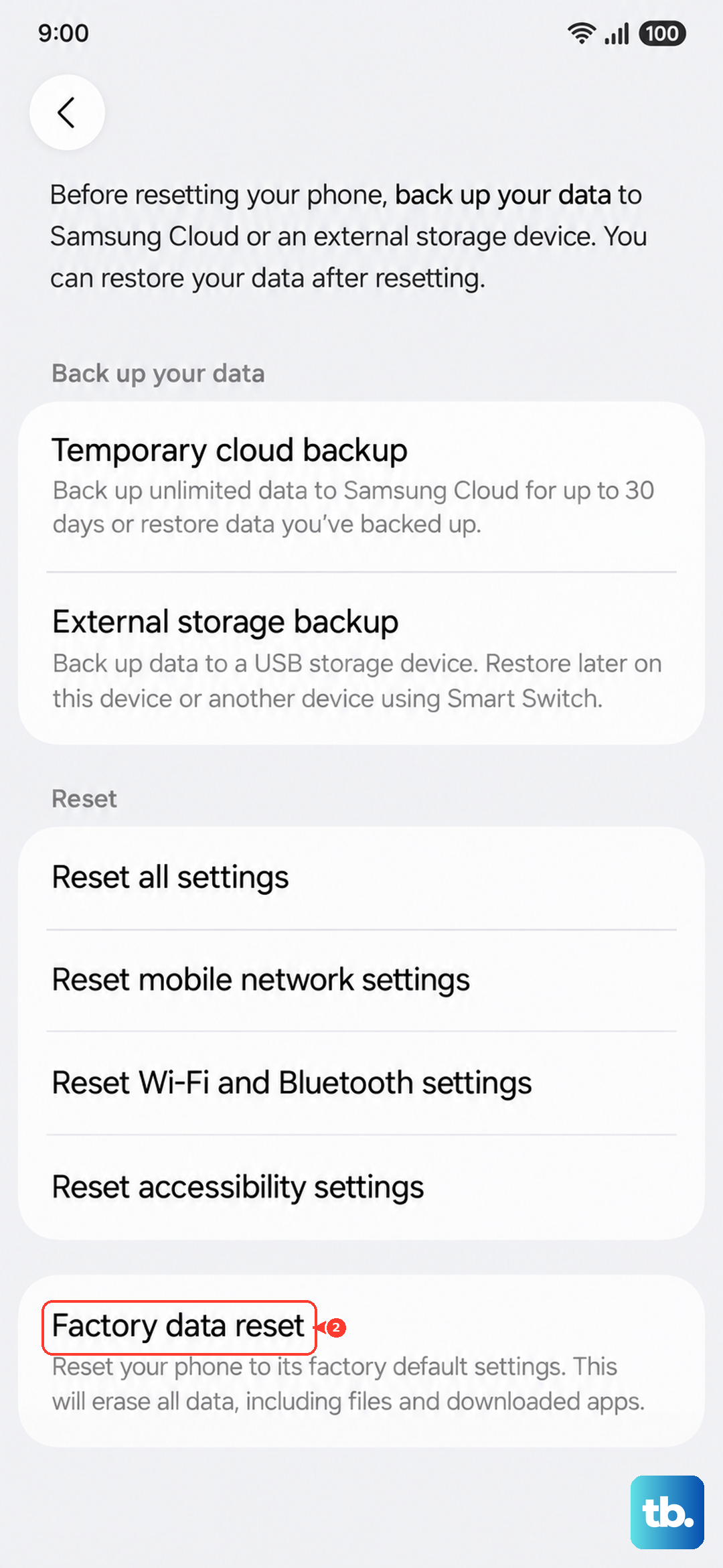
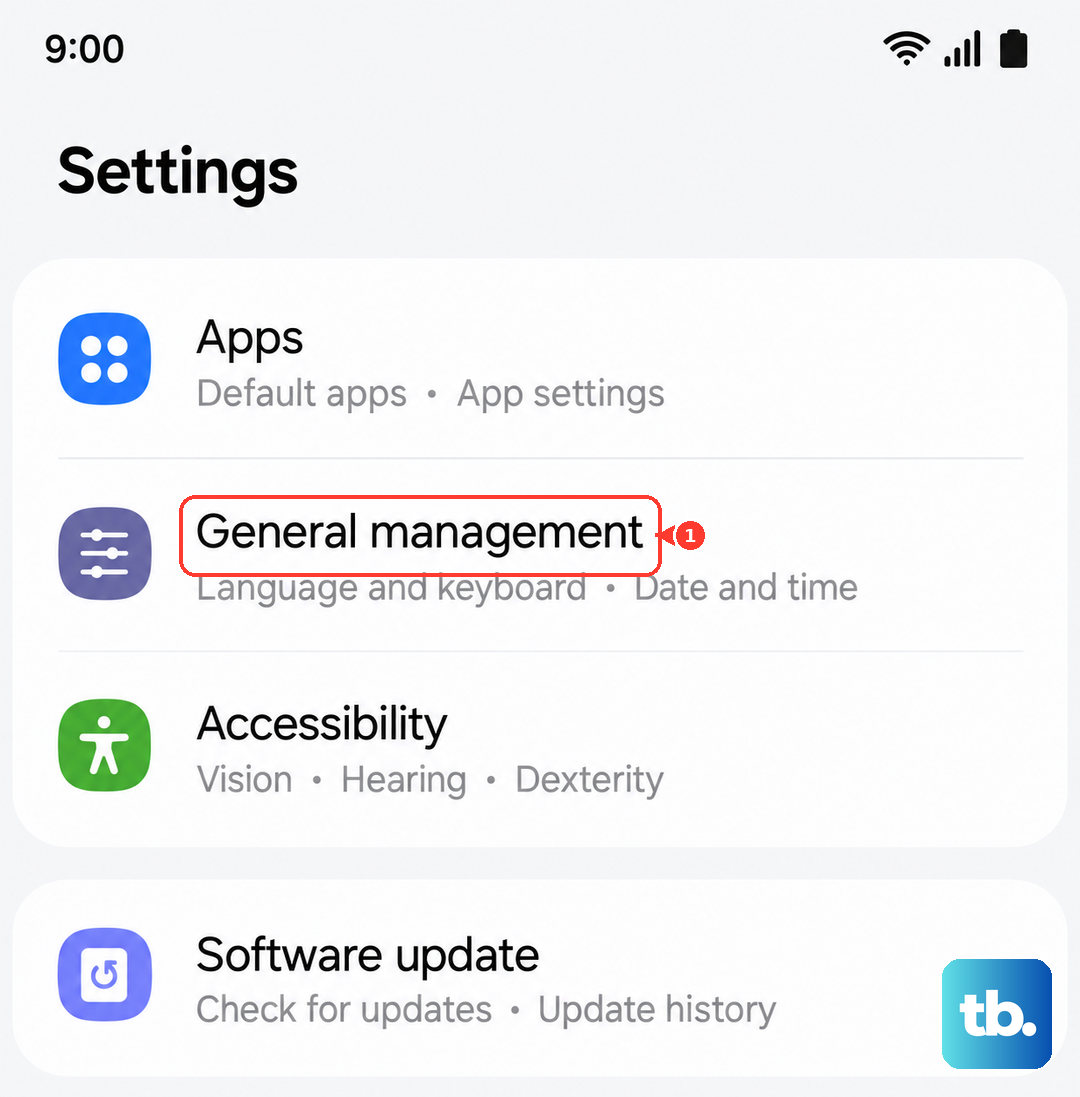
This resets every system setting on your Tab S9 back to factory defaults without touching your personal files or apps. It will erase your Wi-Fi passwords, Bluetooth pairings, and customized display settings, so you'll need to set those up again. Go to Settings > General management > Reset > Reset all settings. Enter your PIN if prompted and confirm. This can fix a deeper configuration conflict that simpler steps might miss.
Inspect for Physical Damage
If the flickering started after you dropped the tablet or placed something heavy on it, there could be internal damage. Look closely at the screen for any new cracks, even hairline ones, or areas where the display shows unusual colors or pressure marks. A loose internal display cable or a damaged screen panel itself will require professional repair. The Tab S9's display is complex, and attempting a DIY fix could cause more problems.
Consider a Factory Reset
If you've tried everything else and the screen still flickers, a factory reset is the final software step. This will erase all data from your tablet, so it's crucial to back up everything important to Samsung Cloud or a computer first. Once backed up, go to Settings > General management > Reset > Factory data reset. Tap Reset and follow the prompts. If the flickering persists on a completely fresh, out-of-the-box software installation, the issue is almost certainly hardware-related.