
When your Samsung Galaxy Tab S9 won't send text messages, it can be incredibly frustrating. You might see a message stuck on "Sending," get a "Message not sent" error, or just watch it fail without any notification. The good news is, this is usually a quick fix.
Start With a Force Restart
This is the single most effective step for most temporary glitches. Press and hold the Volume Down button and the Side (power) button together for about 10 seconds. Release the buttons when you see the Samsung logo appear. This refreshes the tablet's software and network connections without deleting any of your data.
Check Your Network Connection
Your Galaxy Tab S9 needs either a cellular data connection or Wi-Fi to send messages. First, look at the status bar. If you're using a cellular model, make sure you have signal bars. If you're trying to send an MMS (picture/video message), you must have mobile data or Wi-Fi turned on. A quick toggle of Airplane Mode on and off from the Quick Settings panel can often reset a stuck connection.
Verify Your Message Center Number
This is a critical setting that tells your tablet where to send SMS messages. If it's wrong, nothing will go through. Open the Messages app, tap the three-dot menu, and go to Settings. Look for an option like More settings or Text messages, then find Message centre. The number here should be provided by your carrier. If you're unsure, a quick web search for "[Your Carrier] message center number" should give you the correct digits to enter.
Clear the Messages App Cache
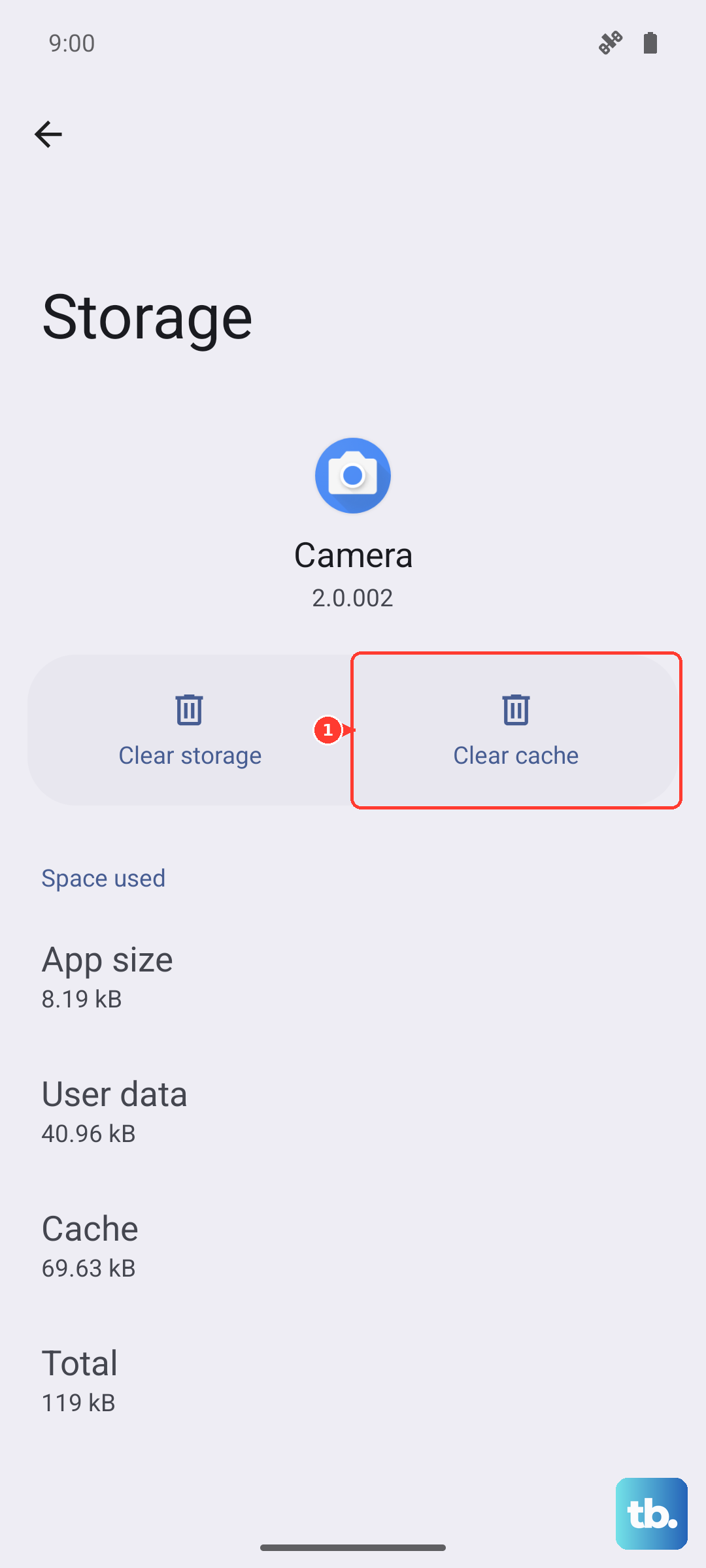
Corrupted temporary data in the app itself can cause sending failures. Go to Settings > Apps, find and tap on Messages. Select Storage and then tap Clear cache. This won't delete your conversations, just the temporary files. After doing this, try sending a message again.
Check for App and System Updates
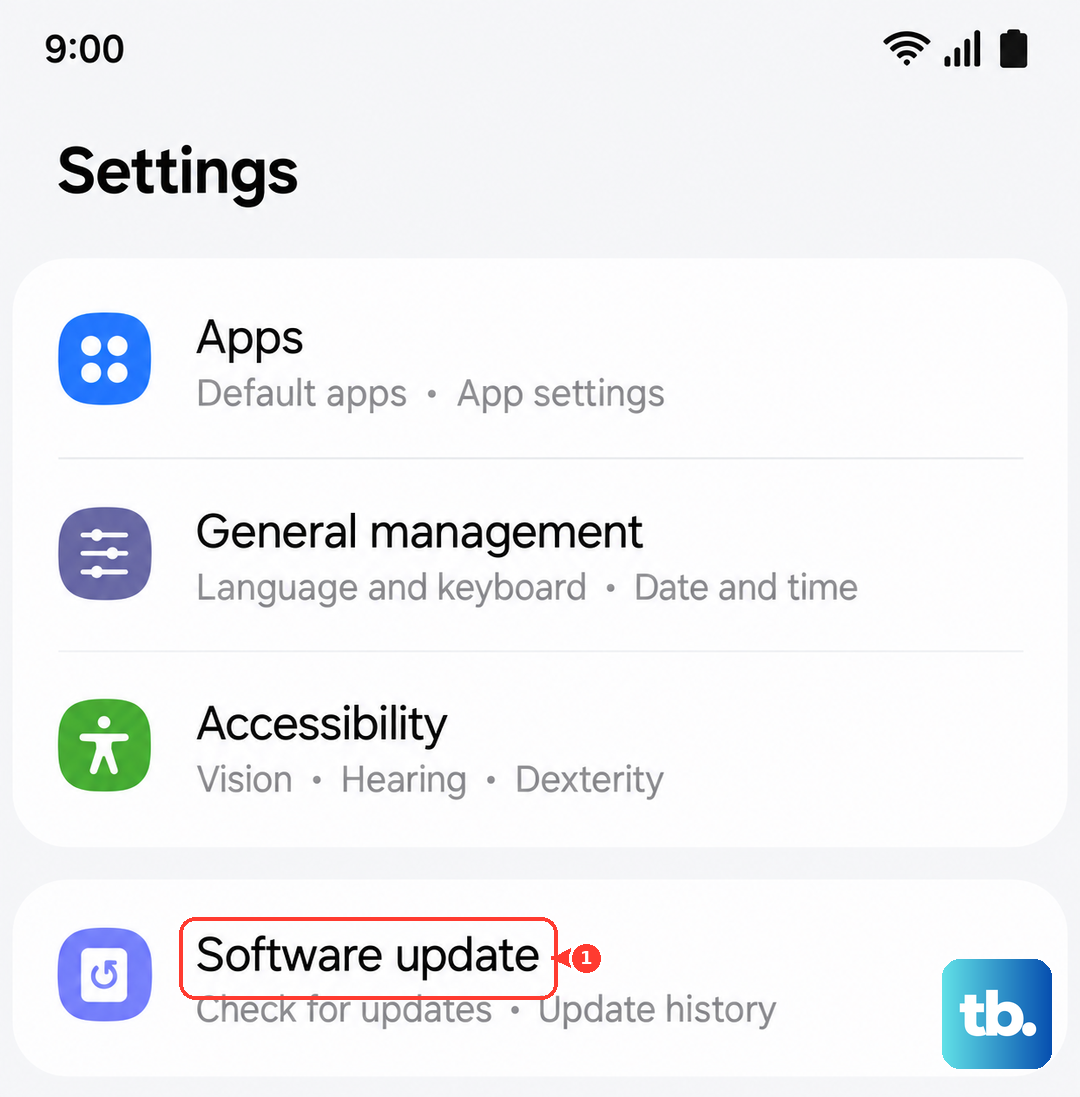
An outdated version of the Messages app or the One UI software can have bugs that break messaging. Open the Galaxy Store and check for updates to the Messages app. Then, go to Settings > Software update and tap Download and install to get the latest Android and One UI patches. I've seen updates resolve messaging issues on several Galaxy Tabs.
Reset Your Network Settings
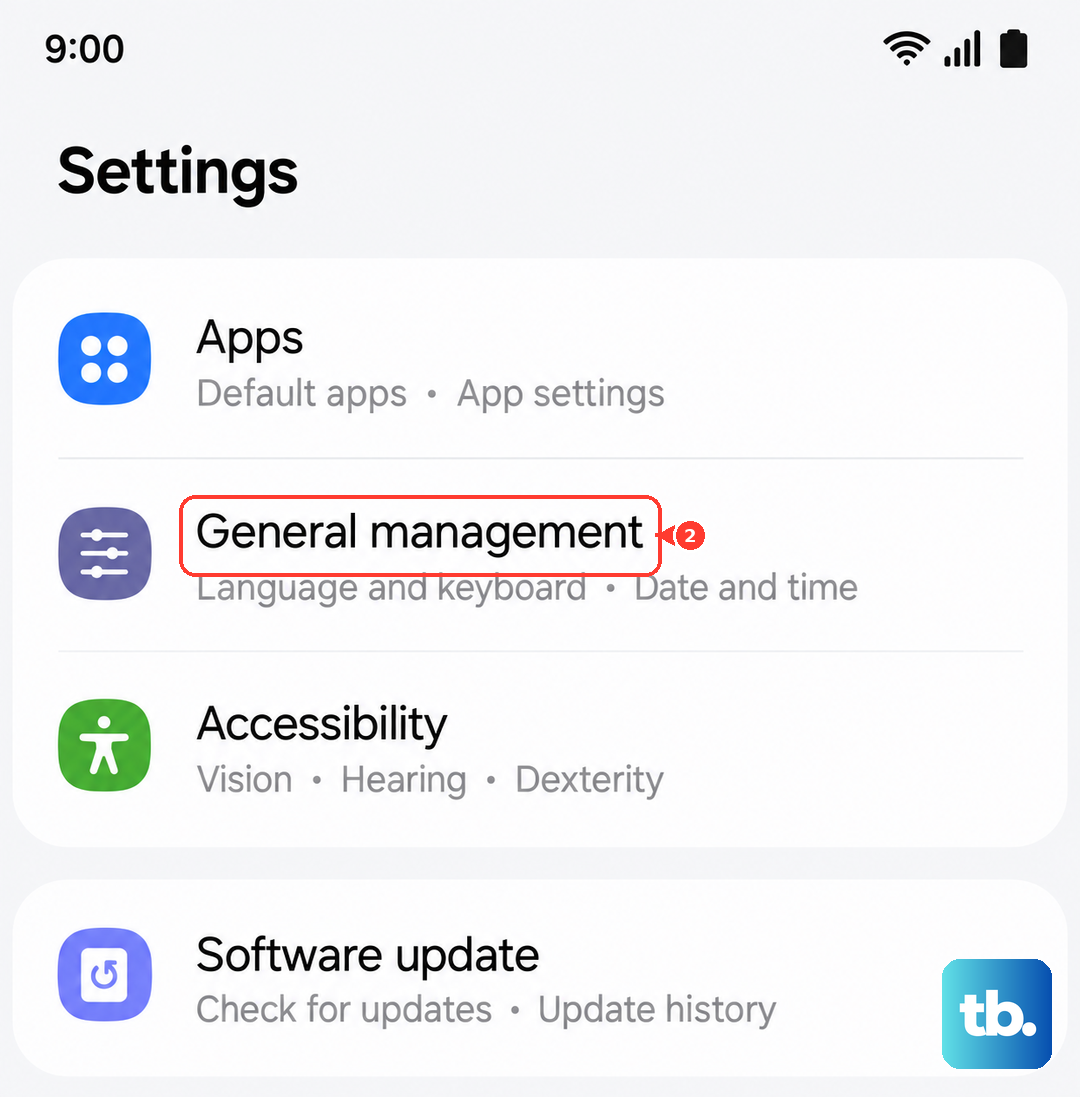
If the problem is deeper in the network configuration, this will wipe it clean. Navigate to Settings > General management > Reset > Reset network settings. Confirm the action. This will erase all Wi-Fi networks, Bluetooth pairings, and mobile network settings, so you'll have to reconnect to Wi-Fi afterward. It's a very reliable fix for persistent sending problems.
Review Your SIM Card Status
For cellular models, a faulty or loose SIM can be the culprit. Power the tablet off completely. Use the SIM eject tool to pop out the SIM tray and remove the card. Inspect the gold contacts for any dirt or damage, gently clean them if needed, then reinsert the SIM securely. Power the tablet back on and wait for it to fully register on the network before testing a message.
Ensure MMS and Group Messaging Are Enabled
If you can send regular texts but not pictures or messages to groups, check these settings. In the Messages app settings, look for Multimedia messages (MMS) and Group conversations. Make sure both switches are turned on. Also, verify that Mobile data is enabled in your quick settings, as MMS requires it even if you're on Wi-Fi.
Try a Different Messaging App
This is a great way to figure out if the problem is with Samsung's default app or with the tablet itself. Download a popular alternative like Google Messages from the Play Store, set it as your default, and see if you can send texts from there. If you can, the issue is isolated to the Samsung app, and you may need to clear its data or wait for an update.
Contact Your Mobile Carrier
If you've tried everything and messages still won't send, the issue might be on your carrier's end. There could be a service outage in your area, a problem with your account provisioning, or a block on messaging services. Give them a call, explain the steps you've already taken, and they can check your line and the network status.