
When your Samsung Galaxy Tab S9's hotspot stops working, it leaves your laptop or other gadgets without an internet connection. Whether the hotspot isn't appearing on other devices, connections keep dropping, or it just won't turn on, there are a few straightforward fixes you can try.
Toggle Mobile Hotspot Off and On
Open Settings > Connections > Mobile Hotspot and Tethering. Tap the switch to turn Mobile Hotspot off. Wait about 15 seconds, then turn it back on. This quick reset clears any temporary software glitch that might be preventing the feature from starting properly.
Restart Your Galaxy Tab S9
Press and hold the Volume Down button and the Side (power) button together for about 10 seconds. Release the buttons when you see the Samsung logo. A simple restart refreshes the tablet's network services and can resolve a surprising number of hotspot issues.
Verify Your Mobile Data Connection
The hotspot feature relies entirely on your tablet's cellular data. Swipe down for the Quick Panel and make sure the mobile data icon is active. You can also check in Settings > Connections > Data usage. If you have a weak signal, the hotspot will be unstable or may not work at all.
It's also worth double-checking that your cellular plan includes tethering. Some carriers require you to add a mobile hotspot feature to your account, or they may restrict it on certain data plans.
Reset Your Network Settings
If the problem persists, resetting network settings is a powerful next step. Go to Settings > General management > Reset > Reset network settings. This will erase all Wi-Fi networks, paired Bluetooth devices, and cellular network preferences.
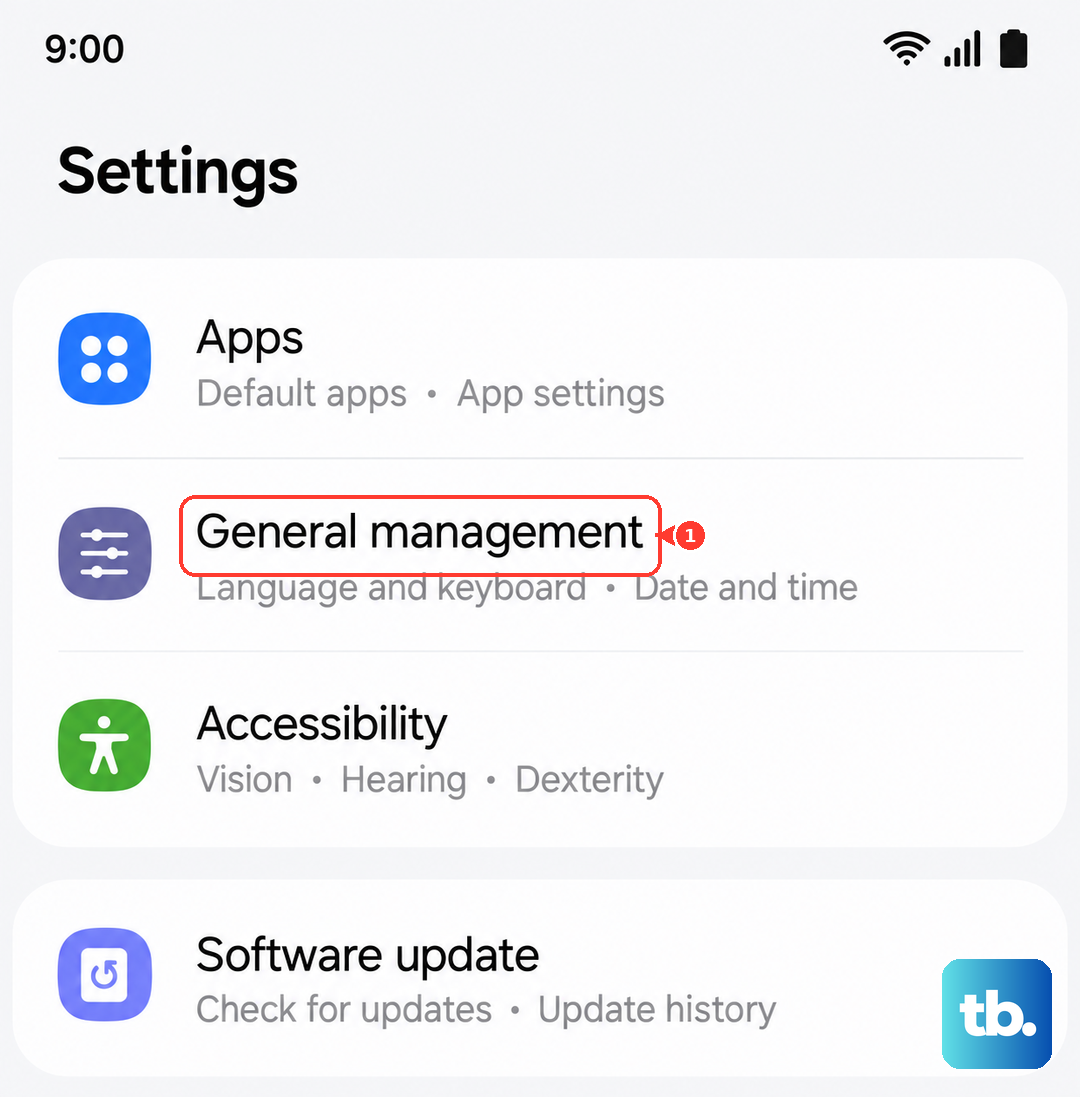
You'll need to reconnect to your Wi-Fi networks afterward, but this action often fixes deeper connectivity conflicts that can interfere with the hotspot.
Update Your Tablet's Software
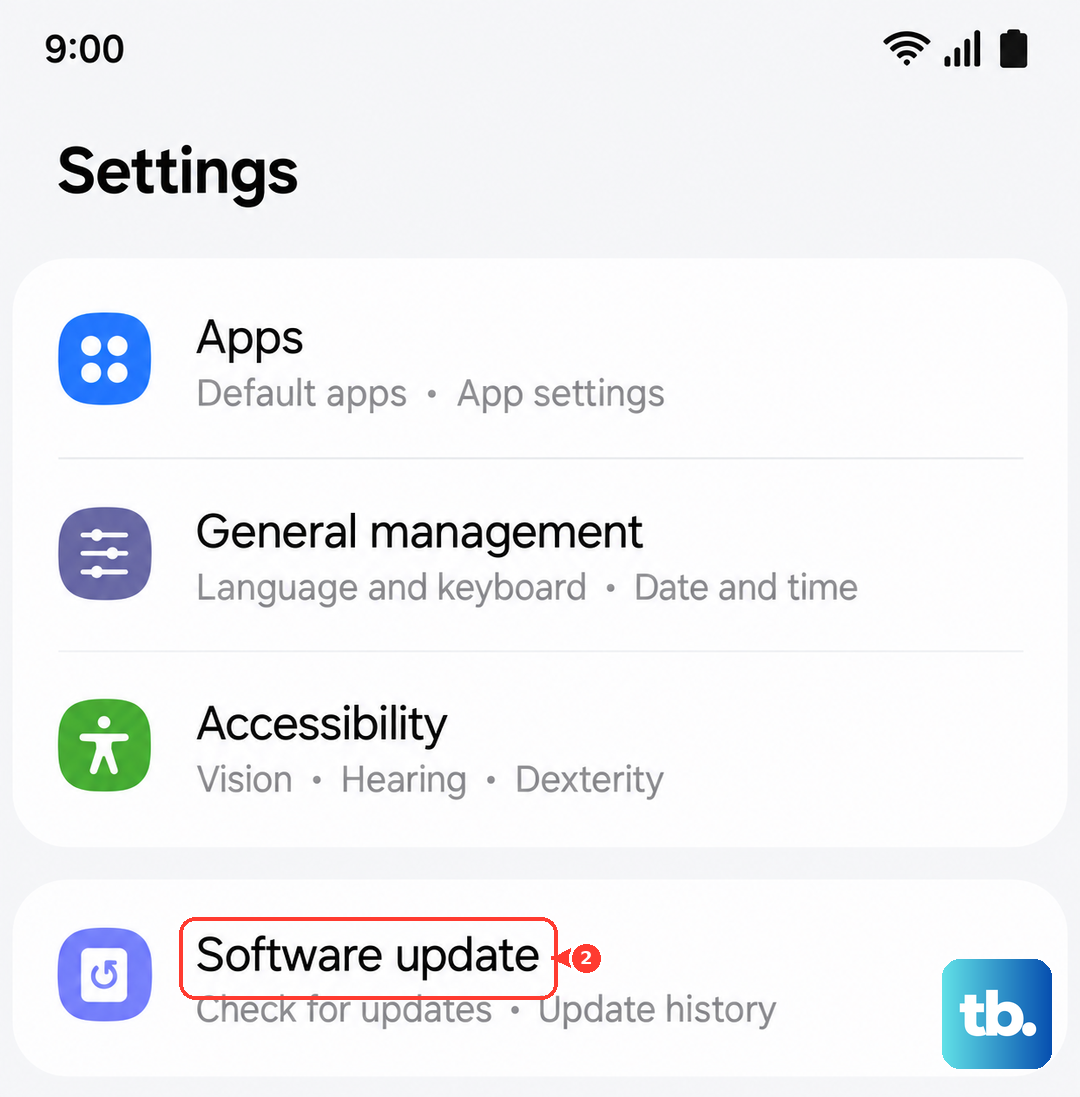
Software bugs can sometimes break the hotspot feature. Go to Settings > Software update > Download and install. Samsung frequently releases updates that patch known issues, including ones related to connectivity and tethering.
Forget the Network on the Connecting Device
On the laptop, phone, or other device you're trying to connect, go into its Wi-Fi settings. Find your tablet's hotspot network name (usually "Galaxy Tab S9" followed by some numbers) and select the option to "Forget" or "Remove" the network.
Then, search for available Wi-Fi networks again, select your tablet's hotspot, and enter the password fresh. A corrupted saved network profile on the connecting device is a common culprit.
Change Your Hotspot Password
In your tablet's Settings > Connections > Mobile Hotspot and Tethering > Mobile Hotspot, tap on Password. Change it to something new and tap OK. Now, try connecting your other device using this new password.
This forces a completely new authentication process, which can bypass connection handshake errors that were happening with the old password.
Check for Connected Device Limits
Your Galaxy Tab S9 has a limit on how many devices can connect to its hotspot at once. In the Mobile Hotspot settings menu, look for an option like "Connected devices" or "Manage devices." If you're at the limit, you'll need to disconnect one before another can join.
Try USB or Bluetooth Tethering
If the Wi-Fi hotspot is being stubborn, use a USB-C cable to connect your tablet directly to your laptop. On the tablet, ensure Mobile Hotspot is on, then in the tethering menu, enable USB tethering. Your computer should recognize it as a network connection.
Alternatively, you can pair your laptop or phone to the tablet via Bluetooth. Once paired, go back to the tethering settings on your tablet and enable Bluetooth tethering.
Contact Your Cellular Carrier
If you've tried everything and the hotspot still won't function, the issue might be on your carrier's end. There could be a provisioning error on your account, a temporary network outage in your area, or a specific block on tethering for your plan.
A quick call to customer service can confirm if mobile hotspot is active on your line and if there are any known service issues affecting it.