
When an app on your Samsung Galaxy Tab S9 suddenly quits or freezes, it pulls you right out of whatever you were doing. It's a common hiccup, and thankfully, it's usually something you can fix yourself without too much fuss. I'd start with a simple restart, as that clears out any temporary glitches hogging your tablet's memory.
For the Tab S9, press and hold the Volume Down button and the Side button (power button) together for about 10 seconds. You'll see the Samsung logo appear as it forces a reboot. This is different from just tapping restart and often works better for stubborn software issues.
Update the App and Your Tablet's Software
Out-of-date software is a prime suspect for crashes. Head to the Google Play Store, tap your profile icon, and go to Manage apps & devices. Check for updates there, especially for the app that's misbehaving.
Don't forget about the system itself. Samsung's One UI and Android updates include important stability patches. Go to Settings > Software update and tap Download and install. Keeping everything current can prevent a lot of headaches.
Force Stop and Clear the App's Cache
If an app is frozen or acting up, force stopping it gives it a clean slate. Navigate to Settings > Apps, select the problematic app, and tap Force stop. Then try opening it again.
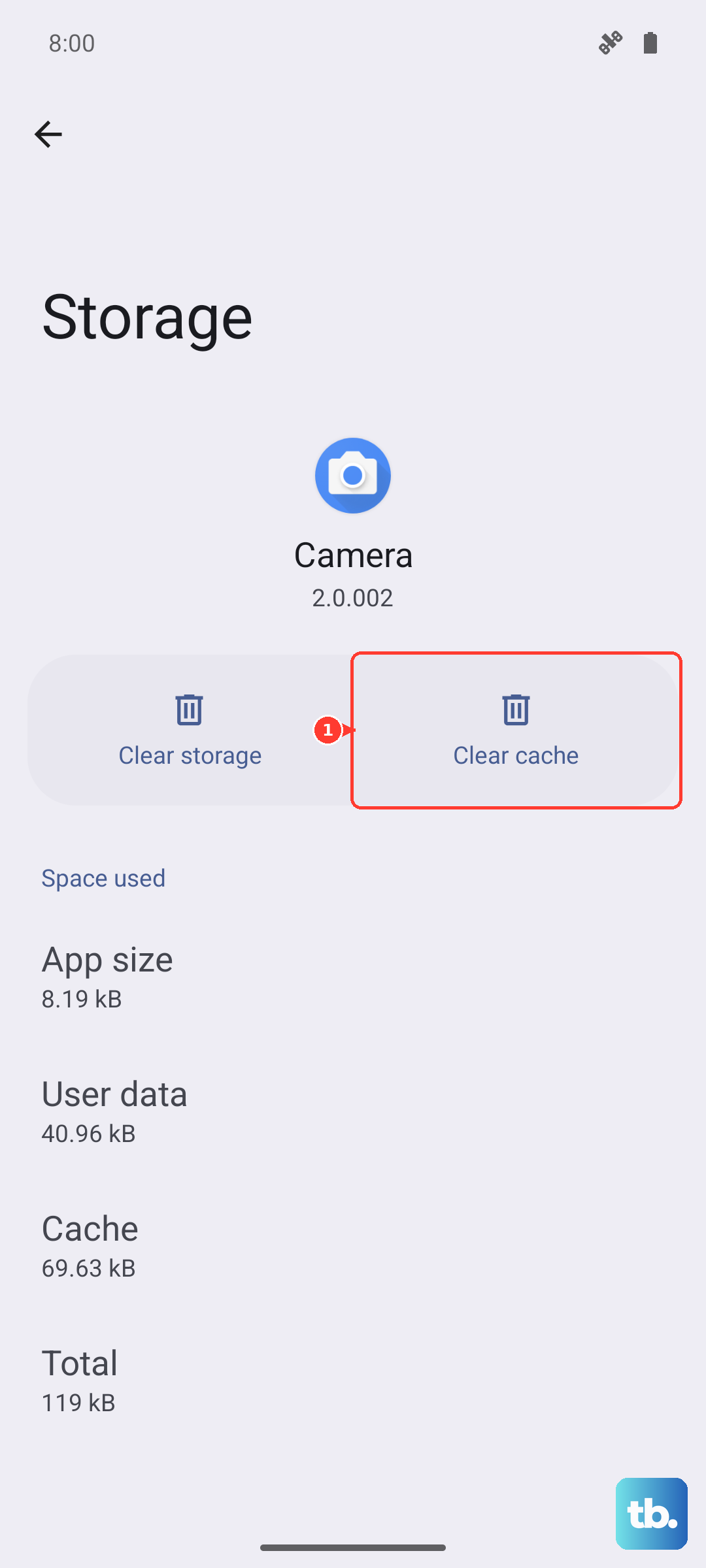
For a deeper clean, clear the app's cache. This gets rid of temporary files that might have become corrupted. In the same app info screen, go to Storage and tap Clear cache. This won't delete your login info or saved data.
Check Your Internet Connection and Storage
Some apps, especially streaming services or social media, will crash if the connection is spotty. Try switching between Wi-Fi and mobile data if your Tab S9 has a cellular model, or restart your router.
Running low on space can also cause apps to fail. The Tab S9 needs room to breathe. Check your storage in Settings > Battery and device care > Storage. If you're below 10% free space, consider offloading some photos, videos, or unused apps to free up memory.
Reinstall the Problematic App
When a single app is the repeat offender, a fresh install often does the trick. Uninstalling removes all its data and settings, so you're starting from scratch. Just press and hold the app icon on your home screen and tap Uninstall.
Then, head back to the Play Store to download it again. This is a reliable fix for app-specific bugs that other steps might not resolve.
Look for Broader System Issues
If multiple apps are crashing, the issue might be with the tablet's system software. After you've checked for updates, consider booting into Safe Mode. This temporarily disables all third-party apps.
To enter Safe Mode on the Tab S9, press and hold the Side button until the power off menu appears. Then, press and hold the "Power off" option on the screen until you see a prompt to reboot to Safe Mode. If the crashes stop in Safe Mode, a recently downloaded app is likely the culprit.
Reset App Preferences or Perform a Factory Reset
As a less drastic step before a full reset, you can reset all your app preferences. This reverts permissions, notifications, and default apps back to their original settings without deleting any personal data. Go to Settings > Apps > Menu (three dots) > Reset app preferences.
If you've tried everything and apps are still unstable, a factory reset is the final option. This will erase everything on your tablet, so you must back up your data first. You can initiate this through Settings > General management > Reset > Factory data reset.