
If your Samsung Galaxy Tab S11 Ultra videos are stuttering, freezing, or lagging during playback, it can ruin the whole viewing experience. The good news is that most causes are easy to track down and fix without any special tools. Let's walk through the solutions that work best on this tablet.
If motion feels less smooth than it should, an online Hz test settles the question in seconds by measuring the true refresh rate.
Force Restart the Tab S11 Ultra
A quick force restart clears out temporary glitches that often mess with video playback. On the Tab S11 Ultra, press and hold the Power button and the Volume Down button at the same time for about 10 to 15 seconds. Keep holding until the device restarts, you'll see the Samsung logo appear.
This is different from a normal restart because it flushes the system memory completely. I'd start here before trying anything else.
Free Up Storage Space
Low storage is one of the most common reasons for video stuttering. When your tablet runs out of room, video codecs can't buffer properly and you get skipped frames.
Open Settings > Battery and device care > Storage. If you're below 2GB of free space, it's time to clean up. Delete unused apps, clear out downloads, and move photos or videos to a cloud service or external drive.
Update Android and Apps
The Tab S11 Ultra runs Android 16, and Samsung regularly pushes updates that fix video playback bugs. Go to Settings > Software update > Download and install to check for any pending system updates.
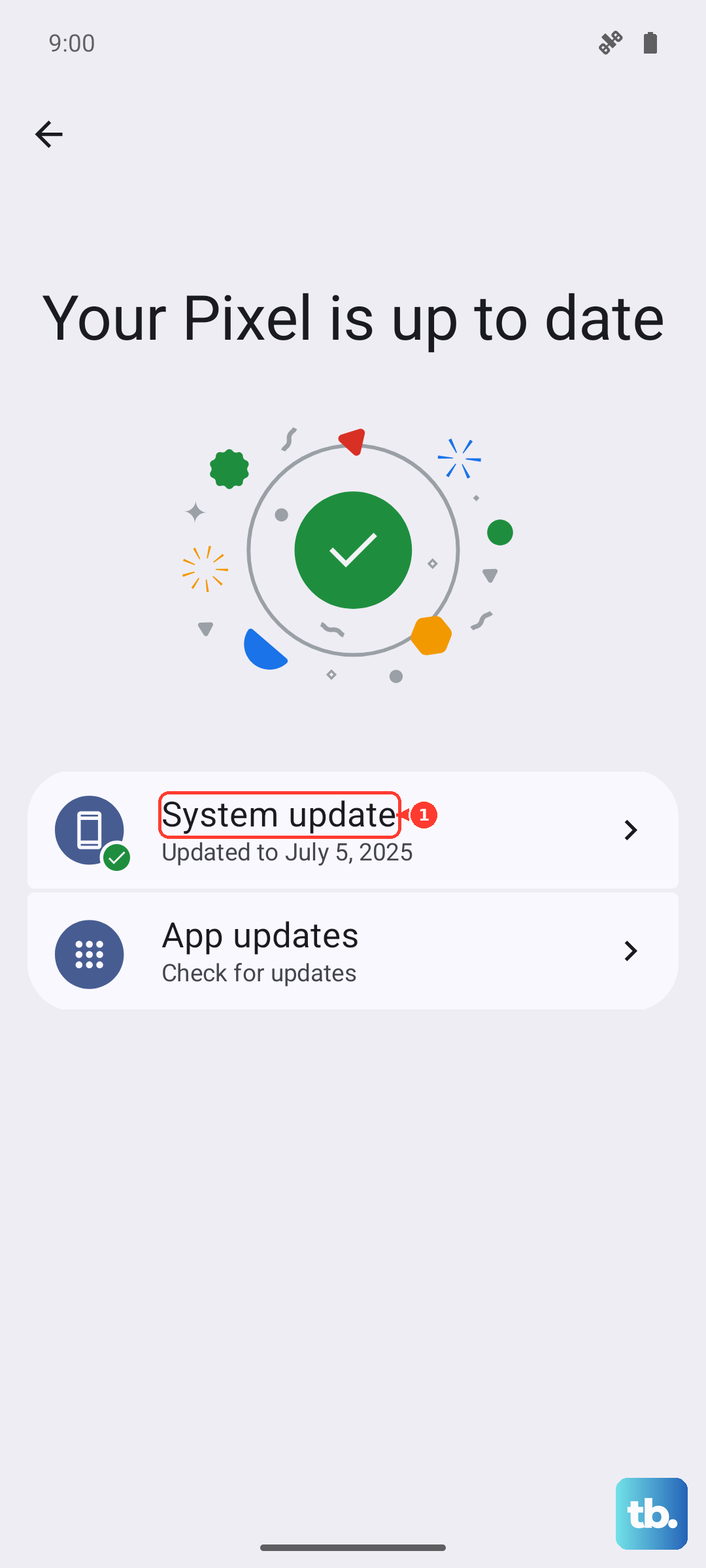
Also update your video apps through the Galaxy Store or Google Play Store. Outdated apps can have compatibility issues with the tablet's hardware.
Check Your Internet Connection
If you're streaming videos, a weak Wi-Fi signal will cause buffering and stuttering. Try moving closer to your router, or switch to a 5GHz band if you're on 2.4GHz. You can also turn off Wi-Fi and use mobile data to see if the problem goes away.
For local videos that are stored on cloud services like Google Drive or OneDrive, make sure they're fully downloaded before playing. Streaming directly from the cloud can still trigger stuttering on a slow connection.
Clear the Cache for Video Apps
Corrupted app cache data can cause video lag in specific apps like YouTube, Netflix, or the Samsung Video Player. Go to Settings > Apps, tap the video app you're using, then tap Storage > Clear cache.
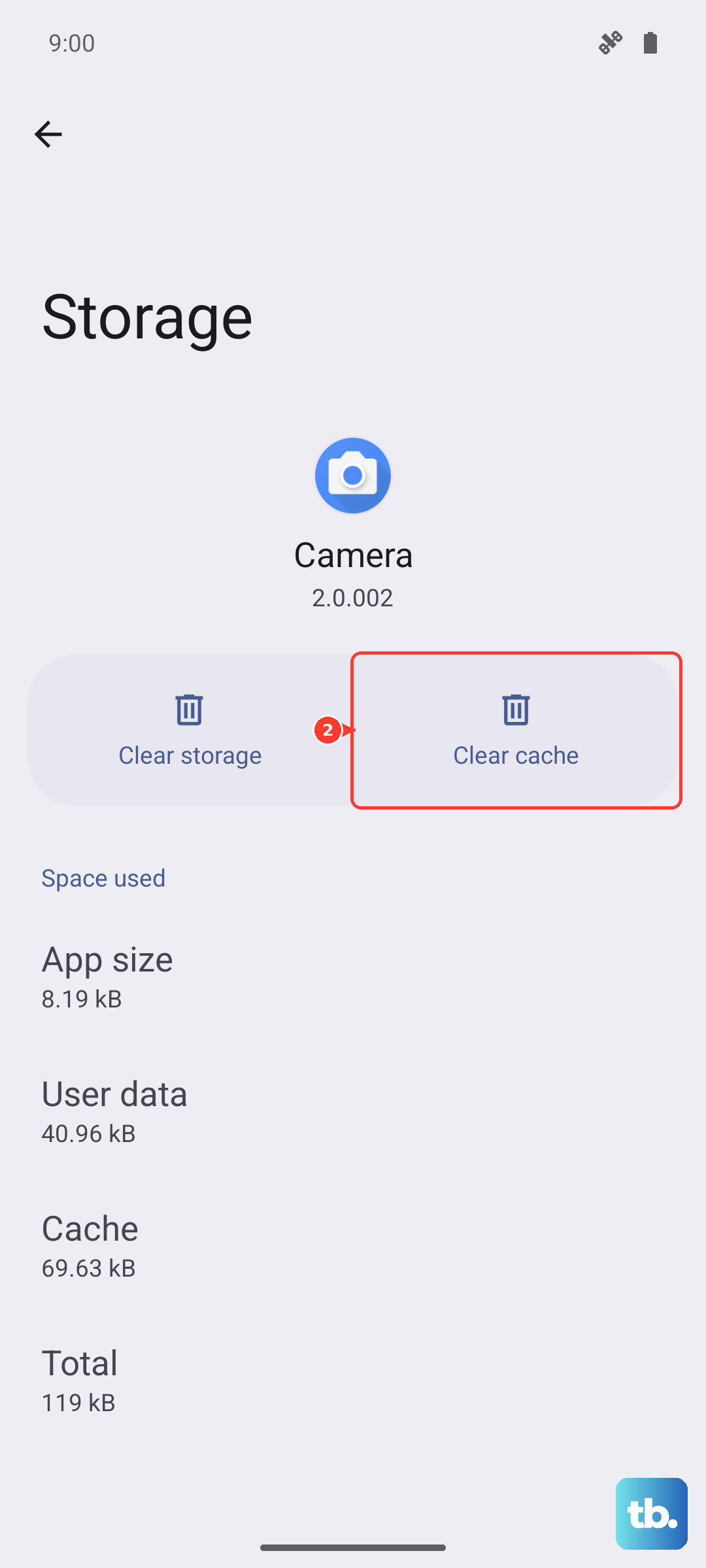
This won't delete your app data or sign you out, it just wipes temporary files that might be causing the problem.
Turn Off Power Saving Mode
Battery saver modes limit CPU and GPU performance to extend battery life, and that can directly cause video stuttering. On the Tab S11 Ultra, swipe down from the top to open the quick panel and check if Power saving mode is on. If it is, tap it to turn it off.
You can also go to Settings > Battery and device care > Battery > Power saving to disable it permanently for video apps.
Check for Overheating
The Tab S11 Ultra can get warm during extended video playback or charging at the same time. When the device overheats, the system automatically throttles performance to protect the hardware, which can cause stuttering.
If the tablet feels hot to the touch, stop playing video and let it cool down for 10 to 15 minutes. Also avoid charging while watching videos if that's a common scenario for you.
Test a Different Video File
Sometimes the video file itself is the problem. A corrupt or poorly encoded file can stutter on any device. Try playing a different video that you know works on another device. If that plays fine, the issue is with the original file, not the tablet.
For downloaded videos, try re-downloading them from a reliable source. For streaming, try the same video on a different app to isolate the issue.
Reset App Preferences
If a video app is misbehaving but clearing its cache doesn't help, you can reset all app preferences. This restores default permissions and disabled apps without deleting any data.
Go to Settings > Apps > tap the three-dot menu in the top right > Reset app preferences. Confirm the reset. You'll need to re-enable any default apps you had disabled, but your files and logins stay intact.
Factory Reset as a Last Resort
If none of these fixes work and video stuttering persists across all apps, a factory reset may be necessary. This erases everything on the tablet, so back up your important data first through Samsung Cloud, Google Drive, or a computer.
To perform a factory reset, go to Settings > General management > Reset > Factory data reset. After the reset, restore your backup and test video playback before installing many apps. That way you'll know if the issue was caused by a system bug or by something you reinstalled.