
A frozen screen on any tablet is frustrating, especially when you're in the middle of something. The Samsung Galaxy Tab S11 Ultra might stop responding to taps, or the screen could be stuck on an app or the lock screen. Most of the time, this is a software hiccup that you can fix in a few minutes.
Force Restart the Tab S11 Ultra
This is your first move and it works in almost every case. Press and hold the Power button and the Volume Down button at the same time for 10 to 15 seconds. Keep holding even if the screen stays dark at first. The tablet will vibrate and restart on its own. You won't lose any data doing this.
I've seen this fix work when the screen is completely black or stuck on a single image. It's the tablet equivalent of pulling the plug and plugging it back in, but safe.
Give the Battery Time
The Tab S11 Ultra has a known issue where the battery can drain completely when the device is switched off. If the tablet froze and then the battery ran down, it might not respond to charging right away. Plug it into a wall outlet (not a power strip or extension cord) and wait. The charging indicator can take up to 10 minutes to appear when the battery is totally empty.
Use the included USB-C cable and a 45W charger if you have one. Qi wireless charging tops out at 15W, so wired is faster if you need a quick boost. Leave it plugged in for at least 15 minutes before trying the force restart again.
Check the Charging Port and Cable
A faulty charging port is a known issue on this model. Dirt, lint, or damage can prevent the tablet from charging, which makes it look frozen when it's really just dead. Shine a light into the USB-C port and look for debris. Use a wooden toothpick or a plastic SIM eject tool to gently clean it out. Avoid metal tools that could scratch the pins.
Also inspect the cable itself. USB-C cables wear out over time, especially if they've been bent or tugged. If the cable feels loose in the port or only charges at a certain angle, replace it.
Close the Stuck App
If the Tab S11 Ultra is partially responsive but one app is frozen, you don't need to restart the whole thing. Swipe up from the bottom of the screen and hold to open the recent apps view. Swipe left or right to find the frozen app, then swipe it up off the screen to close it. Open it again fresh and see if it behaves.
If the same app keeps freezing, check the Google Play Store for updates. Developers push fixes regularly. You can also go to Settings > Apps, tap the app, and select Force Stop to kill it completely.
Free Up Storage Space
Android tablets can freeze up when storage is almost full, because the system runs out of room for cache files and temporary data. Go to Settings > Battery and device care > Storage to see what's taking up space. Delete old downloads, clear out app caches, or move photos and videos to cloud storage or an SD card.
I'd aim to keep at least 3 to 5 GB free on the Tab S11 Ultra. This gives the operating system breathing room and prevents random freezes.
Update Android and Apps
Running Android 16 with outdated firmware can cause stability issues. Go to Settings > Software update > Download and install to check for any available updates. Samsung also pushes One UI updates that include bug fixes for freezing and performance problems.
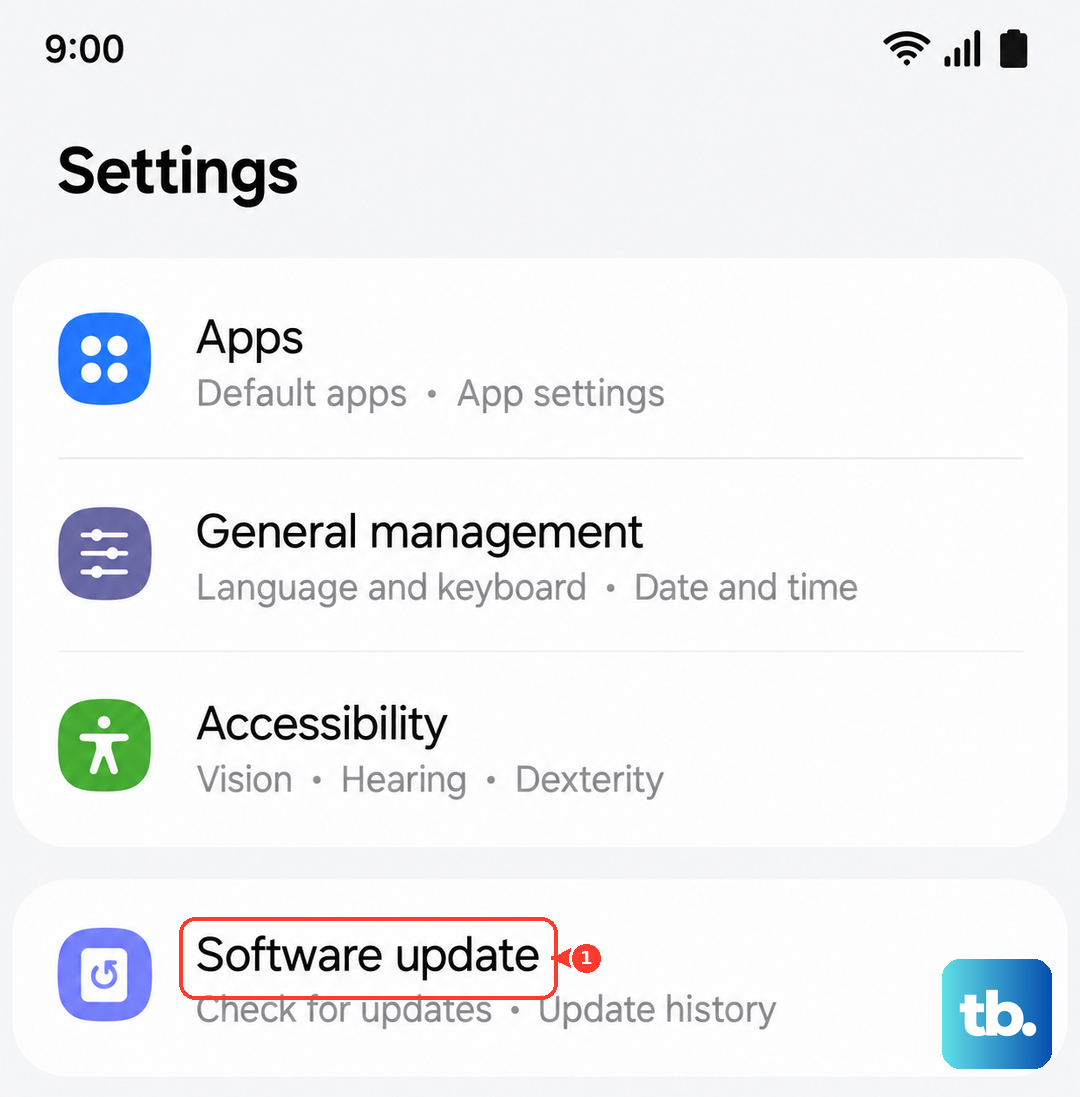
While you're at it, open the Google Play Store, tap your profile icon, and select Manage apps & device to update all your apps at once. An app that hasn't been updated in months might conflict with the newer OS.
Reset Settings Without Losing Data
If the tablet keeps freezing after a restart, corrupted system settings might be the culprit. Go to Settings > General management > Reset > Reset all settings. This won't delete your photos, apps, or accounts. It resets Wi-Fi networks, Bluetooth pairings, and display preferences back to default. In my experience, this clears up weird behavior that other fixes miss.
Check for Overheating
The Tab S11 Ultra can freeze up as a safety measure if it gets too hot. If the back of the tablet feels warm, remove it from direct sunlight and take off any case that traps heat. Let it sit idle for 15 to 20 minutes to cool down. Avoid charging while the tablet is hot, because that adds more heat to the equation.
If you were using a processor-heavy app like a game or video editor, close it and give the tablet a break before jumping back in.