You tap play on a movie or scroll a feed of short clips, and the Galaxy Tab S10+ stutters, the audio drifts out of sync, or the picture judders across that big 12.4-inch screen. On a tablet built around a Dynamic AMOLED 2X display (2800 x 1752, WQXGA+) and an octa-core processor, smooth playback is the whole point, so choppy video usually points to something you can clear yourself rather than a hardware fault. The fixes below are ordered from the quickest and safest to the most drastic, and because the Tab S10+ (Wi-Fi SM-X820 or 5G SM-X826) is a standalone Android tablet, every step happens on the tablet itself with no phone pairing involved. Work through them in order and stop as soon as your video plays smoothly again.
Give the tablet a clean restart first
A restart closes everything running in the background and clears out memory, which is often all it takes to smooth out stuttering or choppy playback. It is the lowest-risk fix and nothing on the tablet is erased, so it is the right place to begin.
Press the Volume down and Side buttons together, and then tap Restart on the screen.
Or press and hold the Volume down and Side buttons together until the device turns off and back on; the screen turns black, then the Samsung logo appears.
Once the tablet is back up, reopen your video app and check whether the lag is gone before moving on.
Free up memory with Device care
The built-in Device care tool can sweep away the clutter that bogs down playback. Quick optimization frees up memory and closes apps running in the background, both of which help video run more smoothly.
From Settings, swipe to and tap Device care.
Next, tap Optimize now, and then tap Done.
Back in Device care, tap Memory, and then tap Clean now to stop background apps that can cause video to lag.
If several apps were quietly running while you tried to watch something, this alone can restore steady playback.
Clear the cache on the app that stutters
When the lag shows up in just one app, such as a streaming service or your gallery, that app's temporary files may have piled up and started slowing it down. Clearing the cache removes those residual files without touching your sign-ins or settings.
Open Settings, and then swipe to and tap Apps.
Then select or search for the app you want to clear.
Tap Storage, and then tap Clear cache.
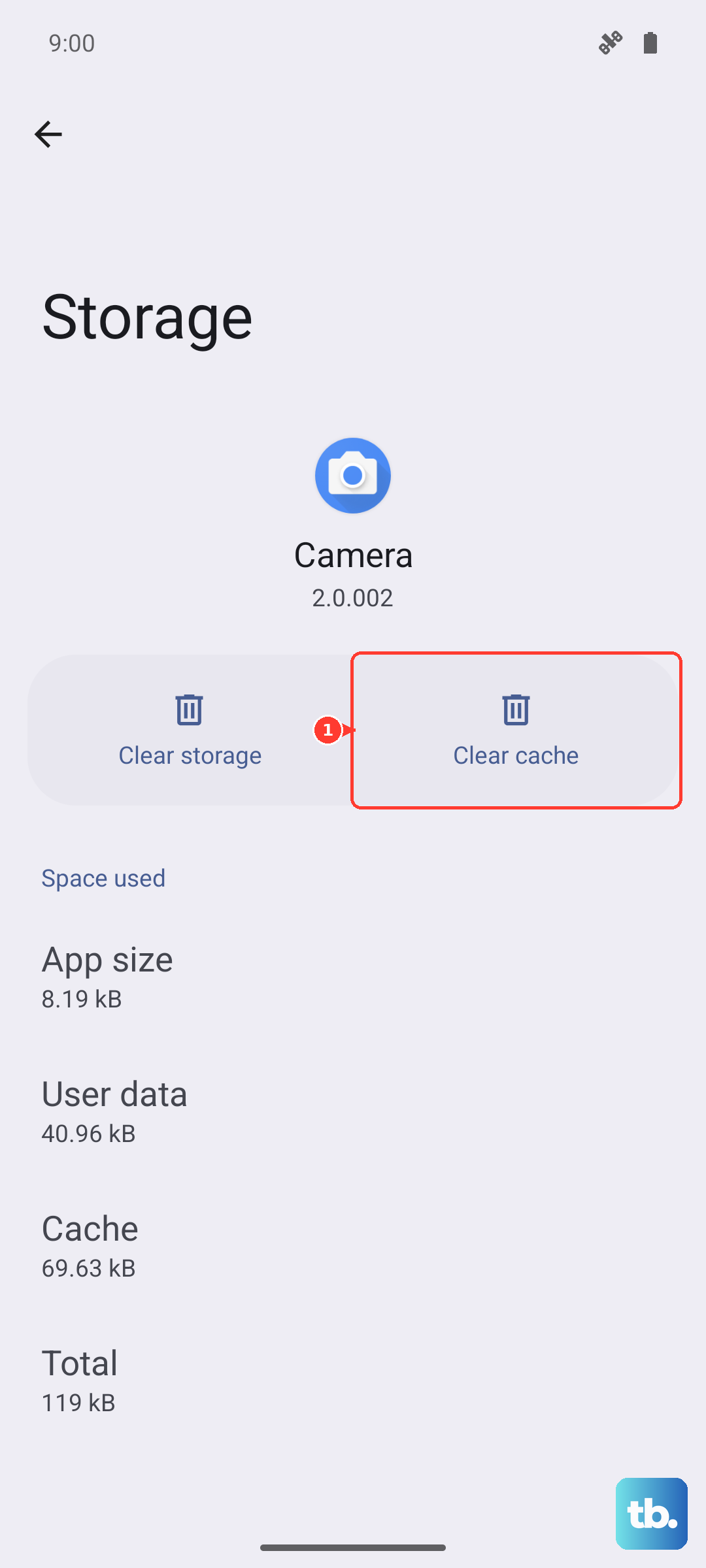
Use Clear cache, not Clear data, because clearing the data will reset the app to factory default settings and log you out. Reopen the app afterward and test your video again.
Make room when storage runs low
A nearly full tablet has little breathing room for the system to work, and that can show up as stuttering during playback. Removing media and files you no longer need frees space so video can stream and decode smoothly.
Go to Settings, swipe to and tap Device care, and then tap Storage.
After that, tap a category such as Videos, Images, Audio files, or Documents.
Touch and hold a file to select it (or tap All), then tap Delete or Delete all and confirm Move to Trash.
Clearing out unused apps, downloads, and old recordings gives the tablet the headroom it needs for long viewing sessions.
Let a warm tablet cool down
When the tablet gets warm it may automatically limit overall performance to protect itself, and that can show up as lag during a long video. Heavy, graphics-intensive use in a hot environment is a common trigger.
Remove any case, unplug the charger, and close the apps you are not using, then set the tablet down and pause use until it feels cool to the touch. Once it returns to a normal temperature, performance restrictions lift and playback should return to normal.
Install the latest One UI update
Software updates frequently include performance and stability improvements that directly address playback hiccups. The Tab S10+ shipped on One UI 6.1.1 and is officially eligible for the One UI 8.0 update, so an available update is worth installing.
- 1.Using two fingers, swipe down from the top right corner of the screen, and then tap the Settings icon.
- 2.Swipe to and tap Software update.
- 3.Tap Download and install, and then follow the prompts.
To confirm what you are running, open Settings, tap About tablet, and then tap Software information. Keeping the tablet current is one of the most reliable ways to keep video smooth over time.
Fix streaming lag at the network level
If the lag only happens while streaming and local video plays fine, the network is the likely culprit rather than the tablet. Start simple by restarting your router and toggling Wi-Fi off and back on, then test again.
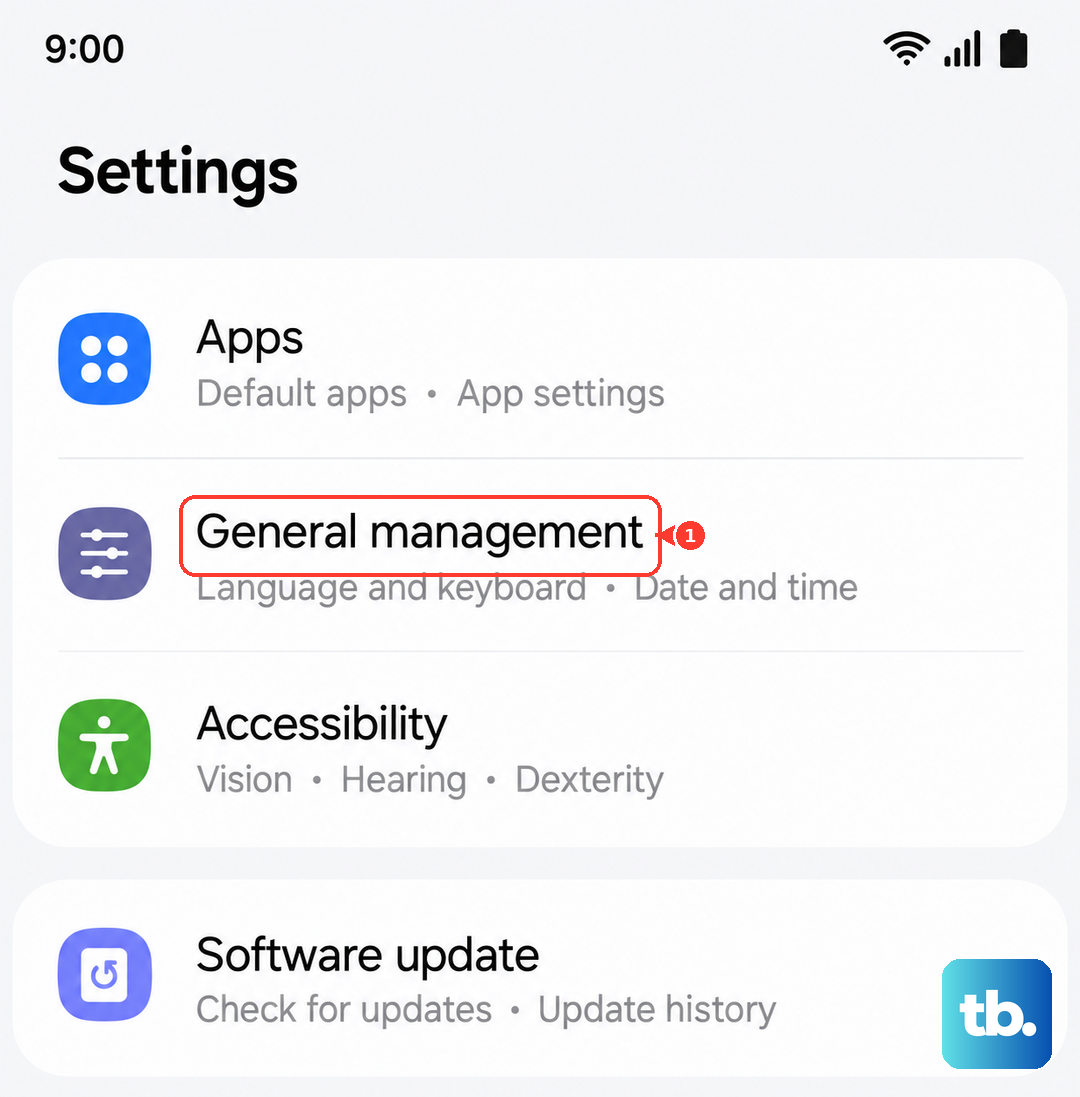
If streaming still stutters, reset the tablet's network settings. Navigate to and open Settings, tap General management, and then tap Reset.
Tap Reset Wi-Fi and Bluetooth settings, tap Reset settings, enter your credentials if prompted, and confirm Reset.
Only your network settings are removed, so you will need to reconnect to Wi-Fi and any Bluetooth devices afterward.
Use Safe mode to catch a misbehaving app
Safe mode starts the tablet without running any third-party apps, which makes it easy to tell whether something you downloaded is dragging down playback. If video is smooth in Safe mode, a recently installed or updated app is the likely cause.
Power the tablet off.
Turn it on, and when the Samsung logo appears, press and hold the Volume down button.
Keep holding until Safe mode shows in the bottom-left corner of the screen.
Play your video to test it, then restart normally to exit Safe mode. If the problem disappeared, uninstall the apps you added or updated most recently and check again in normal mode.
Force a restart when the screen is frozen
Sometimes video does not just stutter; it freezes the entire tablet so the screen will not respond. A force restart reboots the device without erasing any of your data.
Press and hold the Side button and the Volume Down button simultaneously for more than 7 seconds until the device restarts automatically.
Once it powers back on, reopen your video app and confirm that normal playback has returned.
Reset the tablet as a last resort
If video still lags after everything above, a factory reset returns the tablet to its original software state and clears whatever stubborn issue remains. This erases your data, so treat it as the final option. Save any information you need prior to the factory reset because your personal information may not be recovered, so back up your data first.
Open Settings and tap General management.
From there, tap Reset, and then tap Factory data reset.
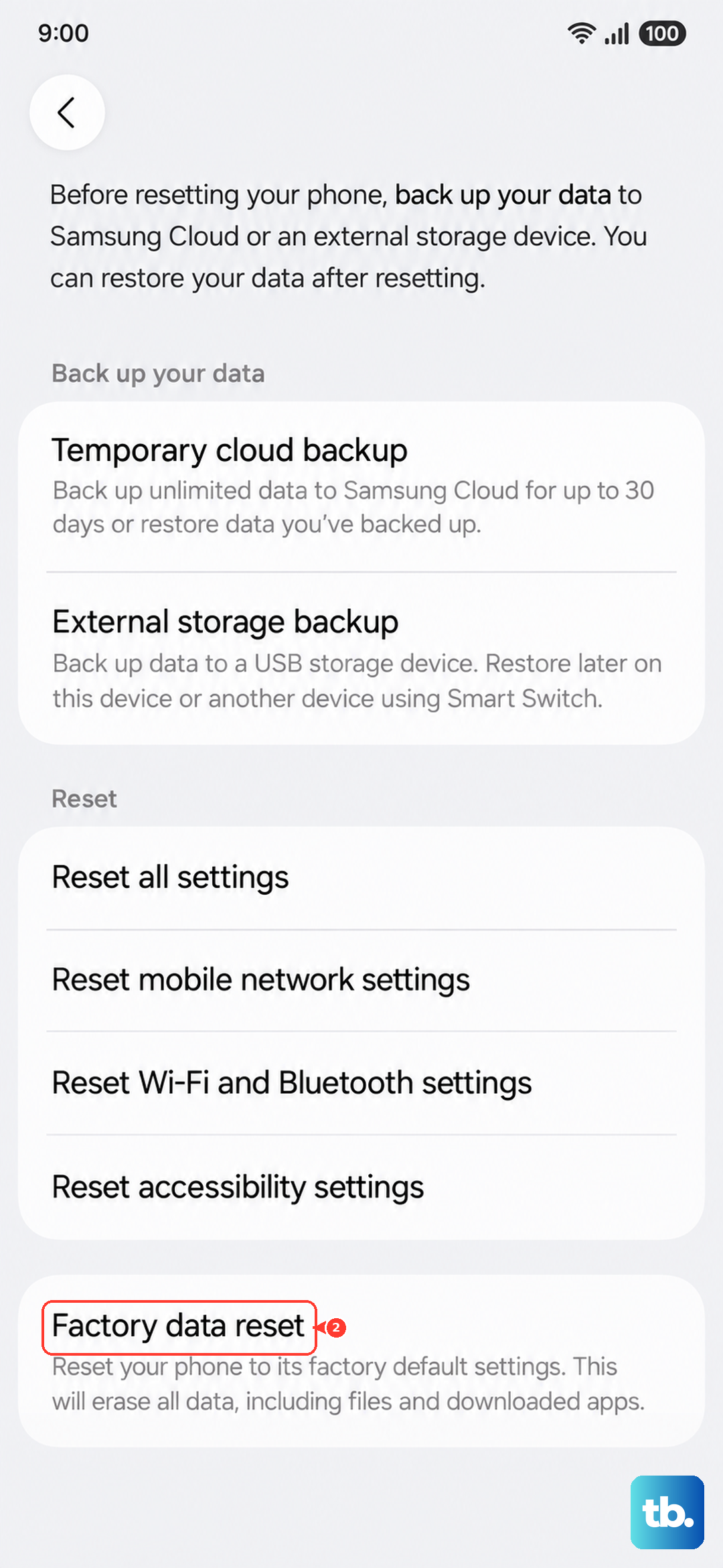
Tap Reset, and then tap Delete all to confirm.
After the reset completes, set the tablet up again and test playback before restoring all of your apps.
When to hand it to Samsung
If video keeps lagging even after a factory reset, the problem may need expert help or a repair. You can reach official support through the preinstalled Samsung Members app, which includes built-in diagnostics and contact options.
You can also reach Samsung through its official support website to start a chat or request a repair. Describe exactly when the lag happens, whether it is one app or every video, and which fixes you have already tried so the team can move faster.
Frequently Asked Questions
Why does video lag only when I am streaming?
Lag that appears solely while streaming usually points to your network rather than the tablet. Restart your router, toggle Wi-Fi off and on, and if it continues, go to Settings, General management, Reset, then Reset Wi-Fi and Bluetooth settings and reconnect afterward.
Will clearing an app's cache delete my downloads or sign-ins?
No. Clearing the cache only removes temporary files and leaves your account and settings in place. Be sure to choose Clear cache and not Clear data, because clearing the data will reset the app to factory default settings.
Does a factory reset erase everything on the Galaxy Tab S10+?
Yes. A factory data reset wipes your personal content, and Samsung warns that your personal information may not be recovered, so back up your data first. Use it only after the other fixes have not worked.
How do I check which software version my tablet is running?
Open Settings, tap About tablet, and then tap Software information. The Tab S10+ launched on One UI 6.1.1 and is eligible for the One UI 8.0 update, so install any pending update from Settings, Software update for the latest performance fixes.