Your Galaxy Tab S10+ keeps throwing a "Storage full" warning right when you want to install an app, shoot a video, or download a file, and the tablet may feel sluggish on top of it. The good news is that this is one of the most fixable problems on this device, because Samsung built it for exactly this situation. Your tablet ships with on-device storage tools, supports per-app cache clearing, has a microSD slot for expandable storage, and can offload media to the cloud. Work through the fixes below in order, starting with the safest cleanups and only reaching the reset at the very end.
A quick note before you start. These steps reflect Samsung's One UI Settings on US units of the Wi-Fi model (SM-X820) and the 5G model (SM-X826). Menu labels can vary slightly depending on your One UI version, so where Samsung uses two names for the same feature, both are noted.
See exactly what is filling the tablet before you delete a thing
Deleting at random is how people lose files they actually wanted. Start by looking at a breakdown of what is using your space so you can target the biggest offenders first.
Open Settings and tap Battery and device care (this appears as Device care on some software versions).
Tap Storage.
Review the file categories such as Documents and Images and how much space each one is using.
This screen tells you whether photos, videos, downloads, or app data are the real problem, so the rest of these steps are aimed where they count.
Let Device care run its safe one-tap cleanup
Before touching any personal files, let the tablet clear out the junk it already knows it can remove. These tools do not delete your photos, accounts, or documents.
From Settings, tap Battery and device care (or Device care).
Tap Optimize now to clear unneeded items and identify apps that are draining the battery.
Back on the same screen, tap Memory, then tap Clean now to free up memory and improve performance.
This is the kind of cleanup worth running every so often, since it costs you nothing and removes no personal content.
Clear the cache on your space-hungry apps
Browsers, social apps, and streaming apps quietly build up large caches of temporary files. Clearing that cache reclaims space without signing you out or deleting your saved content.
Open Settings, then swipe to and tap Apps.
Select an app that tends to hoard data, such as a browser or a social app.
Tap Storage, then tap Clear cache.
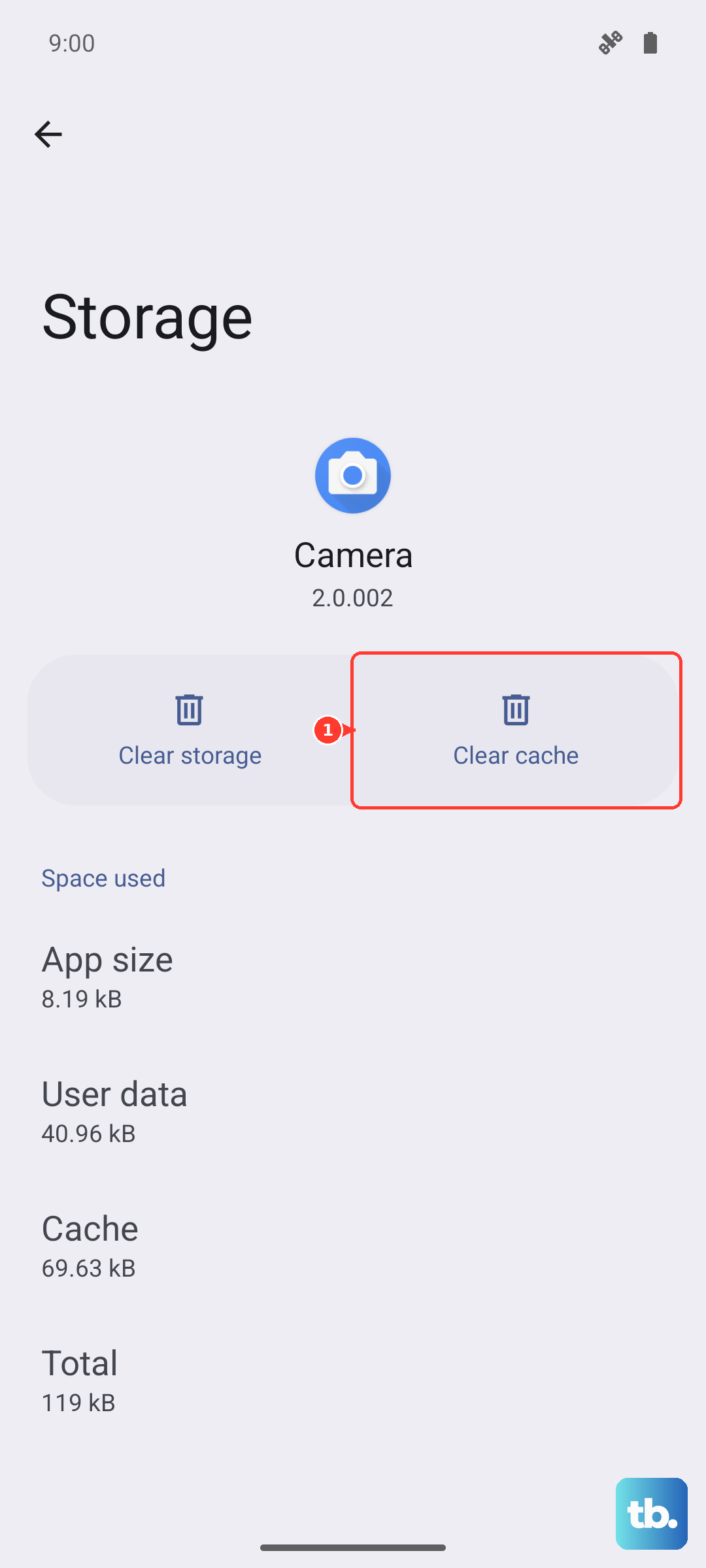
Be careful with the neighboring option. Clear data fully resets that app and erases its saved data, so only use it if you accept that the app starts fresh. For routine space recovery, stick to Clear cache.
Clear out old photos, videos, and downloads
Media is usually the single biggest consumer of internal storage, and old screenshots and finished downloads pile up fast. Remove what you no longer need, then make sure the space is actually freed.
In the Gallery app, select the photos and videos you no longer want and delete them.
In the My Files app, open Downloads and remove finished or duplicate files.
On a Galaxy tablet, deleted items usually move to a Trash or Recycle bin first, so open that Trash and empty it to genuinely reclaim the space rather than just hiding the files.
Move large files onto a microSD card
This is the feature that makes a "storage full" tablet so easy to rescue. The Tab S10+ has a microSD slot that supports cards up to 1.5TB, so you can shift gigabytes of media off the internal drive without deleting anything.
Open the My Files app (usually inside the Samsung folder).
Select a category such as Images, Videos, Audio files, Documents, or Downloads.
Touch and hold the file or files you want to relocate.
Tap Move, choose SD card, then tap Move here.
You can also move some apps to the card. Go to Settings, tap Apps, select the app, tap Storage, tap Change, choose SD card, then tap Move to relocate a supported app. Keep in mind the internal 256GB or 512GB capacity is fixed and cannot be enlarged, but the card gives you plenty of breathing room for files.
Back up your photos to the cloud and remove the local copies
If you would rather not carry a card, push your library to the cloud and let the tablet drop the copies it no longer needs to keep on board. Google Photos handles this cleanly.
Open the Google Photos app and sign in to your Google Account.
Tap your account profile photo or initial.
Tap Free up space on this device.
Confirm with Free up [x] from device.
This only removes copies that are already backed up, so your photos stay safe in the cloud. You can also move files to Google Drive or OneDrive from the My Files app using the same touch and hold then Move flow. Always confirm an item is backed up before you delete it from the device.
Uninstall or disable the apps you never open
Apps you forgot you installed still take up storage, along with all the data they accumulate. Clearing them out is a fast win.
Touch and hold an app icon on the Home or Apps screen.
Tap Uninstall and confirm to remove it.
For preinstalled apps that cannot be removed, tap Disable instead.
Removing an unused app frees both its install size and any associated data, which can add up quickly across a dozen forgotten apps.
Keep One UI and Android up to date
Software updates can improve how the tablet manages storage and fix bugs that cause space to be misreported or wasted. The Tab S10+ shipped on Android 14 with One UI and received the One UI 7 and Android 15 upgrade that Samsung began rolling out to the Galaxy Tab S10 series from April 2025, so it is worth confirming you are current.
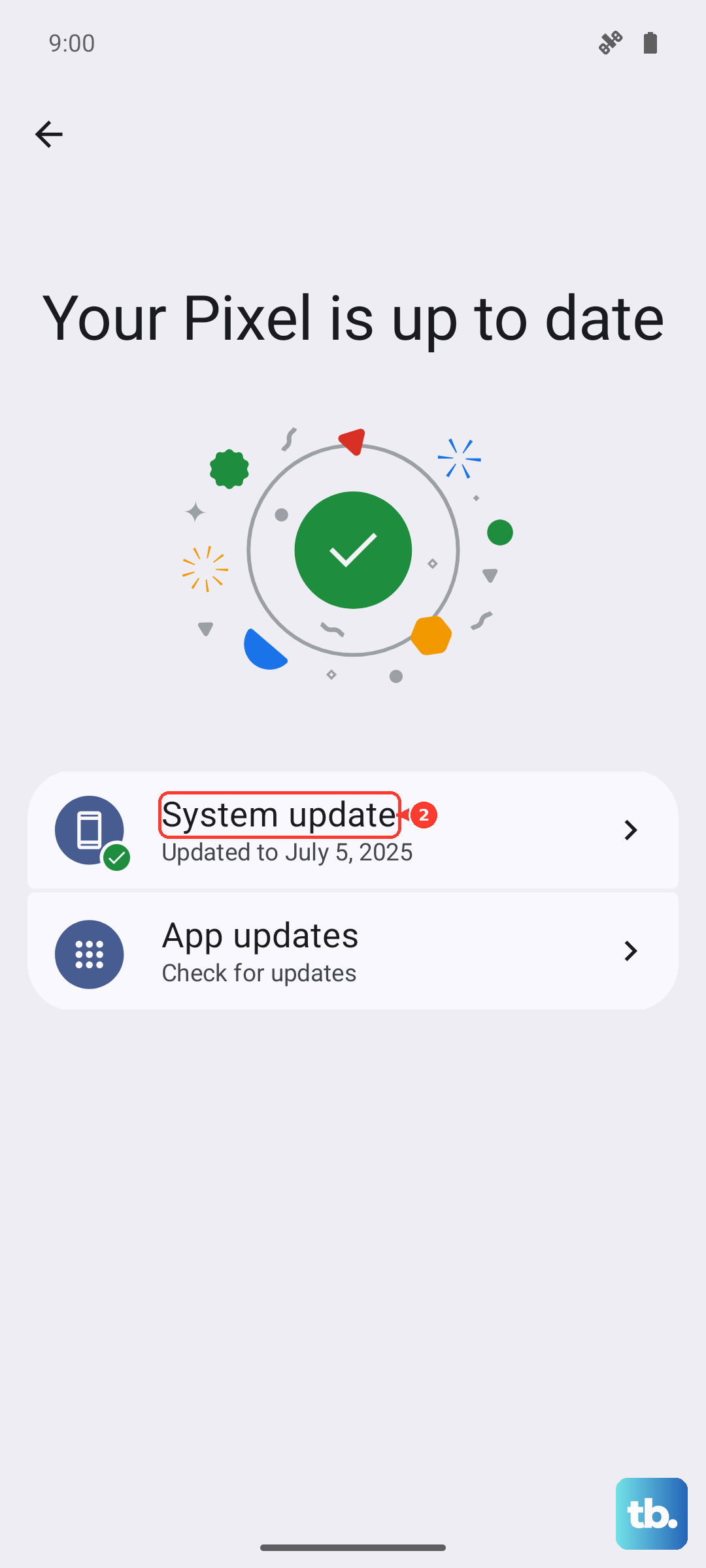
Open Settings and tap Software update (the label may also read System updates or Check for software updates depending on your model and carrier).
Tap Download and install.
Follow the on-screen instructions and choose Install now when prompted.
Update over Wi-Fi with a charged battery so the process completes without interruption.
When nothing else works, reset and contact Samsung
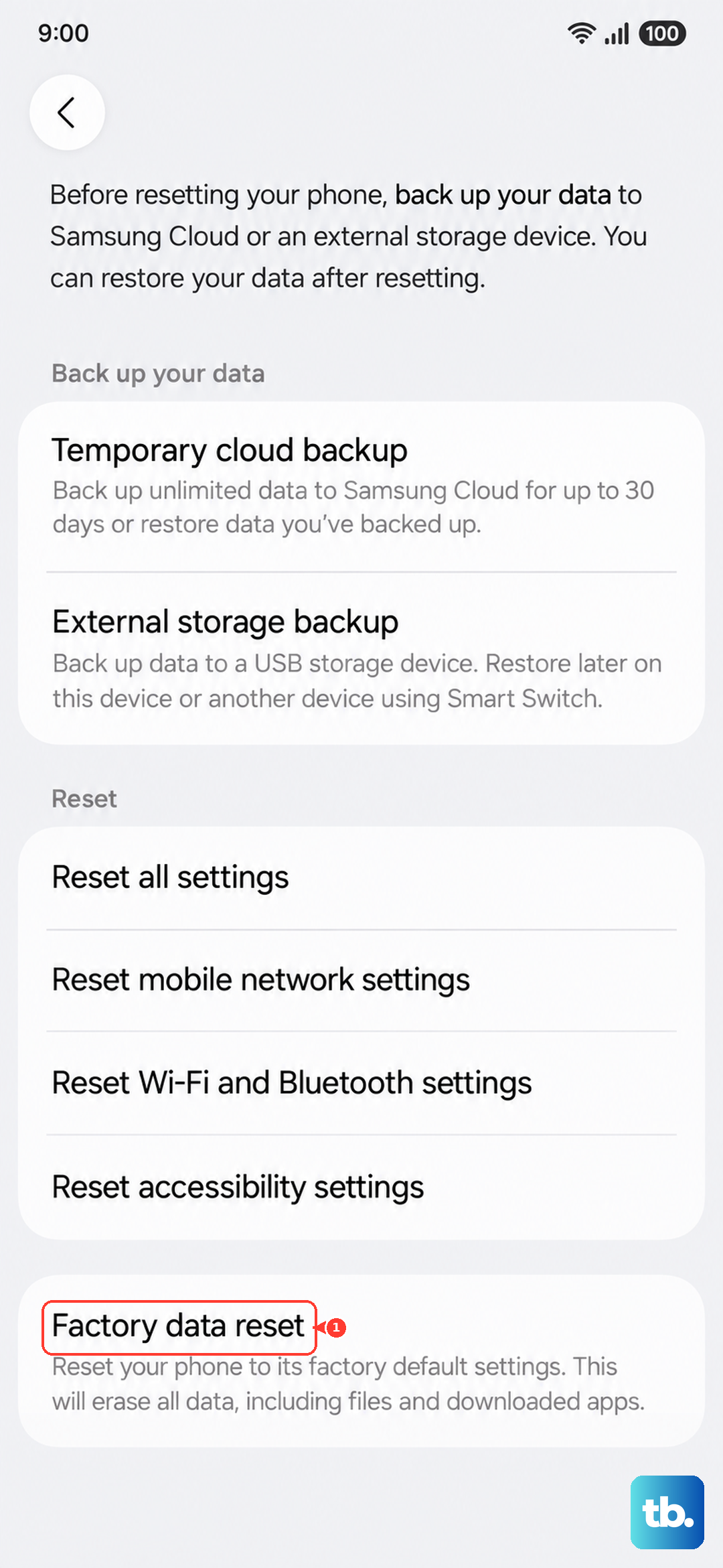
A factory data reset is the last resort, and only worth doing if storage problems genuinely persist after everything above. This erases everything on the tablet and returns it to the initial setup screen, so back up your data first. Samsung warns that personal information may not be recovered, so do not skip the backup.
You can create that backup on a computer with the official Samsung Smart Switch desktop app for Windows or Mac, which is Samsung's PC companion for backups, transfers, and software updates. Once your data is safe, proceed.
- 1.Open Settings and tap General management.
- 2.Tap Reset, then tap Factory data reset.
- 3.Review the information shown, tap Reset, then tap Delete all.
The reset screen displays this warning: "Please save any information you need prior to the factory reset because your personal information may not be recovered." If your storage issues continue even after a clean reset, it is time for official help, so contact Samsung Support directly.
Frequently Asked Questions
How large a microSD card does the Galaxy Tab S10+ support?
The Tab S10+ has a microSD slot that supports cards up to 1.5TB. That makes it the simplest way to move large photos, videos, and other media off the fixed internal storage, which comes in 256GB or 512GB and cannot be enlarged.
Will clearing an app's cache delete my photos or sign me out?
No. Clear cache removes only temporary cached files and keeps your account and content intact. The option to avoid is Clear data, which fully resets that app and erases its saved data.
How do I move photos off the tablet without losing them?
Use Google Photos to back up your library, then tap your profile photo or initial and choose Free up space on this device, which only removes copies that are already backed up. You can also move files to a microSD card, Google Drive, or OneDrive from the My Files app, but always confirm an item is backed up before deleting it.
Does a factory data reset really erase everything?
Yes. A factory data reset erases everything and returns the tablet to the initial setup screen, and Samsung warns that personal information may not be recovered. Back up your data first, ideally with the Samsung Smart Switch desktop app, before you start.