
When the flashlight on your Samsung Galaxy Tab S10+ won't turn on, it can be surprisingly inconvenient. The toggle in the Quick Settings panel might not respond, or the icon could be dimmed out. Let's get it working again.
Close Any Camera App
The tablet's camera flash and the flashlight function use the same physical LED. If your camera app is running, even in the background, the system reserves the flash and disables the flashlight. Swipe up from the bottom to view your recent apps and swipe the Camera app card away to close it. The flashlight toggle should become active right away.
Restart Your Galaxy Tab
A simple restart clears out temporary software glitches that can lock up hardware controls. Press and hold the Volume Down and Power buttons together for about ten seconds until you see the Samsung logo. This force restart is often the quickest fix for an unresponsive flashlight button.
Check for an Overheating Tablet
The Dimensity 9300+ chip in the Tab S10+ is powerful but can get warm during heavy use. As a safety measure, Android will disable features like the flashlight if the tablet overheats. If the back feels hot, set it down in a cooler spot for 10-15 minutes. Once it cools, try the flashlight again.
Adjust the Flashlight Brightness
You might not realize the flashlight is on if the brightness is set very low. Instead of just tapping the Quick Settings icon, tap the text label below it that says "Flashlight." This opens a small pop-up where you can drag a slider to increase the brightness to maximum.
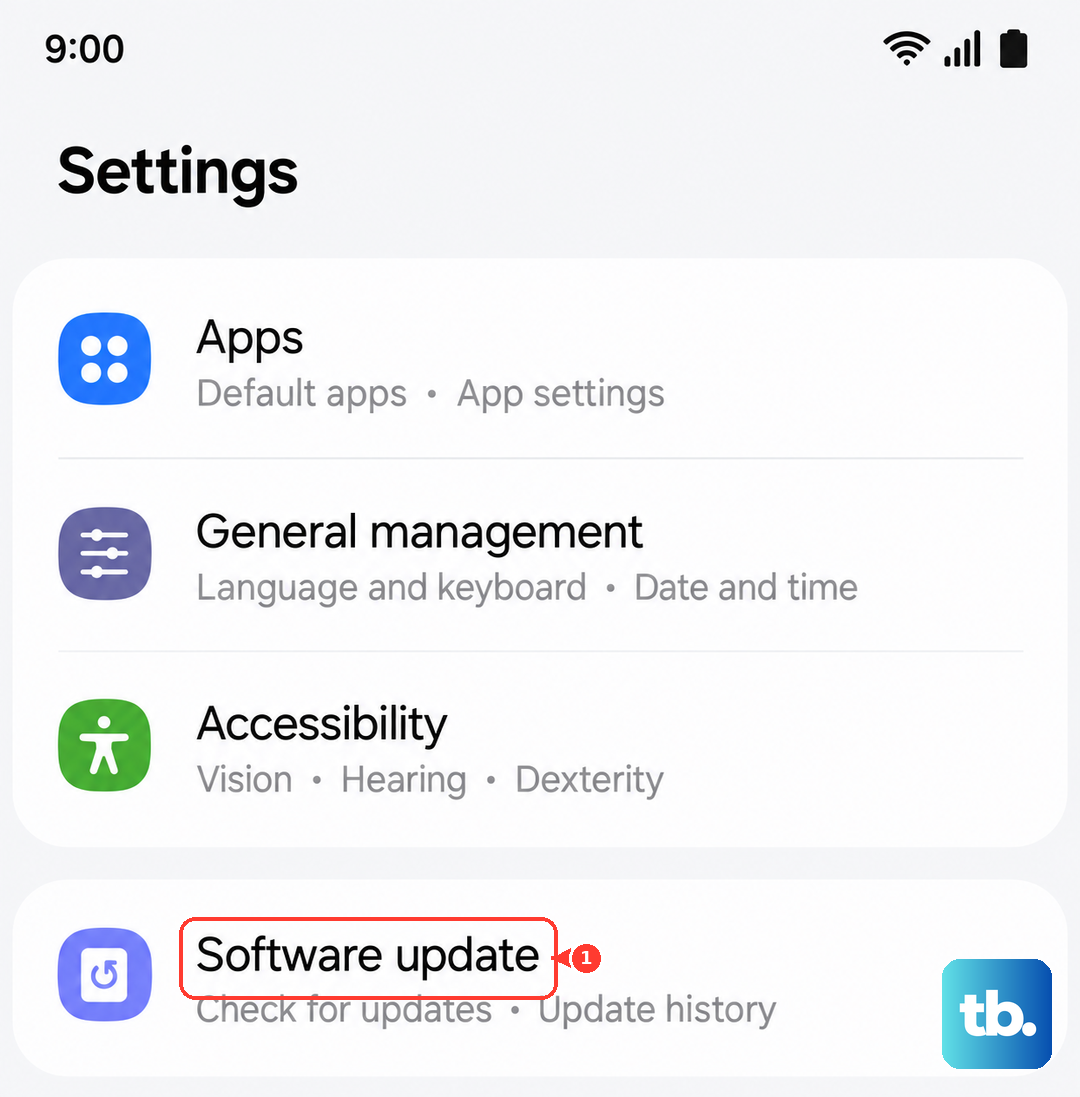
Update Your Software
Bugs in One UI or Android can sometimes break hardware features. Go to Settings > Software update and tap Download and install. Samsung regularly releases patches that fix issues like this, so installing the latest update is a good step.
Reset App Preferences
This resets permissions and background data restrictions for all apps without deleting any of your personal data. Go to Settings > Apps, tap the three-dot menu in the top right, and select Reset app preferences. Confirm the action. This can resolve conflicts that prevent system features like the flashlight from activating.
Test the Flash in Camera Mode
Open your Camera app and look for the flash icon, usually a lightning bolt. Tap it to cycle through the modes until it's set to "On." Take a picture in a dim room. If the flash doesn't fire during the photo, the LED hardware itself might have an issue.
Before assuming the worst, make sure you haven't accidentally enabled a setting that disables the flash. In the Camera app, check that the flash mode isn't set to "Off" permanently. If the hardware is faulty, you'll need to contact Samsung support for service options on your 2024 model.