You raise the Galaxy Tab S10+, frame a shot, and the preview never snaps sharp; photos land soft, smeared, or hunting back and forth without ever locking on. The good news is that this tablet's rear dual camera, a 13 MP wide lens paired with an 8 MP ultra-wide, uses real autofocus, so persistent blur is almost always a smudge, a setting, or a software hiccup rather than broken hardware. There is also a 12 MP ultra-wide front camera, and the same checks apply to it. Work through the fixes below in order; they start with the safest, no-risk checks and only reach the data-erasing and service options at the very end.
Start by wiping the lens, because a smear ruins every shot
Dust, fingerprints, and oily smudges sit directly in the light path and are the single most common reason autofocus struggles on a tablet you carry around all day. Samsung's guidance is simple, "Clean all the lenses with a soft, dry, lint-free cloth." The official focus walkthrough adds to "Gently wipe the camera lens with the cloth in a circular motion."
Wipe both the rear lens cluster and the front camera, since a blurry selfie can have the same cause as a blurry photo. Avoid paper towels, shirt fabric, or anything damp that can leave lint or streaks behind. Take a fresh photo afterward to confirm before moving on.
Clear away cases and stuck-on protectors blocking the glass
An accessory that creeps over the edge of the camera can fool the autofocus even when the glass itself is clean. Samsung advises to "Ensure your phone case or accessories do not obstruct the camera lens edges, as this can also affect focus performance."
Take off any case, magnetic accessory, or stuck-on lens protector that overlaps the Tab S10+ camera, then retake the shot. A cheap or poorly aligned lens film is a frequent hidden culprit, adding a hazy layer the sensor has to shoot through. If removing it sharpens the image, leave it off or replace it with one cut precisely for this model.
Give the camera enough distance and light to lock on
Getting too close is a focus problem disguised as a camera fault. As Samsung puts it, "If you are too close to your subject, the camera on your phone or tablet will not be able to focus." The standard wide lens needs the subject "at least 12 inches away," while the Ultra Wide lens can focus from "at least 4 inches from your subject."
For sharp results, hold the tablet "as still as possible" and make sure the subject is "well lit," since indirect light is best and dim scenes force the camera to hunt. Remember that the Tab S10+ has no telephoto lens, so distant subjects rely on digital zoom that naturally looks softer the further you push it; stepping closer beats zooming in. A steady grip, good distance, and good light resolve a surprising amount of everyday blur.
Switch off Tracking auto-focus when the scene won't settle
The Tab S10+ camera includes a Tracking auto-focus feature that locks onto one chosen subject. When it is on, the camera "will be locked to that person or item for 3 seconds," which can look like the whole scene refuses to come into focus.
Open the Camera app, tap its Settings, and turn Tracking auto-focus off, then try the shot again. With tracking disabled, the camera focuses normally across the frame instead of clinging to a single point. This is a quick toggle and a common reason a shot looks stuck on one part of the picture.
Reset the Camera app to its default configuration
If the lens is clean, nothing is blocking it, and your distance and lighting are right, a tangled camera setting may be to blame before you touch anything system-wide. The Camera app can be returned to factory behavior without affecting the rest of your tablet.
In the Camera app, open Settings and use the reset option to restore the camera's default configurations. This clears any odd combination of toggles, modes, or focus options you may have changed over time. It is a safe step that does not erase your photos or your tablet data, so it is worth trying before any restart.
Restart the tablet, or force it to reboot if frozen
A restart clears memory and wipes out temporary glitches that can stall the camera or its autofocus. For a normal restart, "Press and hold the Volume down button and the Side button (or Power button) at the same time," then tap Restart.
If the camera or the whole tablet is frozen and will not respond, use the force restart for the Galaxy Tab S10 series:
- 1.Press and hold the Side button and the Volume Down button at the same time.
- 2.Keep holding for more than 7 seconds until the device restarts automatically.
Once the tablet boots back up, open the Camera app and check whether focus has returned to normal.
Install the latest One UI and Camera updates
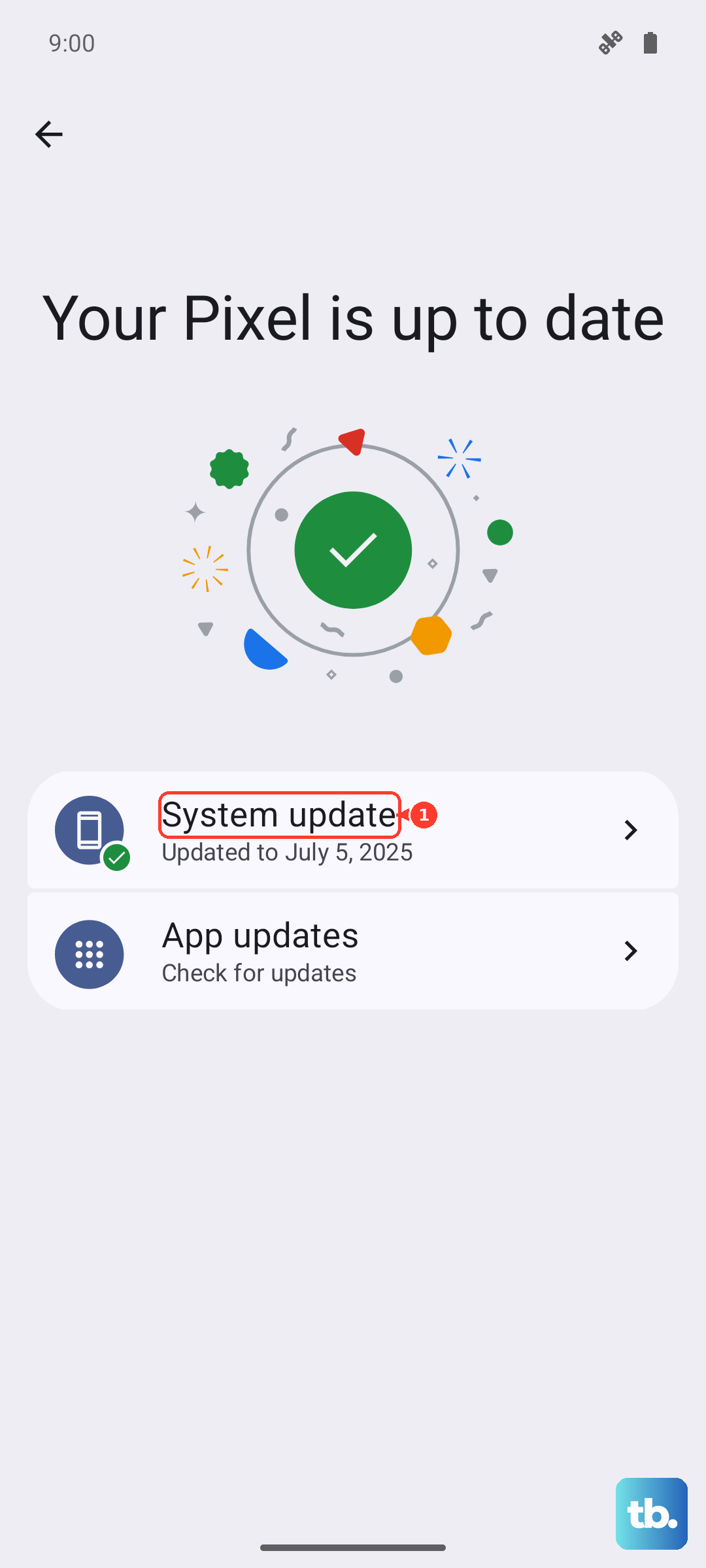
The Tab S10 series shipped with One UI 6.1.1 (based on Android 14), and Samsung delivers Camera-app and system fixes through software updates over time. A bug that causes blur in one version is often corrected in the next, so keeping the tablet current is a real fix, not just housekeeping.
- 1.Open Settings, then Software update.
- 2.Tap "Download and install."
- 3.Tap "Check for software updates" (or "Check for system updates," depending on your model).
- 4.Install any update that appears, then reopen the camera to test.
Boot into Safe mode to expose a misbehaving app
A downloaded app, especially a third-party camera, photo, or filter tool, can interfere with focus and image processing. Samsung recommends restarting the tablet in Safe mode to check whether one of your installed apps is causing the camera problem, because Safe mode runs the tablet with only its built-in software active.
Test the built-in Camera app while in Safe mode. If the camera focuses correctly there, a third-party app is the cause; return to normal mode and uninstall recently added apps until the blur disappears. If it stays blurry even in Safe mode, the problem is not an app and you can move to the next step.
Perform a factory reset as your last software measure
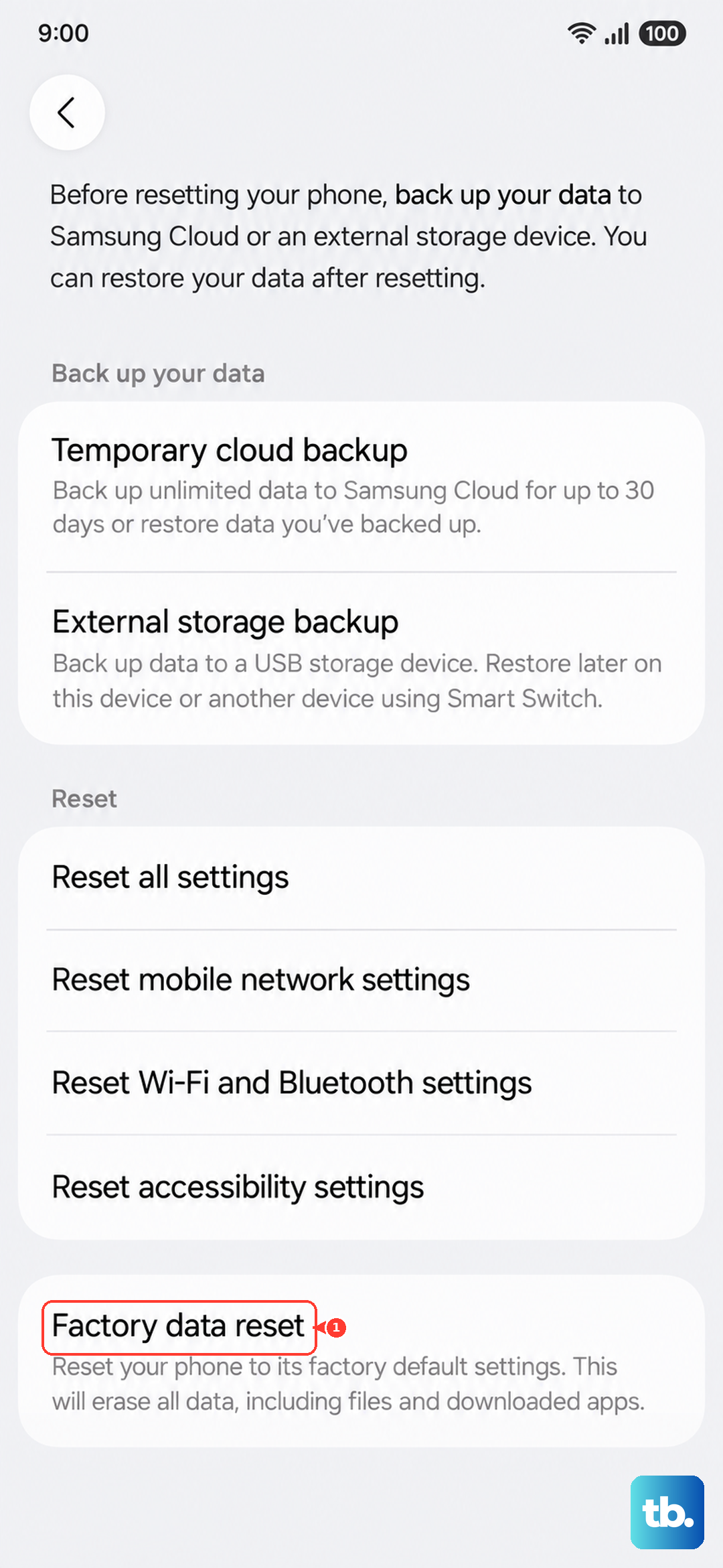
When every step above fails and the camera still will not focus, a factory reset returns the tablet to its original software state and clears deeper corruption. This step erases your data, so back up your photos, accounts, and files first. Samsung's warning is explicit, "Please save any information you need prior to the factory reset because your personal information may not be recovered."
Once your backup is complete, run the reset:
- 1.Open Settings, then General management, then Reset.
- 2.Tap Factory data reset.
- 3.Tap Reset.
- 4.Tap Delete all to confirm.
After the tablet reboots and you sign back in, test the camera before restoring all of your apps, so you can tell whether the reset alone fixed it.
When to book a repair with Samsung
If blur survives a factory reset, or if you hear a grinding noise from the lens area, the camera module itself may need service rather than another software step. Hardware faults cannot be fixed by settings, so this is the point to bring in the manufacturer.
Find an authorized service location and contact options through Samsung's official support website. Describe exactly what you see (which lens is affected, whether it happens in every mode, and any noise) so the technician can diagnose it faster.
Frequently Asked Questions
Why can't my Tab S10+ focus on close-up objects?
You are likely too close for the lens you are using. The standard wide lens needs the subject at least 12 inches away to lock focus, while the ultra-wide lens can focus from about 4 inches; back off a little or switch to the ultra-wide for close work, keep the tablet steady, and make sure the subject is well lit.
Will fixing the blur erase my photos or data?
No, almost none of these steps touch your data. Cleaning the lens, removing accessories, adjusting distance and light, turning off Tracking auto-focus, resetting just the camera settings, restarting, updating software, and testing in Safe mode are all non-destructive. Only the factory reset erases your content, which is why it is saved for last and paired with a backup.
My distant shots look soft even though everything is clean. Why?
The Galaxy Tab S10+ has only a wide lens and an ultra-wide lens, with no telephoto or dedicated zoom lens. That means far-away subjects rely on digital zoom, which naturally looks less sharp the more you zoom in, so moving physically closer will always give a crisper result than zooming.
Only my front camera is blurry. What should I do?
The 12 MP ultra-wide front camera responds to the same fixes as the rear cameras. Gently wipe its lens with a soft, dry, lint-free cloth, make sure no screen protector or case edge overlaps it, keep enough distance, and shoot in good light; if it stays blurry, continue with the restart, update, and reset steps.
What does a grinding noise from the camera mean?
A grinding or mechanical sound from the lens points to a hardware fault rather than a software issue, so the on-device steps will not resolve it. Stop troubleshooting and contact Samsung through its official support website to arrange a repair.