You press the Side button, you plug in the charger, and your Galaxy Tab S10+ answers with nothing but a black, lifeless 12.4-inch display. Before you decide the Dynamic AMOLED 2X panel has failed, it helps to know that most black-screen cases on this tablet trace back to a drained battery, a frozen system, or one misbehaving app, and the vast majority clear up at home. Work through the fixes below in the order shown, because the early steps are the quickest and the safest, and anything that erases your data is saved for the end.
Give the battery a real chance to recover
A completely black screen is very often just a fully drained battery rather than a broken tablet. With a 10,090 mAh cell inside, a deeply discharged Tab S10+ can need a while on the charger before it shows any sign of life, so do not judge it after a few minutes.
Connect and charge the tablet with the appropriate charger for at least 1 hour. The battery charging indicator may take up to 10 minutes to appear on the display, so a dark screen during that first stretch is normal.
After it has charged, disconnect the tablet and try to turn it on by pressing and holding the Side button for 15 to 20 seconds until the Samsung logo appears. If it boots, the tablet simply needed power and there is nothing further to fix.
Rule out damaged accessories and liquid exposure
A bad cable, a blocked port, or hidden moisture can all leave you staring at a dead screen. Remove any case or accessory that covers the charging port or the buttons, then inspect the tablet, the charger, and the USB-C cable for physical or liquid damage, corrosion, or bent pins.
Look closely for any sign that liquid has reached the tablet, such as discoloration, residue, or corrosion around the charging port and the card tray. If you find evidence of liquid contact, stop here and let Samsung service the tablet, because moisture damage is not something to clear with another home step.
Force a restart when the screen is frozen
If the display is black or unresponsive but the tablet still has power, a forced restart is the single most effective move. This clears a hung system without touching any of your data.
- 1.Press and hold the Side button and the Volume Down button at the same time.
- 2.Keep holding them for more than 7 seconds until the device restarts automatically.
- 3.Let go once you see the Samsung logo and allow the tablet to finish booting.
For a completely blank display that refuses to respond, the official guidance is to hold the Side and Volume Down buttons together for up to 20 seconds. Note that this model has no separately labeled Power button; Samsung calls the top button the Side button, and there is no removable battery to pull, so the forced restart above is the equivalent step.
Clean the screen and check touch sensitivity
Sometimes the display is actually on, but a dirty panel or a thick screen protector keeps it from registering your taps, which can read as an unresponsive black screen. Make sure the screen is clean and dry, and remove any screen protector that could interfere with touch.
If the display lights up but touch responds poorly, go to Settings > Display and enable the touch sensitivity toggle. That setting helps the panel read your input correctly through a screen protector.
Boot into Safe mode to expose a problem app
A single downloaded app that crashes can freeze the system or blank the screen. Safe mode loads the tablet with only its built-in software, so it is the fastest way to find out whether something you installed is the culprit.
- 1.Power the tablet off completely.
- 2.Turn it on, and when the Samsung logo appears, press and hold the Volume Down button.
- 3.Keep holding until the tablet finishes starting; you will see "Safe mode" in the bottom-left corner.
If the tablet runs normally in Safe mode, a downloaded app is causing the trouble. Uninstall recently added or recently updated apps one at a time, then restart the tablet to exit Safe mode and return to normal operation.
Update One UI and Android to the current build
Outdated firmware can cause freezing and display glitches, and Samsung regularly ships fixes for exactly these issues. Keeping the software current is a low-risk step that often resolves intermittent black screens.
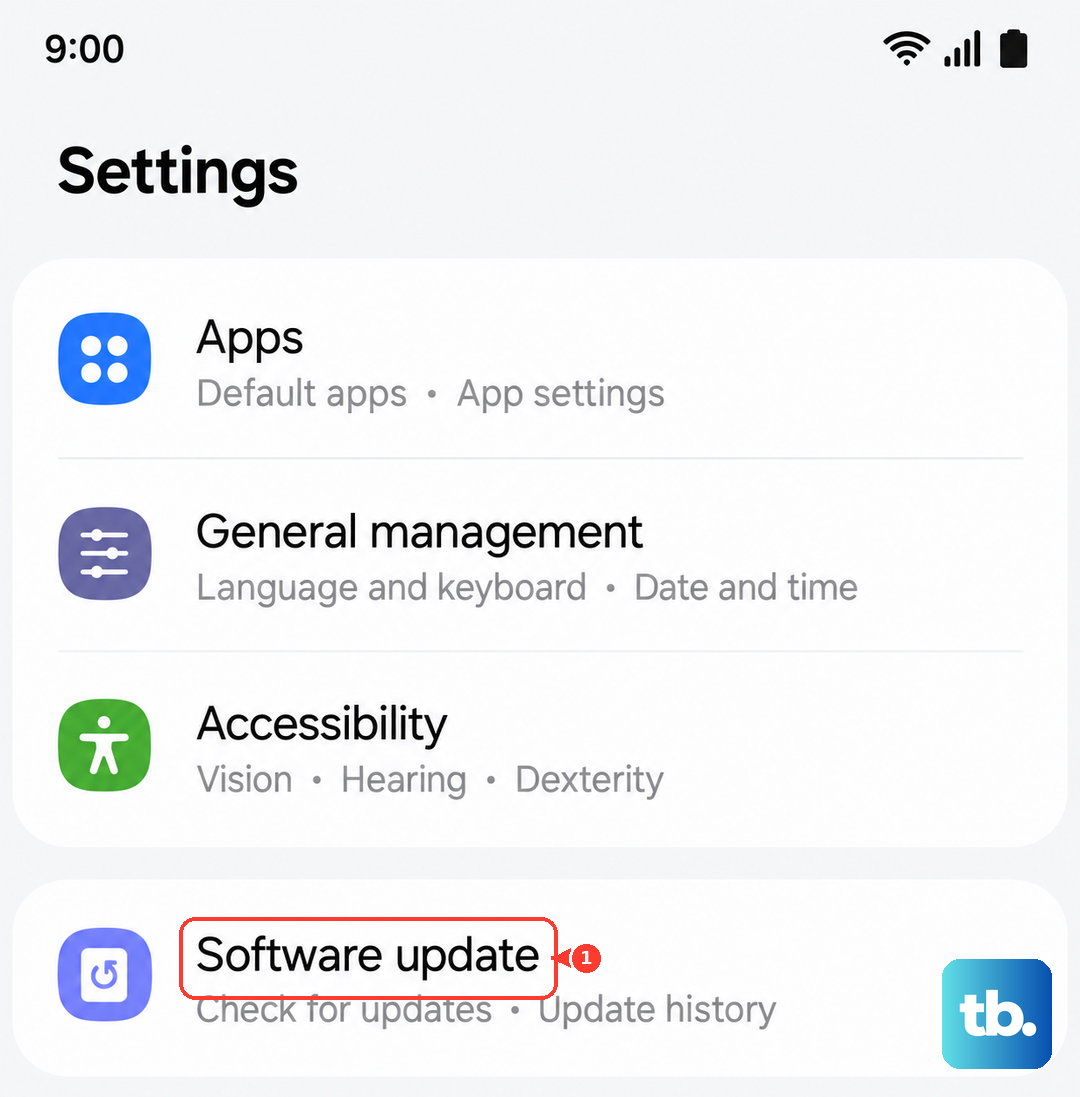
Go to Settings > Software update > Download and install, then tap Check for software updates and install anything that is offered. Keep the tablet on power and connected to Wi-Fi during the process, and remember that you cannot use it while the update is applying. The Tab S10+ shipped with Android 14 and One UI 6.1 and sits on Samsung's official update list, with eligibility for One UI 8.0 (Android 16).
Free up memory and optimize the tablet
When memory is stretched or storage is nearly full, the tablet can stutter, hang, or stop responding entirely. A quick optimization pass closes background drains and tidies up the system.
Go to Settings > Device care and select Optimize now. While you are there, clear out unneeded files and apps if storage is close to full, since freeing space gives the system room to run smoothly.
Erase and rebuild with a factory data reset
If a software fault is still locking up the screen after everything above, a factory reset is the last software step. This wipes the tablet back to its original state, so treat it as a deliberate choice rather than a casual fix.
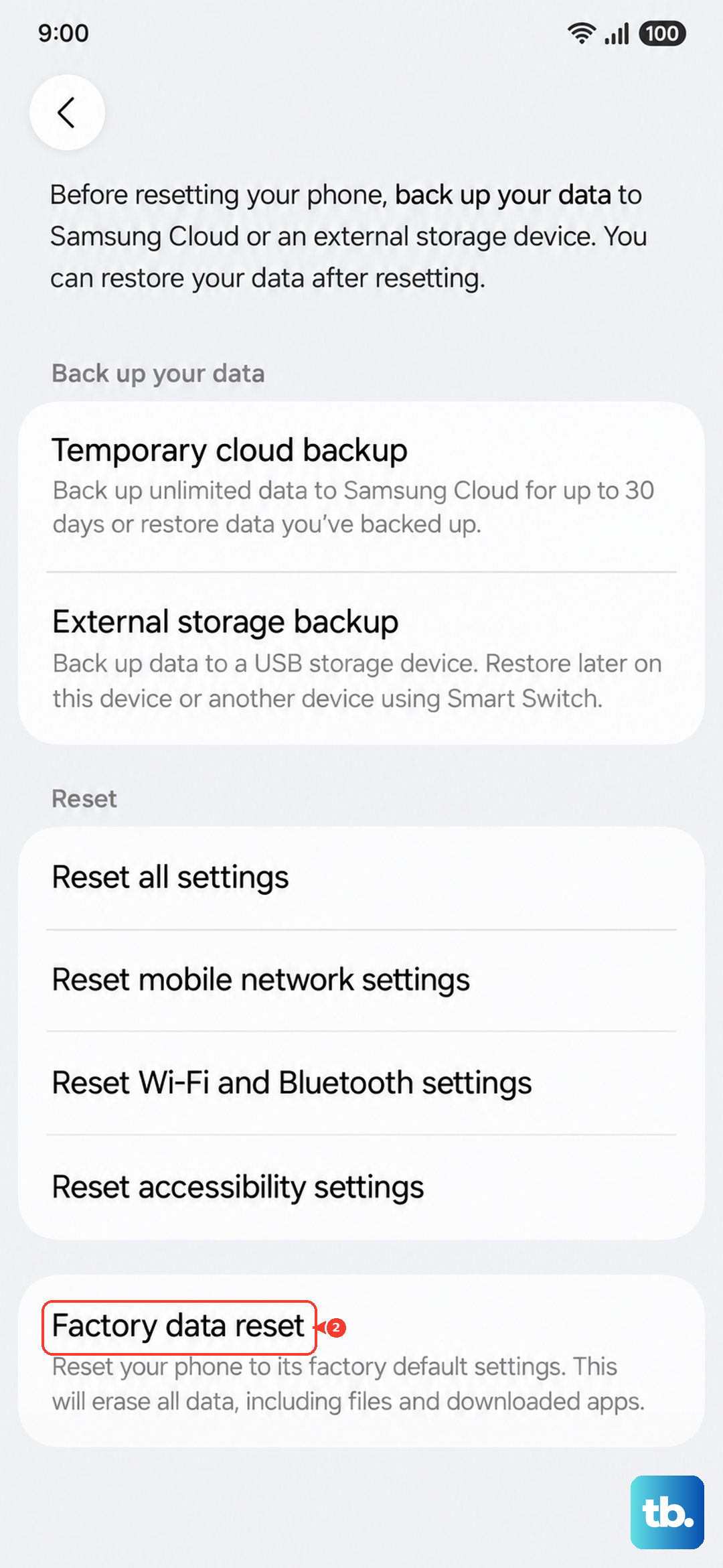
Samsung's warning is clear, so ensure you have backed up all important data before performing a factory reset, as this process will erase all data from your device. Back up first using Samsung Smart Switch or your Samsung and Google accounts before you continue.
- 1.Open Settings > General management > Reset.
- 2.Tap Factory data reset.
- 3.Tap Reset.
- 4.Tap Delete all to confirm and erase the device.
Once the reset finishes, set the tablet up again and restore your backup. If the black screen is gone after a clean start, a corrupted setting or app was the cause.
When the Tab S10+ needs professional service
If the screen still will not turn on after a full charge and every step above, the tablet most likely has a hardware or display fault that cannot be fixed at home. At that point, the safest move is to let Samsung look at it.
You can run device diagnostics and request service through the Samsung Members app, contact the Samsung Support Center, schedule a repair online, or visit a Samsung walk-in service center. Bringing along your proof of purchase and any notes about what you already tried will speed up the diagnosis.
Frequently Asked Questions
Why is my Galaxy Tab S10+ screen black even though it still makes sounds?
If you hear notifications or charging tones but see nothing, the tablet has power and the issue is usually a frozen system or an unresponsive display rather than a dead device. Start with a forced restart by holding the Side button and Volume Down button for more than 7 seconds, then work through the touch-sensitivity and Safe mode checks.
How long should I charge a Tab S10+ that shows nothing on screen?
Charge it with the appropriate charger for at least 1 hour before assuming it is broken. The charging indicator can take up to 10 minutes to appear on the display, so an initially dark screen does not mean the charge is not working.
Does the Tab S10+ have a Power button for the force restart?
No. Samsung labels the top button the Side button, not Power, and there is no removable battery. The official force restart for this model is the Side button plus the Volume Down button held for more than 7 seconds, or up to 20 seconds for a completely blank display.
Will a factory reset fix a black screen?
It can, but only when the cause is a software fault rather than a hardware failure, which is why it is the last software step here. Because a factory reset erases everything on the tablet, back up your data with Smart Switch or your Samsung and Google accounts before you begin.
What should I do if none of these steps bring the screen back?
If the display stays black after charging and every fix above, the tablet needs service for a likely hardware or display issue. Use the Samsung Members app to run diagnostics and request service, contact the Samsung Support Center, or visit a Samsung walk-in service center.