You keep swiping down on your Galaxy Tab A9+ expecting a flashlight toggle to drop into the Quick panel, and it simply never appears. Maybe you installed a "flashlight" app from the store and all it does is turn the screen white, or the tablet locked up the moment you tried to use it. Before you spend another minute hunting for a switch that refuses to show itself, it helps to know exactly what this tablet can and cannot do with light.
The honest reason your search keeps coming up empty
Here is the part most owners never hear: the Galaxy Tab A9+ does not have a built-in flashlight or torch at all. Samsung's official specifications list the tablet's 8.0 MP rear camera as having Auto Focus but "No" flash, which means there is no rear LED on the back of the device.
That single detail explains everything else. Samsung's own flashlight documentation states the feature "uses the phone's camera LED," so a device without an LED flash has nothing to switch on. There is no Flashlight button in the Quick settings panel and no hardware torch waiting to be repaired, because the hardware was never built into this model in the first place.
So a "flashlight not working" complaint on this tablet almost always comes down to one of two things. Either you are expecting a feature the device was never designed with, or you are running a third-party flashlight or screen-light app, which can only light up the display. No app, no matter how it is written, can drive an LED that does not physically exist. With that reality settled, the steps below focus on the problems you actually can solve.
Check the Quick panel so you know nothing is hiding
It is worth confirming with your own eyes that there is no flashlight tile tucked away in a row you have not scrolled to. The way you open the Quick panel depends on which software version your tablet is running.
- 1.On One UI 7.0 and higher, swipe down from the top right of the screen for the Quick panel.
- 2.On One UI 6.1.1 and lower, swipe down from the top of the screen with two fingers to fully expand the Quick panel.
- 3.Tap the Edit icon, which looks like a pencil.
- 4.Tap Edit to see every button the tablet offers.
- 5.Touch and hold a button to drag it if you want to rearrange your tiles, then tap Done when you're finished.
As you scroll through the full list of available buttons, you will notice there is no Flashlight option to drag in. That absence is not a glitch you can fix; it confirms the tablet has no camera LED to control, so there is no missing icon for you to re-add.
Restart the tablet to clear a stuck screen or app
If a third-party flashlight or screen-light app has frozen, or the display has become unresponsive while you were poking at it, a restart often clears the problem. For a normal restart, press and hold the Volume down button and the Side button (or Power button) at the same time. After a few seconds, different power options will appear; tap Restart, and then tap Restart again.
When the screen will not respond to anything at all, you need a force restart instead. Press and hold the Volume down button and the Side button (or Power button) simultaneously until the device turns off and turns back on. This does not erase any of your data; it simply forces the tablet to reboot and reload its apps from a clean state.
Bring the software fully up to date
Out-of-date software can make apps and system features behave unpredictably, so keeping the tablet current is always worth a few minutes. Here is the path Samsung documents for checking.
- 1.Using two fingers, swipe down from the top right corner of the screen, and then tap the Settings icon.
- 2.Swipe to and then tap Software update or System updates. It will vary between models.
- 3.Tap Download and install, Check for system updates, or Check for software updates, depending on your carrier.
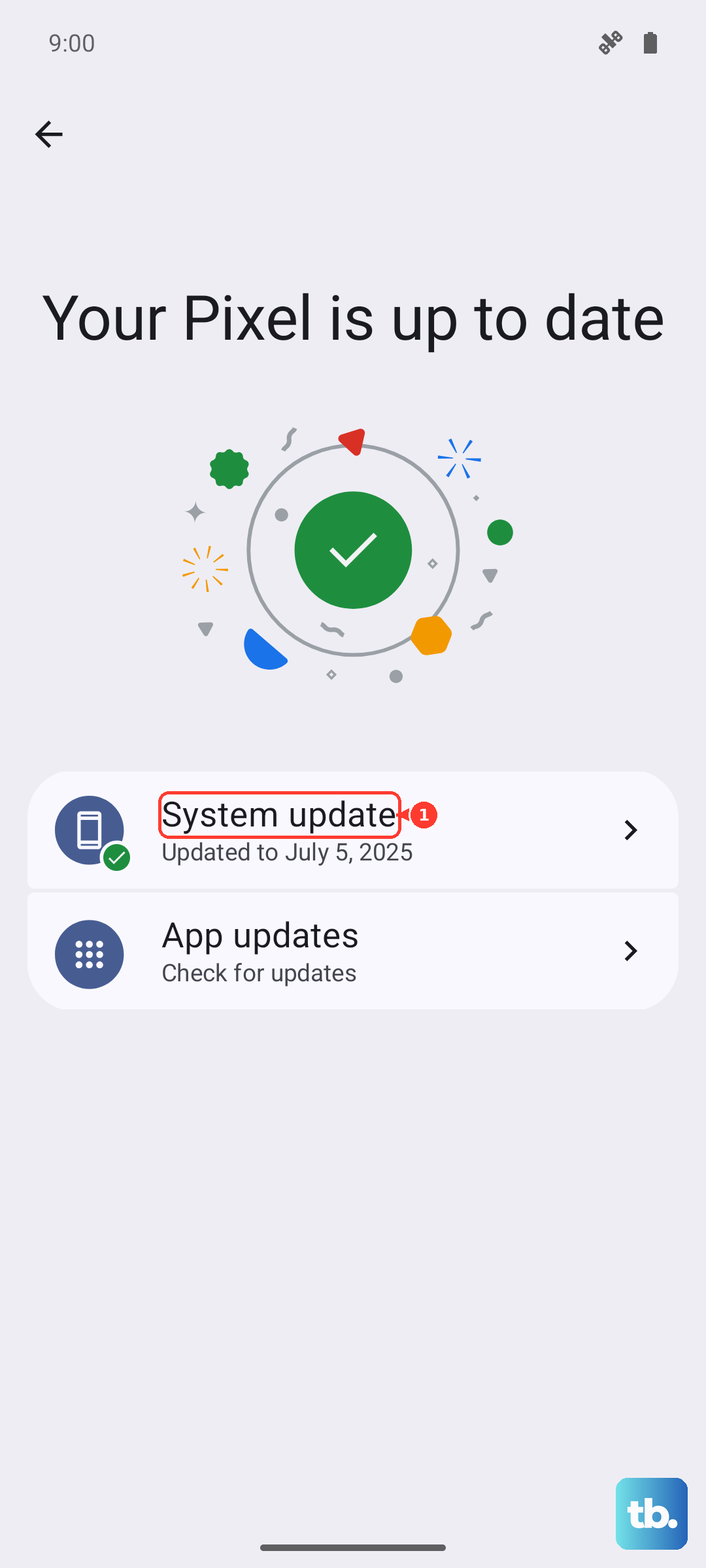
Follow the on-screen prompts to finish any update that is offered to you. Keep in mind that the Tab A9+ launched with Android 13 and One UI 5.1 and can be moved to newer versions through these same updates. A current build will not add a torch, but it does keep your apps and the system itself running the way they should.
Wipe and start fresh only as a last resort
If you are convinced a software glitch is at play, for example a screen-light app that crashes the system every time you open it, a factory reset is the strongest software fix available. It is also destructive, so treat it with respect. Back up everything you care about first, because Samsung's warning is blunt. "This feature will completely erase your personal information and data to make your phone or tablet a clean slate."
- 1.Navigate to and open Settings, and then tap General management.
- 2.Swipe to and tap Reset, then tap Factory data reset.
- 3.Review the information on the screen.
- 4.Swipe to and tap Reset.
- 5.Tap Delete all.
Once the tablet finishes and restarts, set it up again and test whatever light app you were using before. Remember that even a perfectly clean install will not produce a hardware torch, since the LED was never there to begin with; the reset only addresses software behaving badly.
Hand it to Samsung when something still feels off
If the trouble continues, or you still believe your tablet should have a feature it lacks, go straight to the source rather than guessing. The built-in Samsung Members app lets you chat, call, run diagnostics, or request service without leaving the tablet, and the official Galaxy Tab A9+ support page covers the same set of options.
Samsung's support resources cover the Tab A9+, including the US Wi-Fi model code SM-X210NDBAXAR, so a representative can confirm exactly what your specific variant does and does not support. That is the fastest way to put the flashlight question to rest for good and move on with confidence.
Frequently Asked Questions
Does the Galaxy Tab A9+ have a flashlight at all?
No. Samsung's official specifications list the 8.0 MP rear camera with Auto Focus and "No" flash, meaning there is no rear LED. Because Samsung's flashlight feature relies on the camera's LED, the tablet has no hardware torch and no Flashlight button in Quick settings.
Why does my flashlight app only light up the screen?
Screen-based flashlight apps brighten the display because that is the only light source they can use on this model. Without a camera LED, no app can produce a real beam from the back of the tablet; it can only turn the screen white.
Can a software update add a flashlight to my Tab A9+?
No update can add a flashlight, because the feature depends on physical LED hardware the tablet does not have. Updates are still worth installing to keep your apps and system stable, but they will not create a torch that the device was never built with.
Will a factory reset bring back a missing flashlight toggle?
A factory reset can clear a stubborn software glitch, but it will not add a Flashlight button, since there was never an LED for that button to control. Always back up your data first, as the reset erases all of your personal information.
Which Galaxy Tab A9+ models does this apply to?
It applies to the Wi-Fi model SM-X210 (US variant SM-X210NDBAXAR) and the 5G models SM-X216 and SM-X218. Both the Wi-Fi and 5G variants share the same 8.0 MP rear camera with no flash.