
A blurry camera on your Samsung Galaxy Tab A9+ can turn a great shot into a useless one. The focus might hunt constantly, fail to lock on your subject, or leave everything looking soft. Before you assume the hardware is faulty, there are several things you can try to get it working again.
Clean the Camera Lens
Start with the simplest fix. Grab a soft, lint-free microfiber cloth and gently wipe the camera lens on the back of your tablet. Fingerprints, dust, and smudges are the most common culprits for hazy, unfocused photos. Avoid using your shirt or paper towels, as they can leave micro-scratches on the lens coating over time.
Remove Any Case or Protector
Take off your tablet's case and see if that helps. Some cases, particularly third-party ones, can have a camera cutout that sits too close to the lens or has a lip that catches light, causing glare and blur. Also, check that no camera lens protector or screen protector is partially covering the lens itself.
Tap to Focus on Your Subject
Open the Camera app and tap directly on the subject you want to be sharp in the viewfinder. A focus box will appear. If you're shooting something up close, the tablet might be focusing on the background instead. Tapping tells the camera exactly where to focus. You can press and hold on the screen to lock the focus and exposure if needed.
Check Your Shooting Mode
Some camera modes have different focus behaviors. If you're in a specialized mode like Pro or Night mode, try switching back to the standard Photo mode. I've seen the autofocus act up occasionally in other modes, especially if the lighting is challenging for the tablet's Snapdragon 695 processor.
Close Background Apps and Reopen Camera
Swipe up from the bottom and hold to see your recent apps, then swipe the Camera app away to close it. Reopen it and try focusing again. Keeping background apps minimal helps maintain smooth performance on the Tab A9+, and a simple app restart can clear a temporary software glitch affecting the camera.
Restart Your Galaxy Tab A9+
If the app restart didn't help, give the whole tablet a fresh start. Press and hold the Volume Down button and the Power button together for about 10 seconds until you see the Samsung logo. This force restart clears out any stuck processes and resets the camera's software stack.
Check for Physical Damage or Moisture
Inspect the camera lens closely for any cracks or deep scratches. Also, condensation inside the lens can cause a permanent foggy look. This can happen if you move the tablet from a cold environment to a warm, humid one. Let it acclimate to room temperature for 15-20 minutes to see if it clears.
Update Your Tablet's Software
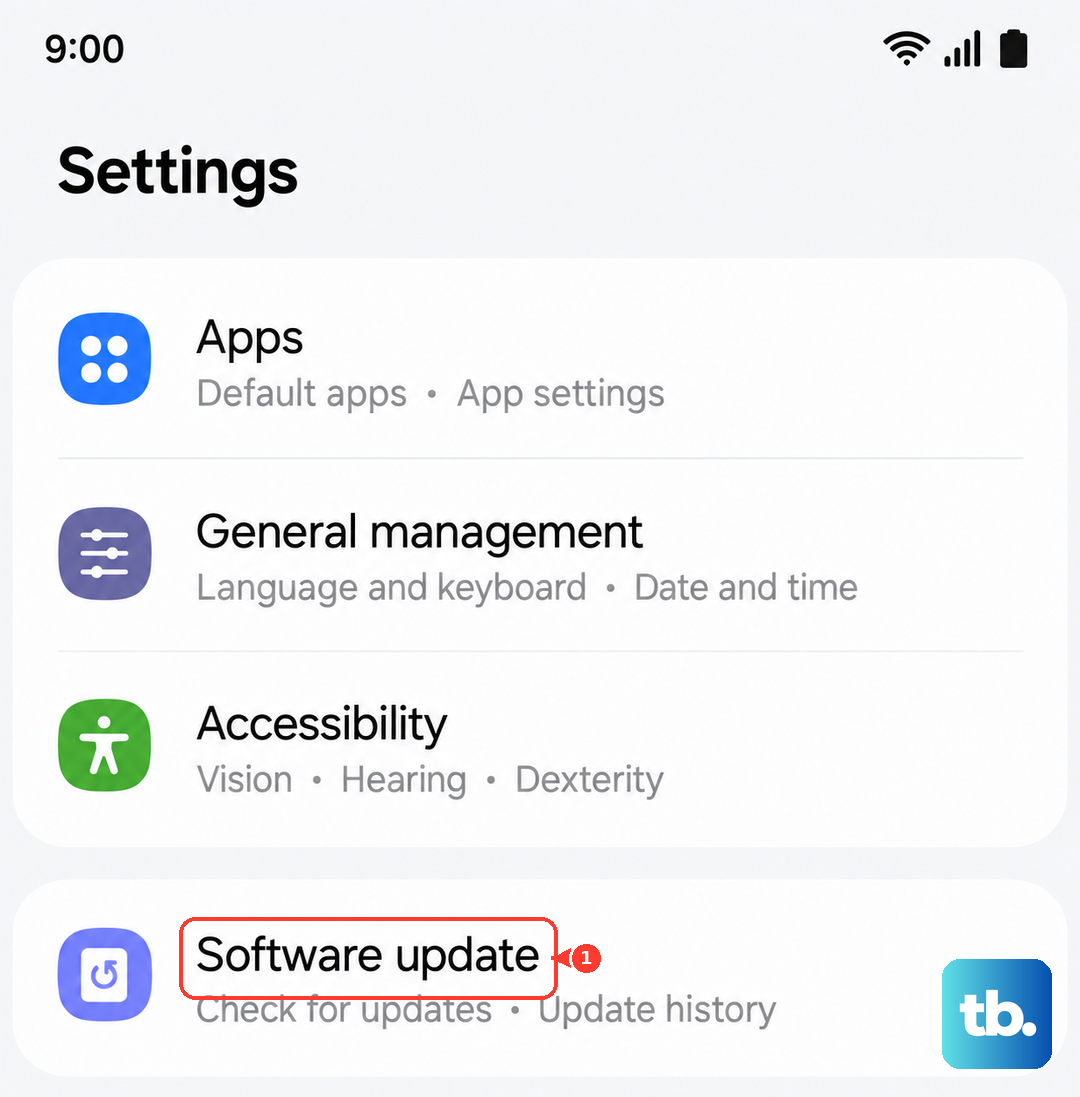
Go to Settings > Software update and tap Download and install. Samsung regularly releases updates that can include camera improvements and bug fixes for autofocus. An update might already contain a fix for the issue you're experiencing.
Clear the Camera App's Cache and Data
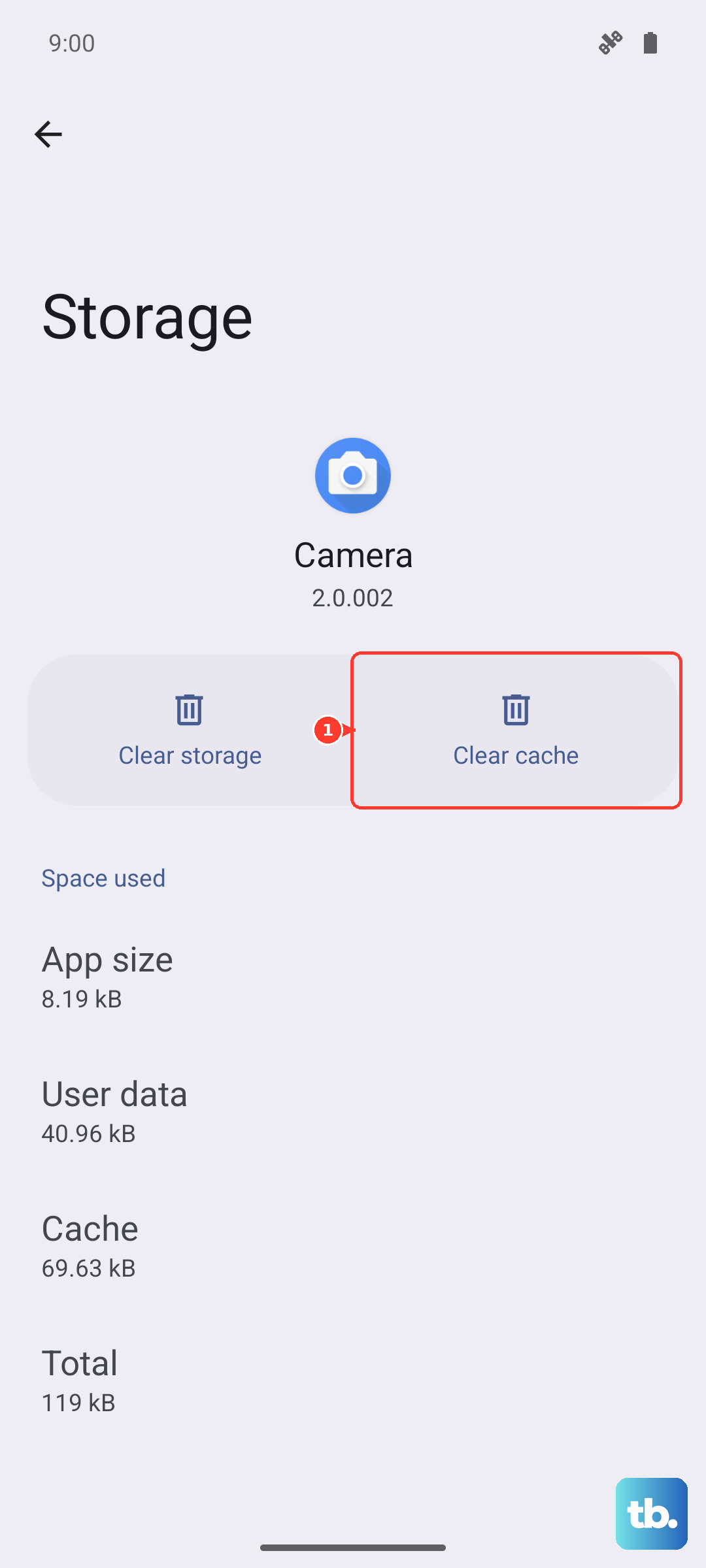
Go to Settings > Apps, then find and select Camera. Tap on Storage, and then tap Clear cache. If the problem persists, you can tap Clear data. Just be aware this will reset all your camera settings back to default.
Perform a Factory Reset
This is a last resort. Back up all your important data first. Then, go to Settings > General management > Reset > Factory data reset. This will wipe your tablet and reinstall the operating system, which can fix deep-seated software conflicts affecting the camera hardware.