You reach for your Galaxy S26 Ultra expecting the latest One UI improvements, but the update either refuses to download, stalls partway through, or keeps throwing an error before it finishes installing. It is a frustrating place to be, especially on a flagship that you expect to keep current with new features and security patches.
The good news is that most failed updates on the S26 Ultra trace back to a handful of common causes, and almost all of them are fixable at home without losing your data.
The S26 Ultra ships with One UI 8.5 (built on Android 16) and pulls new software the standard Galaxy way, either over the air from Settings or over USB through a computer.
Work through the fixes below in order. They start with the quickest, safest checks and only move toward more involved steps if the simple ones do not get the update through.
Start With Your Connection and a Quick Reboot
Before assuming something is broken, rule out the two most common culprits, an unstable connection and a phone that simply needs to be restarted.
A flaky network is the single most frequent reason an update will not download or install cleanly.
Confirm you are on a stable Wi-Fi connection
Software updates need a stable Wi-Fi or mobile data connection to download and install properly.
Connect your S26 Ultra to a strong, reliable Wi-Fi network and make sure the signal is solid where you are standing.
If the update still fails, try removing the Wi-Fi network and reconnecting to it.
You can also restart your router, wait for it to come fully back online, and then attempt the update again.
Charge the battery above 50 percent
Your Galaxy phone can block a software update when the battery level is too low to complete the installation safely.
This is a deliberate safeguard, since a phone that dies mid-install can end up in a bad state.
Charge the battery above 50 percent before you start, or simply leave the phone plugged in while it downloads and installs.
With plenty of power available, the phone is far more likely to let the update proceed.
Make Room and Restart Before Trying Again
If the connection and battery are fine, the next thing to check is whether the phone has the space and a clean slate it needs to apply the update.
Free up internal storage space
The device may refuse to install an update if there is not enough available internal storage.
Updates need working room to unpack and apply files, so a nearly full phone can quietly stall the process.
To clear some space, delete unused apps by pressing and holding the app icon, then selecting Uninstall.
Next, clear app cache through Settings > Apps > select the app > Storage > Clear cache.
After that, back up data to Samsung Cloud to move files off the device.
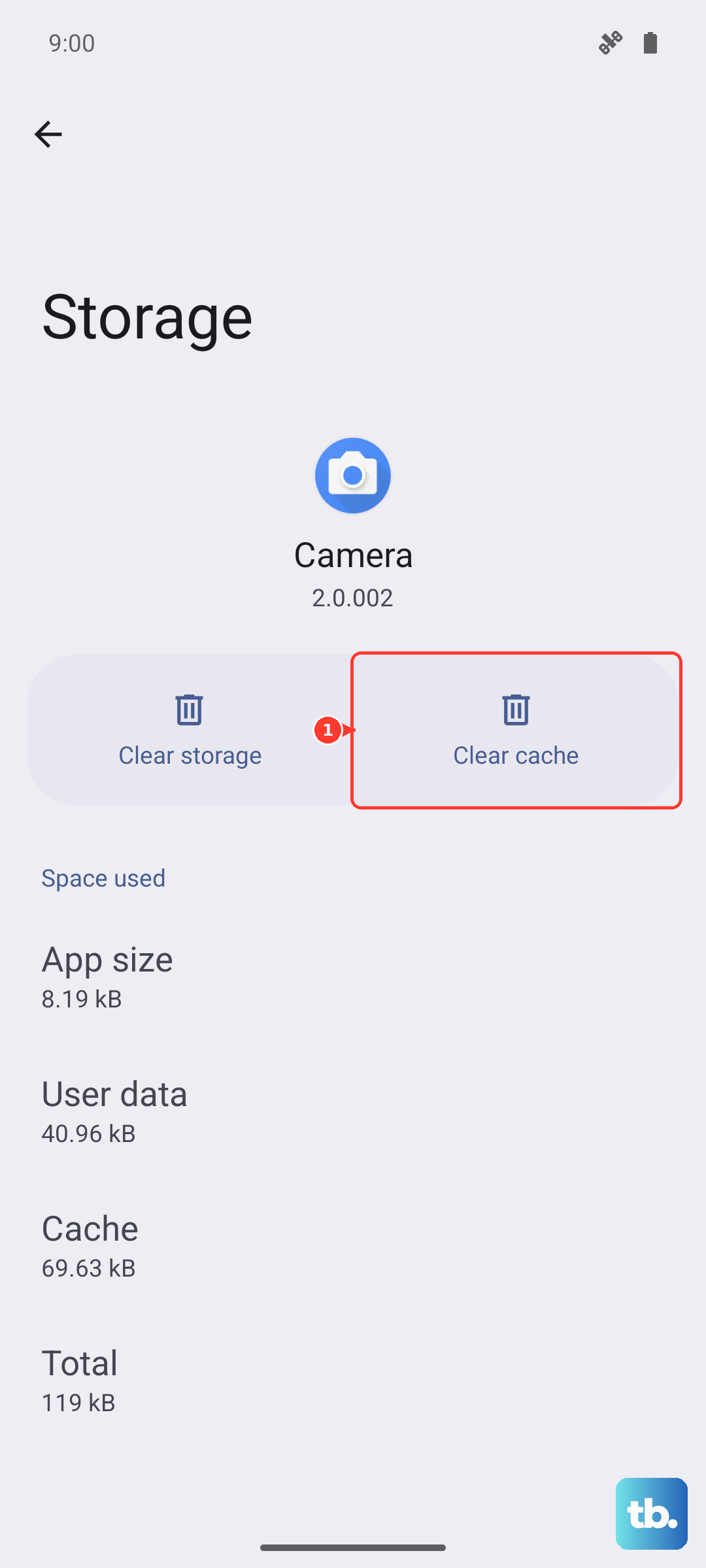
Once you have freed up room, head back to the update menu and try again.
Force restart the phone
A force restart clears temporary glitches that a normal reboot sometimes misses, and it is a safe step that does not erase any of your data.
It is often all it takes to get a stuck update moving.
To force restart the S26 Ultra, press and hold the Volume down button and the Side button (or Power button) simultaneously until the device turns off and turns back on.
The screen will turn black when the device turns off, and then the Samsung logo will appear.
Once it reboots, check for the update again.
Check and Install the Update by Hand
If automatic prompts are not appearing or have failed, trigger the update yourself from the Settings menu.
Doing it manually also confirms that the phone really has an update waiting and lets you watch for any error message.
- 1.Using two fingers, swipe down from the top right corner of the screen, and then tap the Settings icon.
- 2.Swipe to and then tap Software update or System updates (the wording varies by model).
- 3.Tap Download and install, Check for system updates, or Check for software updates, depending on your carrier.
- 4.Follow the on-screen instructions to install the update.
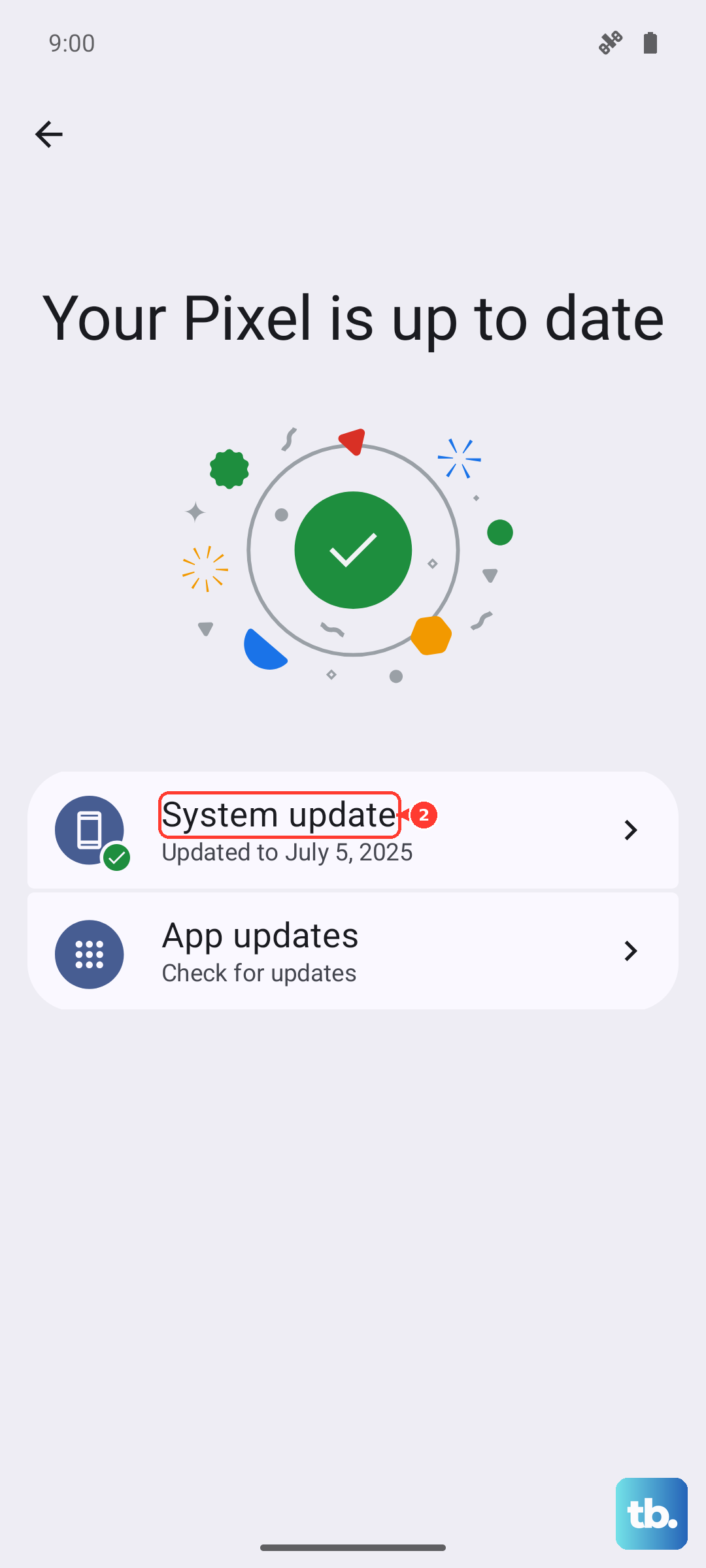
If an update appears here, let it download and install fully before using the phone again.
Turn on automatic downloads over Wi-Fi
While you are in the Software update menu, it is worth enabling automatic updates so the phone keeps itself current going forward.
This can also help when a manual check is misbehaving.
Tap the switch to enable Auto download over Wi-Fi.
With this turned on, your S26 Ultra automatically downloads and updates whenever it is connected to a Wi-Fi network, which means fewer missed patches down the line.
Rule Out an App Conflict in Safe Mode
Background apps or a corrupted cache can interrupt an update partway through.
Safe mode loads the phone with only its built-in software, which lets you test whether a third-party app is the thing standing in the way.
To boot into Safe mode, press and hold the Side button and Volume down button together (or swipe down from the top right and tap the Power icon).
Then touch and hold the Power off icon and tap the Safe mode icon.
Once the phone is in Safe mode, attempt the update again.
If the update installs cleanly in Safe mode, a downloaded app was likely the cause, and you can investigate recently added apps after you finish.
To exit Safe mode, simply restart the phone.
Update Over USB With Samsung Smart Switch
When the over-the-air update keeps failing no matter what you try, you can route around it entirely by updating from a computer.
Samsung Smart Switch is the official desktop tool (for Windows PC or Mac) that can update a Galaxy device's software over USB.
Connect the phone to your computer with a USB cable.
Open Smart Switch on the computer and allow it to detect the device.
If an update is available, you will be able to select Update.
One important caution applies here.
Do not disconnect the USB cable or use your device until the update is complete.
Interrupting a USB update can leave the phone's software in a damaged state, so let it run all the way to the end.
Back Up and Factory Reset as a Last Resort
If updating still fails after everything above, a factory data reset is the final do-it-yourself step.
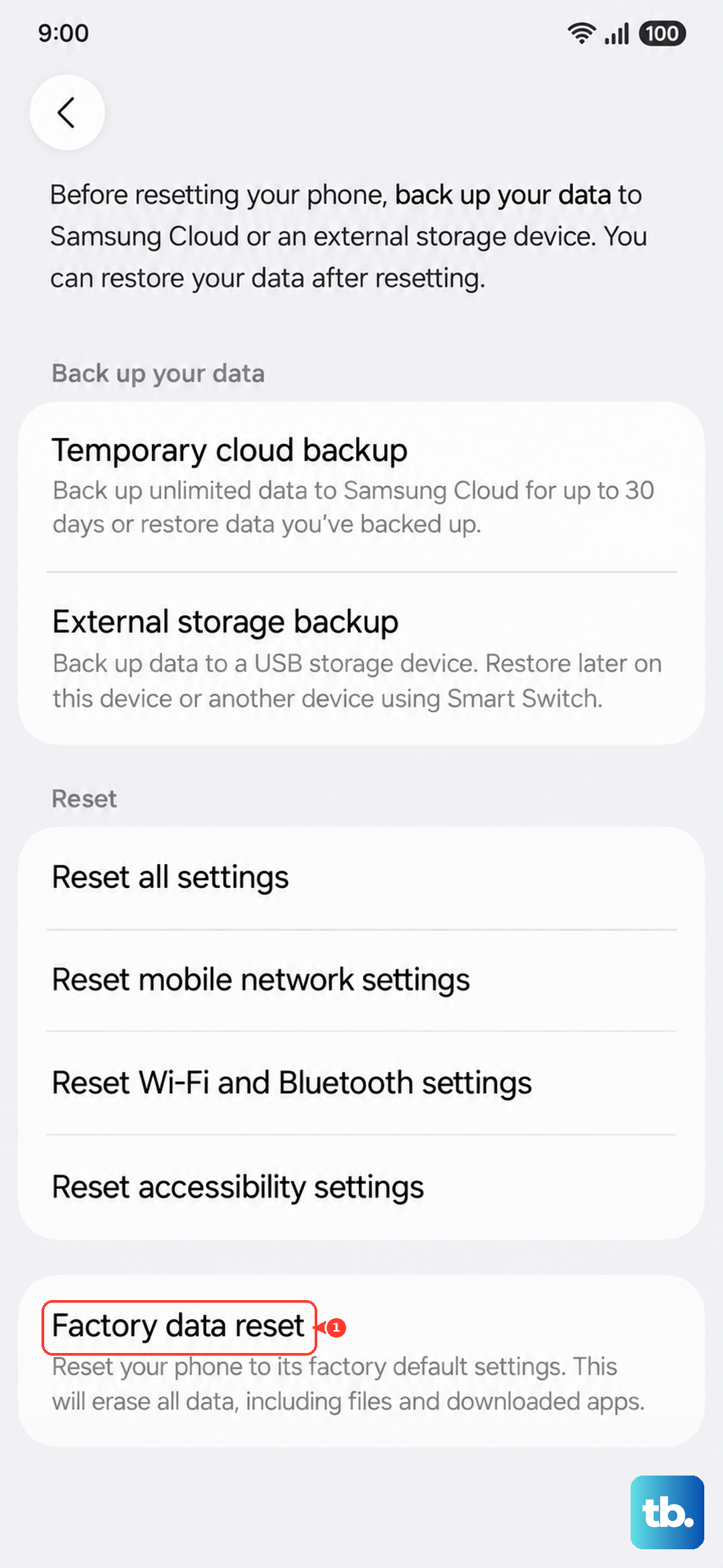
This wipes the phone back to its out-of-box state, which can clear a deep software problem, but it erases all data on the device, so treat it as a true last resort.
Back up your data first.
Samsung's own warning is clear.
Please save any information you need prior to the factory reset because your personal information may not be recovered.
The company recommends you back up your personal data before going any further.
Once you have a backup, go to Settings > General management > Reset > Factory data reset.
Review the information shown, then tap Reset.
Tap Delete all.
Enter your security credentials and Samsung account password if prompted.
After the reset and initial setup, check for the update one more time before restoring your backup.
When to Bring In Samsung Support
If the phone still will not update after working through these steps, the issue may be something only Samsung can resolve.
This is also the right move if you suspect an account problem or a hardware fault is getting in the way of normal operation.
Reach out to Samsung Support through Live Chat or the official Samsung support site for further assistance.
They can look at your specific device, confirm whether there is an account or hardware issue at play, and guide you through any next steps.
Frequently Asked Questions
Why does my Galaxy S26 Ultra say it cannot install the update?
The most common reasons are an unstable connection, a battery that is too low, or not enough free internal storage. Connect to stable Wi-Fi, charge above 50 percent, clear some space, then try again. A force restart often clears any leftover glitch.
Will updating or fixing the update erase my data?
Most of these fixes, including restarting, freeing up storage, Safe mode, and updating through Smart Switch, do not touch your data. Only a factory data reset erases everything, which is why it is the last resort and why you should back up first.
What software does the Galaxy S26 Ultra run?
The Galaxy S26 Ultra ships with One UI 8.5, which is built on Android 16. It receives over-the-air One UI and Android updates through the standard Galaxy software-update path in Settings, and it can also be updated over USB using Samsung Smart Switch.
Can I update my phone from a computer if the over-the-air update keeps failing?
Yes. Connect the phone to a Windows PC or Mac with a USB cable, open Samsung Smart Switch, and let it detect the device. If an update is available, select Update, and do not disconnect the cable or use the phone until it finishes.
How do I keep my S26 Ultra updating automatically?
Open Settings, go to Software update, and tap the switch to enable Auto download over Wi-Fi. With this on, your phone automatically downloads and applies updates whenever it is connected to a Wi-Fi network.