Your Galaxy S26 Ultra just flashed a "Storage full" warning, the camera refuses to save your next shot, and app updates have ground to a halt. It feels backwards on a phone that shipped with 256GB, 512GB, or even 1TB inside, but high-resolution video, app caches, and a hidden Trash folder fill that space faster than you would expect. The good news is that One UI gives you several built-in tools to clear it out, and most of them take under a minute.
Below are the fixes in the order Samsung's own tools make easiest and safest. Start at the top with the quick, non-destructive options, and only move toward the factory reset at the end if nothing else clears the space. One important note up front: the S26 Ultra does not support a microSD card, so any advice about moving files to expandable storage does not apply to this model. Where another guide would say "move it to the SD card," your path is the cloud or a PC instead.
Start With Quick Optimization in Device Care
The fastest first move lives inside Device care, which scans the phone and clears background clutter in one tap. From Settings, swipe to and tap Device care, then tap Optimize now and tap Done. This closes background tasks and flags items worth cleaning, often recovering breathing room without deleting anything you care about.
One thing to expect: the Optimize now option only appears when Device care decides the phone is not already in good shape. As Samsung puts it, the optimization feature will not appear when Device care determines your phone is in "Great condition." If you do not see the button, that is normal, and you can move straight to the next fix.
Restart the Phone to Clear Temporary Files
A simple restart clears temporary files that can make storage look fuller than it really is, and it is worth doing before you start deleting personal content. Press and hold the Volume down button and the Side (Power) button at the same time. After a few seconds, the power options appear; tap Restart, and then tap Restart again.
If the screen is frozen and will not respond to the menu, use a force restart instead. Press and hold the Volume down button and the Side button (or Power button) simultaneously until the device turns off and turns back on. The screen will turn black when the device turns off, and then the Samsung logo will appear. Samsung does not list a fixed number of seconds, so just keep holding until it restarts on its own.
Delete Large Files by Category
Device care also doubles as a storage browser that sorts your content by type, which makes the space hogs easy to spot. The largest offenders are usually videos and high-resolution images, so this is where most owners reclaim the most space.
- 1.Open Settings and tap Device care, then tap Storage.
- 2.Tap a category that is taking up space, such as Images, Videos, Audio files, or Documents.
- 3.Touch and hold the files you want to remove, or tap All to select everything in that category.
- 4.Tap Delete or Delete all, then confirm with Move to Trash.
Work through one category at a time so you do not accidentally remove something you still need. Anything you delete here goes to the Trash first, which leads directly to the next, often-overlooked step.
Empty the Trash to Actually Reclaim the Space
Here is the catch that traps a lot of people: deleted files in My Files, Gallery, and other Samsung apps move to a Trash folder before they are truly gone, so they keep occupying storage. As Samsung notes, the file will stay in the Trash for 30 days before being permanently deleted. If you have only been hitting delete, that space has not actually come back yet.
To clear it now, open the My Files app, go to the Recycle bin (Trash), tap More options (the three dots), and tap Empty. This permanently removes those files and frees the space immediately. Make sure you genuinely no longer need anything in there, because emptying the bin cannot be undone.
Uninstall Apps You No Longer Use
Apps you stopped using still hold onto both their install size and any data they saved over time, and a few large games or editors can quietly take gigabytes. Removing them is one of the cleanest wins available.
Touch and hold the app's icon on the Home or Apps screen, tap Uninstall, and confirm with OK. Repeat for each unused app. Because uninstalling clears both the app and its stored data, this can free more than the app's listed size suggests.
Clear the Cache on Storage-Heavy Apps
For apps you want to keep, such as a browser, a streaming service, or a social app, the cache (temporary working files) can balloon over months of use. Clearing it removes that temporary data without touching your account or your saved content.
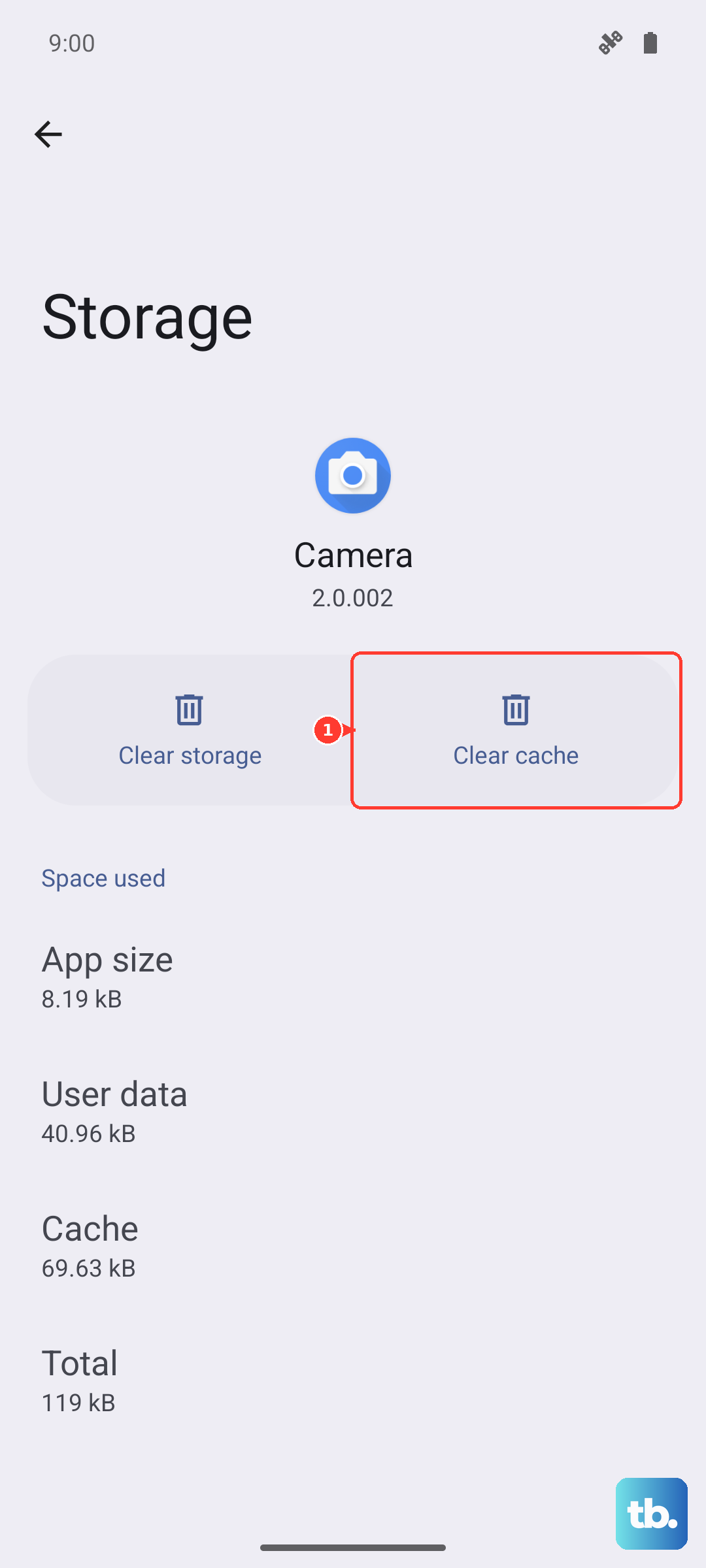
Go to Settings > Apps, select the app, tap Storage, then tap Clear cache. You can repeat this for any app that looks unusually large in the storage list. If an app is still misbehaving and you are willing to start it fresh, you can tap Clear data instead and confirm with Delete, but be aware this resets the app and signs you out, so use it only when you accept that trade-off.
Free Up Memory if the Phone Is Also Sluggish
If a full storage warning comes alongside general slowness, freeing up RAM (active memory) can help the phone feel responsive again while you finish cleaning up. This is separate from storage but lives in the same Device care menu.
Go to Settings > Device care > Memory and tap Clean now to stop background apps and free up memory. If there are apps you always want running, tap Excluded apps > Add to keep them out of the cleanup. This step does not delete files, so it is safe to run as often as you like.
Offload Photos, Videos, and Files to the Cloud
Because the S26 Ultra has no microSD slot, the right way to move space-hungry media off the device is the cloud, not external storage. Your Gallery and large file collections are usually the single biggest reason storage fills up, so moving them out frees the most space.
To move files directly in My Files, select the files, choose Move (or Copy), pick Google Drive or OneDrive (sign in or grant permission if prompted), and tap Move here. To keep an automatic copy, you can also back up data through Settings > tap your Samsung account name at the top > Samsung Cloud > select data with the switches > Back up data > Back up now. One key limitation: Samsung Cloud does not back up photos and videos, so use Microsoft OneDrive for your Gallery backup.
If you prefer OneDrive to keep everything in sync, go to Settings > Accounts and backup > Manage accounts > select your OneDrive account > Sync account. Once your media lives safely in the cloud, you can delete the local copies and empty the Trash to recover that storage on the phone.
Install Any Available Software Update
Software updates sometimes fix storage-reporting bugs and improve the built-in cleanup tools, so an out-of-date phone can show problems that a newer build resolves. Keeping the phone current is a low-effort step that can quietly fix odd behavior.
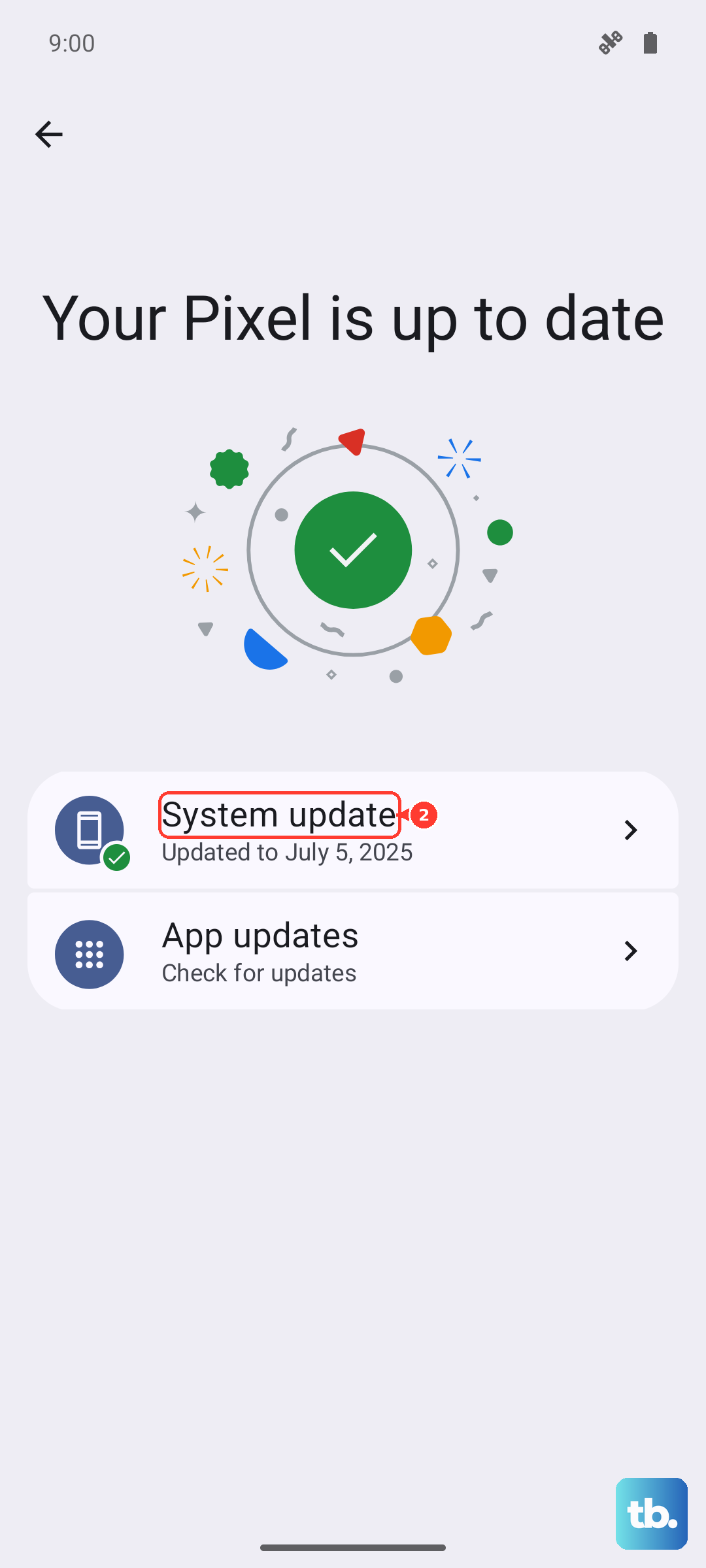
Go to Settings > Software update (or System updates) > Download and install, then follow the on-screen instructions to install. Charge the phone and connect to Wi-Fi before you start, since updates can be large and the process should not be interrupted.
When Nothing Else Works, Back Up and Factory Reset
If storage stays full after every step above and there is genuinely nothing left to remove, a factory data reset returns the phone to a clean state. This is a last resort because it erases everything, so back up your data first using your cloud accounts or Samsung Smart Switch on a PC or Mac before you begin.
- 1.Open Settings and tap General management, then tap Reset.
- 2.Tap Factory data reset.
- 3.Review the information and tap Reset, then tap Delete all.
- 4.Enter your security credentials or Samsung account password to confirm.
Take Samsung's warning seriously before you proceed: "Please save any information you need prior to the factory reset because your personal information may not be recovered." If your storage problem persists even after a reset, it may point to a deeper issue, and the Samsung Members app is the official channel to contact Samsung support or book service.
Frequently Asked Questions
Why is my Galaxy S26 Ultra storage still full after I deleted files?
Deleted files in My Files, Gallery, and other Samsung apps move to the Trash first and stay there for 30 days before being permanently deleted, so they keep using storage until you empty it. Open the My Files app, go to the Recycle bin (Trash), tap More options (the three dots), and tap Empty to reclaim the space right away.
Can I add a microSD card to the Galaxy S26 Ultra to get more space?
No. Samsung's own comparison information states that external SD cards are not supported on the Galaxy S26 Ultra. To make room, offload your photos, videos, and files to the cloud using Samsung Cloud, OneDrive, or Google Drive, or transfer them to a PC instead.
Will clearing an app's cache delete my data or sign me out?
No. Clearing the cache only removes temporary working files and leaves your account and saved content in place. Use Settings > Apps > select the app > Storage > Clear cache. Clear data is different; it resets the app and signs you out, so use that option only when you intend to start the app fresh.
Does Samsung Cloud back up my photos and videos?
No, photos and videos cannot be backed up to Samsung Cloud. For Gallery backups, Samsung directs you to use Microsoft OneDrive instead, which you can sync through Settings > Accounts and backup > Manage accounts > your OneDrive account > Sync account.
What should I do before a factory reset on the S26 Ultra?
Back up everything first, because a factory data reset erases all of your data. Use Samsung Cloud, OneDrive, or Smart Switch on a PC or Mac to save your content. Samsung warns that personal information may not be recovered after the reset, so confirm your backup is complete before going to Settings > General management > Reset > Factory data reset.