You slip on your Galaxy Buds or plug a USB-C earphone into your Galaxy S26 Ultra, hit play, and get nothing. No music, no podcast, no call audio. It is one of the more confusing problems on this phone because the S26 Ultra has no 3.5mm headphone jack at all, so the usual "is it plugged in?" instinct does not apply. The good news is that most no-audio problems come down to a connection setting, an output toggle, or a small software hiccup rather than broken hardware. Work through the fixes below in order, starting with the safest checks, and you will usually have sound back in a few minutes.
If you suspect one side has failed, an online quick headphone test settles it quickly. Play each channel on its own and you will know whether it is the headphones or the source.
First, know how your headphones actually connect
The Galaxy S26 Ultra does not have a 3.5mm headphone jack, so there are only three legitimate ways to get audio out of it. You can connect by Bluetooth (such as Galaxy Buds), by USB-C wired earphones that support Digital Output, or by a USB-C to 3.5mm adapter plugged into the charging port.
This matters because not every accessory works. A USB-C to 3.5mm adapter must have a built-in DAC to pass audio, and some third-party USB-C earphones or adapters may not be fully compatible with the phone. Before you troubleshoot anything else, confirm you are using a compatible connection method for your headphones.
Rule out a muted or low media volume
Audio that seems dead is often just media volume turned all the way down or muted. Press a Volume button while audio is playing and watch for the media volume to respond. When media is muted, the speaker icon appears gray and crossed out, which is easy to miss.
For a clearer view, press a Volume button, then tap the three dots at the top of the volume window to open the detailed sliders. Make sure the media slider is up and not muted, then play something in a music or video app to test whether sound now comes through your headphones.
Strip away cases and adapters, then restart
Physical interference is a common and overlooked culprit. Remove any case, charm, or skin, and remove any third-party USB-C adapter, then connect your headphones directly to the phone so nothing sits between the connector and the port.
After that, restart the phone to clear temporary glitches. Press and hold the Volume down button and the Side button (or Power button) at the same time, tap Restart, then tap Restart again. Once the phone is back on, test your headphones again before moving on.
Turn on the Calls and Audio output switches for Bluetooth headphones
If your headphones are connected over Bluetooth but you still hear nothing, the per-device output switches may be off. This is one of the most common reasons paired headphones show as connected yet play no sound.
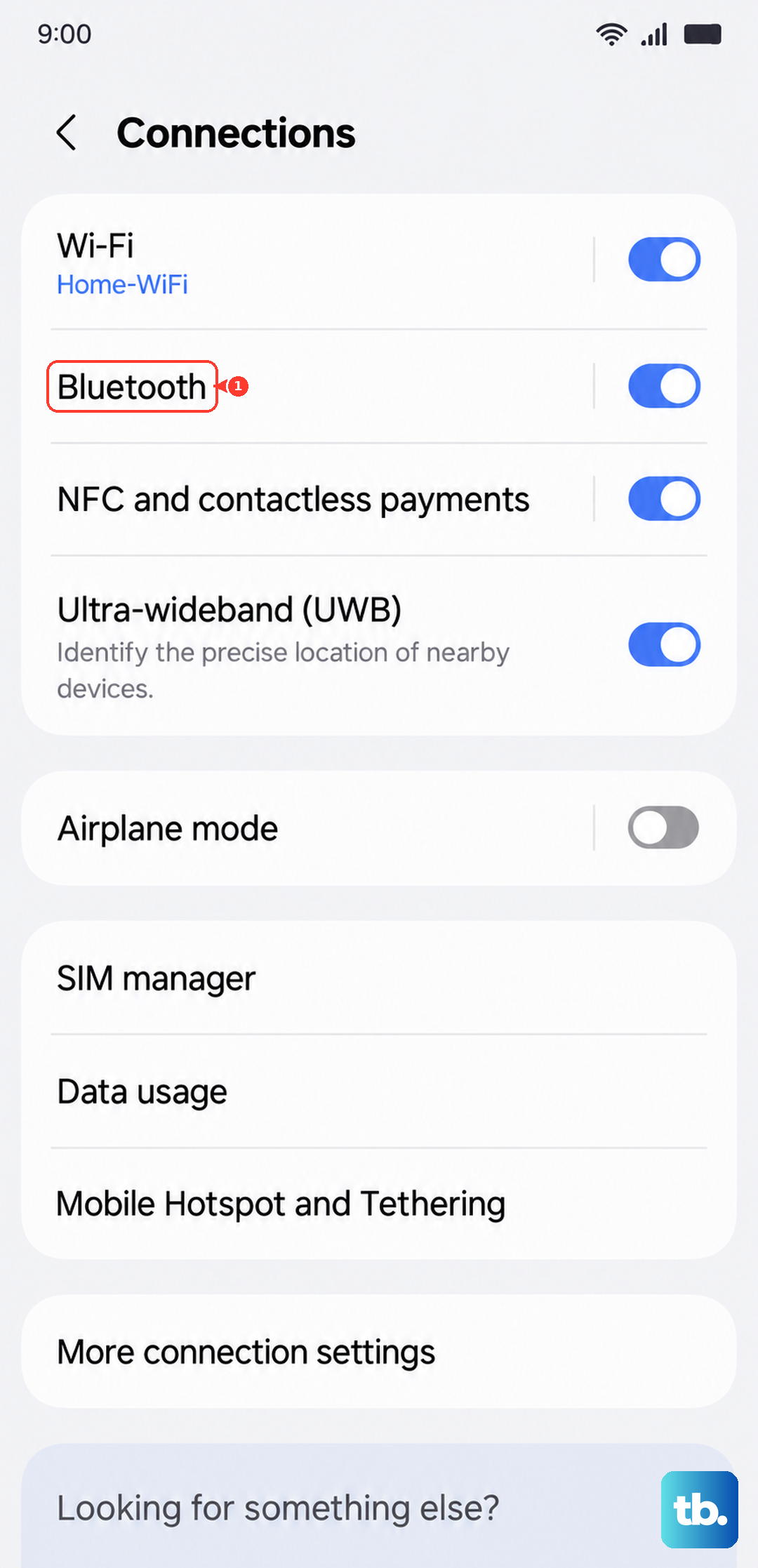
Go to Settings > Connections > Bluetooth, tap the Settings icon next to the connected headphones, and make sure the output switches next to "Calls" and "Audio" are turned on. Also keep the headphones close to the phone and away from obstructions such as walls, routers, and electrical equipment, since distance and interference can cause dropouts that look like a total failure.
Unpair and re-pair the Bluetooth connection
A stale pairing can keep a device showing as connected while audio routing stays broken. Refreshing the pairing fixes this surprisingly often.
- 1.Go to Settings > Connections > Bluetooth.
- 2.Tap the settings icon next to the device, then tap "Forget device."
- 3.Put the headphones back into pairing mode and pair them with your phone again.
- 4.Play audio to test whether sound now routes correctly.
Check the connector and clear the USB settings for wired headphones
For USB-C wired headphones, start with the physical connection. Check that the USB-C connector is not bent or broken and that the cable is not damaged, and clear any dust or debris from the USB-C port. If you are using a third-party USB-C adapter, remove it and connect the headphones directly.
If the port and cable look fine but audio still will not route, reset the system component that handles USB audio. Go to Settings > Apps, show system apps via the sort icon, find USBSettings, then tap Force stop, open Storage, and tap Clear cache and Clear data. Restart the device afterward. Keep in mind that not all features of USB-C headsets are supported on every device.

Clear a moisture-detected error that blocks the USB-C port
If you see a water-drop or moisture icon, the phone may be disabling the USB-C port to protect it, which stops both charging and wired audio.
To clear it, gently shake the device with the port facing down to remove moisture, then let it dry in a well-ventilated area. It can take about 1 to 2 hours to evaporate. Try a different cable as well, since moisture can be in the cable itself, and you can charge wirelessly in the meantime.
Test in Safe mode to expose a misbehaving app
Sometimes a downloaded app, not the phone or headphones, is grabbing or blocking audio. Booting into Safe mode runs the phone with only built-in software so you can isolate the cause.
If your headphones work normally in Safe mode, a third-party app you installed is the likely culprit. From there you can return to normal mode and remove or update recently added apps, especially audio, calling, or media apps, until the problem disappears.
Reset Wi-Fi and Bluetooth settings
If Bluetooth connections keep failing despite re-pairing, resetting the network configuration clears saved connection data without erasing your personal files. This is a focused reset that affects only wireless settings.
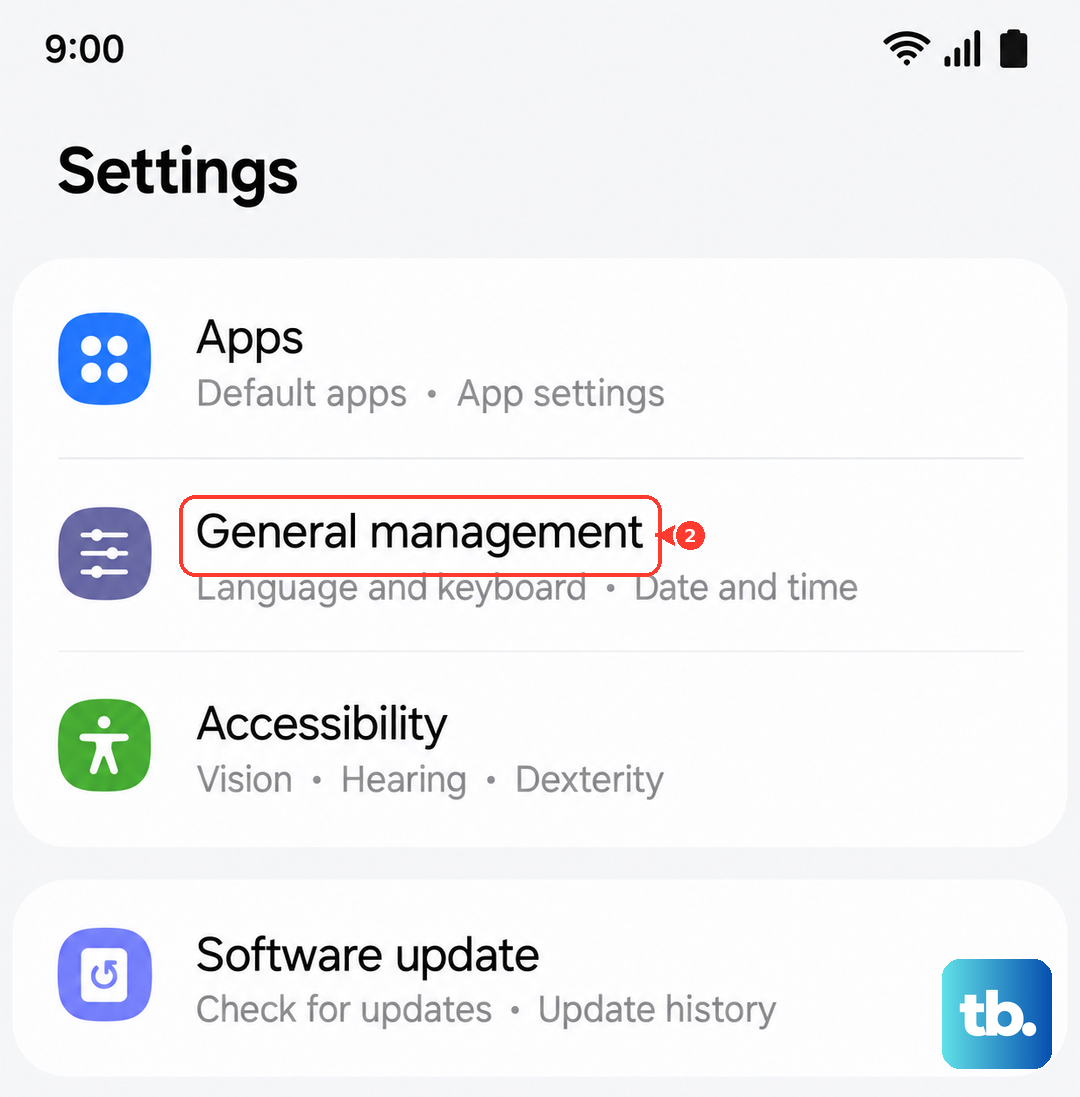
Go to Settings > General management > Reset and select "Reset Wi-Fi and Bluetooth settings." After the reset, pair your headphones again and test the audio.
Install any pending software update
An outdated build can carry audio and Bluetooth bugs that a later update fixes. Before you update, charge the phone and connect to Wi-Fi.
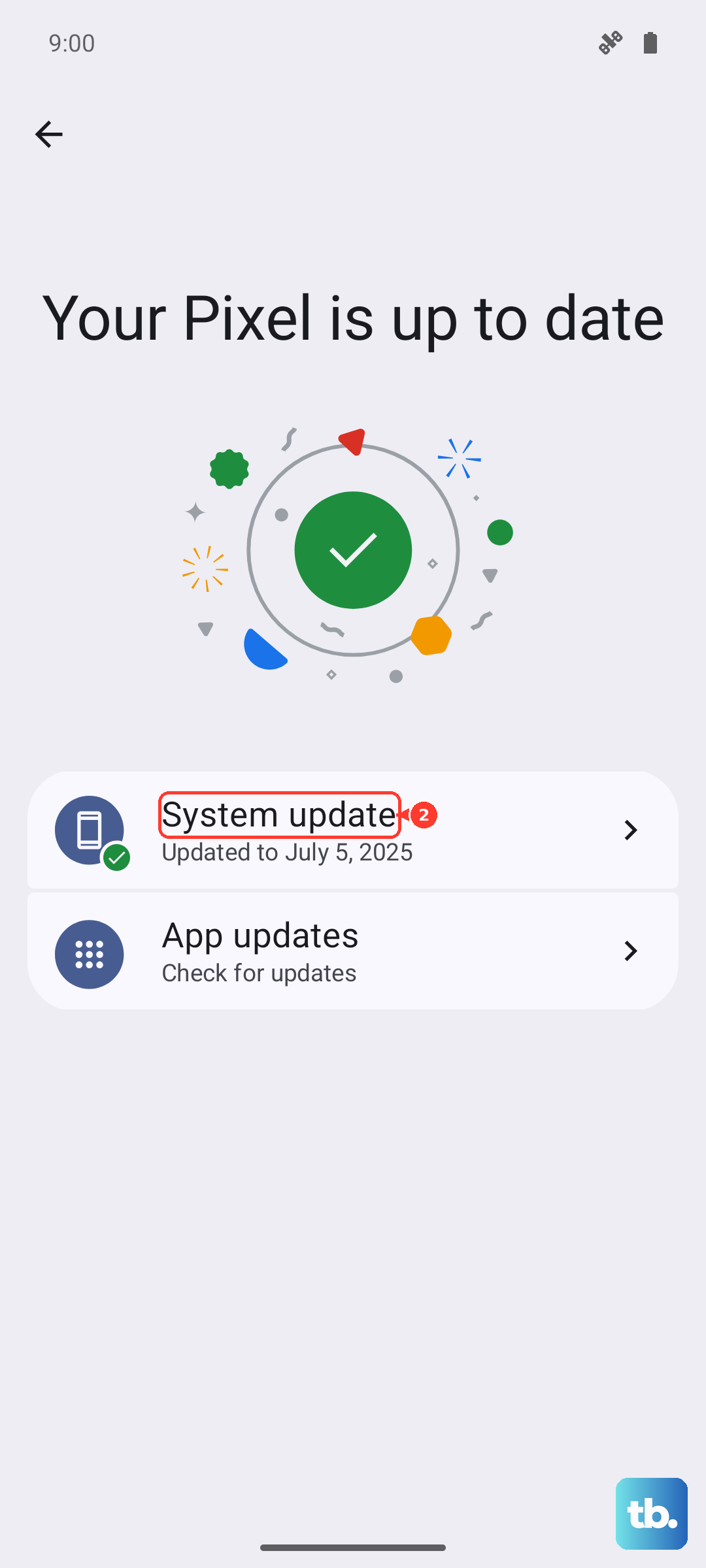
Open Settings, tap Software update, then tap Download and install (the option may read "Check for software updates" or "Check for system updates" depending on your carrier) and follow the on-screen instructions to install. Once the phone restarts, test your headphones to see if the update resolved the issue.
Back up your data, then perform a factory reset
A factory reset is a last software resort because it wipes the phone. Samsung warns, "Please save any information you need prior to the factory reset because your personal information may not be recovered," and the reset "will completely erase your personal information and data to make your phone or tablet a clean slate."
Back up everything first. Samsung Smart Switch (PC or Mac) is the official tool to back up your data. When your backup is complete, go to Settings > General management > Reset > Factory data reset, review the information, swipe to and tap Reset, then tap Delete all. After setup, pair or plug in your headphones to confirm whether audio now works.
When to hand it to Samsung
If your headphones still produce no audio after every step above, the problem may be hardware rather than software. This is especially likely if there is liquid damage, bent USB-C pins, or stuck volume buttons.
In those cases, have the phone evaluated at an authorized Samsung service location or schedule a repair through Samsung support. A technician can inspect the USB-C port and internal audio components that you cannot safely check at home.
Frequently Asked Questions
Does the Galaxy S26 Ultra have a headphone jack?
No. The Galaxy S26 Ultra does not have a 3.5mm headphone jack. You connect headphones by Bluetooth (such as Galaxy Buds), by USB-C wired earphones that support Digital Output, or by a USB-C to 3.5mm adapter with a built-in DAC.
Why does my USB-C adapter not work with the S26 Ultra?
A USB-C to 3.5mm adapter must have a built-in DAC to pass audio, and some third-party USB-C earphones or adapters may not be fully compatible with the phone. Try a known-compatible adapter, and connect it directly to the charging port rather than through another accessory.
My Bluetooth headphones show as connected but play no sound. What now?
Check the per-device output switches. Go to Settings > Connections > Bluetooth, tap the Settings icon next to the connected headphones, and make sure the output switches next to "Calls" and "Audio" are turned on. If that does not help, forget the device and pair it again.
A water-drop icon appeared and now my wired headphones do not work. Is the phone broken?
Not necessarily. A moisture error can block the USB-C port and stop wired audio. Gently shake the device with the port facing down, let it dry in a well-ventilated area for about 1 to 2 hours, and try a different cable, since moisture can be in the cable. You can charge wirelessly in the meantime.
Will a factory reset erase my data?
Yes. A factory reset "will completely erase your personal information and data," and Samsung warns that your personal information may not be recovered afterward. Back up first using Samsung Smart Switch (PC or Mac) before you reset.