
When the flashlight on your Samsung Galaxy S26 Ultra won't turn on, it can leave you in the dark at the worst possible moment. The Quick Panel toggle might do nothing, or the camera flash might fail. Let's get it working again.
Close the Camera App First
The flashlight on your S26 Ultra uses the same LED as the camera flash. If the Camera app is open, even in the background, it locks that hardware. Swipe up from the bottom and hold to enter the recent apps view, then swipe the Camera app away to close it. Try the flashlight toggle again right after.
Restart Your Galaxy S26 Ultra
A simple restart clears the temporary software state controlling the LED. Press and hold the Volume Down button and the Side/Power button together for about 10 seconds until you see the Samsung logo. This force restart is often the fastest fix for a stubborn flashlight.
Check Your Quick Panel Toggle
Swipe down twice from the top of your screen to open the full Quick Panel. Find the flashlight icon. If it's grayed out or unresponsive, press and hold on it. A menu should appear; tap Edit and make sure the flashlight toggle is added to your active buttons. Sometimes it gets accidentally removed.
Adjust the Flashlight Brightness
You might not realize the flashlight is on if the brightness is set too low. Press and hold the flashlight icon in your Quick Panel. A small vertical brightness slider will pop up. Slide it all the way to the top for maximum brightness and see if the light turns on.
Test the Flash with the Camera
Open your Camera app and switch to a photo mode like Photo or Portrait. Tap the flash icon (usually a lightning bolt) and set it to On. Take a picture. If the flash fires for the photo but the dedicated flashlight still won't work, it points to a software or settings issue, not a broken LED.
Update Your Software
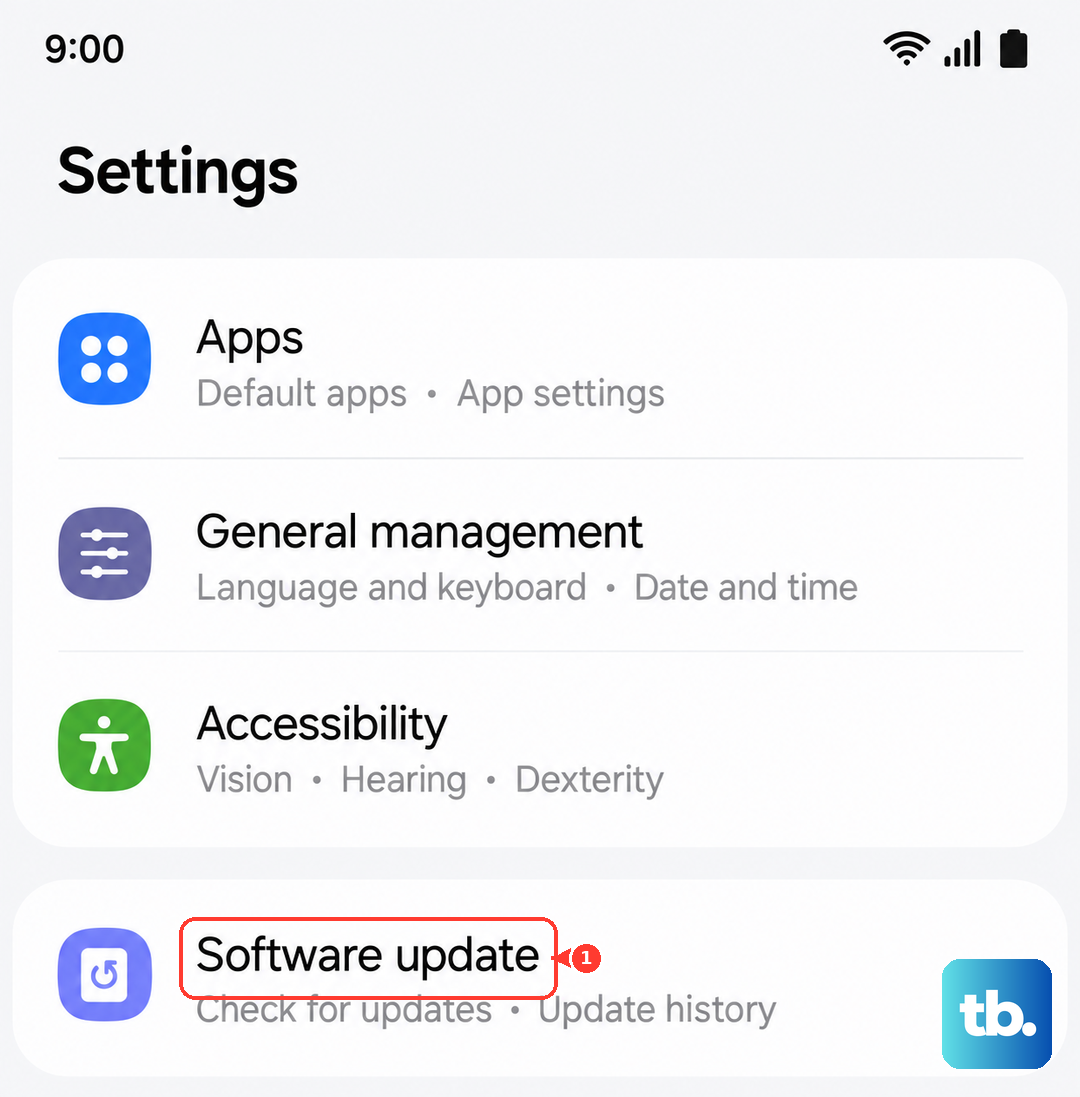
Early software bugs can affect hardware controls on new devices like the S26 Ultra. Go to Settings > Software update and tap Download and install. Samsung releases patches that often fix these kinds of glitches. I've seen a few early One UI updates specifically address camera and flash stability.
Clear the Camera App's Cache
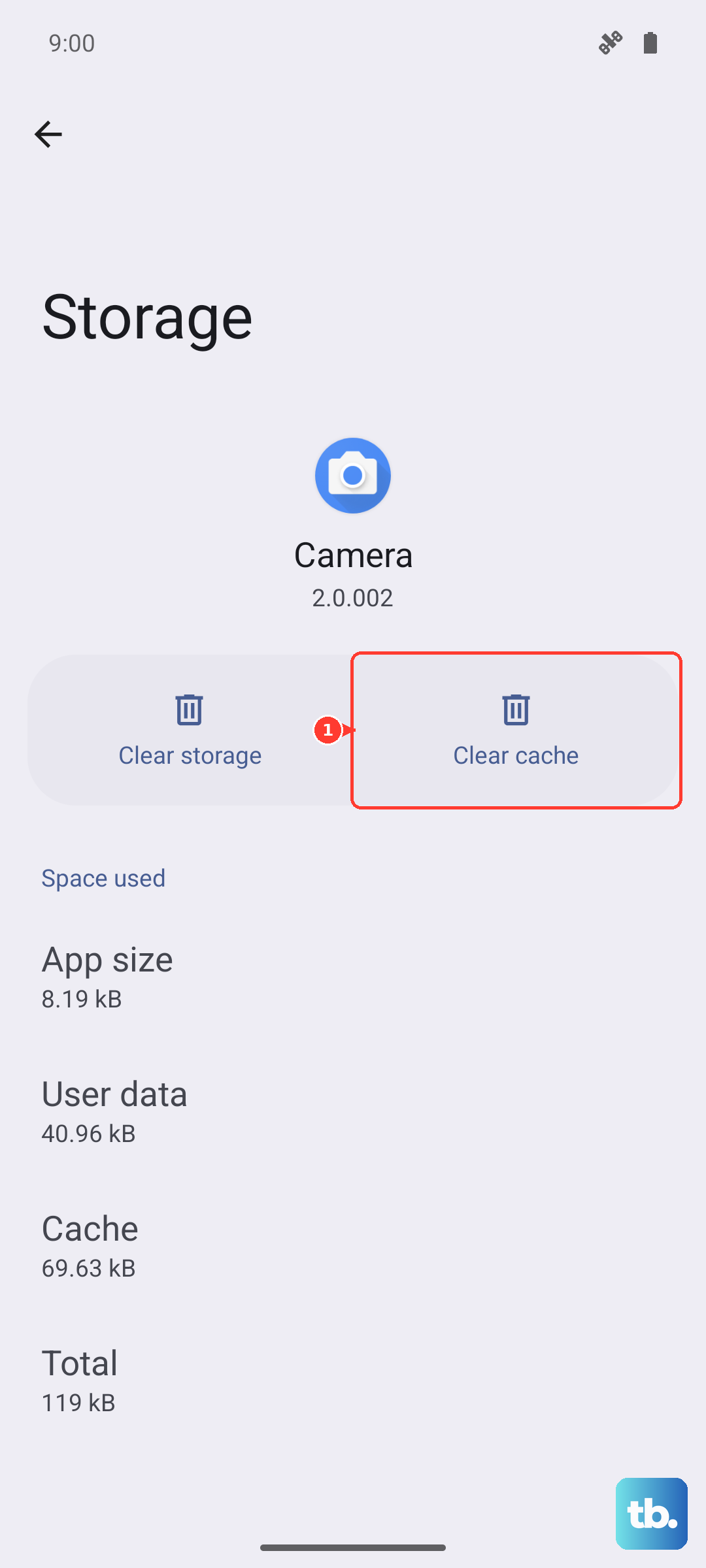
Go to Settings > Apps, then find and tap on Camera. Select Storage and tap Clear cache. This removes temporary data without deleting your photos. It can resolve conflicts that prevent the flash hardware from being accessed properly.
Check for Overheating
Your phone will disable certain features, including the flashlight, if it gets too hot. If the back of your S26 Ultra feels warm, give it a break from charging or intensive tasks. Let it cool down in a cooler spot for 10-15 minutes, then try the flashlight again.
Reset All Settings
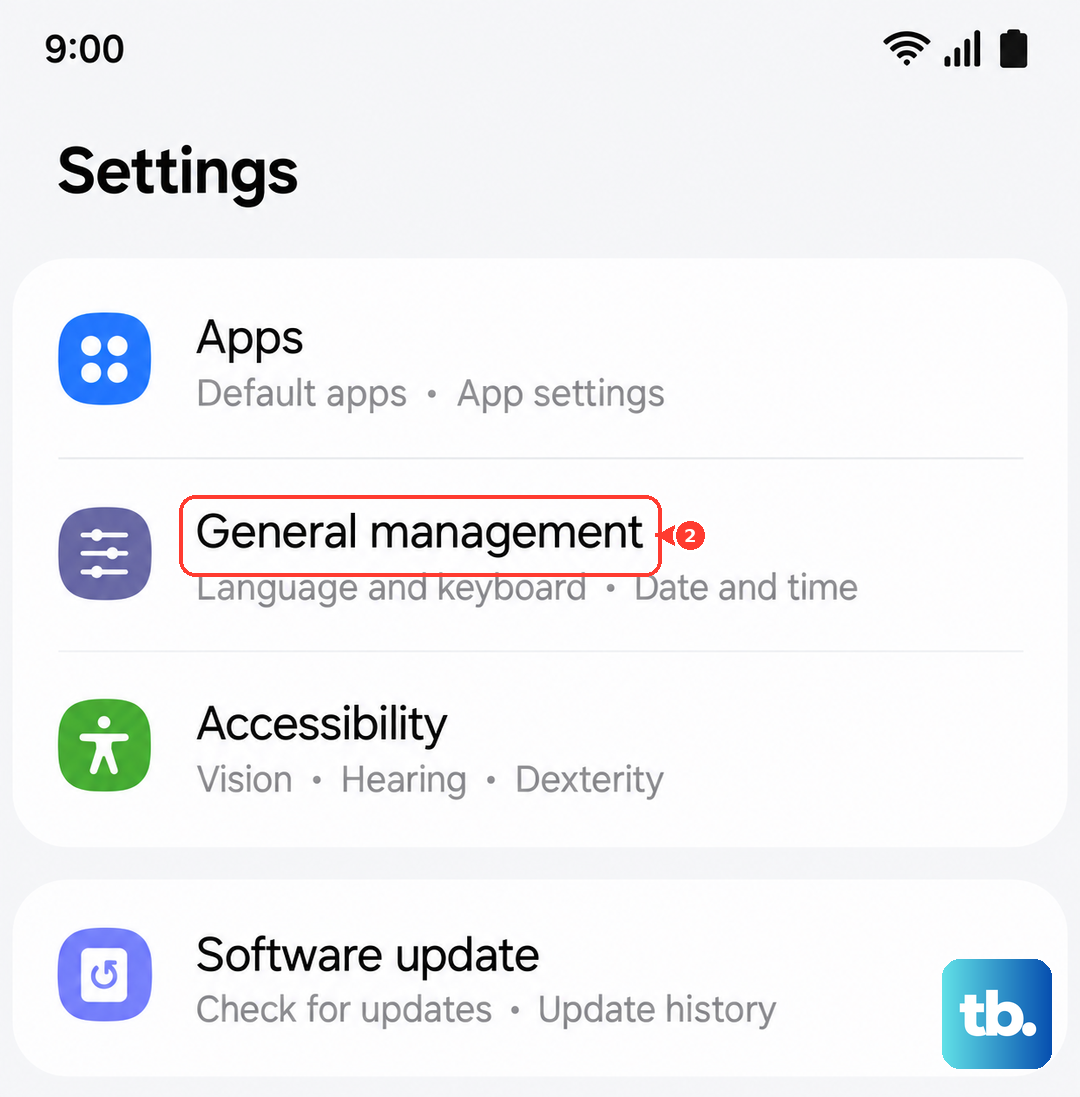
If a toggle is still stuck, you can reset system preferences. Go to Settings > General management > Reset > Reset all settings. This will revert your Wi-Fi, wallpaper, and layout back to default but won't touch your personal data. It's a reliable way to clear any deep configuration error blocking the flashlight.
Consider a Hardware Check
If the camera flash also doesn't work during a photo test, the LED hardware itself could be faulty. Since the S26 Ultra is brand new, this could be a rare manufacturing defect. Contact Samsung Support or visit an authorized service center for a diagnostic check under your warranty.