Your Galaxy S26 just flashed a "Storage full" warning, and now the camera will not save a shot, app updates stall, and screenshots refuse to land. It is a frustrating wall to hit on a phone this capable, especially when you are not sure what is safely deletable. The good news is that One UI 8.5 (built on Android 16, which ships pre-installed on the S26 series) includes built-in tools that reclaim space quickly without putting your photos and accounts at risk.
The fixes below are ordered from the easiest and safest to the most drastic. Start at the top, check your free space after each one, and stop as soon as the warning clears. The factory reset and the call to Samsung Support sit at the very end for a reason, because you will almost certainly free up plenty of room long before then.
One thing to know up front is that the Galaxy S26, S26+, and S26 Ultra do not support a microSD card. Samsung's official S26 comparison guidance states that "External SD cards are not supported. For additional storage, consider using cloud services or internal storage options." If you have read older Galaxy advice about moving files to an SD card, set it aside, because on the S26 the offload path is the cloud.
Start With a Quick Restart to Clear Temporary Files
Before deleting anything, restart the phone. A restart clears temporary files that quietly occupy space, and it sometimes resolves a stuck low-storage reading without you touching a single photo.
Press and hold the Volume down button and the Side button at the same time.
After a few seconds, the power options appear, then tap 'Restart'.
Tap 'Restart' again to confirm.
If the phone is frozen and the power menu will not appear, force a restart instead. Press and hold the Volume down button and the Side button (or Power button) simultaneously until the device turns off and turns back on. Once it is back, check your available storage before moving on.
Let Device Care Optimize the Phone in One Tap
Samsung's Device care feature includes a one-tap cleanup that closes background apps and clears junk to free up space and memory. It is the fastest no-risk win on this list because you are not choosing which files to remove, since the system handles it.
Open Settings.
Tap Device care.
Tap Optimize now.
When it finishes, tap Done.
This is a good habit to repeat every so often even when storage is not full, since it keeps background clutter in check.
Delete Files by Category in Device Care Storage
For a more deliberate clean-out, the Storage screen in Device care groups your files by type so you can spot what is eating the space. Photos and videos are usually the biggest culprits on a phone with a camera as good as the S26's.
Go to Settings > Device care > Storage.
Tap a category such as Images, Videos, Audio files, or Documents.
Select the files you want to remove, or tap 'All'.
Tap 'Delete' or 'Delete all', then confirm with 'Move to Trash'.
Long videos are often the single biggest space hogs, so start with those. Removing a handful of them can clear several gigabytes in one pass.
Clear App Cache, and App Data When You Need a Deeper Clean
Apps accumulate temporary cache files that can swell over time. Clearing an app's cache removes those temporary files without deleting your content, making it one of the safest ways to recover space.
Go to Settings > Apps.
Select the app you want to clean.
Tap Storage.
Tap Clear cache.
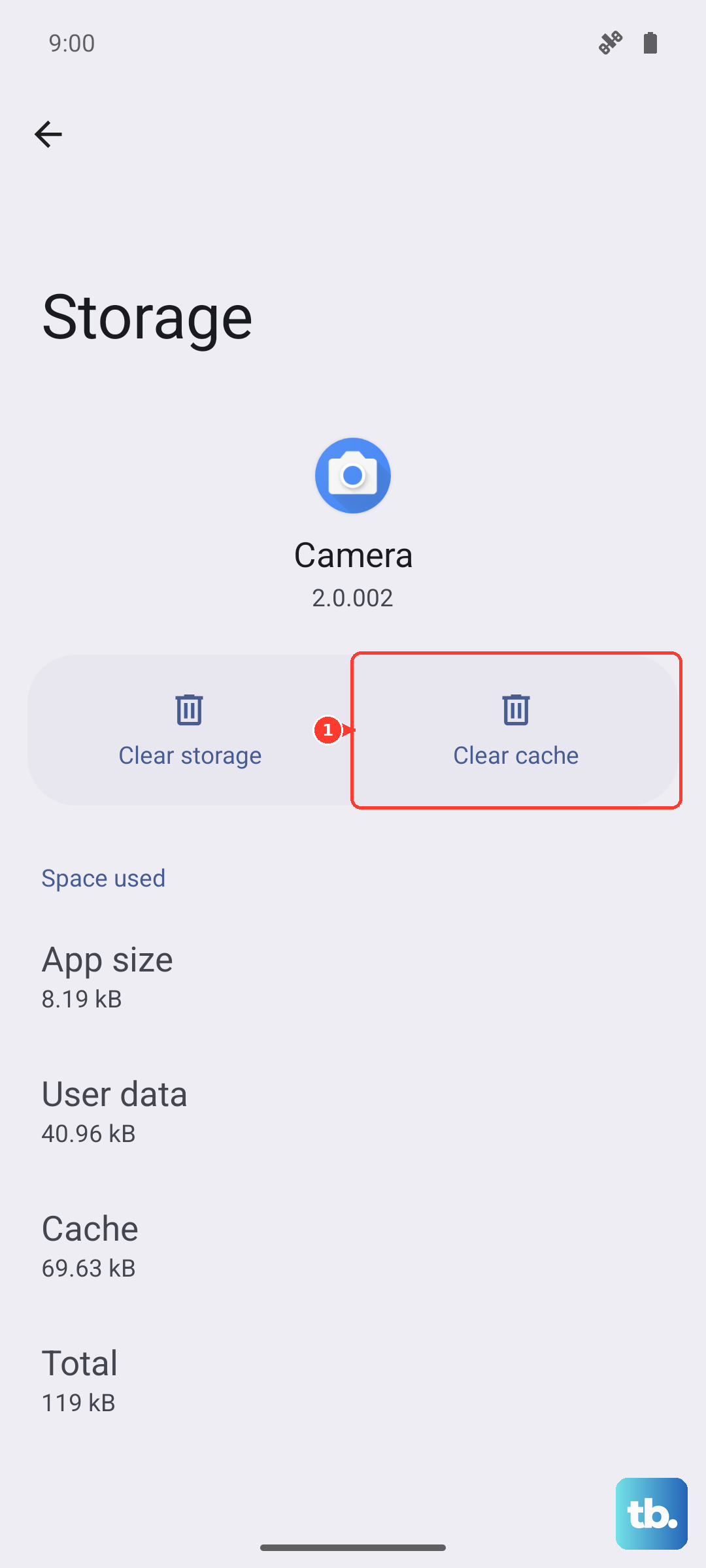
If an app is still hoarding space after clearing its cache, you can go further with Storage > Clear data > Delete. Be careful here, because this resets the app to its factory defaults and erases the app's saved data, so you may need to sign in again or reconfigure it. Use it only on apps where losing local settings is acceptable.
Empty Your Downloads and the Trash
Downloaded files pile up in the background, and deleting files on the S26 moves them to a Trash folder where they keep occupying storage until you clear it out. This is really two steps, which are removing the downloads, then emptying the Trash.
Open the My Files app.
Go to Downloads (or browse Categories).
Select the files you no longer need.
Tap 'Delete all', then 'Move to Trash'.
Because files in Trash still take up space, finish by emptying the Trash to fully reclaim that storage. If you do not see the Trash option, enable the Trash feature in My Files settings first.
Uninstall Apps You No Longer Use
Unused apps carry their own data along with the app itself, so removing them frees significant space in one move. Think about games you finished or trial apps you never opened again.
Touch and hold the app on the Home or Apps screen.
Tap 'Uninstall'.
Confirm by tapping 'OK.'
If you change your mind later, most of these apps can be reinstalled from the store, so do not hesitate to clear the ones you rarely touch.
Offload Photos and Files to the Cloud, Then Remove Local Copies
Since the Galaxy S26 series has no microSD slot, the cloud is the offload route for large photos and videos. Back your media up first, confirm it is safely stored, and only then delete the local copies. Samsung references three official services.
Samsung Cloud. Go to Settings, tap your Samsung account name at the top, then tap Samsung Cloud and use it to back up your data.
Google Drive and Google One. Go to Settings > Google > Backup, make sure the switch next to 'Backup by Google One' is turned on, then tap 'Back up now.'
OneDrive. Open the OneDrive app, go to the Photos tab, and tap 'TURN ON' so the Gallery app can automatically sync your photos and videos with OneDrive.
Once you have confirmed the items are backed up, you can delete the local copies to free space on the phone. This is the single most effective long-term fix for a storage-hungry camera roll.
Install the Latest Software Update
Software updates can improve how the phone handles storage and fix bugs that cause space to be miscounted or held onto. It is worth checking for an update while you are working through these fixes.
Go to Settings > Software update (it may say 'System updates' on some models).
Tap Download and install.
Follow the on-screen instructions to Install now.
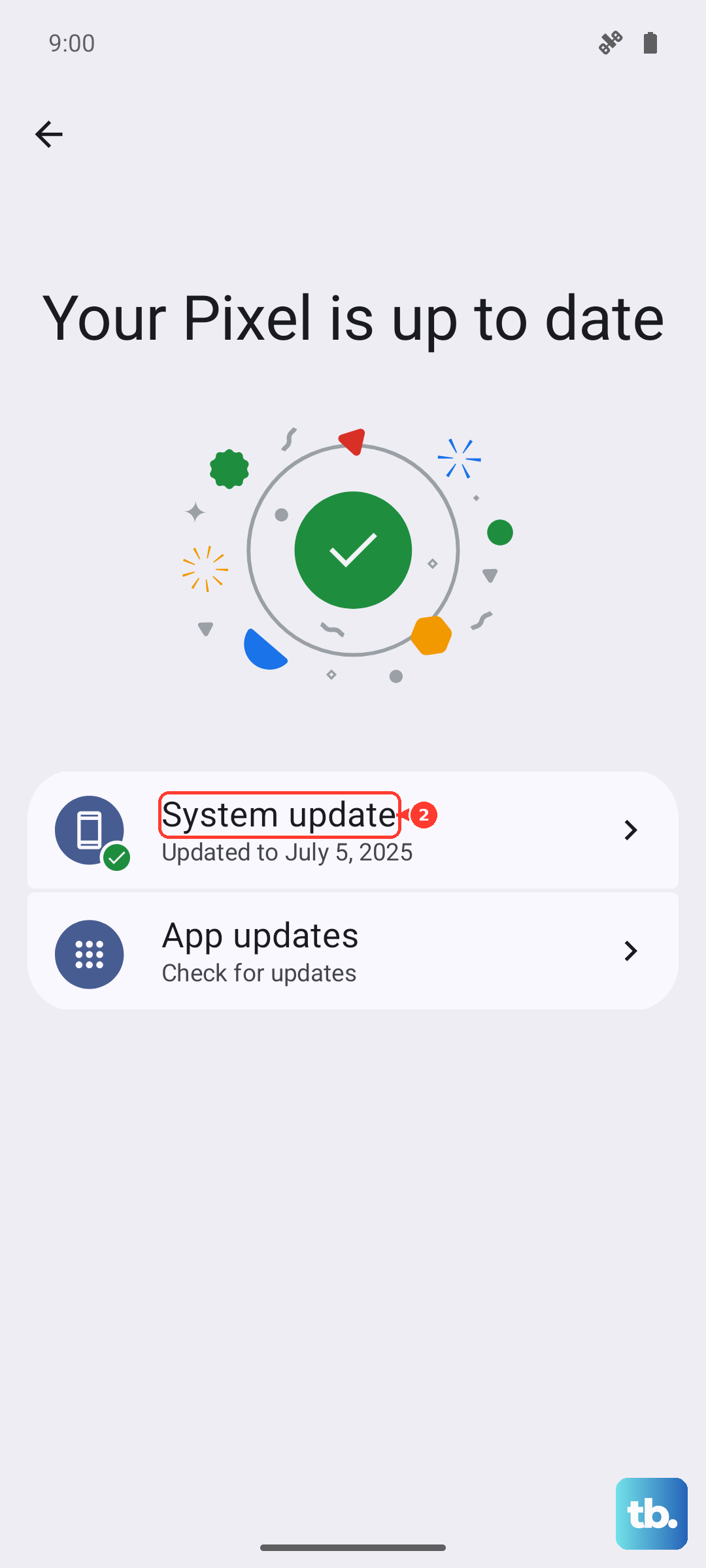
Samsung recommends keeping your battery above 50% and staying on a Wi-Fi connection during the process. The phone restarts while it installs, so do this when you can be without it for a few minutes. You can also use Smart Switch, Samsung's official companion app for a PC or Mac, to handle software updates and data transfers from a computer.
When Storage Stays Full Use a Factory Reset as a Last Resort
If storage problems persist after every step above, a factory data reset returns the phone to its original state and clears everything off it. This is a heavy step, so treat it as the final option, not an early one.
This erases all of your data. Samsung warns that you should "save any information you need prior to the factory reset because your personal information may not be recovered." Data deleted during a factory reset cannot be restored, so back everything up to the cloud (or transfer it with Smart Switch) before you begin.
- 1.Go to Settings > General management > Reset.
- 2.Tap Factory data reset.
- 3.Tap Reset, then tap Delete all.
- 4.Enter your security credentials and Samsung account password if prompted.
If, even after a reset, the low-storage error keeps coming back, contact Samsung Support for further assistance through the official Samsung support site. A persistent warning on a freshly wiped phone points to something worth having them look at directly.
Frequently Asked Questions
Can I add a microSD card to my Galaxy S26 for more storage?
No. Samsung's official S26 guidance states that external SD cards are not supported and recommends using cloud services or internal storage options instead. The S26, S26+, and S26 Ultra rely on internal storage only, so plan to offload photos and videos to Samsung Cloud, Google Drive (Google One), or OneDrive.
How much storage does the Galaxy S26 come with?
According to Samsung, the Galaxy S26 and S26+ come with 12GB of RAM and either 256GB or 512GB of storage. The S26 Ultra offers 12GB of RAM with 256GB or 512GB, or 16GB of RAM with 1TB of storage.
Will clearing an app's cache delete my photos or messages?
No. Clearing the cache (Settings > Apps > select the app > Storage > Clear cache) only removes temporary files and leaves your content in place. Clearing data is different, because it resets the app to its defaults and erases the app's saved data, so use that option only when you are willing to reconfigure the app.
Why is my storage still full after I deleted files?
Deleted files move to the Trash first, where they keep taking up space until you remove them. Open the My Files app, empty the Trash (enable the Trash feature in My Files settings if needed), and your storage will fully reclaim that space.
What should I do before a factory reset?
Back up everything you want to keep first, because Samsung warns that personal information may not be recovered and data deleted during a factory reset cannot be restored. Use Samsung Cloud, Google One backup, or OneDrive, or transfer your data with Smart Switch on a PC or Mac, then proceed with Settings > General management > Reset > Factory data reset.