You set your Samsung Galaxy S26+ on the wireless pad expecting that satisfying charge animation, and nothing happens. Maybe the battery never climbs, or maybe it charged fine yesterday and stopped today. The good news is that your S26+ does support wireless charging (Samsung lists Super Fast Wireless Charging up to 20W for this model), so the feature is real and the problem is almost always positioning, an accessory, or a setting rather than a dead phone. Work through the fixes below in order, starting with the quickest and safest, and you will likely have it charging again well before the last step.
First, Decide Whether It Is Really a Wireless Problem
Before you blame the pad, confirm that the fault is specific to wireless charging and not your charging hardware in general. Plug the phone into a wired charger and watch whether it begins to charge normally.
Here is the important nuance for the S26+. If there is moisture in the USB-C port, the phone will not charge while plugged in, because Samsung blocks wired charging when moisture is present in the charging port. Yet that same phone "will still be able to charge with a wireless charger on supported devices," so a wired failure does not automatically mean wireless is broken.
Compare the two outcomes to isolate the fault. If wired works but wireless does not, focus on the pad, placement, and the fixes below. If wired also fails, the issue may be a port or cable problem instead, and wireless can serve as a useful fallback in the meantime.
Get the Phone Centered and Flat on the Pad
Wireless charging only works when the coils line up, and the coil location can vary from one pad to another. Samsung's guidance is direct, "the device's back should make contact with the wireless charger, and the device should be centered."
Place the back of the S26+ flat against the pad, then nudge it slightly until charging begins. A small shift of a few millimeters is often all it takes to find the coil. If your charger has an indicator light, watch it as you reposition the phone, since it will usually confirm when alignment is correct and charging has started.
Remove the Case and Anything Sitting Between Phone and Pad
A thick or metal case is one of the most common reasons a wireless charge fails to start or charges slowly. Samsung's advice is to remove the case, "If necessary, remove your phone's case, especially if it is thick."
Take off third-party cases, skins, pop sockets, or anything attached to the back of the phone, then try again. These add distance and can block the wireless signal.
Also check for objects trapped between the phone and the pad. Metal cards, coins, or other items sitting on the charger can interfere with the signal and reduce or stop charging entirely.
Unplug Everything From the USB-C Port
It is worth ruling out anything connected to the phone while you troubleshoot. A cable, dongle, or wired earphones left in the port can complicate testing, and removing them keeps the picture clean.
Unplug everything from the USB-C port, then set the phone back down on the center of the pad and watch for the charging indicator.
Use a Certified Charger With Enough Power
Not every wireless pad and adapter delivers a reliable charge to the S26+. Sticking with a certified Samsung wireless charger rules out many cheap or generic pads as the culprit, and it ensures the pad is built to the standard your phone expects.
The power source behind the pad matters too. An underpowered or weak adapter can limit how fast, and sometimes whether, wireless charging works. Plug the adapter straight into a wall outlet rather than a computer or another device, and use an adapter rated to supply enough power for the pad you own.
Clear a Moisture Warning Before Expecting a Fast Charge
If you see a water-drop or moisture warning, that is your phone protecting itself, not necessarily a defect. Samsung states that "Samsung devices will not charge if moisture is present in the charging port when it is plugged in."
If the phone got wet or showed the alert, unplug the cable and give the port time to dry fully before plugging in again. Do not keep forcing a wired connection during this time.
While you wait, you can keep using the phone and keep it powered, because the wireless pad still works when moisture is detected in the port. This is exactly the situation where wireless charging becomes a genuinely useful fallback.
Check Whether Battery Protection Is Capping the Charge
If wireless charging seems to stop early, it may be a deliberate setting rather than a fault. Samsung's battery-protection feature can cap the charge to help preserve long-term battery health, which can make a full charge look like it has stalled.
To allow a full charge, go to Settings > Battery and turn off Protect Battery or Battery Protection. After turning it off, place the phone back on the pad and confirm it now charges past the previous ceiling.
Force Restart a Frozen Phone
A frozen or unresponsive system can stop a charge from registering even when everything else is correct. A force restart clears that state without affecting your data.
- 1.Press and hold the Volume down button and the Side button (or Power button) simultaneously until the device turns off and turns back on.
- 2.The screen will turn black when the device turns off, and then the Samsung logo will appear.
If the phone is responsive and you simply want a clean restart instead, press and hold the Volume down button and the Side button (or Power button) at the same time. After a few seconds different power options will appear, then tap Restart, and tap Restart again. Once it is back on, set it on the pad and re-test.
Install Any Available Software Update
Wireless-charging disconnections or hiccups can sometimes be addressed by a software update, since updates can refine charging behavior. If you suspect this, check for any available update that may resolve it.
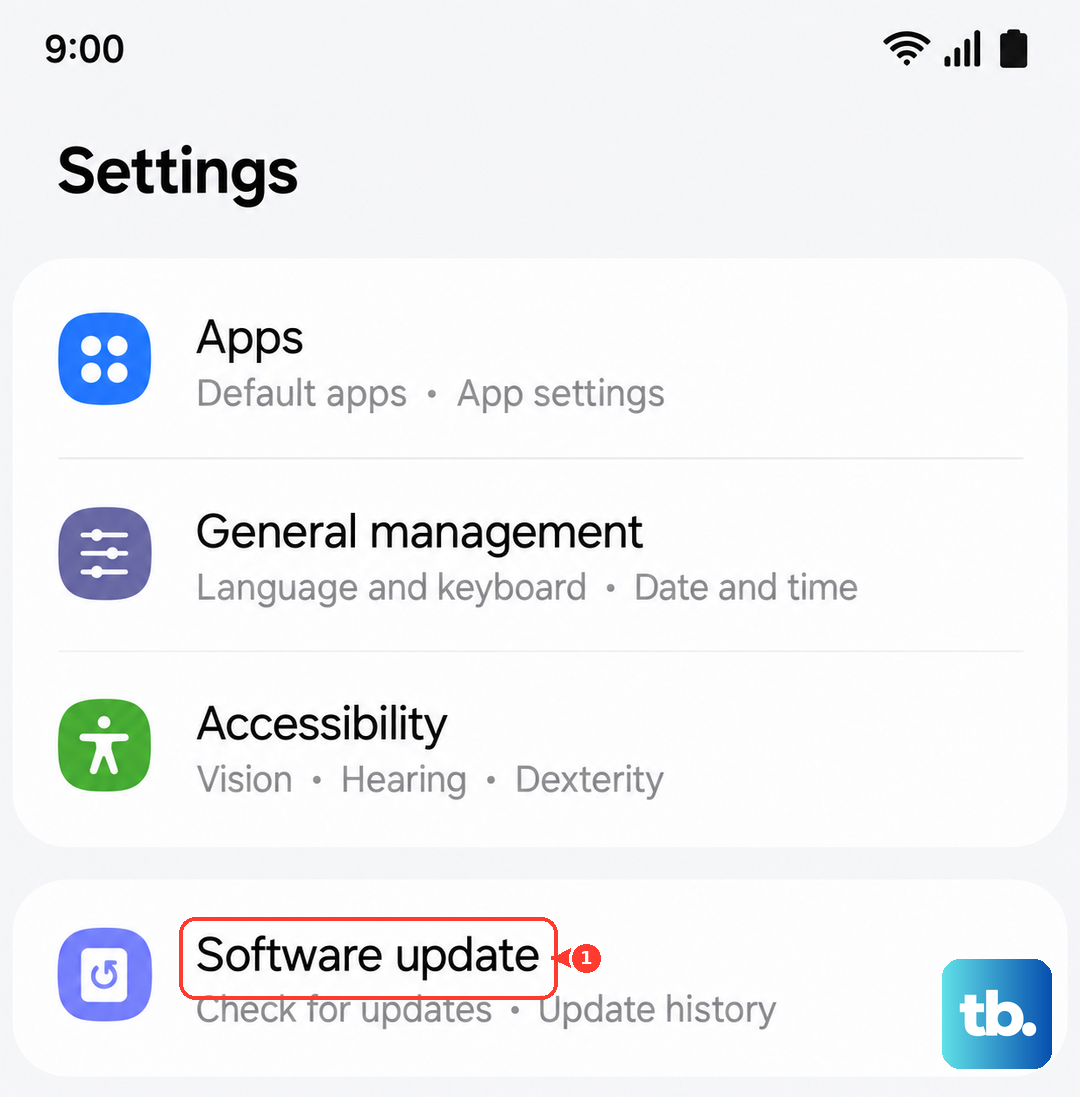
To check, go to Settings > Software update > Download and install > Check for software updates and install anything that appears. The exact wording may vary slightly by carrier, and you can also enable Auto download over Wi-Fi so future updates arrive on their own.
Back Up, Reset, and Then Reach Samsung Service
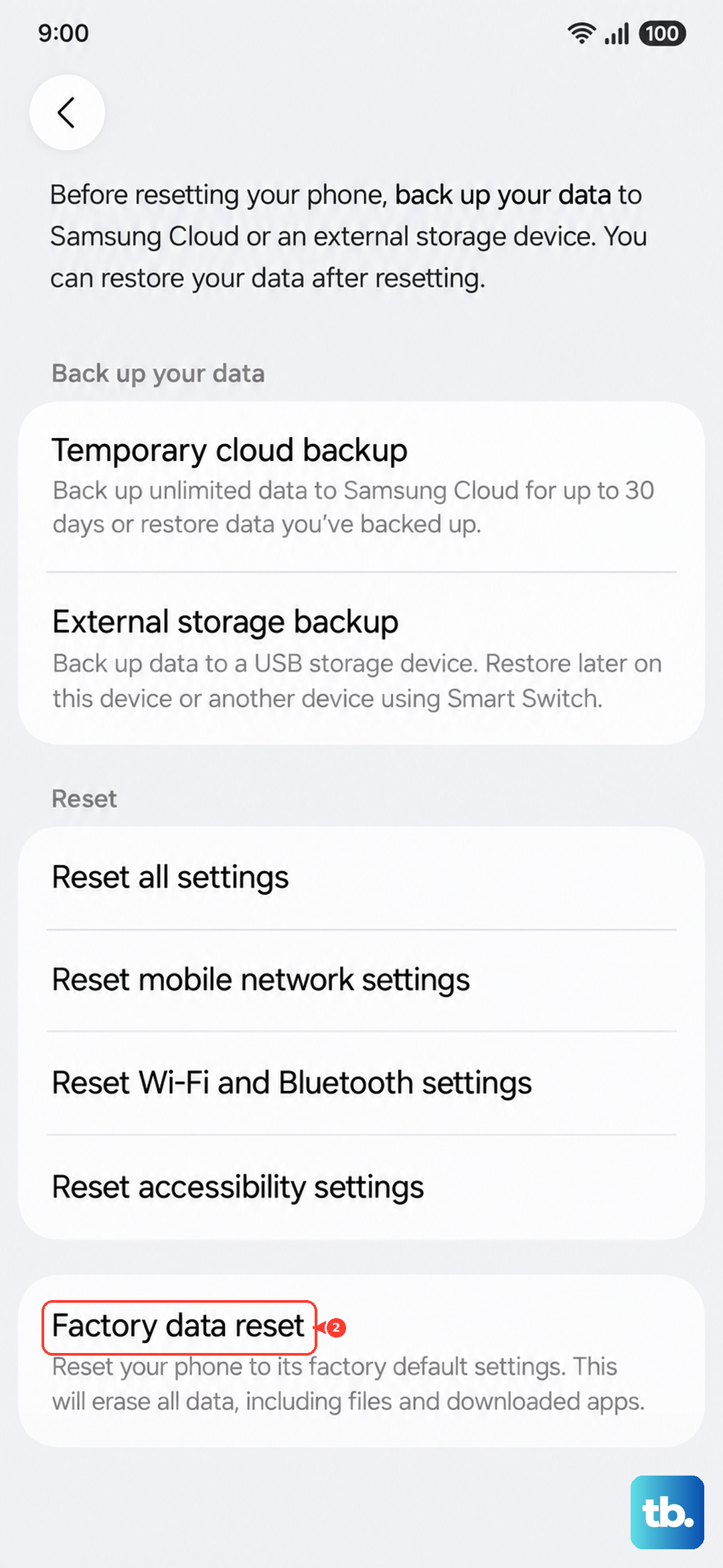
If none of the above restores wireless charging, a factory reset is the last software step to try. A factory reset erases the phone, and Samsung warns that "your personal information may not be recovered," so Samsung recommends you back up your personal data first using Smart Switch or a cloud account so you do not lose it all.
Once your data is safely backed up, go to Settings > General management > Reset > Factory data reset > Reset > Delete all and let the phone reset.
If wireless charging still does not work after the reset, the problem is likely hardware. At that point, contact Samsung support to arrange a repair.
Frequently Asked Questions
Does the Galaxy S26+ actually support wireless charging?
Yes. Samsung's official comparison support page lists Super Fast Wireless Charging up to 20W for the Galaxy S26+ (the base S26 is rated at 15W), so wireless charging is a built-in capability of this model.
Why does my S26+ charge wirelessly but not over the cable?
This often points to moisture in the USB-C port. Samsung devices will not charge while plugged in if moisture is detected, but the phone "will still be able to charge with a wireless charger on supported devices." Let the port dry fully, and keep using the pad in the meantime.
Why does wireless charging seem to stop before full?
That is often the battery-protection setting rather than a malfunction. Go to Settings > Battery and turn off Protect Battery or Battery Protection to let the phone charge all the way to full.
Do I need to take my case off to charge wirelessly?
Not always, but Samsung advises removing the case "especially if it is thick." Thick or metal cases, skins, and anything attached to the back can block the signal, so remove them if charging is slow or will not start.
What should I do if wireless charging still fails after a factory reset?
If a backup and factory reset do not fix it, treat it as a likely hardware fault and contact Samsung support to arrange a repair.