
If your Galaxy S26+ has gone silent, missing calls and messages because the vibration motor isn't working, it's a surprisingly common hiccup. The good news is it's almost always a software or settings issue you can fix yourself in a few minutes.
Perform a Quick Restart
Before diving into settings, give your phone a fresh start. Press and hold the Volume Down button and the Side/Power button together for about 10 seconds. Release them when you see the Samsung logo appear on the screen.
This force restart clears out any temporary glitches in One UI 8.5 that might be stopping the vibration motor from responding. I'd start with this one every time.
Verify Your Sound Mode
It sounds simple, but double-check your sound profile. Swipe down twice from the top of your screen to open the Quick Settings panel. Look for the sound mode icon, it might say "Sound," "Vibrate," or "Mute."
If it's set to "Mute," vibration is disabled entirely. Tap it to cycle to "Vibrate" or "Sound." You can also go to Settings > Sounds and vibration > Sound mode to make sure "Vibrate" or "Sound" is selected.
Check the Core Vibration Toggles
Head into your sound settings to ensure the basic switches are flipped on. Open Settings > Sounds and vibration. First, look for "Vibrate while ringing" and make sure it's enabled.
Right below that, you should see "Vibration intensity." Tap on it. Here, you'll find separate sliders for call vibration, notification vibration, and touch feedback. Crank these up to the maximum and test each one.
If the vibration settings were very low, silent, or disabled, that may be the cause. Adjust the call, notification, system, and vibration intensity options, then test again.
Inspect App-Specific Notification Settings
Sometimes the phone vibrates fine for some apps but not others. This means the issue is with that app's notification permissions. Go to Settings > Apps, then select the app that's not vibrating (like Messages or your email client).
Tap on "Notifications." You'll see categories like "General notifications" or "New messages." Tap into each relevant category and ensure "Vibrate" is turned on. Some apps bury this setting, so you have to dig a little.
Update Your Software
Since the S26+ is a new device running the early version of One UI 8.5, a bug could be the root cause. Samsung is typically quick to patch these issues. Go to Settings > Software update > Download and install.
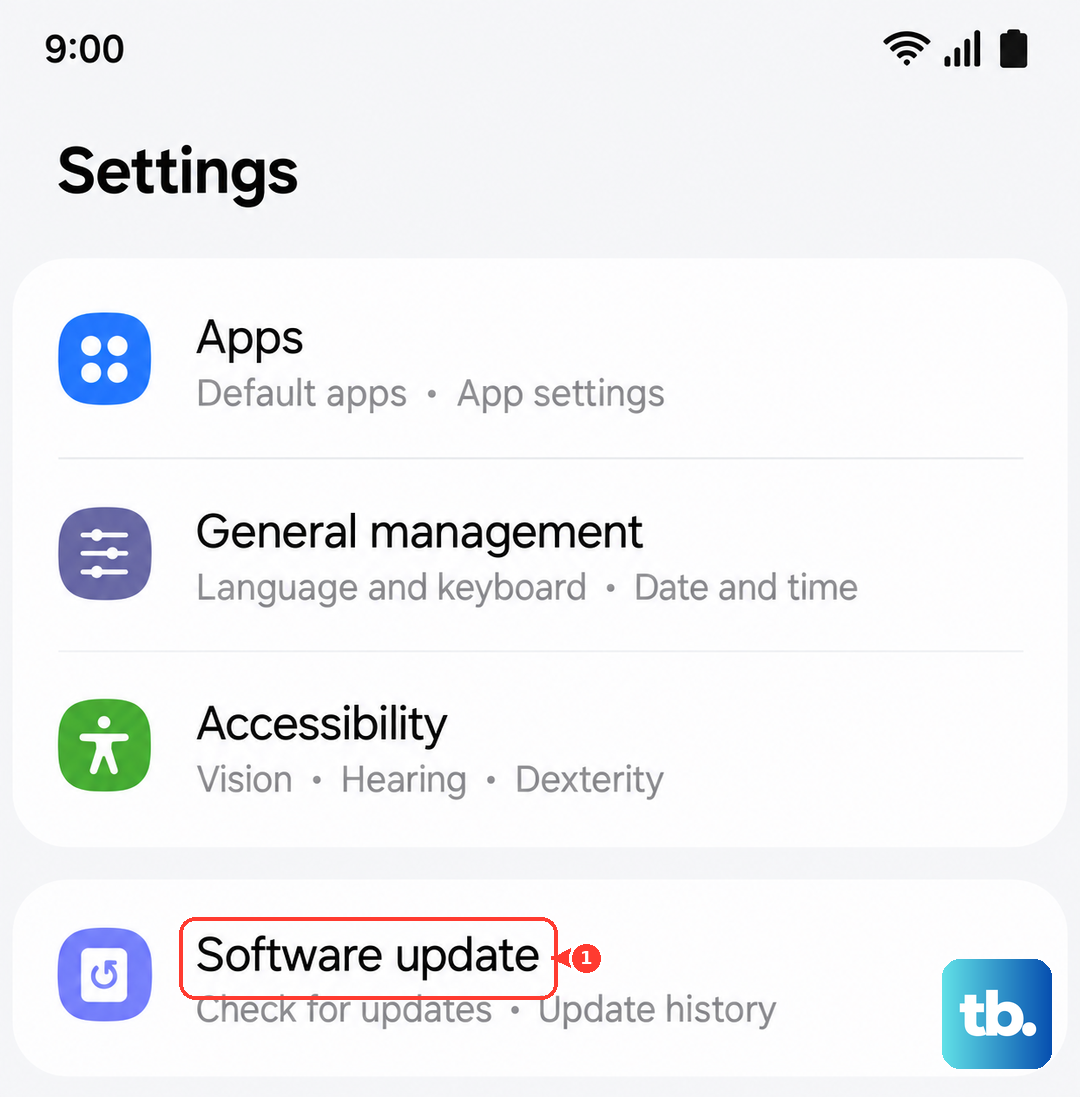
If an update is available, install it. This is a very common fix for weird glitches on brand-new phones. After the update, perform the force restart again to make sure everything is loaded cleanly.
Test in Safe Mode
If the problem persists, you need to see if a third-party app you installed is causing a conflict. Booting into Safe Mode temporarily disables all downloaded apps. To enter Safe Mode, turn your phone off completely.
Now, press and hold the Side/Power button. The moment you see the Samsung logo, release the Power button and immediately press and hold the Volume Down button. Keep holding it until the phone finishes booting. You'll see "Safe mode" in the bottom-left corner.
If vibration works normally in Safe Mode, a recently installed app is the problem. You'll need to uninstall apps one by one to find the culprit. To exit Safe Mode, just restart your phone normally.
Reset All Settings
This is a more thorough step that resets default phone settings without erasing apps, accounts, personal data, security or language settings, or settings for downloaded apps. Go to Settings > General management > Reset > Reset all settings.
Review the information, tap Reset settings, then tap Reset to confirm. Your phone will restart after a few moments, so use this only after checking the simpler vibration, notification, Do Not Disturb, and Safe Mode steps above.
Check System Vibration Controls
If touch feedback is the only vibration that feels missing, use Samsung's system vibration controls instead of changing themes. Open Settings > Sounds and vibration > System vibration and review the feedback options for touch interactions, dialing keypads, keyboards, navigation gestures, charging, and camera feedback.
Then open Settings > Sounds and vibration > Vibration intensity and raise the System level. If calls or app alerts are missing vibration too, continue with notification and Do Not Disturb settings rather than treating the theme as the likely cause.
Run Samsung Members Diagnostics
Use Samsung's documented diagnostics path instead of a hidden dialer code. Open the Samsung Members app, tap Diagnostics on the Discover tab, then tap Phone diagnostics.
Choose Vibration if it is available, or run Test all, and follow the on-screen instructions. If the vibration test fails, use the suggestions in Samsung Members or contact Samsung Support; if it passes, continue checking settings and app notification channels.
Check Do Not Disturb and Modes
Do Not Disturb can mute alerts and some modes can override vibration and notification behavior. Open Settings > Notifications > Do not disturb and turn it off, or review the allowed calls, messages, app notifications, alarms, and sounds if you need exceptions.
Then open Settings > Modes and Routines and review active modes such as Sleep or Theater. Adjust any schedule or mode that is silencing the calls, messages, or app alerts you expect to vibrate.