You picked up your Galaxy S26+, expected the usual quick boot, and instead the Samsung logo just sits there. The screen does not move past it, or it flashes the logo and dies, then tries again in an endless loop. It is a stressful sight on a phone this new, but a stuck logo is usually a software hiccup or a power problem, not a dead device.
The good news is that most of these cases clear up without a trip to a service center, and the early fixes here do not touch your data at all. Work through them in order, starting with the safest, and only move toward a reset if the gentler steps fail. Here is how to get your S26+ past that logo and back to normal.
Give the Battery Time on the Charger First
A fully drained battery is one of the most common reasons a phone hangs at the logo or refuses to start, even when it appears to be charging. When the battery is completely depleted, the S26+ may show the logo briefly and then shut off because there simply is not enough power to finish booting.
Plug the phone into an appropriate Samsung charger that is compatible with the S26+ and leave it alone. Samsung's guidance is to charge for a minimum of 15 minutes before retrying, and a fully depleted phone may need around 30 minutes on the charger before it will power on at all.
While it charges, check the basics. Make sure the cable is firmly seated at both ends and that the USB-C port is free of lint or debris. After the wait, try turning the phone on again before assuming something worse is wrong.
Force Restart With Volume Down and the Side Button
If the logo is frozen and the screen is unresponsive, a force restart cuts power and reloads the software cleanly. The S26+ uses a Side button rather than a dedicated Power button, so the combination is Volume Down plus the Side button, not Volume Down plus Power.
Make sure your battery is charged to at least 5% before you try this. If the phone was fully drained, charge it for a minimum of 15 minutes using an appropriate Samsung charger first.
Press and hold the Volume down and Side buttons simultaneously for approximately 10 seconds.
Keep holding until the device turns off and the Samsung logo appears.
Release the buttons and let the phone boot normally.
A force restart does not erase any of your data. If a Maintenance mode or boot menu appears instead of a normal start, use the Volume buttons to cycle through the options, then press the Power button or Side button to select Normal Boot.
Clear a Moisture Warning From the Charging Port
If a water-drop or moisture icon appears, or the phone refuses to charge over the cable, the S26+ is protecting the USB-C port from damage and will not accept a wired charge until the port reads as dry. Drying it properly often restores charging and gets a power-starved phone moving again.
Unplug your device from the charger, then wipe it with a dry cloth or gently shake your device (5 to 10 times) with the port facing downwards to release any excess moisture. Then place your phone on a cloth in a well-ventilated area, or dry it with a fan.
Be careful here. Excessive force or shaking may cause damage to your phone, so when shaking your device, be gentle. While the port dries, you can keep the phone powered by using a wireless charger placed in the centre of the pad, which sidesteps the wet USB-C port entirely.
Look for Physical or Liquid Damage
Before going further into software fixes, take a careful look at the hardware. A drop or a spill can cause a phone to hang at the logo, and spotting the signs early tells you whether a reset is even worth attempting.
Inspect the front and back for cracks or damage, and check the USB-C charging port for corrosion, bent pins, or trapped debris. If the phone has been dropped hard or exposed to liquid and now hangs at the logo, the cause may be physical rather than something a reset can fix.
While you check the hardware, eject the SIM tray and confirm the SIM is seated correctly, since it only fits one way. A misaligned tray is easy to fix and worth ruling out before anything more drastic.
Boot Into Safe Mode to Rule Out a Bad App
If your phone can actually get past the logo sometimes, or it reaches the power menu, a recently installed app may be the culprit. Safe mode disables all downloaded apps and loads only the original software, which tells you whether something you installed is causing the trouble.
To start it, touch and hold Power off until the Safe mode icon is displayed, then tap Safe mode to start. If the phone now runs fine in this state, an app is almost certainly to blame.
Uninstall, one by one, any apps you installed just before the problem began, testing after each removal. When you are finished, exit Safe mode by powering the phone off and back on normally.
Install Pending Software, by Computer if Needed
An incomplete or buggy software state can leave a phone stuck, and installing the latest update is often the cure. If your S26+ can boot far enough to reach the menus, update it directly on the device.
Go to Settings > Software update > Download and install, then install any available update. Depending on your model and carrier, the label may instead read System updates or Check for software updates.
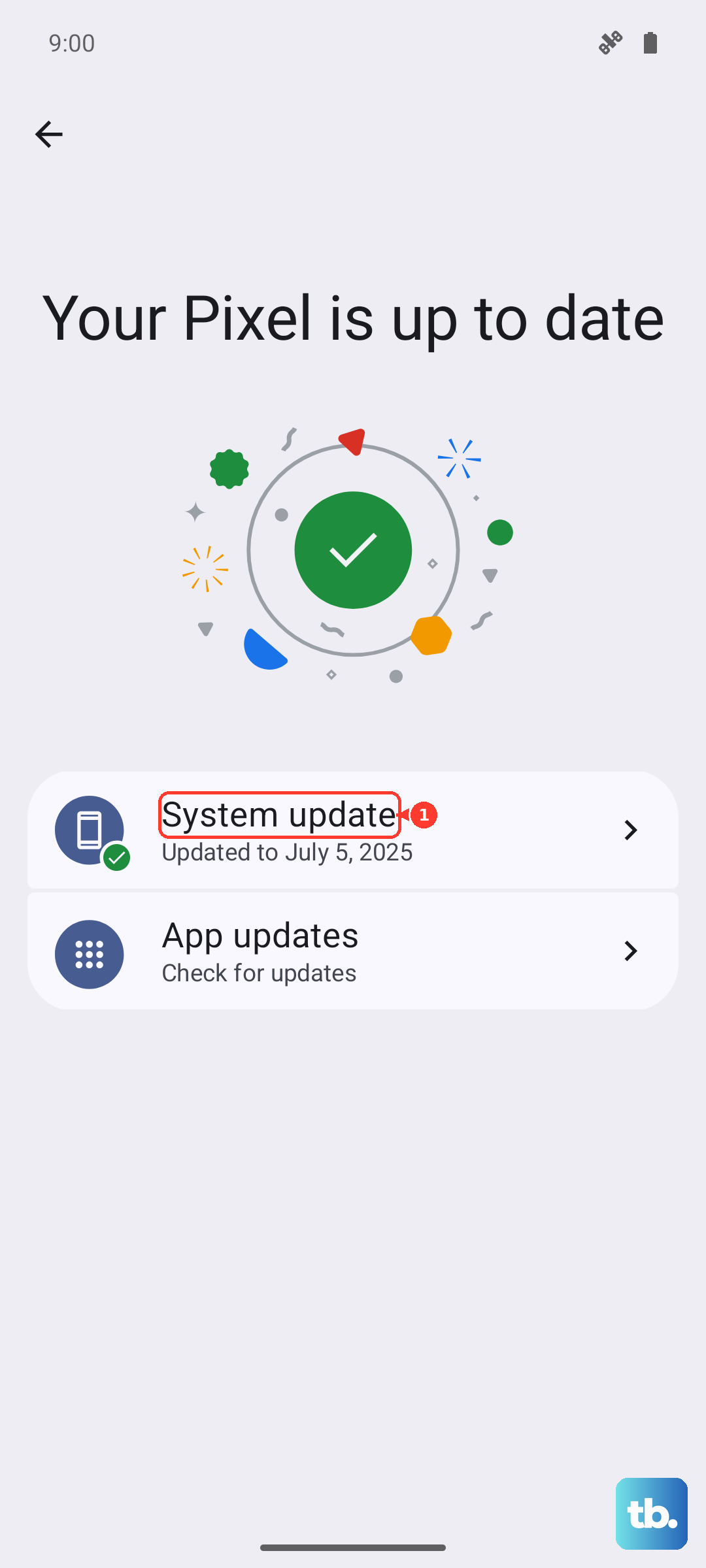
If the phone stays stuck at the logo and cannot reach Settings, you can repair the software from a computer using the official desktop tool.
Install Samsung Smart Switch on a Windows PC or Mac.
Connect the phone to the computer with its USB cable.
Let Smart Switch detect the device.
Select Update and follow the on-screen prompts.
Do not disconnect the USB cable or use your device until the update is complete. Interrupting it partway through can leave the phone in a worse state than the original stuck logo.
Factory Reset From Settings When the Phone Still Misbehaves
If the phone reaches Settings but keeps hanging or restarting, a factory reset clears out whatever software fault is causing it. This step erases everything on the phone, so treat it as a serious move and prepare first.
Back up your data before you start. Samsung's warning is direct. Please save any information you need prior to the factory reset because your personal information may not be recovered, and you should back up your personal data so you do not lose it all.
Open Settings > General management > Reset > Factory data reset.
Review the information shown on screen.
Tap Reset, then tap Delete all.
Enter your security credentials and Samsung account password if prompted.
Once the reset finishes, the phone restarts as if it were new, and you can restore your backed-up data during setup.
Factory Reset From Recovery Mode as a Last Resort
When the phone never boots far enough to open Settings, you can still wipe it through Recovery mode. This also erases all user data, so only use it after the gentler steps have failed and you have backed up whatever you can.
Start with the phone powered off, then press and hold the Volume up and Side key simultaneously to enter Recovery mode. Use the Volume keys to highlight an option and the Power or Side key to select it.
- 1.To erase the phone, highlight Wipe data/Factory reset (also shown as Delete all user data) and press the Power or Side key to confirm.
- 2.Follow the prompts, then choose to reboot.
- 3.To leave Recovery mode without erasing anything, select Reboot system now instead.
Take this warning seriously before you confirm. Factory reset will delete all user data, and previously synced Google account details will be required to unlock the phone or tablet afterward. Make sure you know your Google account login first.
When to Hand It to Samsung
If you have charged it, force restarted it, dried the port, ruled out apps, updated the software, and even reset it, and the S26+ still will not get past the logo, the problem is most likely hardware. At that point, continuing to retry resets will not help.
Samsung's guidance is to visit a Samsung walk-in service center or schedule a repair service online. You can also get help through online chat or the Samsung Members app, which handles support and diagnostics and connects you to Samsung directly.
Frequently Asked Questions
Will a force restart delete anything on my S26+?
No. A force restart simply cuts power and reloads the software, so none of your photos, apps, or settings are affected. Hold Volume down and the Side button together for approximately 10 seconds until the Samsung logo appears.
Why does my S26+ show a water-drop icon and refuse to charge?
The phone detects moisture in the USB-C port and blocks wired charging to protect itself. Unplug it, wipe the port, gently shake the device 5 to 10 times with the port facing down, and let it air-dry. While it dries, you can charge it on a wireless charger placed in the centre of the pad.
Can I get past the logo without erasing my data?
Often, yes. Charging the phone, performing a force restart, drying the charging port, and updating the software through Smart Switch are all non-destructive steps. A factory reset is the only stage that erases data, and it is reserved for when those gentler fixes do not work.
How do I know if the problem is hardware rather than software?
Check for physical signs first. Inspect the front, back, and USB-C port for cracks, corrosion, bent pins, or debris. If the phone was recently dropped or exposed to liquid and none of the software steps help, the cause is likely hardware and you should contact Samsung.
My phone cannot reach Settings at all, so how do I reset it?
Use Recovery mode. Power the phone off, then press and hold Volume up and the Side key together. Use the Volume keys to highlight Wipe data/Factory reset, confirm with the Power or Side key, and reboot. Remember this erases all user data and you will need your synced Google account to unlock the phone afterward.