
Seeing that "Storage Full" warning on your brand new Samsung Galaxy S26+ can be a real surprise. It stops you from taking more photos, updating apps, or downloading files. The good news is that One UI 8.5 gives you powerful tools to find and clear space quickly. Here are the most effective ways to free up gigabytes on your S26+.
Analyze Your Storage in Device Care
Start by opening Settings > Device care > Storage. This screen shows you a detailed breakdown of what's using space, from apps to system files. It takes a moment to fully calculate, so let it load completely. You'll immediately see the biggest categories, which are almost always Images, Videos, and Apps.
Use the Built-in Cleaner
Right on that same storage page, tap the blue Clean now button. This is Samsung's one-tap optimizer that removes temporary files, app caches, and residual data from uninstalled apps. I've seen it recover several gigabytes on a fresh device, especially if early One UI 8.5 bugs have left behind junk files. It's a safe, quick first step.
Manage Your Photos and Videos
Go to the Gallery app and tap the three-dot menu in the top right. Select Manage storage. Here, you can find and delete duplicate photos, blurry images, and large video files you no longer need. Don't forget to empty the Trash folder in Gallery afterward, as deleted items sit there for 15 days. For automatic management, enable Settings > Accounts and backup > Manage accounts > Samsung Cloud > Sync and auto-delete items.
Clear App Caches and Data
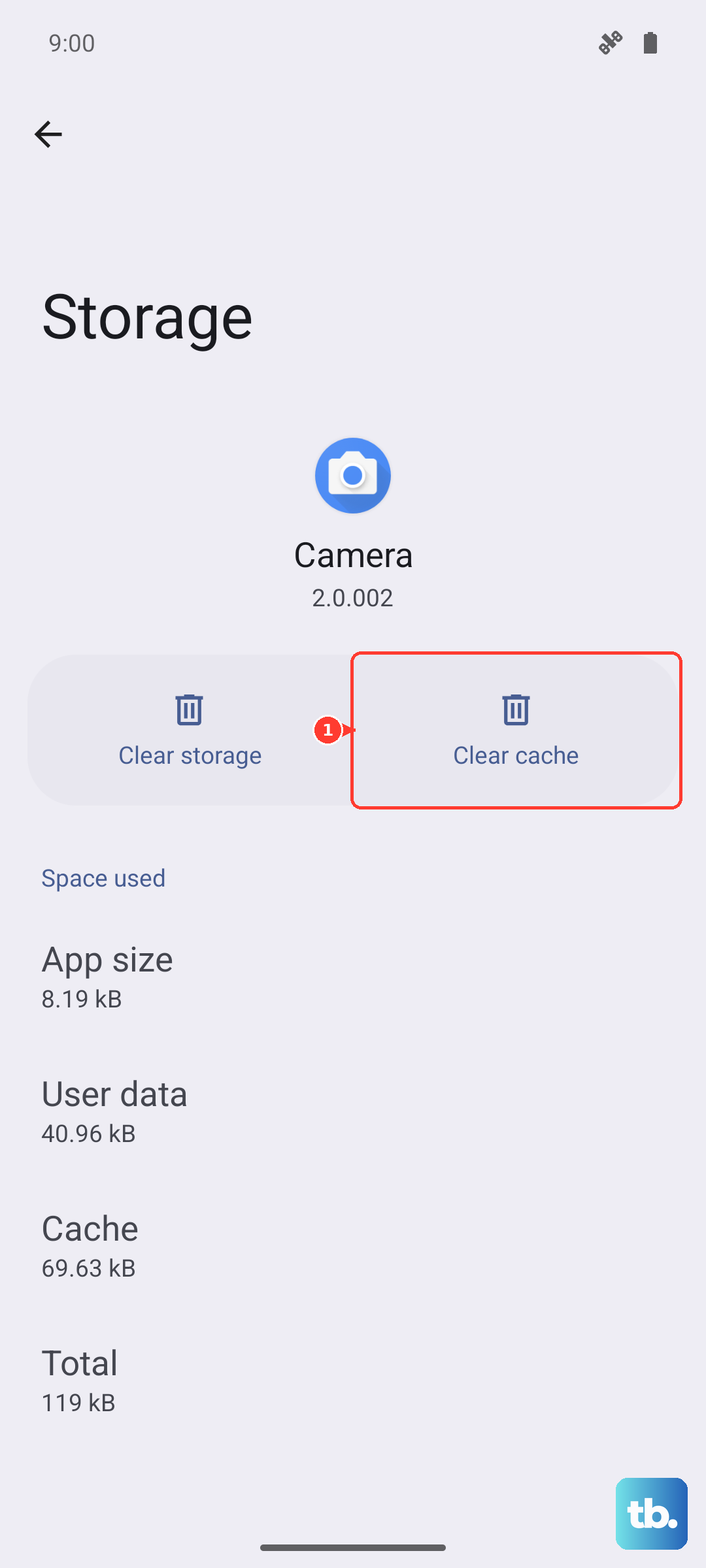
Back in Settings > Device care > Storage, tap on Apps. This lists all your applications sorted by size. Tap on any large app, like Instagram, TikTok, or Chrome. You'll see two options: Clear cache and Clear data. Clearing the cache is safe and frees up space without deleting your login info. Clearing data resets the app completely, so only use that if you're okay with starting fresh.
Offload or Uninstall Unused Apps
While you're in the Apps storage list, look for applications you haven't opened in months. For apps you want to keep but don't use often, consider using Samsung's App Booster or simply uninstalling them. You can always re-download them from the Galaxy Store or Google Play Store later. Your phone may also show a list of "Unused apps" in the Device Care section, making this process even easier.
Review Downloads and Offline Files
Open the My Files app and go to the Downloads folder. This is a common spot for forgotten PDFs, APK files, and documents that pile up. Also, check your streaming apps. In Spotify, go to Settings > Storage and remove downloaded playlists. In Netflix, tap your profile icon and go to Downloads to delete watched content.
Trim Your Message Attachments
Open the Messages app, tap the three-dot menu, and select Settings. Go to More settings > Manage storage. This screen shows you how much space is taken by images, videos, and other files sent in conversations. You can review large conversations and delete media files in bulk without deleting the actual text messages.
Check for System Data Bloat
In the Device Care storage view, look at the System category. On a new device like the S26+, this shouldn't be huge, but early software versions can sometimes have issues. If the System data seems abnormally large (over 20GB), try a simple restart. If that doesn't help, back up your phone and consider using the Google One storage manager app, which offers deeper insights and cleaning tools for Android system files.
Move Files to a microSD Card or Cloud
The Galaxy S26+ supports microSD cards for expandable storage. If you have one, go to My Files, long-press on folders like DCIM (Camera), Downloads, or Documents, and select Move to transfer them to the SD card. For cloud storage, make sure your Samsung Cloud or Google Photos backup is active. Then, you can use the "Free up space" feature in Google Photos to remove local copies of photos already safely backed up.