You picked up your Galaxy S26+ and the screen is doing something it should not: faint flickering, a subtle strobe when you scroll, or a flutter that shows up at low brightness or while the phone is charging. On a panel this nice, even a slight wobble is hard to ignore, and the good news is that most flickering on the S26+ traces back to software or a setting rather than a broken display. The fixes below run from the quickest and safest to the official reset and service path, so start at the top and stop the moment the flicker disappears.
Before adjusting cables and settings, run a quick screen test in your browser. Its fullscreen patterns make problems like flicker, banding, and uniformity issues much easier to spot and describe.
The Galaxy S26+ runs Samsung's One UI on Android, on a 6.7-inch QHD+ Dynamic AMOLED 2X screen with a 120Hz adaptive refresh rate. That combination gives you several built-in display controls that directly affect flickering, and Samsung maintains a model-specific troubleshooting article for exactly this symptom. Work through the steps in order and test the screen after each one.
Reboot before you do anything else
A plain restart clears most of the minor software glitches that make an AMOLED screen flicker, so it is always the first thing to try. Press and hold the Volume down button and the Side (Power) button at the same time, tap Restart, then tap Restart again. Give the phone a few seconds to come back up and watch the screen with the same content that triggered the flicker.
If the display is frozen or unresponsive and you cannot reach the Restart option, do a force restart instead. Press and hold the Volume down button and the Side (Power) button until the screen goes black and the Samsung logo appears, then let go. This is a clean reboot, not a reset, so none of your data is touched.
Install the latest software and app updates
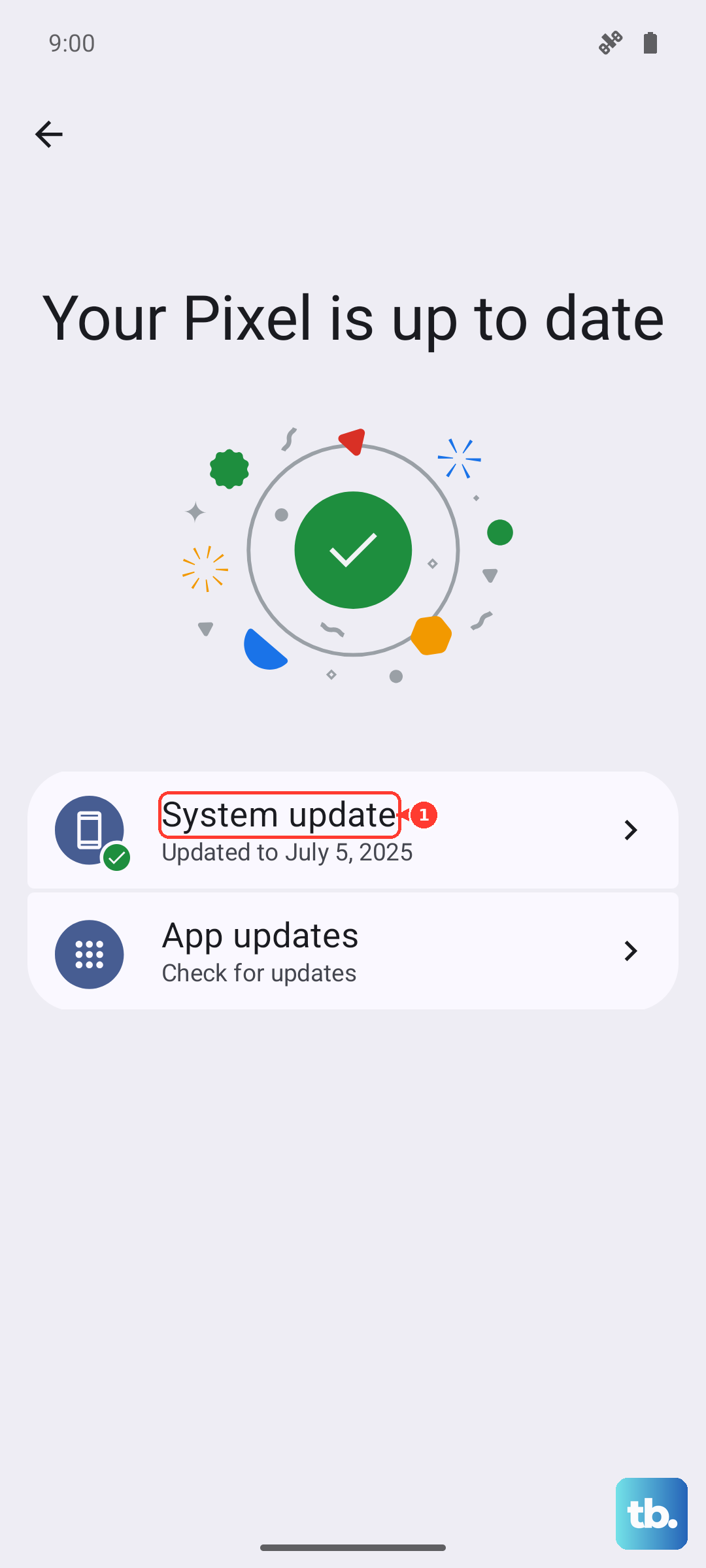
Early software builds can ship with display bugs that Samsung corrects in later updates, and the S26 series is new enough that a patch may already be waiting for you. Go to Settings > Software update and tap Download and install (depending on your carrier this may read "Check for system updates" or "Check for software updates"), then follow the on-screen prompts to finish installing.
A misbehaving app can also make the screen flicker, especially when it draws its own animations or video. Open the Galaxy Store and the Google Play Store and update your apps, paying attention to any app that was running when you last noticed the problem.
Tune the display controls that affect flicker
The S26+ has the exact software controls that flickering issues respond to, and Samsung's own guidance points here first. Open the Quick panel by swiping down from the top right corner of the screen with two fingers, then tap Settings > Display. Make one change at a time and check the screen before moving to the next.
- 1.Turn off Dark mode (and Night mode if it is on), since some flicker only shows up against dark backgrounds.
- 2.Turn off Adaptive brightness and raise the brightness manually, because the automatic dimming on an AMOLED panel can read as a flutter at low levels.
- 3.Set Motion smoothness to Standard. If the flicker only appears while the phone is charging, try Adaptive instead.
- 4.Try a different Screen resolution and watch whether the flicker changes or stops.
If one of these settings clears it up, you have your answer and can stop here. If the flicker persists across all of them, return the settings to your preference and continue.
Check whether it is really the room, not the phone
Sometimes the "flickering" only appears as a moving dark band when you are in the Camera app or recording video indoors. That band is not a phone defect; it is the room's fluorescent or LED lighting pulsing out of sync with the camera, and it is captured the same way by any camera.
To reduce or remove it, add more light to the scene or switch off the fluorescent and LED lights that are causing the pulse, then take the shot again. If the band disappears once the lighting changes and the regular interface never flickers on its own, your display is fine.
Clear storage pressure and optimize the phone
When storage is nearly full or the system is under heavy background load, the display can stutter in a way that looks like flickering. Open the Quick panel > Settings > Device care and tap Optimize now to let the phone close stalled processes and tidy up memory.
While you are in Device care, clear out files you no longer need under Storage and free up running memory under Memory. Giving the system more headroom often smooths out display performance.
Test in Safe mode to expose a problem app
Safe mode loads only the apps that came built into the phone, so it is the cleanest way to find out whether something you downloaded is causing the flicker. Press and hold the Power/Side button until the power menu appears, then touch and hold Power off until the Safe mode icon appears, and tap Safe mode. You will see "Safe mode" in the corner of the screen once it loads.
Use the phone for a while in Safe mode and watch the screen. If the flickering stops, a downloaded app is the cause: restart the phone normally to exit Safe mode, then uninstall recently added or updated apps one at a time, testing after each removal until the flicker is gone. If the screen still flickers in Safe mode, the cause is not a third-party app, which is an important clue for the steps below.
Back up your data, then factory reset
If the flickering survives every step above and is still present in Safe mode, a factory reset returns the software to its default state and clears out any stubborn system-level issue. This step erases everything on the phone, so back up first using Samsung Smart Switch (to a PC or Mac), Samsung Cloud, or your Google account. Samsung warns that "your personal information may not be recovered," so do not skip the backup.
Once your data is safe, go to Settings > General management > Reset > Factory data reset, review the information on the screen, and tap Reset. Set the phone up again and check whether the flicker returns before reinstalling all your apps, so you can spot if a particular app reintroduces the problem.
When it is hardware, contact Samsung or book a repair
If the screen keeps flickering after a factory reset, or it still flickers in Safe mode, the problem is most likely the hardware itself, such as a damaged or faulty display, rather than software. No amount of setting changes will fix a physical panel fault.
At that point, Samsung directs you to visit a Samsung walk-in service center or to schedule a repair service online through Samsung Support. Have your phone's details ready and mention that the flicker persisted through a factory reset and Safe mode, since that rules out software and helps the technician focus on the display.
Frequently Asked Questions
Why does my Galaxy S26+ flicker more at low brightness?
AMOLED panels can show a subtle flutter at low brightness levels, which is why turning off Adaptive brightness and raising the brightness manually is one of Samsung's recommended fixes. Adjust the brightness in Quick panel > Settings > Display and see whether the flicker eases as the level goes up.
Is screen flickering on the S26+ always a hardware problem?
No. Most flickering comes from software or a display setting and clears up with a restart, a software update, or a change to Adaptive brightness, Dark mode, Motion smoothness, or Screen resolution. Flickering is usually considered a likely hardware fault only when it continues after a factory reset and still appears in Safe mode.
How do I know if a downloaded app is causing the flicker?
Boot into Safe mode, which runs only the phone's built-in apps. If the flickering stops in Safe mode, a downloaded app is responsible, so restart normally and uninstall recently added or updated apps one at a time until the screen is stable.
Will a factory reset definitely fix the flickering?
A factory reset can fix flickering caused by a stubborn software issue, but it will not fix a damaged or faulty display. Because it erases everything on the phone, back up with Smart Switch, Samsung Cloud, or a Google account first, and if the flicker returns afterward, treat it as a hardware issue and contact Samsung.
What should I do if the dark band only shows up in the Camera?
A moving dark band that appears only while using the Camera or recording video indoors is caused by the room's fluorescent or LED lighting interacting with the camera, not a phone defect. Add more light to the scene or switch off the pulsing lights, and the band should go away while the rest of the interface stays steady.