You tap send on a message from your Samsung Galaxy S26+, and the little progress bar stalls, the text turns red, or your contact simply never replies because nothing ever left your phone. It is a frustrating spot to be in, especially on a flagship that handles SMS, MMS, and RCS chat natively over your mobile network. The good news is that failed texts on a Galaxy phone almost always trace back to a handful of fixable causes, such as a temporary glitch, weak coverage, a wrong message center number, a blocked contact, or a leftover iMessage registration from an old iPhone. Work through the steps below in order, starting with the quickest and safest, and you should have texts flowing again before you reach the heavier resets at the end.
Start With a Clean Restart
Before changing any settings, give your S26+ a proper restart. A restart reconnects the phone to the cell network and clears the temporary glitches that can quietly stop texts from going out.
- 1.Press and hold the Volume down button and the Side button at the same time.
- 2.After a few seconds, different power options will appear.
- 3.Tap Restart, and then tap Restart again.
Once the phone is back on the network, open Messages and try sending the text again. If it goes through, the issue was a passing glitch and you are done.
Confirm Your Service Is Active and You Have Signal
Texts cannot leave the phone if your line is suspended or you are sitting in a dead zone. Verify that your account is in good standing and your service is active; if you are not sure, call your carrier to confirm.
You also need a working mobile connection rather than just Wi-Fi. Temporarily turn off Wi-Fi and check the status bar for at least a 3G signal, since weak or missing coverage is one of the most common reasons texts fail. If the signal is poor where you are standing, that alone can explain the problem.
Test Coverage by Changing the Network Mode
Sometimes a weak 5G signal is the culprit even though the phone shows bars. Stepping the phone down to an older, more stable network band can confirm whether spotty 5G coverage is blocking your messages.
Go to Settings > Connections > Mobile networks > Network mode, then downgrade from 5G/4G to 4G/3G. Try sending again, and if possible move to a different location to compare signal strength. If your texts suddenly send on the lower band, weak 5G in your area was the issue.
Clear the Messages App Cache
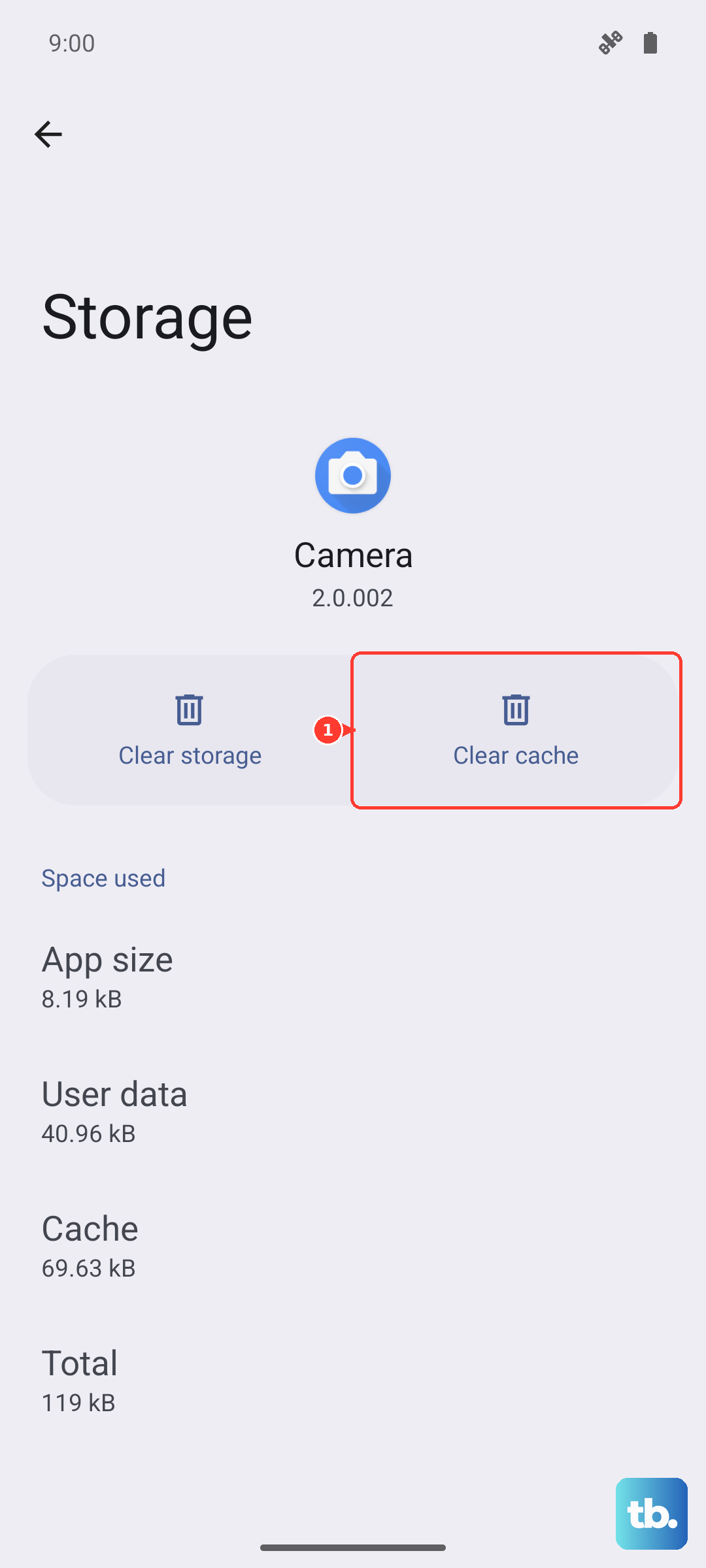
Temporary files inside the messaging app can build up and cause sending to fail. Clearing the cache wipes those temporary files without touching your actual conversations, so it is a safe early step.
Go to Settings > Apps > Messages > Storage > Clear cache. Then reopen Messages and try sending your text. Your existing threads will still be there; only the temporary app data is removed.
Check and Correct the Message Center (SMSC) Number
If no SMS will send to anyone at all, the stored message center number, sometimes called the SMSC number, may be missing or wrong. This number tells the network where to route your outgoing texts, and it has to match what your carrier uses.
- 1.Open Messaging, then tap the 3-dot More key.
- 2.Tap Settings > More settings > Text messages > Message center.
- 3.If the number is incorrect or blank, tap Message center, enter the correct number from your carrier, and tap SET.
Contact your carrier if you do not know the correct value, as it is specific to your network. Once the right number is saved, outgoing SMS should work again.
Make Sure the Recipient Is Not Blocked
If texts fail only to certain people and send fine to everyone else, a blocked number is the likely reason. A blocked contact will not receive your messages even though the phone may look like it sent them.
Open the Phone app, tap the 3 dots, then go to Settings > Block numbers. Find any number you want to text again and remove it from the list using the minus icon. After unblocking, send the message once more to confirm it now goes through.
Reseat or Test the SIM Card
A faulty or improperly seated SIM can stop texts even when everything else looks fine. Reseating the card often restores a clean connection to the network. This step applies if your S26+ uses a physical SIM rather than an eSIM.
Power off the phone, remove the SIM, gently clean it, and reinsert it correctly in the tray. Power the phone back on and try sending again. If the SIM appears damaged, contact your carrier so they can test it or issue a replacement.
Install Any Pending Software Update
Outdated software can introduce messaging problems, and installing the latest update is the manufacturer's recommended fix for general bugs. Keeping your S26+ current is also the safest way to address software-side messaging issues.
Go to Settings > Software update > Download and install, then install any available update. Keep the phone charged to at least 50% and make sure you have enough free storage before you begin so the update can complete without interruption.
If You Switched From an iPhone, Deregister iMessage
If your number used to live on an iPhone, Apple's iMessage may still be capturing texts that people send you, which can make messaging behave strangely after moving to an Android phone. Turning iMessage off on the old device releases your number back to standard SMS.
On the iPhone, open Settings > Messages and turn off iMessage, then open Settings > FaceTime and turn off FaceTime. If you no longer have the iPhone, deregister your number online at selfsolve.apple.com/deregister-imessage. After deregistering, texts should route normally to your Galaxy S26+.
Reset Mobile Network Settings
If messaging and calling problems persist after the steps above, resetting your network settings clears out misconfigured connection data while leaving your apps and personal files untouched. This is a stronger step than the earlier fixes but still does not erase your content.
Go to Settings > General management > Reset > Reset mobile network settings > Reset settings > Reset. This restores all network-related settings to their default state but will not affect your installed apps or personal data. You may need to re-confirm some settings with your carrier afterward, so keep their support number handy.
When Nothing Else Works Try a Factory Reset
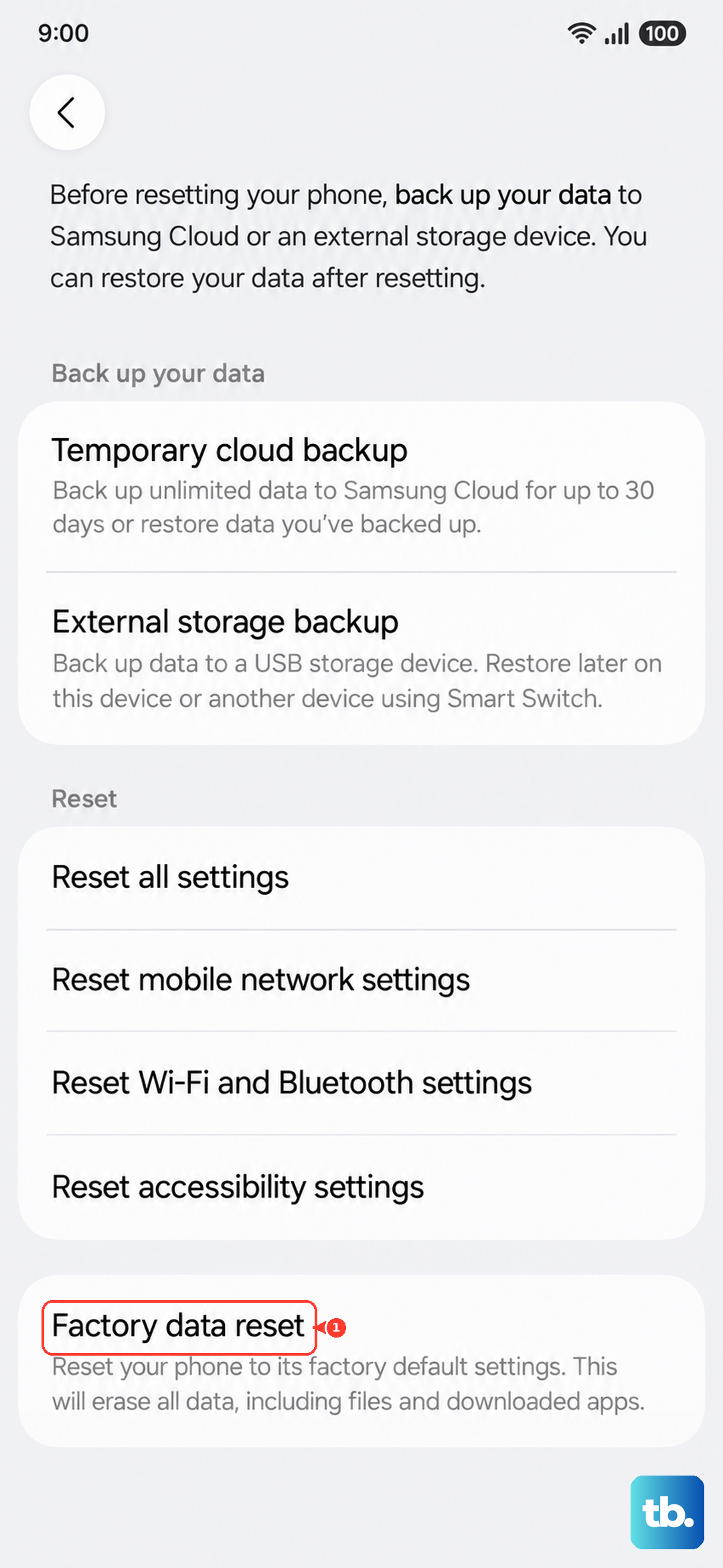
If nothing else has worked, a factory reset returns the phone to its original software state and clears any deep-rooted problem behind the failed texts. Because this erases the device, back up your data first using Samsung Smart Switch.
Official warning: please save any information you need prior to the factory reset because your personal information may not be recovered. Once your backup is complete, go to Settings > General management > Reset > Factory data reset, review the information shown, tap Reset, and then tap Delete all.
If the problem continues even after a full reset, the cause may be hardware or account related rather than software. At that point, contact Samsung Support through the Samsung Members app or Samsung Support chat for remote help or service options.
Frequently Asked Questions
Why can my Galaxy S26+ receive texts but not send them?
When you can receive but not send any SMS, the most common cause is a missing or incorrect message center (SMSC) number, since that setting controls outgoing texts specifically. Check it under Messaging > 3-dot More key > Settings > More settings > Text messages > Message center and enter the correct number from your carrier, then tap SET.
Will clearing the Messages app cache delete my conversations?
No. Clearing the cache through Settings > Apps > Messages > Storage > Clear cache only removes temporary app data, not your texts. Your existing conversations remain in place after you reopen the Messages app.
Does resetting mobile network settings erase my photos and apps?
No. Reset mobile network settings restores only network-related settings to their default state and does not affect your installed apps or personal data. You may, however, need to re-confirm some connection details with your carrier afterward.
I just switched from an iPhone and some texts are missing. What should I do?
Your number may still be registered with Apple's iMessage. On the old iPhone, turn off iMessage in Settings > Messages and turn off FaceTime in Settings > FaceTime, or, if you no longer have the iPhone, deregister your number at selfsolve.apple.com/deregister-imessage.
Do I need a backup before doing a factory reset on my S26+?
Yes. A factory reset erases the device, and the official guidance warns that your personal information may not be recovered, so save anything you need first. Use Samsung Smart Switch to back up your data before going to Settings > General management > Reset > Factory data reset.