You tried to share your Samsung Galaxy S26+ connection with a laptop or tablet, but the hotspot won't turn on, or the other device simply can't find your network. It's a frustrating spot to be in, especially when you're relying on that connection to get work done away from home. The good news is that most hotspot failures on the Galaxy S26+ trace back to a handful of settings and account issues you can fix yourself in a few minutes.
Your S26+ runs One UI 8.5, built on Android 16, out of the box, and the Mobile Hotspot and Tethering feature is built right into Settings, with no separate app required. The 10 fixes below are ordered from the quickest and safest to the more involved, so start at the top and work down. Most people never have to reach the last few steps.
Start With Your Carrier Plan and Mobile Data
Before changing any settings, confirm the basics that the feature depends on. According to Samsung's official guidance, in order to use a hotspot you must have a tethering plan on your service account with your carrier, and most mobile service providers require an additional hotspot plan.
If your plan doesn't include tethering, the toggle may turn on but no device will be able to connect or stay connected. Check that your account is in good standing with an active data plan. Then make sure mobile data is actually enabled on the phone. The mobile data icon should appear white, not gray, in the status area.
One thing that surprises people is that activating a mobile hotspot disables Wi-Fi on the phone. That is expected behavior, not a malfunction, since the S26+ shares its cellular connection rather than your home Wi-Fi.
Toggle the Hotspot Off and On From the Right Menu
A simple off-and-on cycle clears many temporary glitches, but only if you're in the correct menu. On the Galaxy S26+, the feature lives in one specific place.
Open Settings, tap Connections, then tap Mobile Hotspot and Tethering. Tap the switch next to Mobile Hotspot to turn it off. Tap the same switch again to turn it back on.
This is the official location of the feature on Galaxy phones, so if you've been turning it on from a quick-settings tile, opening the full menu lets you confirm it's actually active and gives you access to the configuration options you'll need for later fixes.
Turn Off a VPN Before You Tether
If you run a VPN service on your S26+, it can quietly block tethering. Samsung advises that if you are using a VPN service, it may need to be disabled before you can tether or share a hotspot.
Disconnect or switch off your VPN app. Then try starting the hotspot again. If your devices connect normally once the VPN is off, you've found the culprit, and you can decide whether to leave it disabled while tethering or look for a setting in the VPN app that allows local connections.
Confirm the Security Setting Is WPA2
The wrong security type can stop other devices from joining your hotspot, even when everything else looks correct. Samsung's troubleshooting guidance recommends a specific setting for compatibility.
In the Mobile Hotspot and Tethering menu, tap Mobile Hotspot to open its configuration. Make sure Security is set to WPA2. This is the recommended setting for compatibility when connecting devices, and switching to it often resolves cases where a laptop or older tablet repeatedly fails to authenticate.
When Devices Can't Find Your Hotspot at All
Sometimes the hotspot is running on the phone, but nothing else can see it in the list of available networks. Two settings inside the hotspot configuration usually cause this.
First, go to the Advanced menu inside Mobile Hotspot and Tethering and turn off the switch next to Hidden network. A hidden network won't appear automatically on connecting devices, which makes it look like the hotspot isn't working.
Second, try changing the network Band. Inside Mobile Hotspot, you can set the Band to 2.4 GHz for broader device compatibility or 5 GHz for better performance.
If a device still can't see the network, switching the Band to 2.4 GHz often helps, since it offers the widest compatibility across older and varied hardware. You can also try 5 GHz if you're after speed and your devices support it.
Restart or Force Restart the Phone
If the settings all look right but the hotspot still misbehaves, restarting often clears the temporary glitches affecting connectivity. The S26+ uses the unified Side button, so the sequence is straightforward.
Press and hold the Volume down button and the Side button at the same time. Select Restart, then confirm to restart the phone.
If the hotspot toggle won't respond, or the phone is frozen or unresponsive, a force restart can bring it back without erasing any of your data. Press and hold the Volume down button and the Side button at the same time until the device turns off and turns back on.
The screen goes black, and then the Samsung logo appears. A force restart is for an unresponsive device specifically.
If your phone is working normally, the standard restart above is the gentler choice. Once the phone comes back up, head back to Settings, Connections, Mobile Hotspot and Tethering and turn the hotspot on again to test it.
Install the Latest Software Update
Keeping the phone updated can resolve connectivity bugs, including ones that affect tethering. Software updates arrive over the air, and the path varies slightly depending on your model and carrier.
Open Settings, then tap Software update (this may appear as System updates on some models). Tap Download and install (depending on your carrier, this may read Check for system updates or Check for software updates). Follow the on-screen instructions to finish installing any available update.
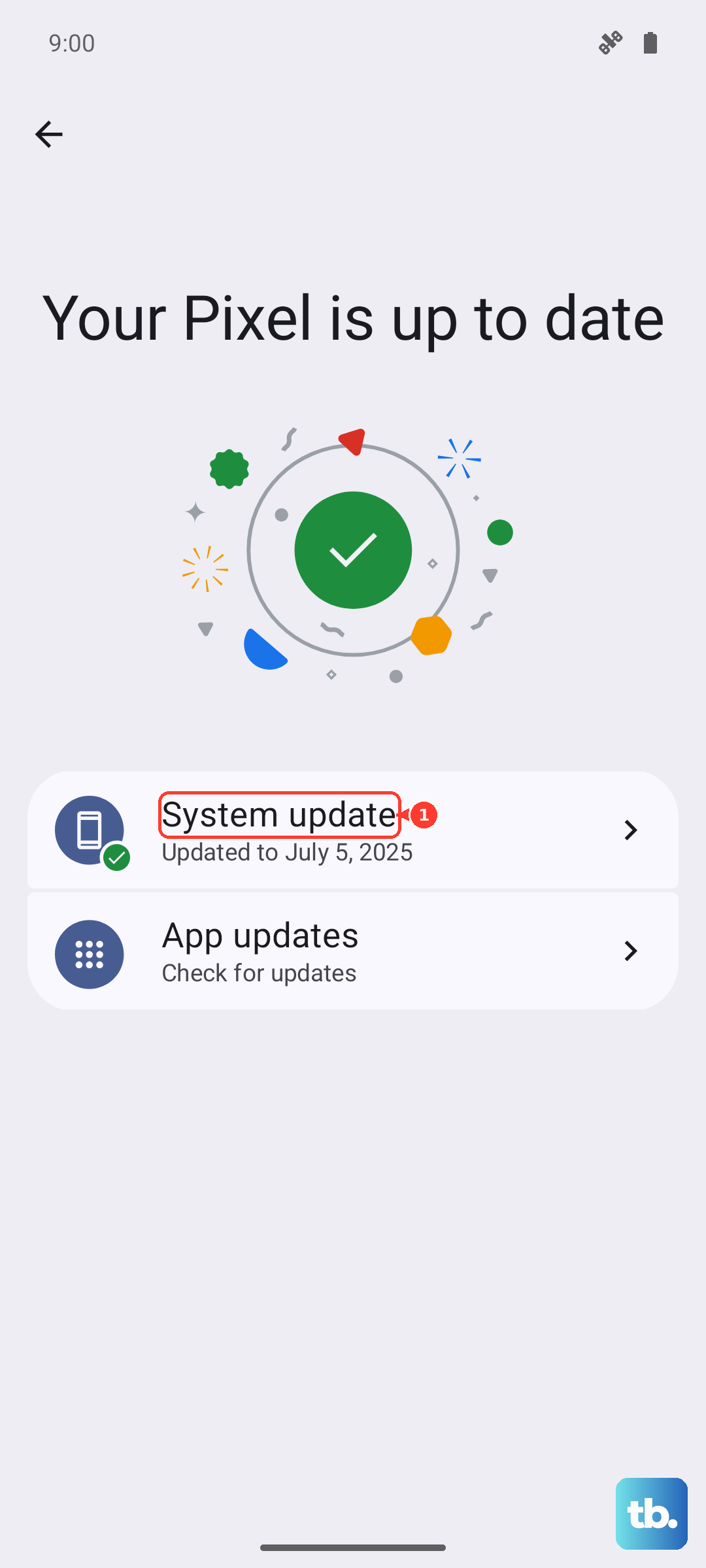
If you can't update over the air for some reason, Samsung offers Smart Switch on PC and Mac as the official way to update your Galaxy software from a computer.
Reset Mobile Network Settings
When the hotspot problem seems tied to your data connection rather than the Wi-Fi side, resetting your mobile network configurations can fix tethering and data connection issues. This reset does not erase your personal files.
Open Settings, tap General management, then tap Reset. Tap Reset mobile network settings.
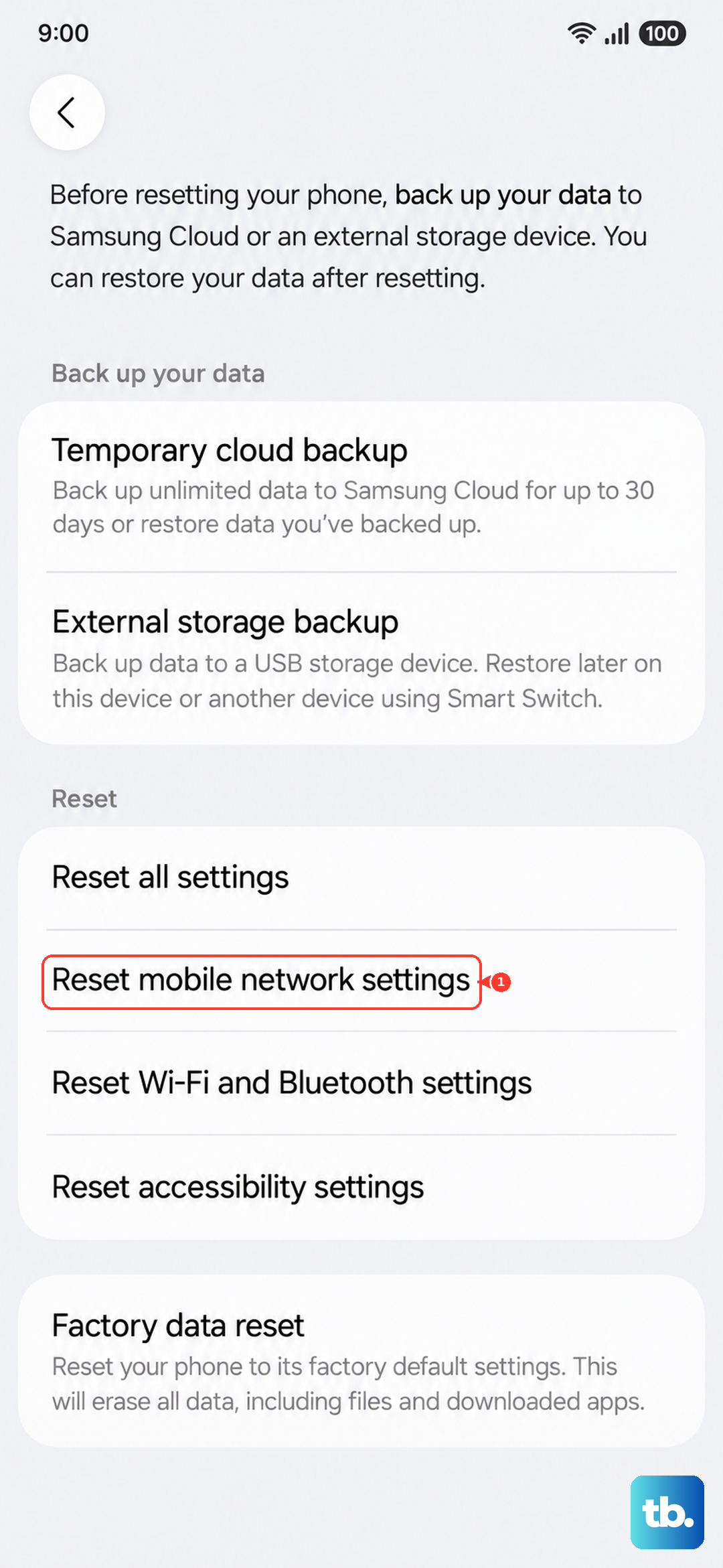
Tap Reset settings and confirm. After the reset finishes, your network configurations return to their defaults, so check that mobile data is back on before testing the hotspot again.
Check for a Problem App Using Safe Mode
A downloaded app can interfere with networking features without any obvious sign. Safe mode loads the phone with only its built-in apps, which lets you test whether something you installed is the cause.
You enter Safe mode from the power menu. Then restart the phone normally to leave it. If the hotspot works while in Safe mode, a downloaded app is the cause.
Uninstall recently downloaded apps one at a time to narrow it down. Then restart the phone normally to exit Safe mode and confirm the fix.
Factory Data Reset as a Last Resort
If nothing above works, a factory data reset returns the phone to its original state and clears any deep software issue. This step erases the device, so back up your data first.
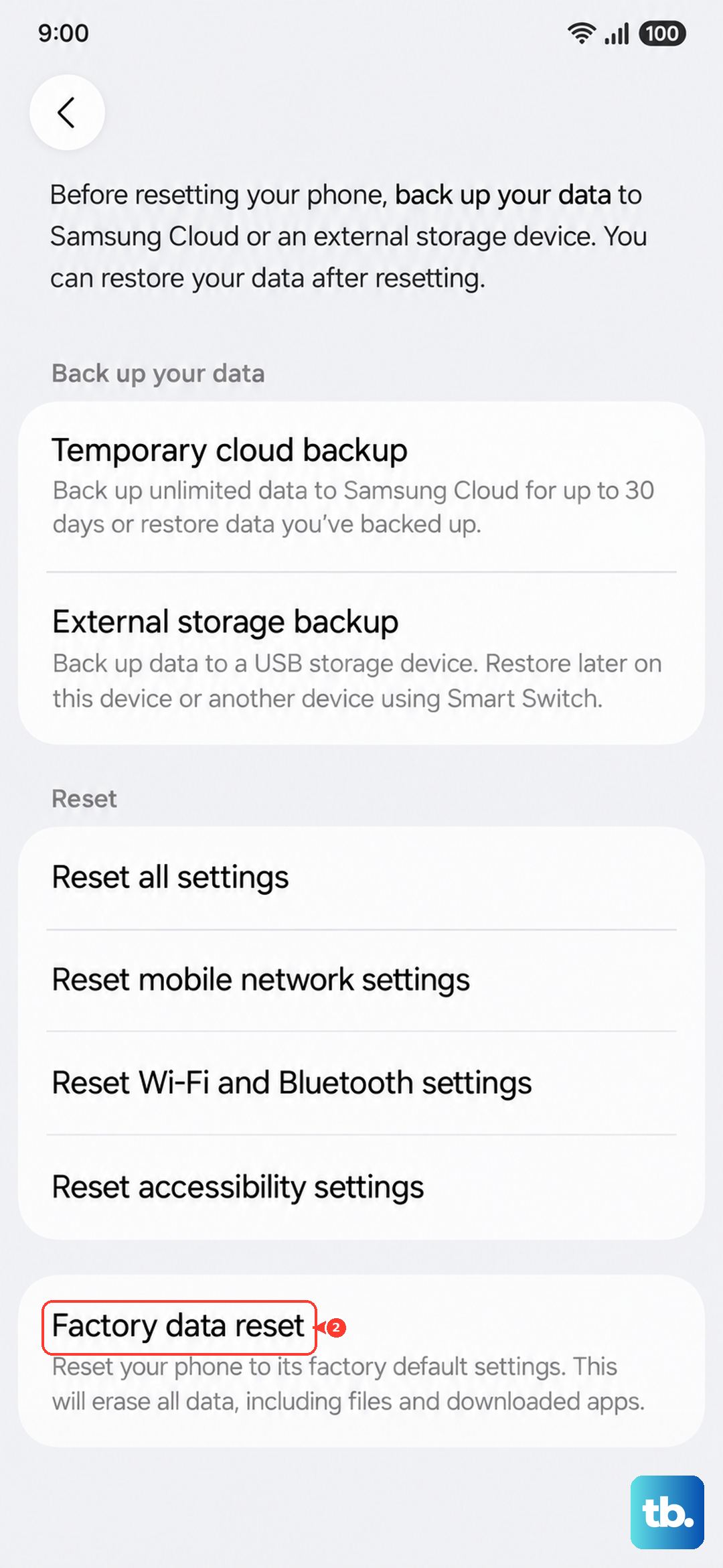
Samsung warns, "Please save any information you need prior to the factory reset because your personal information may not be recovered."
- 1.Open Settings.
- 2.Tap General management.
- 3.Tap Reset.
- 4.Tap Factory data reset.
- 5.Tap Reset.
- 6.Tap Delete all.
The phone then restarts to the initial setup screen. Once you've set it back up, set up the hotspot from scratch in Settings, Connections, Mobile Hotspot and Tethering to test whether the problem is gone.
When to Contact Your Carrier
If calling, messaging, network signal, mobile data, or hotspot issues continue even after a factory reset, Samsung advises that the problem may be account- or network-related, and you should contact your carrier. They can confirm your tethering plan is active and check for issues on their end. A damaged SIM may also need replacement by the carrier, which is something only they can handle.
Frequently Asked Questions
Why does my Wi-Fi turn off when I start the hotspot?
That's expected behavior on the Galaxy S26+. Activating a mobile hotspot disables Wi-Fi on the phone, because the hotspot shares your cellular data connection rather than your existing Wi-Fi network.
Do I need a special plan to use the hotspot?
Yes. Samsung states that in order to use a hotspot you must have a tethering plan on your service account with your carrier, and most mobile service providers require an additional hotspot plan. Confirm your account includes tethering before troubleshooting further.
Which Band should I choose for the hotspot?
You can set the Band to 2.4 GHz for broader device compatibility or 5 GHz for better performance. If a device can't see or connect to your hotspot, 2.4 GHz is the safer choice because it works with the widest range of hardware.
Will resetting mobile network settings delete my photos and files?
No. Resetting mobile network settings only resets your mobile network configurations and does not erase your personal files. A factory data reset is the only step here that deletes your data, which is why you should back up first.
What security setting should the hotspot use?
Set Security to WPA2 in the Mobile Hotspot and Tethering menu. It is the recommended setting for compatibility when connecting devices, and it often resolves cases where a laptop or tablet repeatedly fails to join the network.