
When your headphones won't work with your Galaxy S26+, it's a real buzzkill. Whether you're using the USB-C port, Bluetooth, or even a wireless adapter, the audio might cut out, sound distorted, or not play at all. The fixes are usually straightforward, so let's get your tunes back.
To rule out the headphones themselves, try a left and right audio test in the browser. If every tone plays cleanly, focus on the device settings covered next.
Restart Your Galaxy S26+
This is the universal first step for a reason. A quick restart clears out temporary software glitches that can mess with audio routing. Press and hold the Volume Down button and the Side/Power button together for about 10 seconds until you see the Samsung logo appear. This is a force restart and works even if the screen is frozen.
Check the Simple Stuff First
Make sure your Bluetooth headphones are charged. For wired headphones, ensure the USB-C plug is fully inserted into the port. Try your headphones with another phone or computer to confirm they're the source of the problem. I'd start here, as it quickly tells you which device to focus on.
Clean the USB-C Port Thoroughly
Lint and pocket debris are the number one enemy of the USB-C port. If you use wired headphones, a clogged port can prevent a proper connection. Gently use a wooden toothpick or a soft-bristled brush to clean it out. Avoid metal objects that could damage the pins. A clean port solves more headphone issues than you'd think.
Forget and Re-Pair Your Bluetooth Headphones
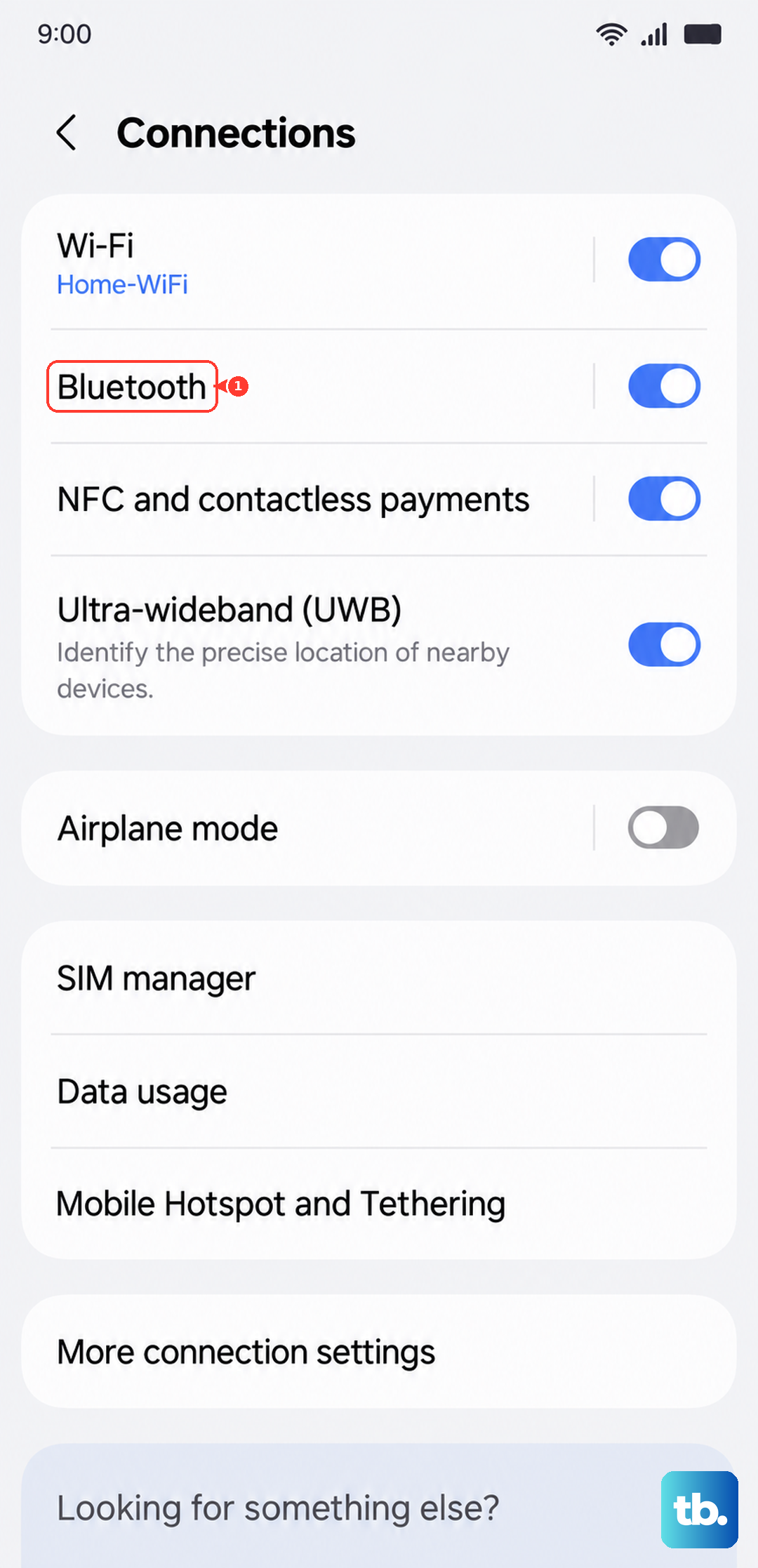
Go to Settings > Connections > Bluetooth. Tap the gear icon next to your headphones' name, then select Unpair or Forget. Put your headphones back into pairing mode and reconnect them fresh from the Bluetooth list. This creates a new, clean connection profile.
Check Your Audio Output in Quick Panel
Sometimes your S26+ sends sound to the wrong place. Swipe down twice to open the full Quick Panel, then tap on the media output tile (it might say "Media" or show a speaker icon). A menu will pop up showing all available outputs. Make sure your headphones are selected, not the phone speaker or another device.
Disable and Re-Enable Bluetooth
Head back to Settings > Connections > Bluetooth and toggle the main Bluetooth switch off. Wait a solid 10 seconds, then turn it back on. This refreshes the Bluetooth radio and can immediately fix connection drops or audio stuttering with wireless headphones.
Check for a False Moisture Detection Alert
The S26+ is known to sometimes trigger a false "Moisture detected" warning in the USB-C port, which will disable audio through wired connections. If you see this alert, unplug everything, power the phone off, and let it sit for a while. You can also try gently drying the port with cool air from a hairdryer.
Update Your Phone's Software
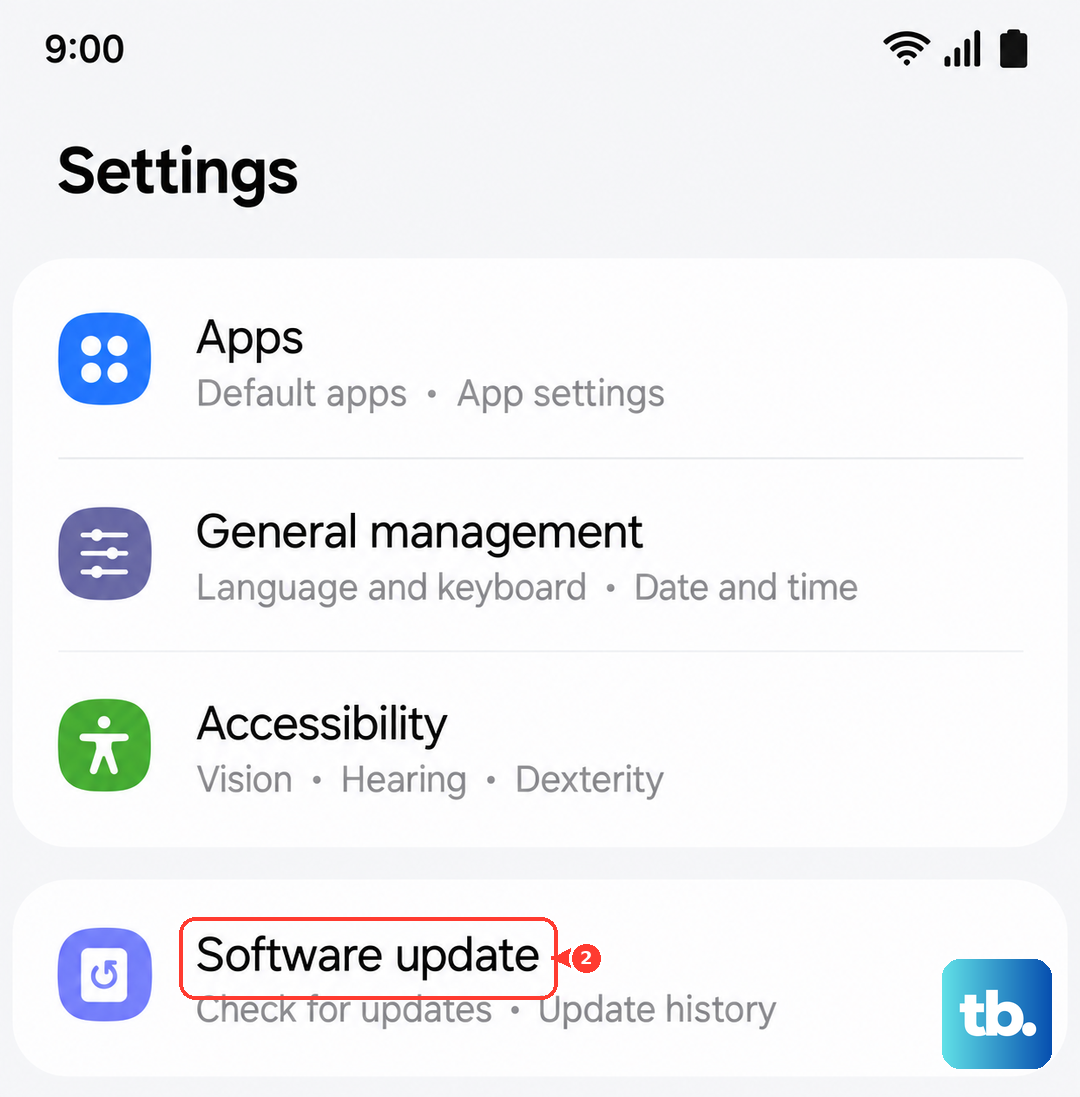
Go to Settings > Software update > Download and install. Since the S26+ runs the new One UI 8.5, early software bugs affecting Bluetooth or USB audio are likely to be patched quickly. Keeping your phone updated is one of the best preventative fixes you can do.
Reset All Settings
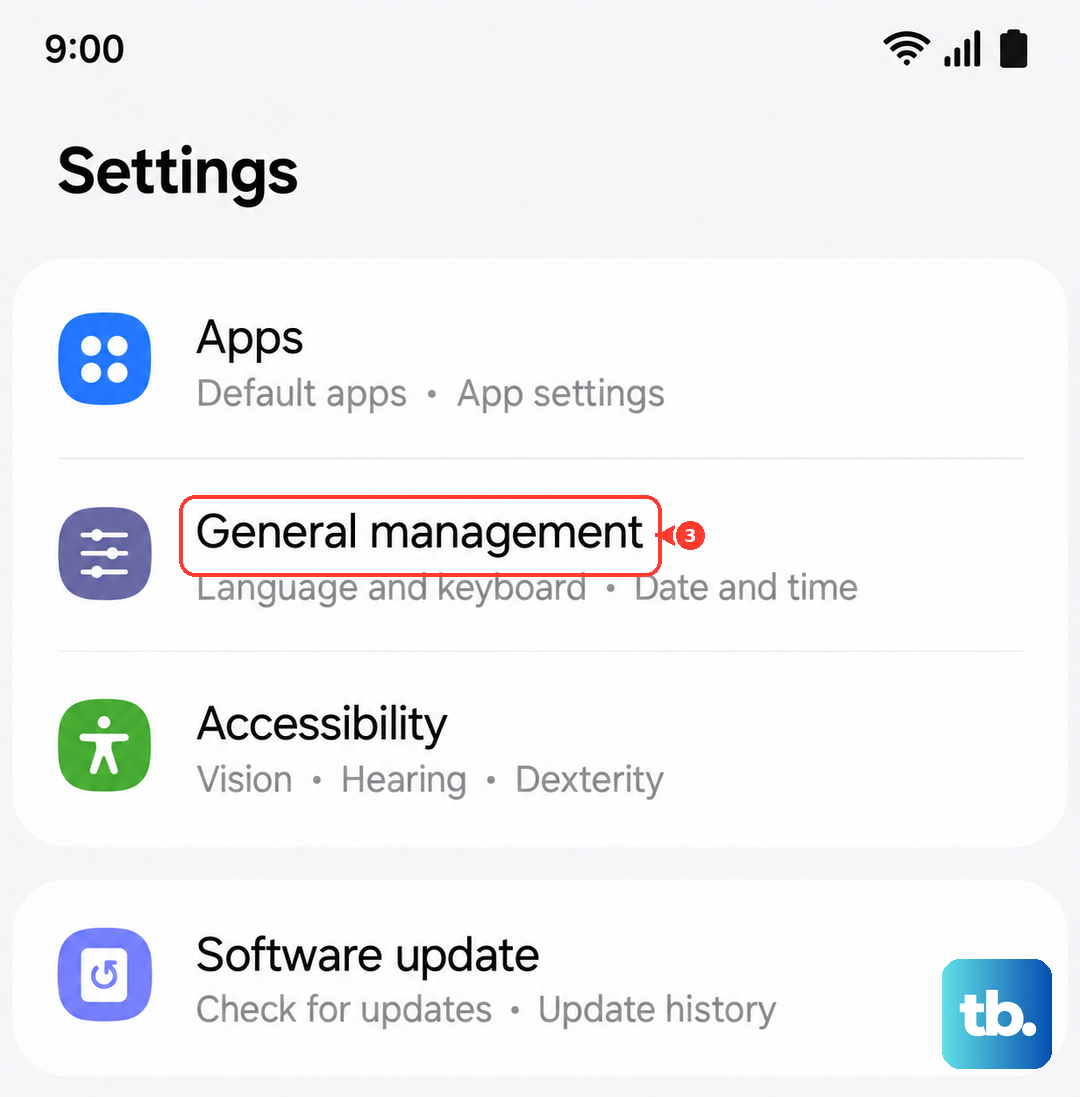
If you're still stuck, this nuclear option for settings can help. Go to Settings > General management > Reset > Reset all settings. This will not delete your personal data, but it will reset Wi-Fi, Bluetooth, sound, and display settings to default. You'll need to re-pair all your Bluetooth devices afterward.
Try Safe Mode
Booting into Safe Mode disables all third-party apps. If your headphones work perfectly in Safe Mode, a recently downloaded app is likely causing the conflict. To enter Safe Mode, press and hold the power button, then tap and hold the "Power off" icon on-screen until the Safe Mode prompt appears. Tap to confirm.