You lined up a shot on your Galaxy S26+, tapped the shutter, and the result came back soft, smeared, or hunting for focus instead of locking on. It is a frustrating thing on a phone with this much camera hardware, because the S26+ packs a 50 MP F1.8 Wide, a 12 MP F2.2 Ultra Wide, and a 10 MP F2.4 Telephoto, all with autofocus that should snap to your subject. The good news is that most blurry-photo complaints come from something small and fixable rather than a broken sensor.
Work through the steps below in order. They start with the quickest, safest checks, a wipe of the lens and a tap on the screen, and only move toward a reset or a service request at the very end, so you avoid erasing anything you do not have to.
Start With the Glass in Front of the Sensor
Before you blame the software, look at the lenses themselves. A fingerprint, a fleck of pocket lint, or a smear of sunscreen on the rear glass will scatter light and make every photo look hazy, and it can stop autofocus from settling at all.
Samsung's guidance is direct here: clean the lens with a soft, dry, lint-free cloth.
Wipe all three rear lenses on the S26+, the 50 MP Wide, the 12 MP Ultra Wide, and the 10 MP Telephoto, since you may be shooting through whichever one is dirty without realizing it.
Avoid pressing hard or using a paper towel that can leave fibers behind.
Check What Your Case and Accessories Are Covering
A thick case, a stick-on lens protector, or a wallet attachment can creep over the edge of the camera ring and quietly ruin your shots. Samsung warns that you should make sure your phone cover and phone accessories do not cover the edges of the camera lens, which can also prevent the camera from focusing.
Take the phone out of its case.
Shoot a quick test photo.
If the blur disappears without the case, the cover or a protector is the culprit, and you will want one cut properly around the S26+ camera array.
Tap the Subject and Mind Your Distance
The autofocus needs to know what you want sharp.
When you want to take a picture, your camera should focus on a subject when you touch it on the screen.
Tap directly on your subject in the viewfinder.
Watch the focus box settle before you press the shutter.
Distance matters just as much, because each lens has a point where it can no longer focus.
The standard or wide lens works best with the subject at least 12 inches away, and the telephoto lens needs the subject at least 20 inches away, while the Ultra Wide can go in to about 4 inches.
For close-up shots, the trick is to back away from your subject.
Zoom in, rather than pushing the lens right up against it.
Reopen the Camera and Steady Your Hands
A temporary glitch in the open Camera app can leave focus stuck.
Swipe the app closed from your recent-apps list.
Reopen it with a fresh viewfinder.
Try again.
Pay attention to how you are holding the phone.
Hold it as still as possible while the camera locks focus, since that is one of the most important factors for a clear photo.
Brace your elbows or rest the phone on a steady surface when you can.
Turn Off Tracking Auto-Focus
The S26+ can lock onto a single subject and follow it, which is great for a moving target but can leave the rest of your scene looking soft.
If Tracking auto-focus has latched onto the wrong thing, turning it off restores normal touch-to-focus behavior.
Open the Camera app.
Tap the Settings icon at the top left corner.
Tap the switch next to Tracking auto-focus to turn it off.
Take a few more shots after this change to see whether your subject now comes through sharp.
Reset the Camera App to Its Defaults
If you have changed several camera options over time, one of them may be working against you.
Resetting the Camera app returns its options to default without touching your saved photos, so it is a safe step to try.
Launch the Camera app.
Tap the Settings icon at the top left corner.
Swipe to and tap Reset settings.
Tap the Reset button to confirm.
Once the settings are back to default, open the camera again and test focus on a stationary object at a comfortable distance.
Force Restart the Galaxy S26+
When the camera is frozen or stays blurry even after the in-app reset, a hard reboot clears whatever process is stuck in memory.
This does not delete any of your data.
Press and hold the Volume down button and the Side button, or Power button, simultaneously until the device turns off and turns back on.
The screen goes black, then the Samsung logo appears, and you can let go once you see it.
If you prefer a normal restart instead, press and hold the Volume down button and the Side button at the same time.
Wait a few seconds for the power options to appear.
Tap Restart.
Tap Restart again.
Install the Latest One UI and Android Update
Camera focus problems are often patched in software, so an update can quietly fix what no setting will.
Charge the phone to a comfortable level and connect to Wi-Fi before you start.
Go to Settings, then Software update.
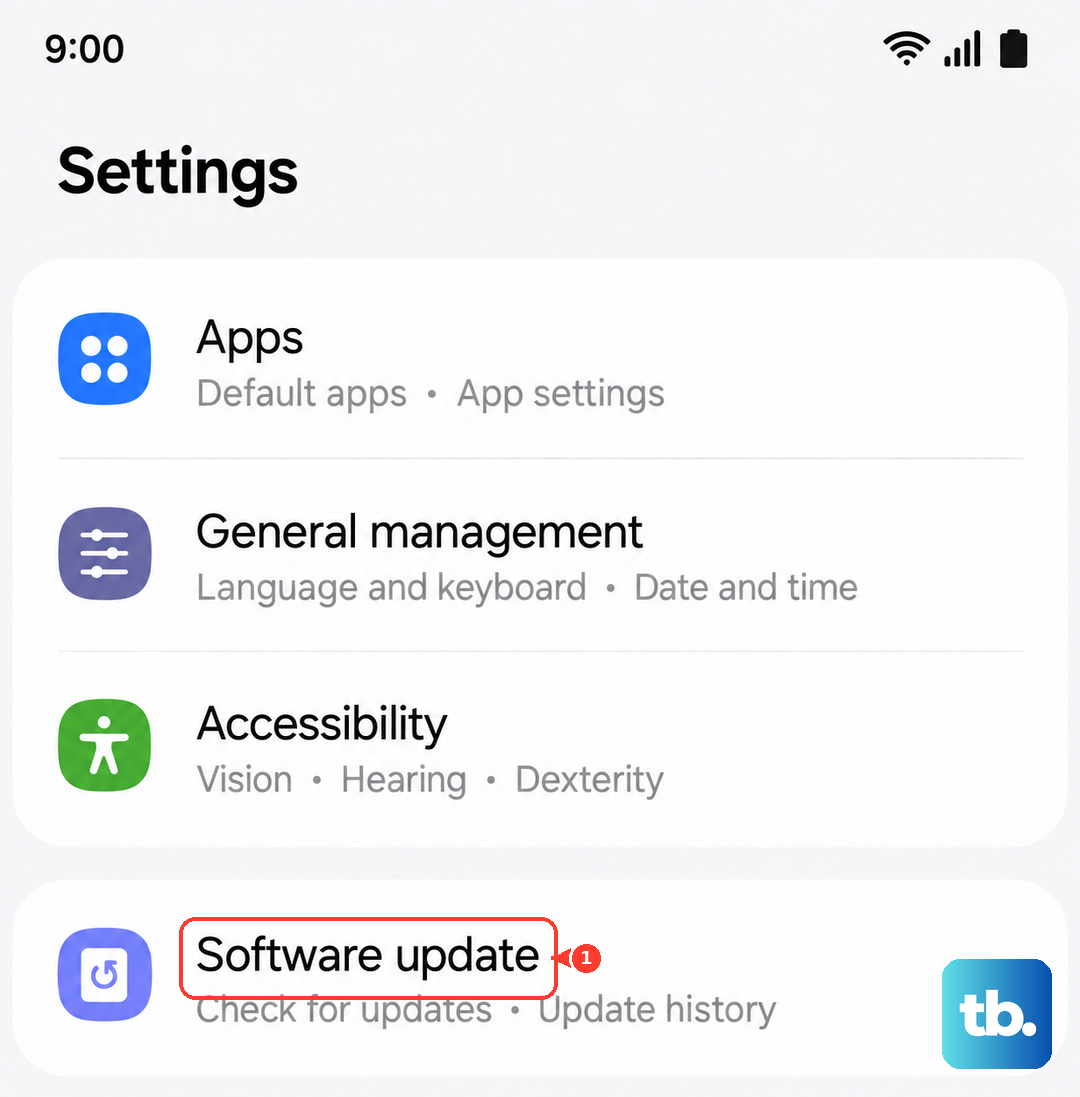
Tap Download and install.
Follow the on-screen instructions to complete the update.
You can also reach this through the Quick settings panel by tapping the Settings icon.
Choose Software update, then Download and install.
Keeping the S26+ current on its One UI build is one of the simplest ways to rule out a camera bug that software can address.
Boot Into Safe Mode to Rule Out an App
A downloaded camera or photo-editing app can hook into the system and interfere with focus.
Safe mode starts the phone with only its built-in apps, so you can test the stock Camera app in isolation.
Swipe down to open the Quick panel.
Tap the Power icon.
Touch and hold the Power off icon.
Tap Safe mode when it appears.
The device restarts with Safe mode shown in the bottom-left corner.
Test the camera while in Safe mode.
If it focuses cleanly here, a third-party app is the cause.
Restart normally to exit Safe mode.
Uninstall recently added apps one at a time until the blur is gone.
Back Up, Factory Reset, and Request Service if Needed
If the blur survives everything above, a full reset is the last software step, and a hardware fault becomes the most likely remaining cause.
A factory data reset will completely erase all data from your device, including apps, settings, and personal files.
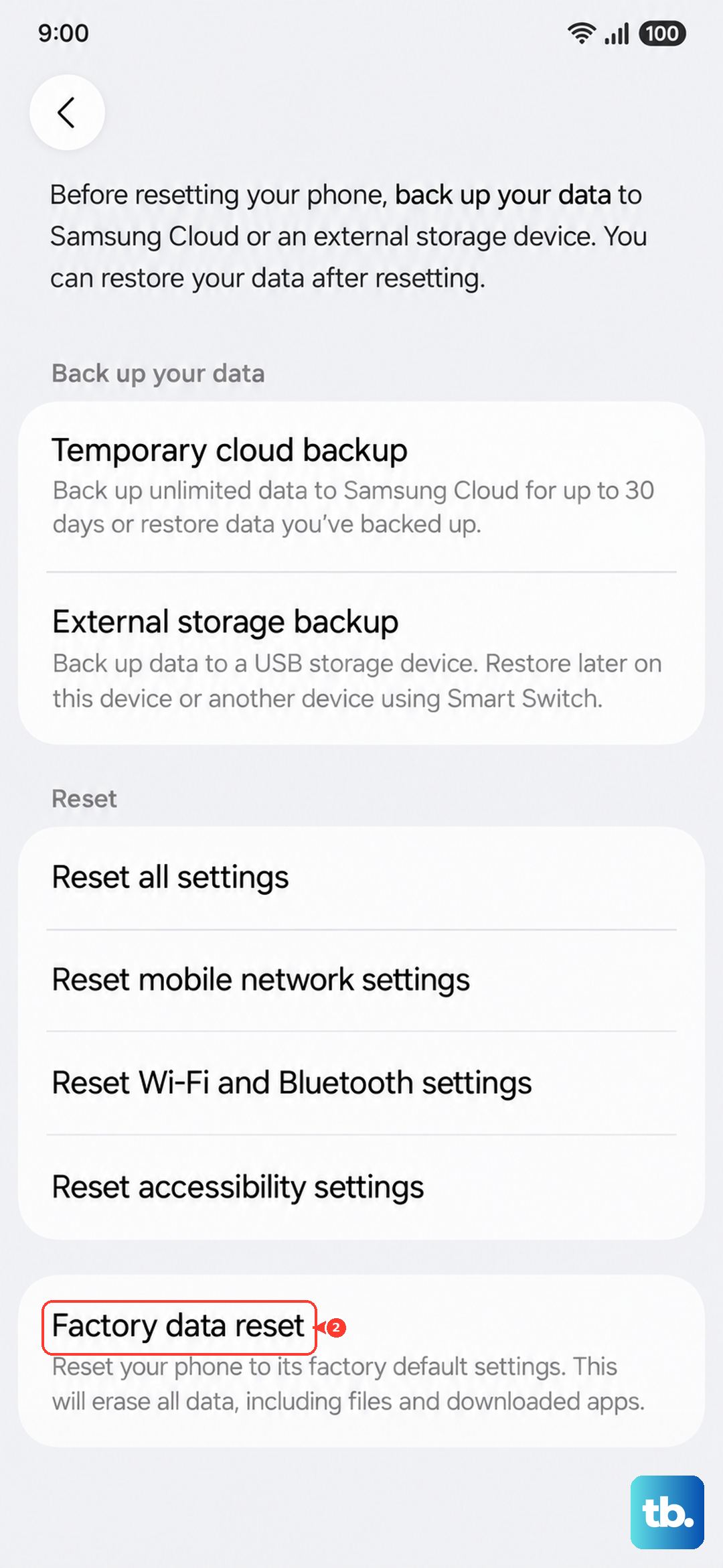
Back up first, for example with Samsung Smart Switch, before you go any further.
- 1.Open Settings, then General management, then Reset, then Factory data reset.
- 2.Review the information on screen.
- 3.Tap Reset.
- 4.Tap Delete all to confirm.
Set the phone up again.
Test the camera before restoring everything, so you can tell whether the reset solved it.
If the blur points to a hardware fault, reach out through the Samsung Members app to submit a question or request service, or schedule an online repair or visit a Samsung service center.
Frequently Asked Questions
Why does my Galaxy S26+ camera look blurry only on close-up shots?
Most likely you are inside the lens's minimum focus distance. The standard or wide lens works best with the subject at least 12 inches away and the telephoto needs at least 20 inches, while the Ultra Wide can focus from about 4 inches. For tight shots, back away from the subject and zoom in instead of moving the phone in close.
Will resetting the camera settings delete my photos?
No. Resetting the camera settings only returns the Camera app's options to their defaults, and it does not erase your saved photos. A factory data reset is the only step here that erases data, which is why you back up with Smart Switch before doing one.
How do I force restart the S26+ if the camera is frozen?
Press and hold the Volume down button and the Side button, or Power button, simultaneously until the device turns off and turns back on. The screen goes black, then the Samsung logo appears, and you can release the buttons once you see it.
How can I tell whether an app is causing the blur?
Boot into Safe mode by opening the Quick panel, tapping the Power icon, touching and holding the Power off icon, then tapping Safe mode. If the camera focuses normally in Safe mode, a third-party app is interfering, so uninstall recently added apps one at a time.
What should I do if nothing fixes the blur?
After backing up and trying a factory reset, treat it as a possible hardware issue. Contact Samsung through the Samsung Members app to submit a question or request service, or schedule a repair or service center visit.