
When your Samsung Galaxy S26 can't download MMS pictures or videos, it cuts you off from group chats and shared moments. This is usually a quick fix, often related to your mobile data settings or a temporary app glitch in One UI 8.5.
Let's start with the simplest solutions that often work right away.
Restart Your Galaxy S26
A quick restart clears out temporary software bugs that can block MMS downloads. Since the Galaxy S26 is brand new with One UI 8.5, early software hiccups are possible. Press and hold the Volume Down button and the Side/Power button together for about 10 seconds until you see the Samsung logo.
Check Your Mobile Data Connection
MMS requires mobile data to download, it won't work on Wi-Fi alone. Swipe down from the top of your screen to open the Quick Settings panel and make sure the Mobile Data icon is turned on. Also, check your signal strength. If you're in a weak coverage area, try moving to a different spot.
I'd start with this one, as it's the most common culprit. Sometimes features like Data Saver or Bixby Routines can accidentally turn mobile data off for certain apps.
Enable MMS Auto-Download
Your phone might be set to ask for permission before downloading MMS to save data. Open the Samsung Messages app and tap the three-dot menu in the top right. Go to Settings > Multimedia messages.
Here, make sure Auto download is turned on. If you travel, also toggle on Auto download while roaming. This ensures files come through without you having to manually tap "Download" each time.
Update Your Phone Software
Given that the S26 is a new device, Samsung is likely releasing updates to fix bugs in One UI 8.5. An outdated system can definitely mess with messaging services. Go to Settings > Software update and tap Download and install.
It's a good habit to check here frequently during the first few months after a phone's release. Install any available updates and restart your phone afterward.
Reset Your Network Settings
This fixes a wide range of connectivity issues by resetting Wi-Fi, Bluetooth, and mobile data settings to default. It won't delete your personal files. Go to Settings > General management > Reset > Reset network settings.
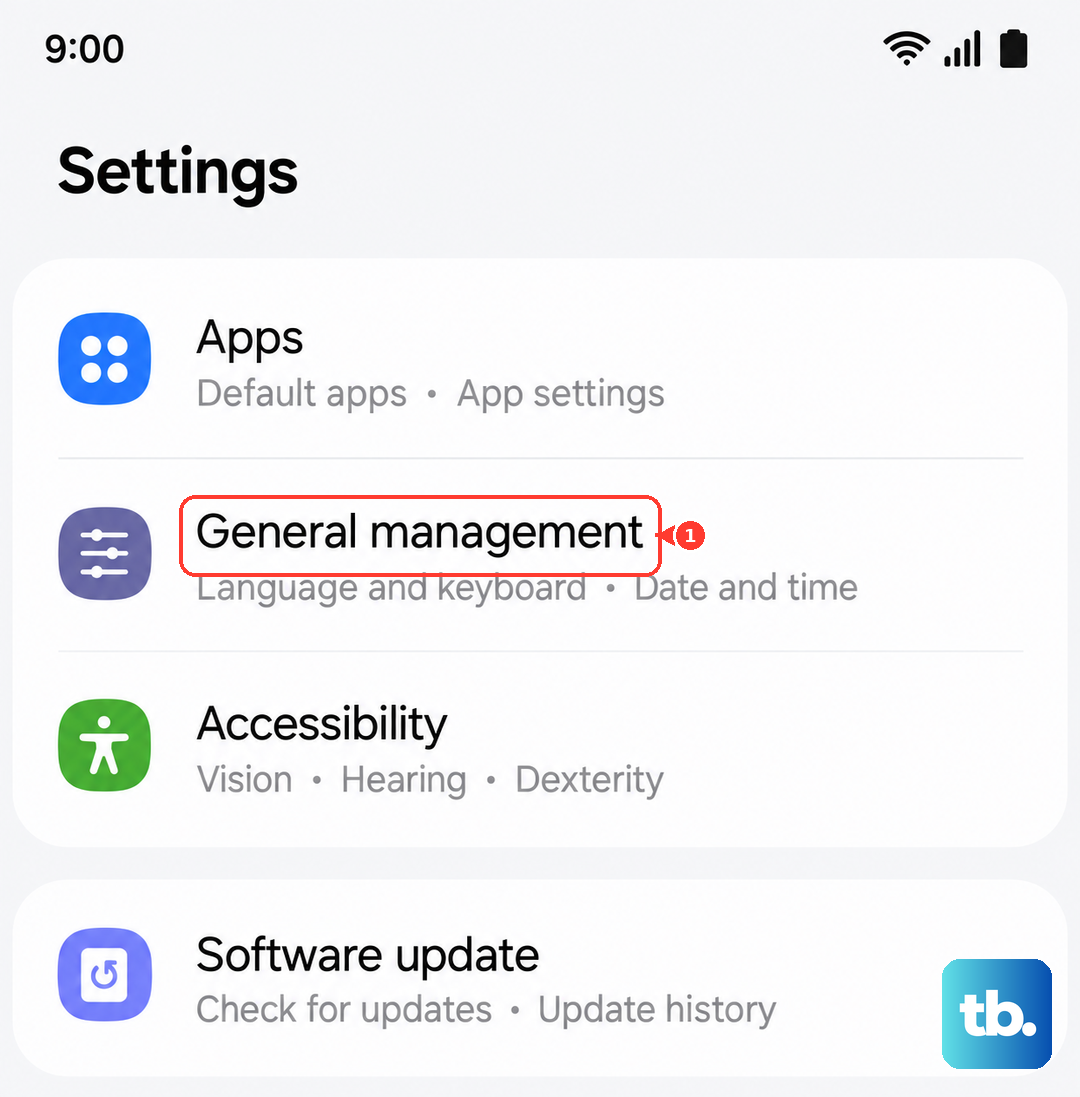
Tap to confirm. Your phone will restart, and you'll need to reconnect to Wi-Fi networks and re-pair Bluetooth devices, but this often clears up stubborn MMS problems.
Clear the Messages App Cache
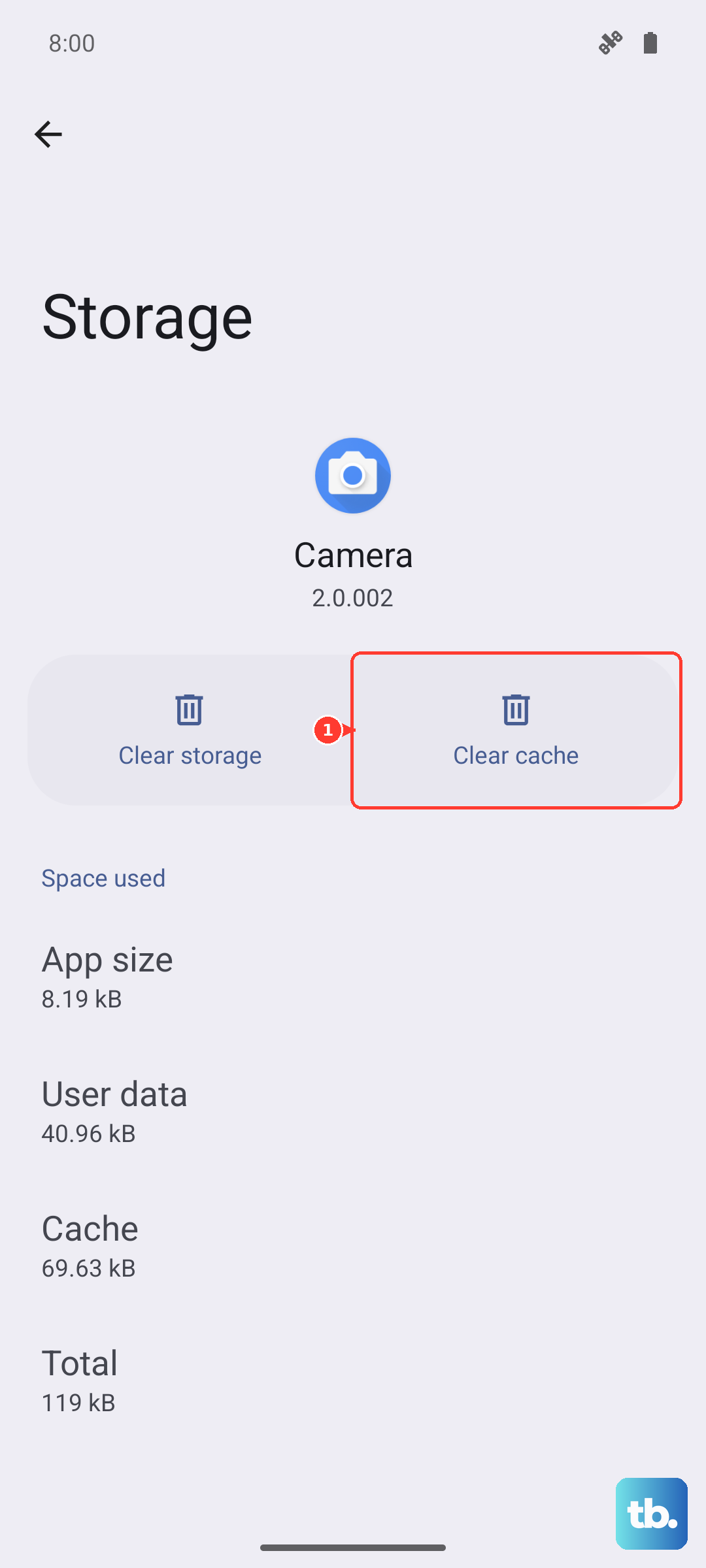
Corrupted temporary data in the messaging app can cause downloads to fail. Clearing the cache is safe and won't delete your texts. Go to Settings > Apps, then find and tap on Messages.
Select Storage and tap Clear cache. For more persistent issues, you can tap Clear data, but be warned this will erase your entire message history, so only do this if you have backups.
Verify Your APN Settings
Incorrect Access Point Name (APN) settings from your carrier will break MMS. These settings are usually configured automatically, but sometimes they're wrong. Go to Settings > Connections > Mobile networks > Access Point Names.
You should see an APN for your carrier selected. If it looks empty or wrong, the best move is to contact your carrier's support (like T-Mobile, Verizon, or AT&T) and ask for the correct MMS APN settings for the Galaxy S26. They can often send a configuration message to your phone.
Check for a Full Storage
If your phone's internal storage is completely full, there's no space to save incoming MMS files. Go to Settings > Device care > Storage to see how much space is left.
If you're running low, try deleting old downloads, unused apps, or clearing app caches to free up a few gigabytes. The Messages app needs a little free space to operate properly.
Disable Any VPN or Ad Blockers
Virtual Private Networks (VPNs) or DNS-based ad blockers can sometimes interfere with the specific pathways your carrier uses for MMS. Try temporarily turning off any VPN app you have running.
Also, if you're using a private DNS setting for ad blocking (in Settings > Connections > More connection settings > Private DNS), set it back to "Automatic" to test if that's the issue.
Try a Different Messaging App
This is a great way to figure out if the problem is with the Samsung Messages app itself or with your phone's system. Download Google Messages from the Play Store and set it as your default app.
If MMS downloads work perfectly in the new app, then the issue is isolated to the Samsung app. You can either keep using the new app or use this knowledge to focus your troubleshooting on the Samsung app's data and settings.