
When your Samsung Galaxy S26's Mobile Hotspot stops sharing your connection, it can leave your laptop or tablet stranded. Whether other devices can't see the network, fail to connect, or get kicked off repeatedly, the fixes are usually straightforward.
Start by opening Settings > Connections > Mobile Hotspot and Tethering. Turn the Mobile Hotspot toggle off, wait a solid 10 seconds, and then turn it back on. I've found this quick reset clears up minor software hiccups in One UI more often than not.
Restart Your Galaxy S26
A simple reboot can work wonders. Press and hold the Volume Down button and the Side/Power button together for about 10 seconds until you see the Samsung logo. This force restart is more thorough than a standard power cycle and refreshes all your network services.
Verify Your Mobile Data Connection
Your hotspot is useless without a solid data signal. Check that you have bars or a 5G/4G icon in your status bar. You can also go to Settings > Connections > Data usage to ensure mobile data is enabled. Remember, your carrier plan must explicitly include tethering or hotspot access for this to work.
Check for a Software Update
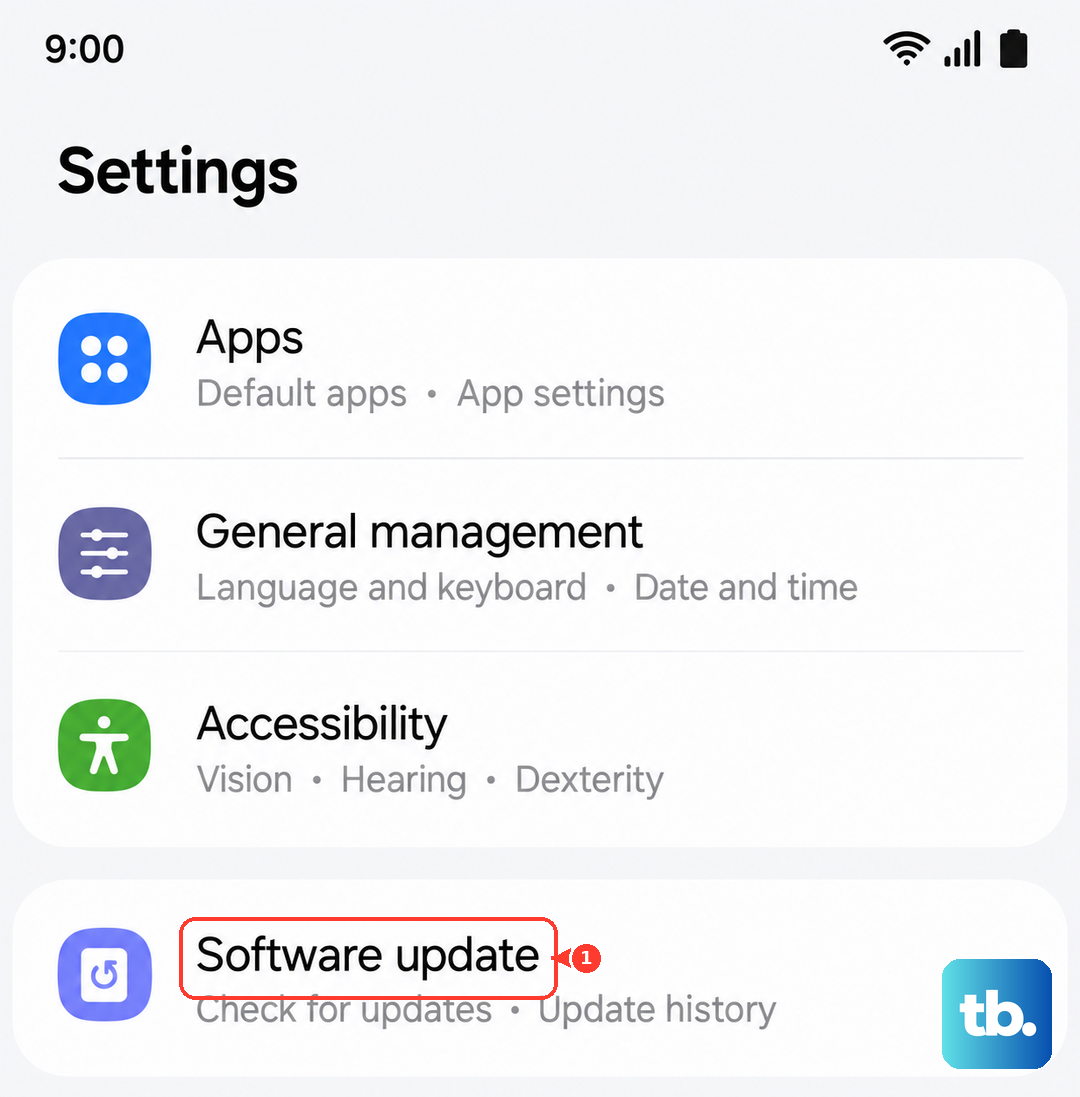
Given that the S26 runs the brand-new One UI 8.5, early software bugs are a real possibility. Head to Settings > Software update > Download and install. Samsung frequently pushes updates that address connectivity issues, so it's a good habit to check here first when something acts up.
Reset Your Network Settings
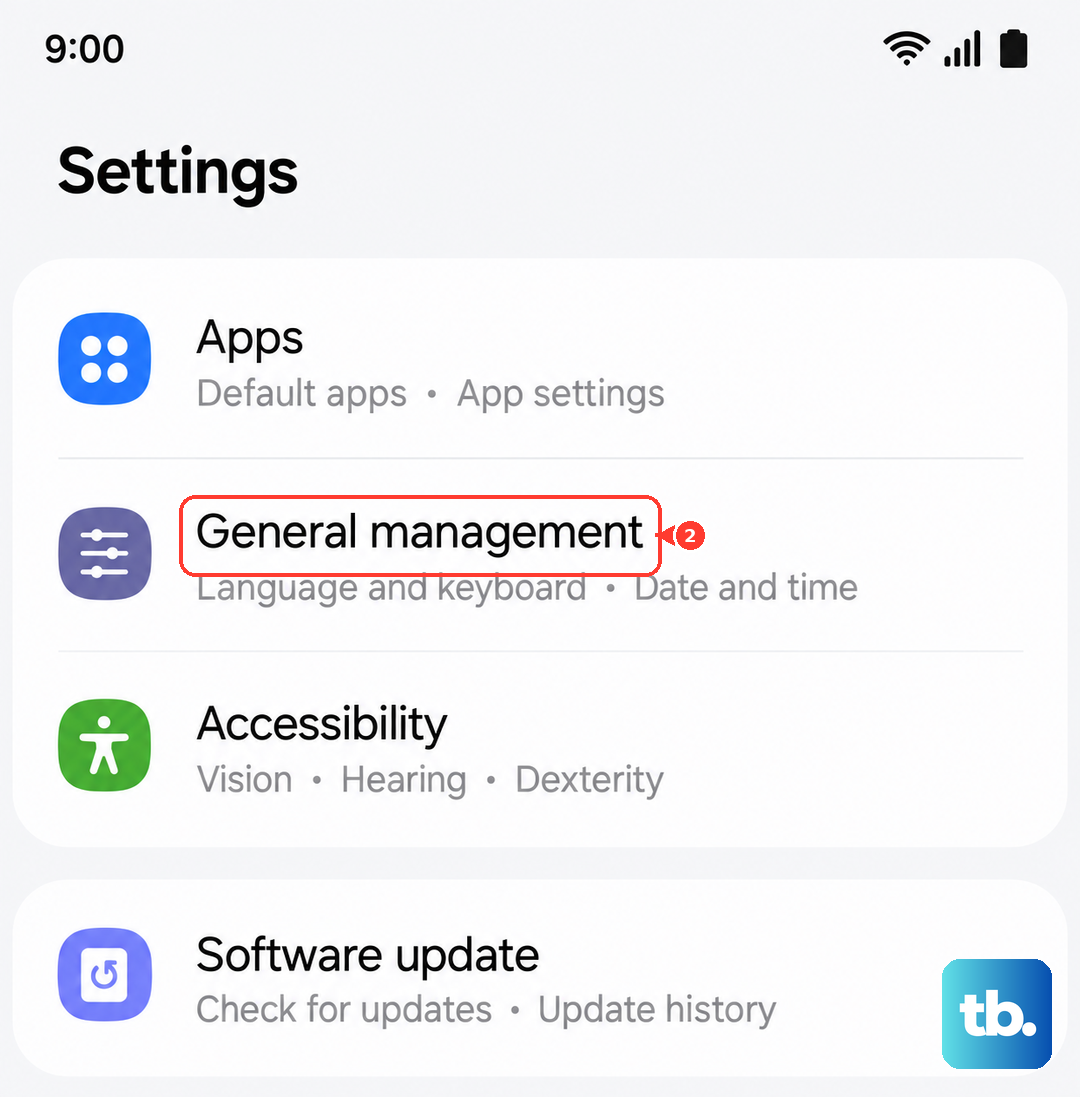
This is a powerful fix for persistent problems. Navigate to Settings > General management > Reset > Reset network settings. This will erase all your saved Wi-Fi networks, Bluetooth pairings, and cellular settings, then rebuild them. You'll need to reconnect to Wi-Fi networks afterward, but it often resolves stubborn hotspot glitches.
Forget the Network on the Connecting Device
The problem might be with the device trying to connect. On your laptop or tablet, go into its Wi-Fi settings and find your S26's hotspot name. Choose to forget or remove that network. Then, search for available networks again and select your hotspot to enter the password fresh.
Change Your Hotspot Name and Password
Sometimes the network identifier itself gets finicky. Go back to Settings > Connections > Mobile Hotspot and Tethering > Mobile Hotspot. Tap on the network name (SSID) or password field to change them. Save the new settings and have your other devices search for and connect to the newly named network.
Try USB or Bluetooth Tethering Instead
If the Wi-Fi hotspot is being difficult, use a different path. For USB tethering, connect your S26 to your computer with a USB-C cable, then enable USB tethering in the hotspot menu. For Bluetooth, pair the two devices first, then turn on Bluetooth tethering. It's a great workaround.
Review Your Carrier's Hotspot Settings
Some carriers use specific Access Point Names (APNs) for tethering. Go to Settings > Connections > Mobile networks > Access Point Names. Check if your carrier's APN has a separate setting for APN type; it should include "dun" (which stands for dial-up networking, the technical term for tethering). If not, you may need to contact your carrier for the correct settings.
Contact Your Mobile Carrier
If you've tried everything, the issue might be on your carrier's end. They could have a temporary network problem in your area, or there might be a block or limit on your specific account for tethering. A quick call to their support line can confirm your plan includes hotspot and that your line is provisioned correctly for it.