You plug your USB-C earphones into your Galaxy S26, expect your music to come through, and get nothing but silence (or sound that keeps playing from the phone's own speaker). Because the S26 has no 3.5mm headphone jack, every wired connection now runs through the USB-C port, and that one change is behind a lot of "my headphones won't work" frustration. The good news is that most causes are a loose accessory, an incompatible adapter, a stuck audio route, or a small software hiccup, and you can rule them out in a few minutes. Work through the fixes below in order, starting with the simplest and safest, and save the reset or service center visit for last.
Start with a free quick headphone test that checks left and right channels, stereo order, bass, and treble. Two minutes there tells you whether the hardware needs attention at all.
First, Know How Wired Sound Reaches the S26
The Galaxy S26 does not have a 3.5mm headphone jack, so wired audio comes through the USB-C port instead. For wired headphones you have two supported options: plug a USB-C to 3.5mm adapter into your device and then connect your headphones to the adapter, or use USB-C wired headphones that support Digital Output. For wireless listening, use Bluetooth headphones such as Samsung Galaxy Buds.
This matters because not every accessory will behave. Samsung notes that some USB Type-C earphones and USB Type-C adapters (sold separately) may not be compatible with your Galaxy device and some functions and features may not work properly. Before you blame the phone, test with a known-good Samsung adapter or set of earphones that support Digital Output so you know you are starting from a compatible accessory.
Reseat the USB-C Connection and Swap the Accessory
Since wired audio routes through USB-C, a loose, dirty, or incompatible connection is one of the most common reasons for no sound. Fully reinsert the USB-C earphones or the USB-C to 3.5mm adapter so it clicks firmly into the port, rather than sitting halfway in.
Then isolate the fault by swapping parts. Try a different Samsung-recommended adapter that supports Digital Output, or a different set of headphones, to see whether the problem follows the accessory or stays with the phone. If a known-good Samsung accessory works and a third-party one does not, the accessory is the issue, exactly as Samsung warns that some third-party USB Type-C earphones and adapters may not be compatible and some functions and features may not work properly.
Clear a Moisture or Water-Drop Warning in the Port
If you see a water-drop or moisture icon, the phone may be blocking the USB-C port, and that can stop USB-C audio from working. Start by drying the port. Gently shake the device to help remove water or moisture from the port, then set the phone aside to dry. According to Samsung, water will naturally evaporate from the charging port within approximately 1 to 2 hours.
Do not rush it. The official caution is clear that to avoid electric shock and damage to your phone or tablet, you should not charge while it is wet or in an area where it could get wet. Let the port dry fully before you plug USB-C headphones back in, and only reconnect once the moisture warning has cleared.
Restart the Phone to Clear a Glitch
A simple restart clears the temporary glitches that can mute audio or send it to the wrong output. Using the buttons:
- 1.Press and hold the Volume down button and the Side button (or Power button) at the same time.
- 2.After a few seconds, different power options will appear.
- 3.Tap Restart, and then tap Restart again.
Once the phone is back up, plug in your headphones (or reconnect your Bluetooth pair) and check whether sound has returned before moving on.
Force a Reboot if the Screen Is Frozen or Sound Is Stuck
If the screen is unresponsive, or sound simply will not come back, a force restart can recover a phone whose audio output is stuck. Press and hold the Volume down button and the Side button (or Power button) simultaneously until the device turns off and turns back on.
The screen will go black and then the Samsung logo will reappear as the phone restarts. This does not erase your data; it only forces the system to reboot. Wait for the phone to finish starting up, then test your headphones again.
Re-Pair Bluetooth Headphones That Will Not Connect
If you are using wireless headphones such as Galaxy Buds and they will not connect or have no sound, re-pairing usually fixes it. To pair a device, open the Quick settings panel by swiping down from the top of the screen, touch and hold the Bluetooth icon to open the Bluetooth settings menu, scroll down to Available devices, and then select the device you want to pair to.
If the headphones are already paired but failing, remove them and add them again. From Settings, tap Connections, and then tap Bluetooth. Tap the Settings icon next to the device you wish to unpair, and then tap Unpair. After that, follow the pairing steps above to reconnect from scratch.
Boot Into Safe Mode to Rule Out a Problem App
A downloaded app can hijack or mute audio, and Safe mode is the quickest way to test for that because the phone runs only its built-in apps. To start it:
- 1.Power off the device completely.
- 2.Turn it on, and when the Samsung logo appears, press and hold the Volume down button.
- 3.Keep holding until "Safe mode" shows in the bottom-left corner of the screen.
Now test your headphones. If they work in Safe mode, a third-party app is the cause, so uninstall any apps you recently added or updated. To exit Safe mode, restart the phone normally, or swipe down, tap the "Safe mode is on" notification, and then tap Turn off.
Install Any Pending Software Update
Software updates fix the bugs that can interfere with audio, so it is worth confirming you are current. Open Settings, then swipe to and tap Software update or System updates. Next, tap Download and install, Check for system updates, or Check for software updates, depending on your carrier.
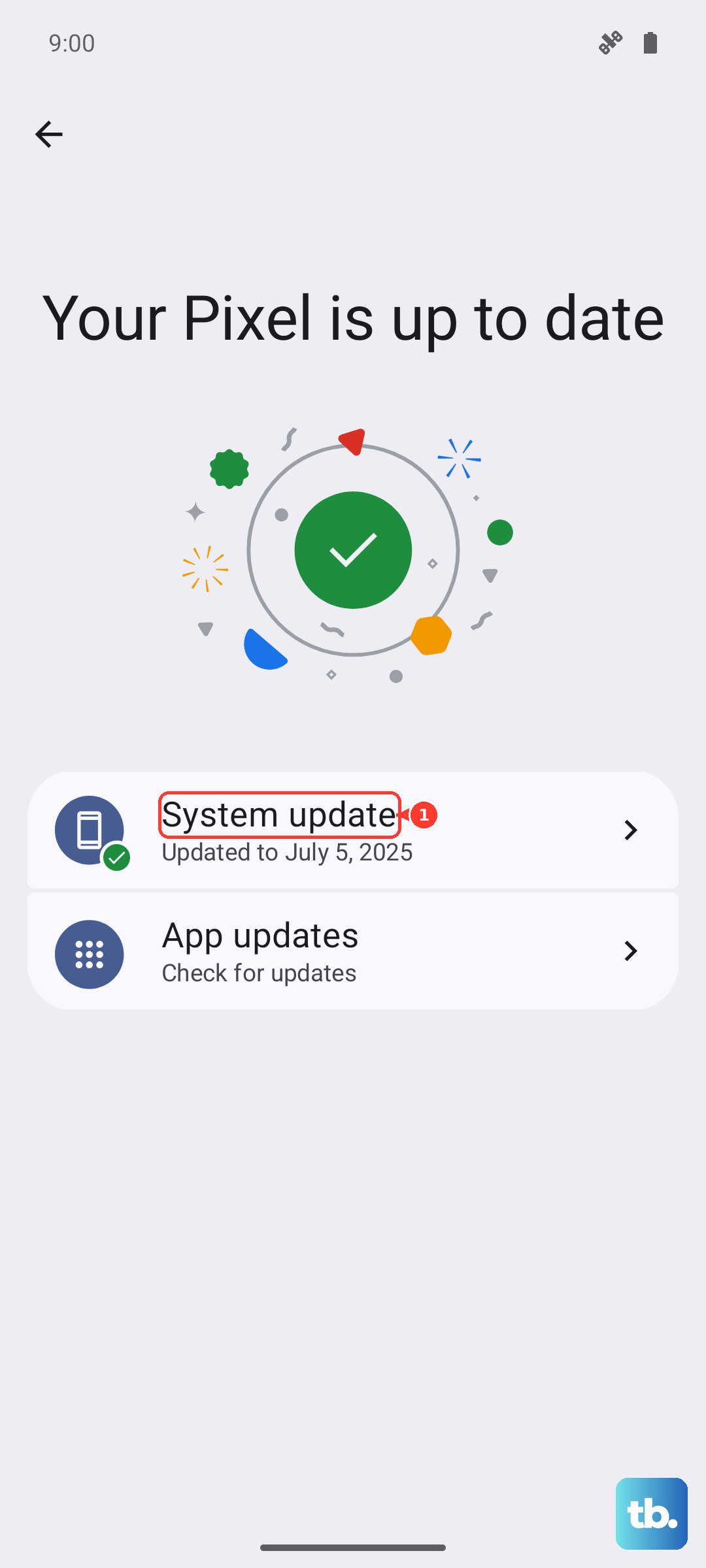
Run the update over Wi-Fi with enough battery so it does not interrupt partway through. After the update finishes and the phone restarts, plug in your headphones again to see whether the new software has cleared the problem.
Back Up Your Data, Then Factory Reset as a Last Resort
If a software fault still persists after everything above, a factory reset returns the phone to a clean state. First, back up everything you care about, because Samsung warns that you should save any information you need prior to the factory reset, since your personal information may not be recovered.
Once your backup is complete, perform the reset:
- 1.Navigate to and open Settings, and then tap General management.
- 2.Swipe to and tap Reset, then tap Factory data reset.
- 3.Review the information on screen, then tap Reset.
- 4.Tap Delete all (enter your security credentials and Samsung account password if prompted).
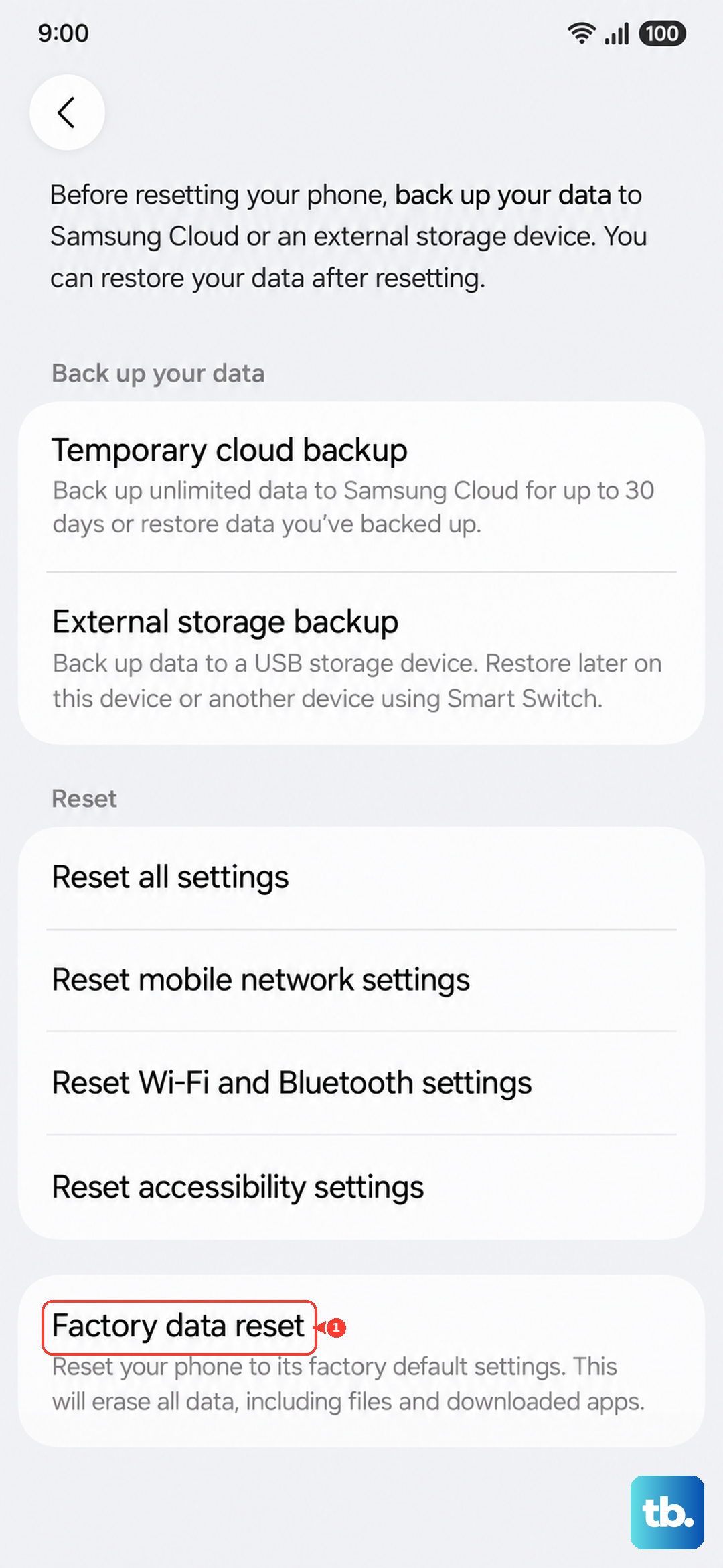
After the reset, set the phone up again and test your headphones before restoring all your apps, so you can tell whether a clean system fixed the problem.
When to Contact Samsung Support
If sound is still missing after these steps, the cause may be hardware rather than software, especially if the USB-C port behaves oddly or a moisture warning keeps coming back. In that situation it is time to get the phone looked at by Samsung.
Samsung's moisture-port guidance directs users to contact Samsung support or visit a service center if previous steps do not resolve the issue. You can reach official support and request hardware diagnostics at samsung.com/us/support.
Frequently Asked Questions
Does the Galaxy S26 have a 3.5mm headphone jack?
No. The Galaxy S26 does not have a 3.5mm headphone jack. For wired sound you can plug a USB-C to 3.5mm adapter into the phone and connect your headphones to that adapter, or use USB-C wired headphones that support Digital Output. For wireless listening, use Bluetooth headphones such as Galaxy Buds.
Why do my third-party USB-C earphones not work on the S26?
Samsung notes that some USB Type-C earphones and USB Type-C adapters (sold separately) may not be compatible with your Galaxy device and some functions and features may not work properly. Test with a known-good Samsung adapter or earphones that support Digital Output to confirm whether the accessory is the problem.
What does the water-drop icon in the port mean for my headphones?
It means moisture has been detected, and the phone may block the USB-C port, which can stop USB-C audio. Gently shake the device to help remove water from the port, then let it dry, since water will naturally evaporate from the charging port within approximately 1 to 2 hours. Do not charge or use the port while it is wet.
How do I re-pair my Galaxy Buds with the S26?
Open the Quick settings panel by swiping down from the top of the screen, touch and hold the Bluetooth icon, scroll down to Available devices, and select your earbuds. If they were paired before but are failing, go to Settings, tap Connections, tap Bluetooth, tap the Settings icon next to the device, tap Unpair, and then pair again.
Will a factory reset fix headphone problems on the S26?
A factory reset can resolve a persistent software fault by returning the phone to a clean state, but it should be a last resort. Back up your data first, because your personal information may not be recovered, then go to Settings, tap General management, tap Reset, tap Factory data reset, tap Reset, and tap Delete all. If sound is still missing afterward, contact Samsung support.