You plug your Galaxy S26 into the charger, expecting that quick top-up Samsung advertises, and instead the battery crawls upward or the screen never shows the Super Fast Charging label at all. Slow or stalled charging on a brand-new S26, S26+, or S26 Ultra is frustrating, but it is usually caused by something fixable, like the wrong adapter, a settings toggle, a battery safeguard, or a little debris in the port. Work through the fixes below in order, starting with the easiest and safest, and most owners get full-speed charging back before reaching the last resort.
Match the Charger and Cable to Your Exact S26 Model
The single most common reason fast charging feels broken is the power brick, because none of the Galaxy S26 models ship with a wall charger in the box. You only get a USB Type-C 3A cable, so plugging into an old or low-wattage adapter caps your speed well below what the phone can do. Samsung's guidance is direct, use a Samsung charger to properly charge your device.
Crucially, the right wattage depends on which model you own, and this is where many fast charging not working complaints come from. The base Galaxy S26 tops out at 25W Super Fast Charging, so a 25W adapter is all it needs. The Galaxy S26+ supports Super Fast Charging 2.0 up to 45W, while only the Galaxy S26 Ultra reaches 60W and requires a 60W Super Fast Charger, which is sold separately.
If you own a base S26 or an S26+, you do not need a 60W charger, and buying one will not unlock speeds your model does not support. Pair the correct Samsung adapter with an undamaged USB-C cable, and rule out the cable itself by swapping in a known-good one.
Confirm Fast Charging Is Actually Switched On
Fast charging is a setting you can disable, sometimes accidentally, so verify it is enabled before assuming a hardware fault. The phone then automatically selects the best charging speed your supported hardware allows for whatever charger you connect.
- 1.Open Settings.
- 2.Tap Battery.
- 3.Tap Charging settings.
- 4.Toggle on Fast charging.
- 5.If you charge on a pad, also toggle on Fast wireless charging.
One detail worth knowing, only the charging speeds your device supports will appear in this menu, and the exact setting names can vary slightly by model and software version. If an option you expected is missing, it may simply not apply to your model.
Rule Out Battery Protection Capping Your Charge
If your S26 stops charging before it reaches 100%, or never seems to fill up overnight, the cause is often a deliberate battery-health safeguard rather than a fault. Samsung's Battery protection feature has three modes, and two of them intentionally limit how high the battery climbs.
Check it under Settings, then Battery, then Battery protection. In Maximum mode, your battery will stop charging when it reaches 80%. Adaptive mode uses Maximum while you sleep and switches to Basic before you wake, so it can look like charging stalled at 80% in the morning.
For reference, Basic mode lets the battery charge to 100%, then pauses until the level drops to 95% before topping up again. This is all expected behavior designed to protect long-term battery health. If you want a full 100% charge, turn off Maximum or Adaptive mode.
Check the Port and Cable for Dust, Debris, or Damage
A USB-C port packed with lint or a cable with a worn connector can block charging entirely, sometimes as a safety measure. Samsung recommends you inspect the device, charger, and USB cable for dust or other foreign materials, and check the USB connections for corrosion and bent pins.
Look closely inside the charging port for compacted debris and gently clear it out. Then test charging with a known-good cable and adapter, since a quietly failing cable is easy to overlook and quick to swap.
Clear a Moisture Detected or Water Drop Warning
If a water-drop icon appears and wired charging refuses to start, your phone has detected moisture in or around the USB-C port and is blocking charging to protect the connector. You can clear this yourself with care.
- 1.Unplug your device from the charger.
- 2.Wipe the port with a dry cloth, or gently shake your device 5 to 10 times with the port facing downwards to release any excess moisture.
- 3.Place your phone on a cloth in a well-ventilated area, or dry it with a fan.
Be gentle while doing this, because excessive force or shaking may cause damage to your phone. In the meantime you can keep the phone running by using wireless charging instead. It is also worth trying a different cable, since moisture trapped in the cable connector can trigger the same warning even when the phone itself is dry.
Let the Phone Reach a Normal Temperature
Your S26 will throttle or pause charging by design if it gets too hot or too cold, so an environmental issue can masquerade as a charging fault. If the phone is too warm or too cold to charge, unplug the charger and allow it to return to a normal temperature before trying again.
To avoid triggering these safeguards, remove any thick case while charging and keep the phone out of direct sunlight or very cold conditions. Once the phone is back in a comfortable temperature range, charging speed should recover on its own.
Force Restart a Phone That Stopped Charging
A temporary software glitch can leave the phone frozen or unresponsive so that it stops charging, and a force restart clears that state without erasing any data. This works the same way across all Galaxy S26 models.
Press and hold the Side button and Volume Down until you see the Samsung logo on the screen. Once the phone restarts, plug the charger back in and check whether normal charging resumes.
Install the Latest Software Update
Software updates can resolve charging-related bugs, so keeping One UI and Android current is a sensible early step before considering a reset or repair.
- 1.Open Settings.
- 2.Tap Software update.
- 3.Tap Download and install, or Check for software updates.
- 4.Follow the on-screen instructions to install.
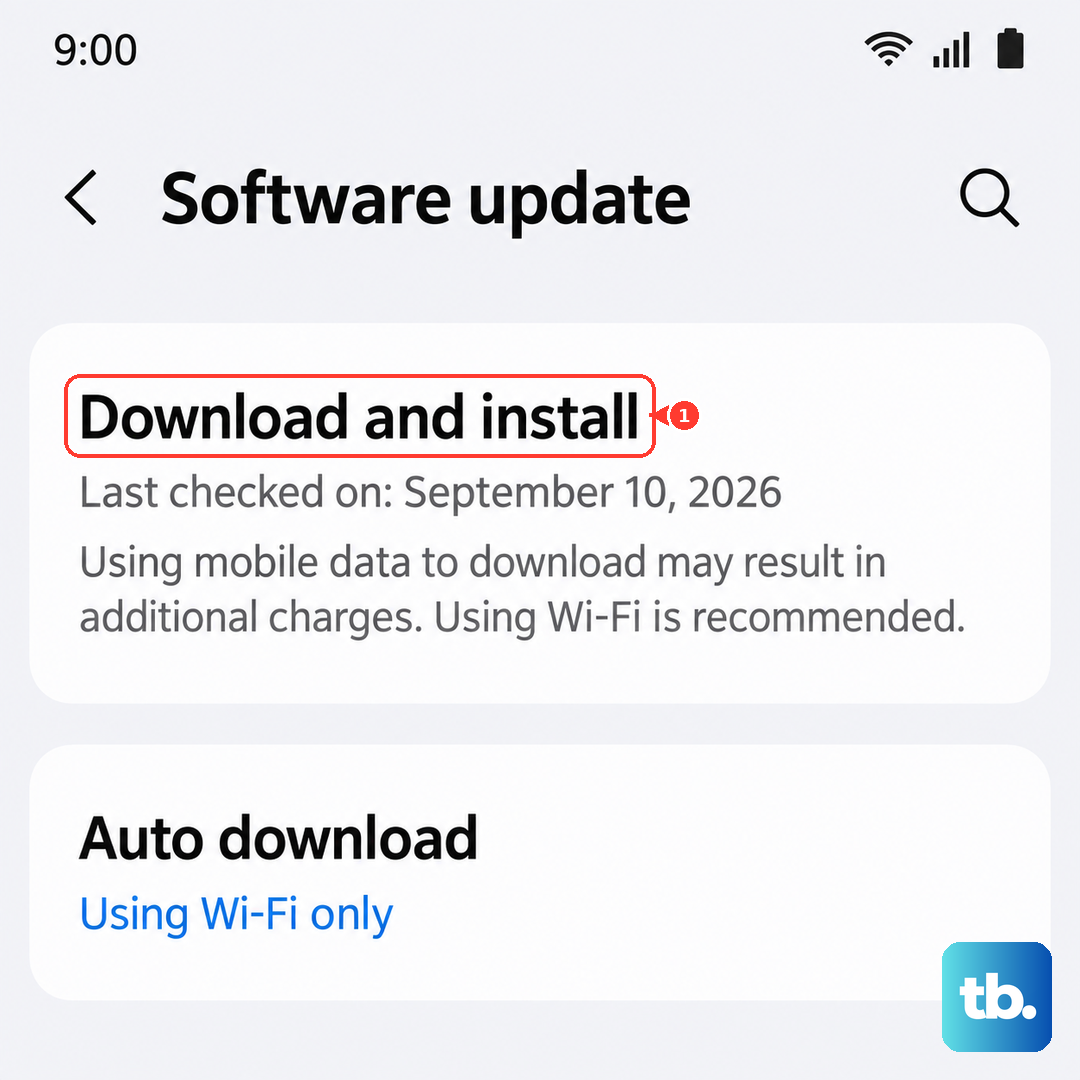
Leave the phone connected to power while it downloads and installs so the update is not interrupted partway through.
Run a Battery Self-Check in Samsung Members
Before you escalate to a reset or a service visit, let the phone diagnose itself. The preinstalled Samsung Members app includes a Diagnostics tool that checks battery and charging health directly on the device.
- 1.Open Samsung Members.
- 2.Go to Diagnostics.
- 3.Tap Phone diagnostics.
- 4.Select Battery status, or tap Test all.
The results tell you whether the battery and charging are operating normally, which helps you decide whether the problem is software-related or a genuine hardware fault worth taking to Samsung.
Isolate the Fault With Wireless Charging, Then Reset or Contact Samsung
If wired charging still fails after everything above, test wireless charging to figure out where the problem lies. Remove any case or skin, then place the phone centered on a compatible wireless charger. If wireless charging works but wired does not, that points toward the cable, adapter, or USB-C port rather than the battery.
As a final software step, you can back up your data and perform a factory reset, which erases all personal data. Before you start, save anything you need, because your personal information may not be recovered, so be sure to back up your personal data so you do not lose it all.
- 1.Open Settings.
- 2.Tap General management.
- 3.Tap Reset.
- 4.Tap Factory data reset.
- 5.Tap Reset.
- 6.Tap Delete all.
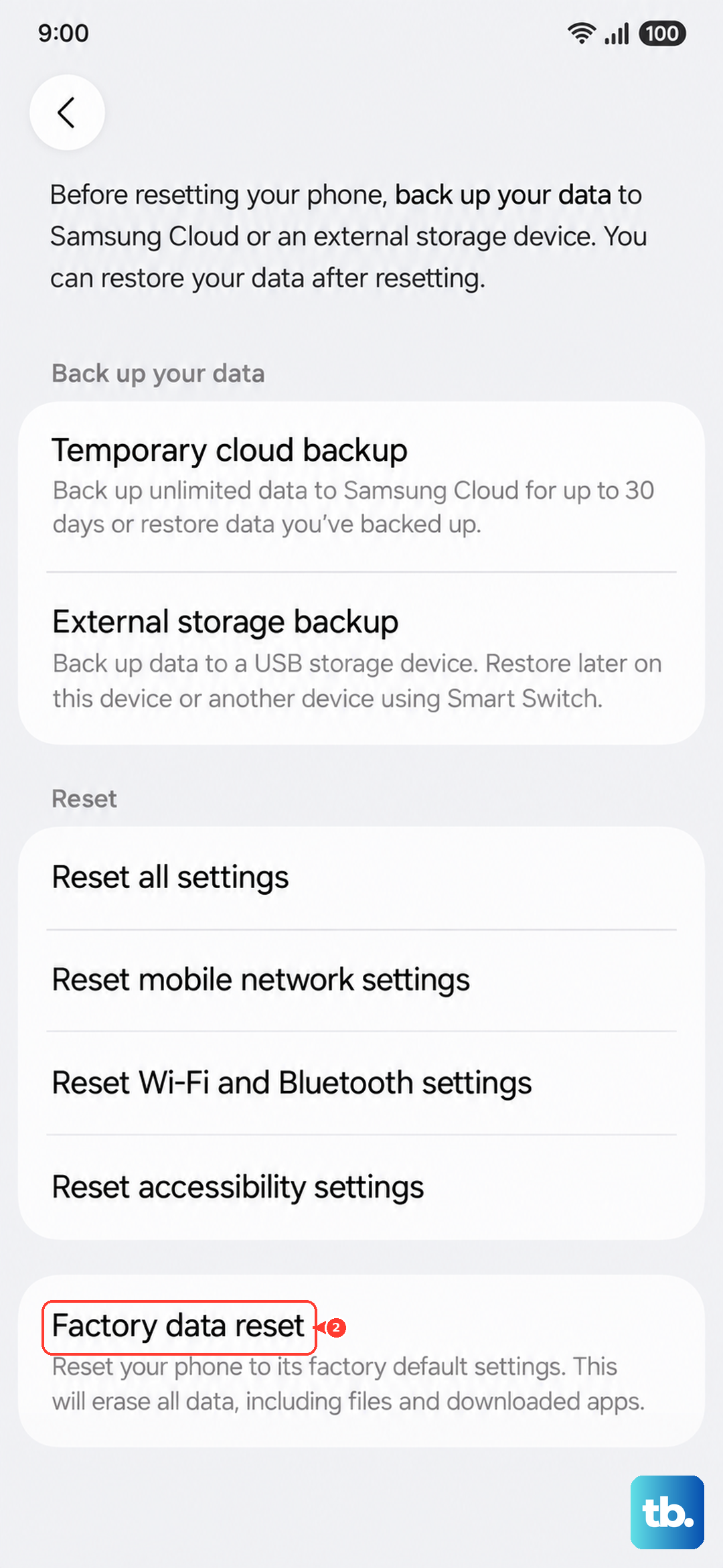
If charging still does not work after the reset, the issue is most likely hardware. At that point, visit a Samsung walk-in service center or schedule a repair service online.
Frequently Asked Questions
Does the base Galaxy S26 need a 60W charger?
No. The base Galaxy S26 maxes out at 25W Super Fast Charging, so a 25W Samsung adapter delivers its top speed. Only the Galaxy S26 Ultra reaches 60W and requires a 60W Super Fast Charger, which is sold separately. The Galaxy S26+ supports up to 45W.
Why does my S26 stop charging at 80%?
That is almost always the Battery protection feature, not a fault. In Maximum mode the battery stops charging at 80%, and Adaptive mode applies Maximum while you sleep. Open Settings, then Battery, then Battery protection, and turn off Maximum or Adaptive if you want a full 100% charge.
Why is there a water drop icon and no charging?
The phone detected moisture near the USB-C port and blocked wired charging to protect it. Unplug the charger, wipe the port with a dry cloth or gently shake the device 5 to 10 times with the port facing down, then let it dry in a well-ventilated area or with a fan. Use wireless charging in the meantime.
How do I check whether my battery is actually faulty?
Use the built-in Samsung Members app. Open Samsung Members, go to Diagnostics, then Phone diagnostics, and choose Battery status or tap Test all. The test reports whether your battery and charging are working normally and helps you decide if a service visit is needed.
Did the box include a wall charger?
No. All three Galaxy S26 models ship without a wall charger, you only get a USB Type-C 3A cable. Using a low-wattage or non-Samsung adapter is a common reason charging feels slow, so pair the correct Samsung charger with your model for full speed.