You raised your Galaxy S26 to capture a moment, tapped the shutter, and the result came back soft, smeared, or out of focus. Blurry photos on a phone with a 50MP main lens are frustrating, but the good news is that most causes are simple and fixable at home. The steps below start with the quickest, safest checks and only move toward a full reset at the very end.
Work through them in order. In many cases a smudged lens or a too-close subject is the entire problem, so there is no need to dig into settings or reset anything before you have ruled out the basics.
Start With the Glass and What Surrounds It
The most common reason a Galaxy S26 shoots blurry photos is something physical sitting in front of the lens. Dust, fingerprints, or debris on the rear glass can interfere with autofocus and soften every shot. Clean the lenses gently with a soft, dry, lint-free cloth.
Your S26 has three rear lenses, a 50MP wide-angle main lens, a 12MP ultra-wide lens, and a 10MP telephoto lens, so wipe each one rather than just the one you assume you are using. A light haze you cannot even see in normal light is often enough to ruin focus.
Next, check your case and any accessories. Make sure your phone cover and accessories do not cover the edges of the camera lens, because anything overlapping the glass can stop the camera from focusing and create blur. That includes stick-on lens protectors. Remove or reposition the case or protector and take another test shot.
Give the Camera Room and Light to Do Its Job
If your subject is too close, the camera physically cannot lock focus, no matter how clean the lens is. Each lens has a minimum focus distance, so if you are framing something very close up, back away from the subject and zoom in instead. Stepping back is the most reliable way to get a sharp result on a tight shot.
Movement and poor light are the other two everyday culprits. Moving the camera while you take a photo, or shooting a subject that is moving, can easily create blur, and dim or harsh lighting makes focus harder to lock.
- 1.Hold the phone as still as you can, or brace your hands against a stable surface.
- 2.Add light to the scene, favoring soft, indirect light over harsh or dim conditions.
- 3.Wait a beat for the subject to stop moving before you press the shutter.
These three habits alone eliminate a large share of soft, dark, or motion-smeared shots.
Check the One Setting That Quietly Softens Your Scene
The Galaxy S26 has a Tracking auto focus feature, described as "Keep a moving subject in focus." When it is on and you tap a subject, the camera locks onto that subject for about three seconds, which can leave the rest of the scene looking out of focus. If your photos are sharp on one spot but blurry everywhere else, this setting is a likely cause.
To turn it off, open the Camera app, tap the Quick controls icon (the four dots), then tap the Settings icon. From there, tap the switch next to Tracking auto-focus to turn it off, then take a fresh photo to compare.
Clear a Temporary Glitch With a Restart
Sometimes the camera hardware is fine and a temporary software hiccup is to blame. A restart clears those glitches and reloads the camera app cleanly. For a normal restart, press and hold the Volume down button and the Side button (or Power button) at the same time, then tap Restart, then tap Restart again.
If the camera app is frozen or the phone is unresponsive, use a force restart instead. Press and hold the Volume down button and the Side button (or Power button) simultaneously until the device turns off and turns back on. The screen goes black, then the Samsung logo appears, after which you can test the camera again.
Restore the Camera App to Its Defaults
If the camera still will not focus or stays blurry, a setting you (or an app) changed may be the issue. The S26 lets you restore the camera to its factory defaults without touching your saved photos.
Open the Camera app, tap the Settings icon, then swipe to and tap Reset settings and confirm. This rolls every camera option back to default while leaving your gallery untouched, which is a safe step to try before anything more drastic.
Install Any Pending Software Updates
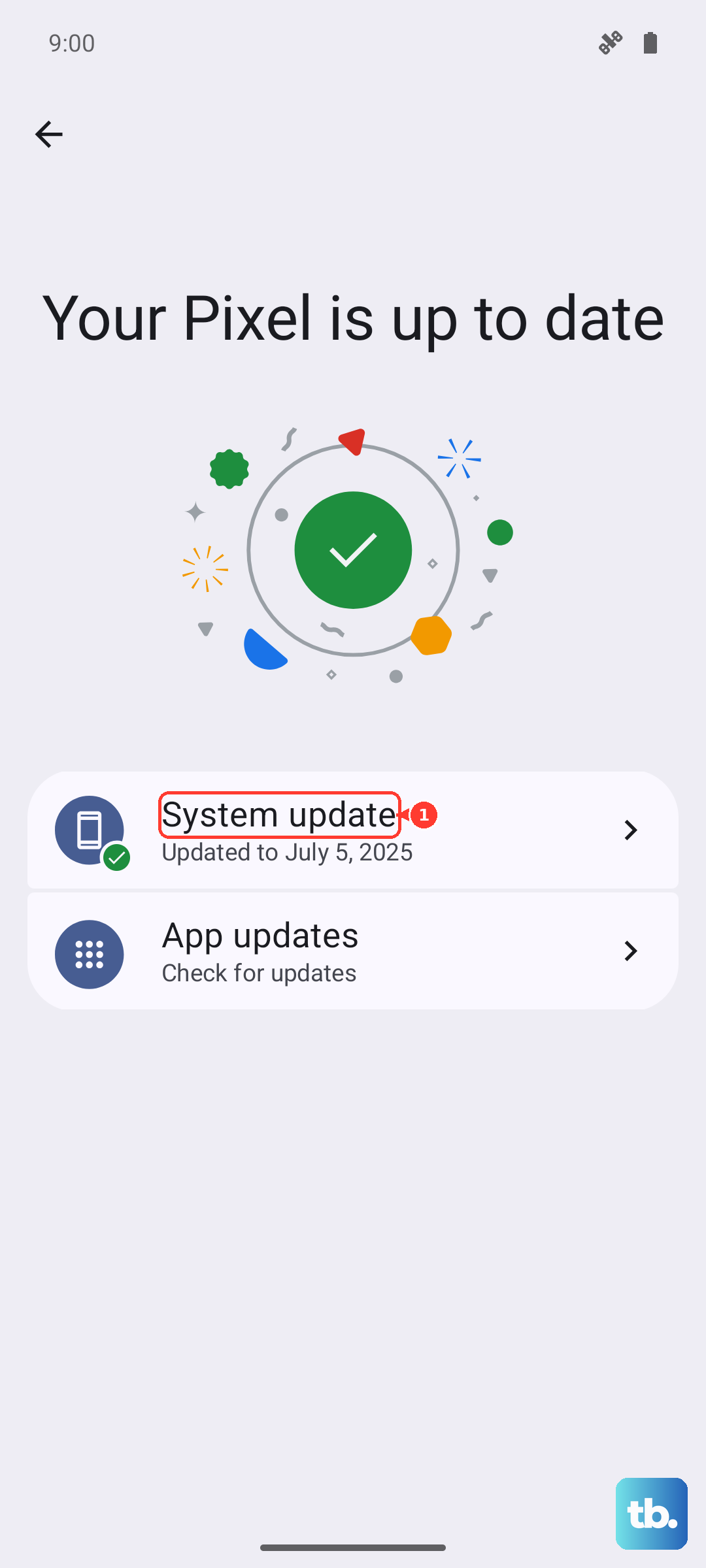
Camera app bugs, especially on a newer device, are frequently fixed in software updates. Your Galaxy S26 ships on One UI 8.5 (Android 16), and keeping it current can resolve early camera issues that show up as blur or focus failures.
Go to Settings, then Software update (or System updates), tap Download and install (or Check for software updates), and follow the on-screen instructions to install. Let the update finish and the phone restart, then open the camera and check whether the problem is gone.
Rule Out a Misbehaving App With Safe Mode
A downloaded app can interfere with the camera and cause blur that has nothing to do with the hardware. Safe mode temporarily disables third-party apps so you can test the camera in isolation.
- 1.Swipe down to open the Quick panel.
- 2.Tap the Power icon.
- 3.Touch and hold the Power off icon.
- 4.Tap Safe mode when it appears.
With the phone in Safe mode, open the camera and take a few photos. If they come out sharp, a third-party app is the cause. Restart normally to leave Safe mode, then remove recently installed apps one at a time until the blur stops.
The Last Resort and When to Get Help
If you have worked through every step above and the camera is still blurry, a factory data reset is the final software fix. This erases everything on the phone, so back up your data first. Samsung warns: "Please save any information you need prior to the factory reset because your personal information may not be recovered."
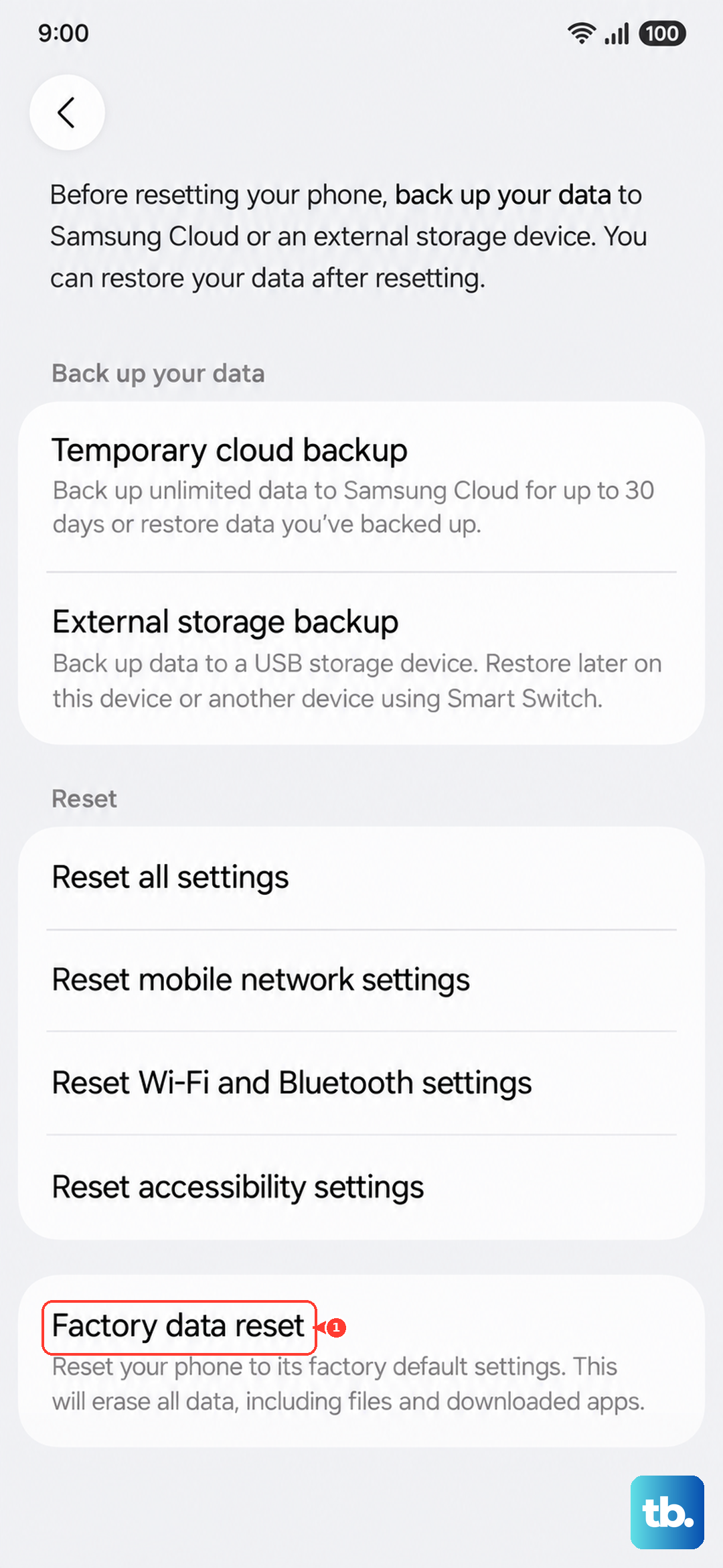
Once your backup is complete, go to Settings, then General management, then Reset, then Factory data reset, review the information, and tap Reset, then Delete all. Enter your lock credentials and Samsung account password if prompted, and let the phone reset and reboot before you test the camera.
If the blur persists even after a reset, or if you hear a clicking or grinding sound coming from the lens, the issue is likely physical rather than software. At that point, contact a Samsung service center or Samsung support so a technician can inspect the camera module.
Frequently Asked Questions
Why is only part of my Galaxy S26 photo in focus?
That pattern usually points to Tracking auto focus. When it is on and you tap a subject, the camera locks onto it for about three seconds and can leave the rest of the scene out of focus. Open the Camera app, tap the Quick controls icon (the four dots), tap the Settings icon, and turn off the Tracking auto-focus switch.
Will resetting my camera settings delete my photos?
No. Using Reset settings inside the Camera app (Settings icon, then swipe to and tap Reset settings) only returns the camera options to their defaults. Your saved photos are not erased. A full factory data reset, by contrast, does erase everything, so back up first before using that option.
My subject is very close. Why will the S26 not focus on it?
Each lens has a minimum focus distance, so if you hold the phone too close the camera cannot lock focus and the shot looks blurry. Back away from the subject and zoom in to frame a tight close-up instead.
I cleaned the lens and updated the software, but it is still blurry. What now?
Try a force restart, then Reset settings in the Camera app, and test the camera in Safe mode to rule out a third-party app. If those do not help, back up your data and perform a factory data reset. If blur remains or you hear clicking or grinding from the lens, contact a Samsung service center.
Does my phone case really cause blurry photos?
It can. Make sure your phone cover and accessories do not cover the edges of the camera lens, because anything overlapping the glass, including a stick-on lens protector, can stop the camera from focusing. Remove or reposition the case or protector and take another test shot.