You set your Samsung Galaxy S25 on the charging pad, expecting that reassuring buzz and the charging animation, and nothing happens. Maybe the indicator light on the pad blinks, maybe a water-drop icon appears, or maybe the phone just sits there with a flat battery. The good news is that the S25 lineup is built for wireless charging, supporting Fast Wireless Charging 2.0 and the Qi2 standard (up to 15W with a Qi2-Ready setup), so a working pad-and-phone combination is exactly what you should be getting. The fixes below start with the quickest, safest checks and only move on to a reset and a service call if everything else fails.
Start by Proving It's a Wireless Problem, Not a Charging Problem
Before you blame the pad, find out whether your S25 can charge at all. Plug it in with the wired USB-C cable and a Samsung adapter and watch for the charging indicator.
If wired charging works but the pad does not, you have narrowed the issue to something specific to wireless charging: alignment, the case, the charger, or the pad itself. That single test saves you from chasing the wrong fix and points you straight at the steps below. Because the S25 series officially supports wireless charging, a properly set up pad should charge it without trouble.
Get the Phone Centered and Touching the Pad
Wireless charging only works when the coils line up, and the coil location varies from device to device. Samsung's guidance is direct: the device's back should make contact with the wireless charger, and the device should be centered.
Nudge the phone around on the pad until the connection is stable, since even a small offset can stop charging entirely. Many pads show a flashing or red indicator when the phone isn't positioned correctly, so use that light as your guide. Once the phone is seated properly, the indicator should settle and charging should begin.
Strip Away the Case, Cards, and Magnets
A thick case or anything metallic between the phone and the pad can block the wireless connection. Samsung advises removing the phone's case if necessary, especially if it is thick.
For wireless charging in particular, remove any metal or magnetic material sitting between the device and the charger; that includes credit cards, keys, magnetic wallets, or stick-on accessories. Set the phone to charge on a hard, flat surface so the back rests evenly against the pad. With the obstructions gone, try positioning the phone on the pad again.
Use a Certified Charger and a Working Power Source
Not every pad is up to the job. Samsung recommends using Samsung chargers and notes that Galaxy phones are compatible with Qi-certified wireless chargers, while advising strongly against uncertified or counterfeit chargers.
- 1.Confirm your wireless charger is Qi or Qi2 certified.
- 2.Make sure the charger's power adapter is plugged into a working wall outlet.
- 3.Check that the cable between the adapter and the pad is fully connected at both ends.
- 4.For full S25 wireless speed, use a Qi2-Ready setup.
An underpowered or loosely connected adapter is a common reason a pad seems dead, so it's worth ruling out before you assume the phone is at fault.
Look for the Water-Drop Icon
If a water-drop icon appears and your phone won't charge, the S25 has detected moisture in or near the USB port and has blocked charging as a safety measure. This protects the hardware, but it can be confusing if you didn't notice any water.
To clear it, unplug your device from the charger, then wipe it with a dry cloth or gently shake the phone (5 to 10 times) with the port facing downward to release any excess moisture. Place the phone on a cloth in a well-ventilated area, or dry it with a fan. Helpfully, you can still use a wireless charger while the port dries, so this is one case where the pad may actually be your workaround rather than the problem.
Cool the Phone Down If It Feels Hot
When the S25 overheats, charging may pause on its own to protect the battery and internals. If the phone feels warm and isn't charging, heat is the likely culprit.
Disconnect the charger and close any running apps until the device cools down. For wireless charging specifically, remove any metal or magnetic material between the device and the charger, charge on a hard, flat surface, and try using a different Samsung-approved charger and cable. If the device is still too warm to touch even after it has had time to cool, you should contact Samsung support rather than continuing to charge it.
Force Restart to Clear a Temporary Glitch
Software hiccups can interrupt charging just as easily as hardware ones, and a force restart clears them without touching your data. This is safe to do at any point in your troubleshooting.
Press and hold the Volume down button and the Side button (or Power button) simultaneously until the device turns off and turns back on. The screen will go black, then the Samsung logo will appear. Once it boots back up, place it on the pad and check whether wireless charging resumes.
Run Samsung's Built-In Wireless Charging Diagnostic
Your S25 can test its own charging hardware through the Samsung Members app, which is Samsung's official on-device diagnostic tool. This tells you definitively whether the wireless charging hardware itself is at fault.
- 1.Open the Samsung Members app.
- 2.Tap Diagnostics on the Discover tab.
- 3.Tap Phone diagnostics.
- 4.Tap the individual Wireless charging test, or choose Test all.
A failed test glows red and an x appears above it. If the wireless charging test fails, that's a strong sign the issue is hardware-related and that you'll need Samsung's help rather than another DIY fix.
Install Any Available Software Update
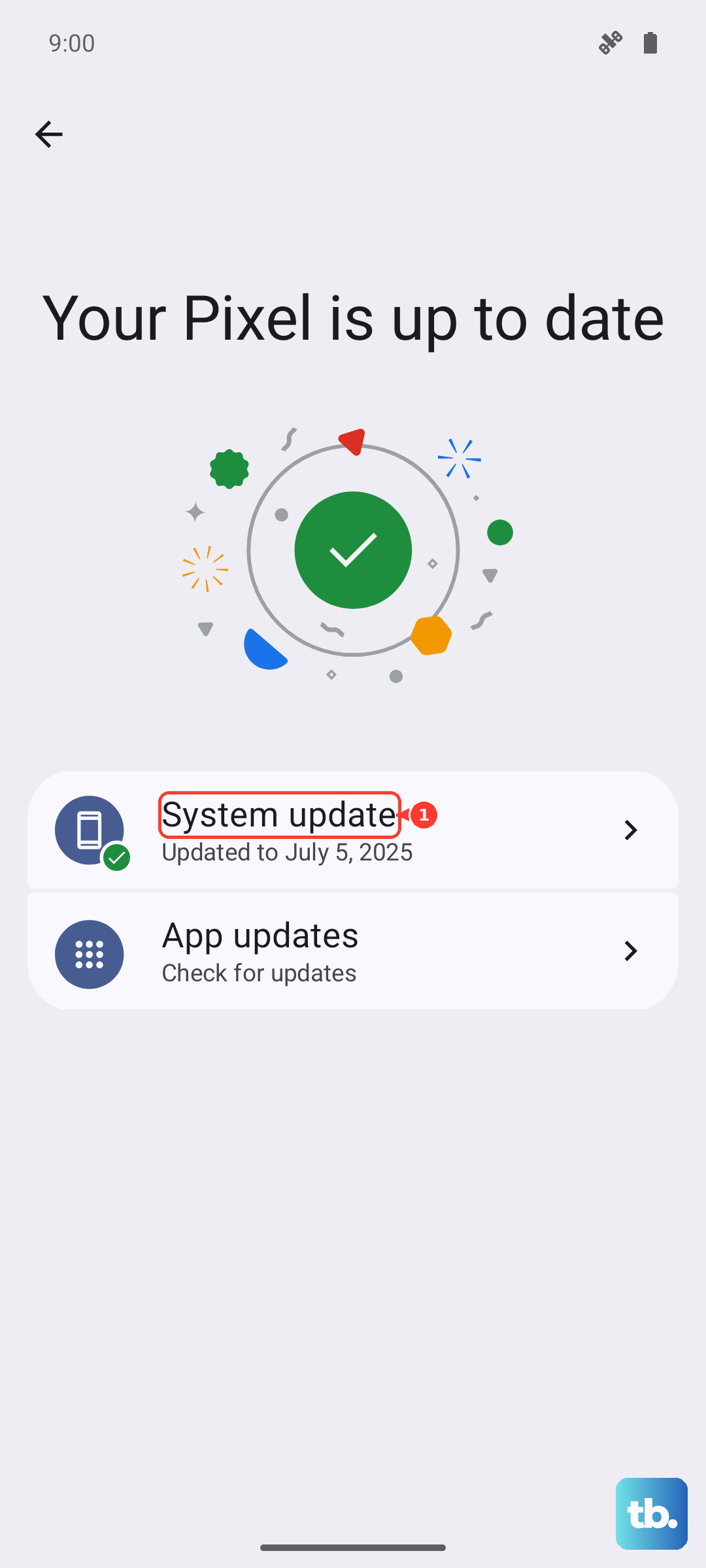
Firmware updates fix bugs and can resolve charging issues, so it's worth checking that your S25 is fully up to date. The phone ships with One UI 7 based on Android 15, and Samsung pushes refinements regularly.
Go to Settings > Software update > Download and install (it may read "Check for system updates" or "Check for software updates" depending on your carrier) and apply anything that's offered. Keep the phone connected and don't disconnect the USB cable or use the device until the update is complete.
Back Up and Factory Reset as Your Last Step Before Service
If none of the above brings wireless charging back, a factory reset is the final software fix to try before booking a repair. A reset erases the phone, so this step comes with an important warning.
Samsung warns to save any information you need first, because your personal information may not be recovered. Back up your personal data so you don't lose it all, then proceed.
- 1.Navigate to and open Settings.
- 2.Tap General management.
- 3.Swipe to and tap Reset.
- 4.Tap Factory data reset.
- 5.Review the details, then tap Reset to confirm.
If wireless charging still fails after the reset, the problem is almost certainly hardware. Contact Samsung support for inspection or repair at that point.
Frequently Asked Questions
Does the Samsung Galaxy S25 actually support wireless charging?
Yes. Samsung confirms that the entire S25 lineup (S25, S25+, S25 Ultra, S25 Edge, and S25 FE) supports wireless charging, listing Fast Wireless Charging 2.0 and Wireless PowerShare across the series. The S25 series also supports the Qi2 standard, with wireless charging up to 15W and full magnetic alignment when you use a Qi2-Ready magnet case.
Why does my S25 charge with a cable but not on the pad?
If wired charging works and wireless does not, the issue is specific to your wireless setup rather than the phone's battery or port. The usual causes are poor alignment on the pad, a thick case or metal object blocking the connection, or an uncertified or underpowered charger. Re-center the phone, remove the case and any metal, and confirm your pad is Qi or Qi2 certified with a working power source.
What does the water-drop icon mean when I try to charge?
The water-drop icon means the S25 has detected moisture in or near the USB port and has blocked charging to protect the hardware. Unplug the phone, wipe it with a dry cloth or gently shake it 5 to 10 times with the port facing down, then let it dry in a well-ventilated area or with a fan. You can still use a wireless charger while the port dries out.
How do I know if the wireless charging hardware is broken?
Use the Samsung Members app. Open it, tap Diagnostics on the Discover tab, tap Phone diagnostics, then run the Wireless charging test or Test all. A failed test glows red with an x above it, which indicates the wireless charging hardware itself may be faulty. If it fails, contact Samsung support for inspection or repair.
Will a factory reset fix wireless charging?
A factory reset can resolve a software-level problem that survived restarting and updating, so it's worth trying as a last resort before service. Back up your data first, because Samsung warns your personal information may not be recovered, then go to Settings > General management > Reset > Factory data reset and confirm. If wireless charging still doesn't work afterward, the fault is likely hardware and you should contact Samsung support.