Your Galaxy S25 Ultra is one of the most capable Android phones Samsung makes, so it is frustrating when Settings refuses to pull down a waiting One UI update, the progress bar freezes partway, or the download fails and bounces you right back to where you started. A stuck software update is almost always something you can clear yourself, usually without losing a single photo or app. The fixes below are ordered from the quickest and safest to the most involved, so start at the top and only move down if the update still will not install.
The Galaxy S25 Ultra (US model SM-S938U) shipped with One UI 7, based on Android 15, and is officially eligible for the One UI 8 update, based on Android 16. Samsung guarantees software and security updates for the S25 series, and the update, restart, and reset paths are the same across One UI 7 and One UI 8, though menu names can vary slightly by carrier and software version.
Start With Wi-Fi and Battery Before Anything Else
Most failed updates on the S25 Ultra come down to a shaky connection or a low charge, not a deeper fault. Samsung recommends connecting to a stable Wi-Fi network before you download a software update, and making sure the battery is sufficiently charged before you begin.
If your Wi-Fi signal is weak or the download keeps stalling, stop and retry later from a stronger connection rather than fighting a flaky one.
Keep the phone plugged in or topped up while it works.
For the computer method covered further down, Samsung specifies the phone should be charged to at least 20 percent.
Check for the Update Manually in Settings
Sometimes the phone has not yet noticed that an update is waiting, and a manual check is all it takes. This is also the official path to confirm whether anything is actually available for your device right now.
Open Settings.
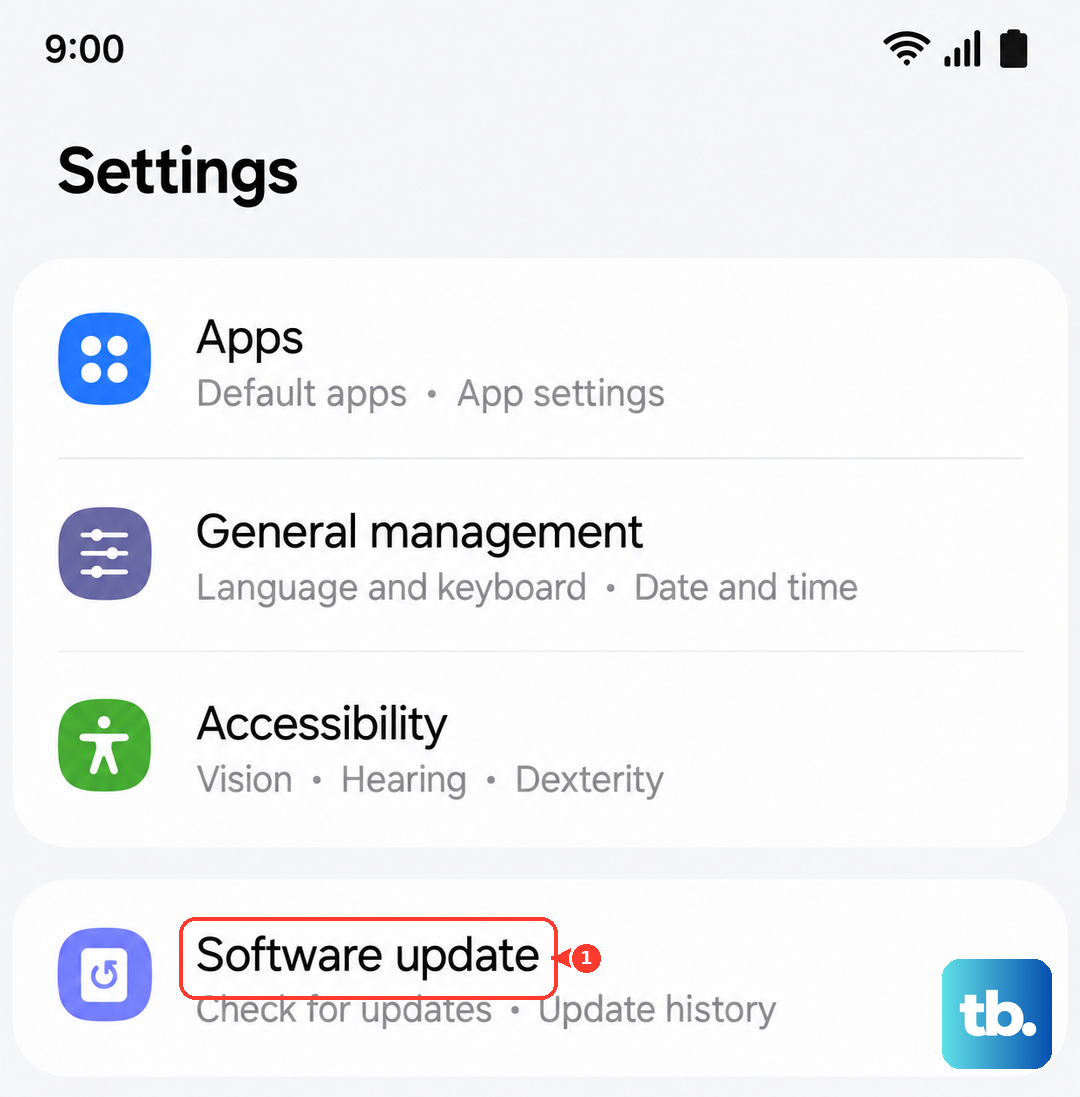
Swipe to and tap Software update (it may read System updates depending on your carrier).
Tap Download and install (this may appear as Check for system updates or Check for software updates).
Follow the on-screen instructions to install once the download completes.
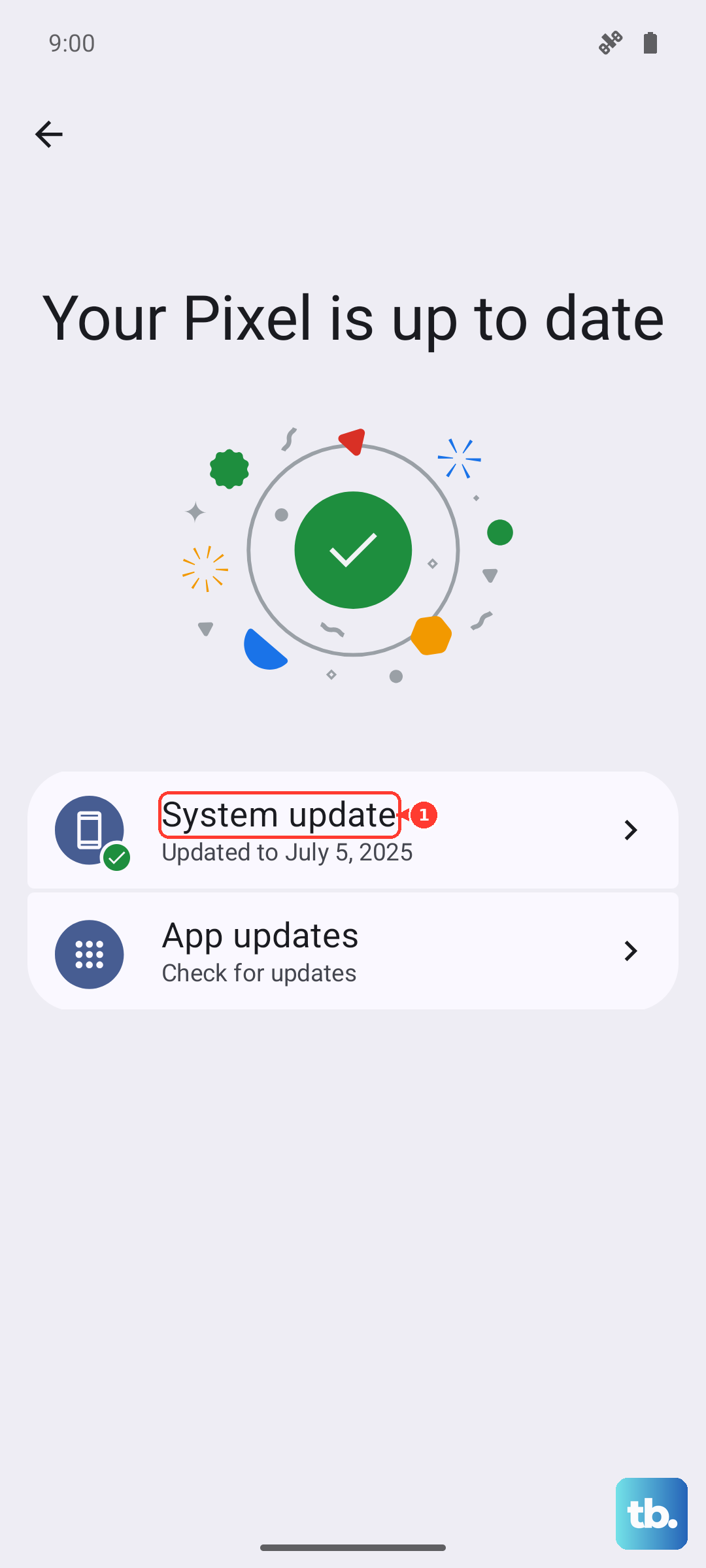
One note worth knowing before you start is that the phone cannot be used while an update is installing, so leave it alone until it finishes.
While you are in this menu, you can also tap the switch for Auto download over Wi-Fi to enable it, so future updates download automatically when you are on Wi-Fi.
Force Restart a Frozen Phone, Then Try Again
If the phone is frozen or the update has stalled with no progress, a force restart clears the temporary state without touching your data. This is the safe, official way to reboot a device that is not responding to a normal restart.
Press and hold the Volume down button and the Side button (or Power button) simultaneously for about 10 seconds, until the screen goes black and the Samsung logo reappears.
Once the phone is back at the home screen, go back to Settings > Software update > Download and install and try the update again.
If you simply want a clean restart rather than a forced one, press and hold the Volume down and Side button for a few seconds.
Tap Restart.
Tap Restart again.
Make Room If Storage Is Full
An update will not install if there is not enough internal storage to unpack it, and the S25 Ultra will tell you how much space it needs. Clearing out a few apps or files you no longer use often gets the update moving again.
Go to Settings > Apps.
Select an app you no longer use.
Tap Uninstall.
Tap OK.
You can also remove unnecessary files, old screenshots, or downloads to free up space.
Once you have cleared enough room, head back to the Software update menu and try installing again.
Run Device Care to Optimize, Then Retry
Samsung's built-in optimization tool tidies up background processes and memory in one tap, which can clear the way for an update that keeps failing. It is quick and completely non-destructive.
Open Settings.
Tap Device care.
Tap Optimize now.
Tap Done after it finishes.
With the phone freshly optimized, return to Settings > Software update > Download and install and check for the update one more time.
Confirm the Update Actually Applies to Your Phone
Before you assume something is broken, it is worth confirming the update you are waiting for is really meant for your device. Samsung's official support pages list the Galaxy S25 Ultra among the Galaxy phones eligible for One UI 8, so the model itself qualifies; One UI 8 is based on Android 16, while One UI 7 is based on Android 15.
You can also check for support and run diagnostics directly in the Samsung Members app, the official on-device support and diagnostics app. If a newer One UI version simply has not reached your phone yet, that is not a fault; major updates roll out in stages, so it may not be available for your specific device, region, or carrier at this moment.
Update Over USB With Smart Switch on a Computer
When the over-the-air update keeps failing no matter what you try, the most reliable workaround is to update the firmware from a computer using Samsung's official desktop app. This bypasses the on-device download path entirely and pushes the update over a wired connection.
Install Smart Switch on a Windows PC or Mac.
Connect the phone to the computer with the included USB cable.
Open Smart Switch.
If an update is available, click Update and follow the prompts.
Keep the phone charged to at least 20 percent throughout.
Do not disconnect the cable or use the phone until the process finishes.
Interrupting a firmware update mid-way is the one thing you want to avoid here.
Factory Reset as a Last Resort, After You Back Up
If updates still will not install after everything above, a factory reset wipes the phone back to a clean state, which can finally clear a stubborn software conflict. This step erases your data, so treat it as a genuine last resort and back up everything you care about first.
Samsung warns to save any information you need beforehand, because your personal information may not be recoverable once the reset runs.
Back up your photos, contacts, and files.
Then proceed.
- 1.Go to Settings > General management > Reset > Factory data reset.
- 2.Review the information on screen.
- 3.Tap Reset.
- 4.Tap Delete all (enter your PIN or Samsung account password if prompted).
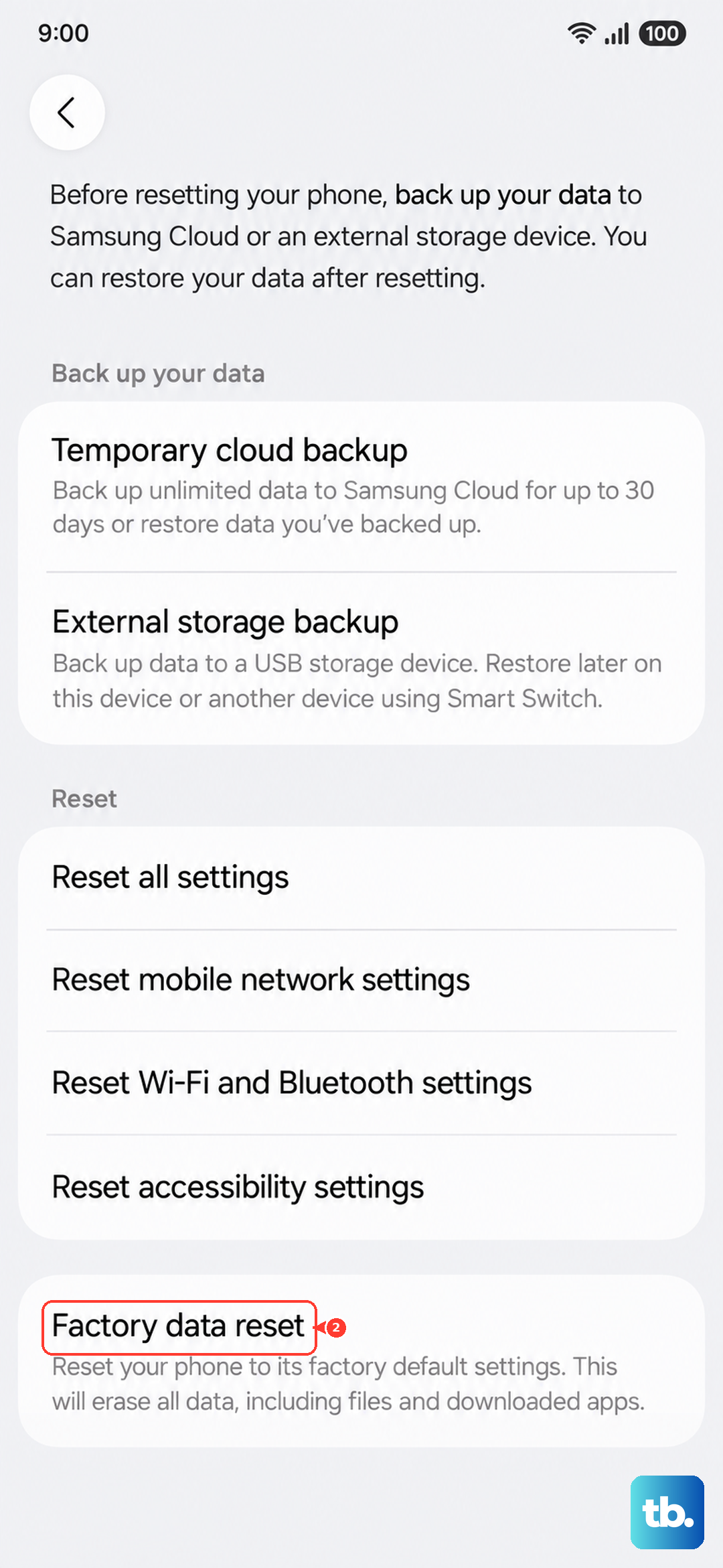
After the phone restarts and you have set it back up, check for the update again from the Software update menu.
When to Hand It Over to Samsung Support
If the update still fails after a factory reset, the issue may need expert attention rather than more home troubleshooting. Samsung can help directly, and reaching out saves you from repeating steps that are not going to fix a hardware or account-level problem.
Contact Samsung for help through the channels listed on the official S25 Ultra support page, or through the Samsung Members app.
Have your model number (SM-S938U) and a quick summary of what you have already tried ready, so the agent can pick up where you left off.
Frequently Asked Questions
Why does my Galaxy S25 Ultra say no updates are available?
Major One UI updates roll out in stages, so an update may simply not have reached your specific device, region, or carrier yet, even though the S25 Ultra is officially eligible for One UI 8. Try again from Settings > Software update > Download and install in a few days, and use the Samsung Members app if you want to check for support on your device.
Can I use my phone while the update installs?
No. The phone cannot be used while an update is installing, so plan to leave the device alone, ideally on a charger, until it finishes and returns to the home screen.
What is the difference between a restart and a force restart?
A normal restart is for a phone that is still responding: press and hold the Volume down and Side button for a few seconds, tap Restart, then tap Restart again. A force restart is for a frozen phone: press and hold the Volume down button and the Side button simultaneously for about 10 seconds, until the screen goes black and the Samsung logo reappears.
Will updating with Smart Switch erase my data?
Updating firmware through Smart Switch over USB is a software update, not a reset, so it is not the same as a factory reset. Even so, keep the phone charged to at least 20 percent and do not disconnect the cable or use the phone until the update finishes, since interrupting it can cause problems.
Do I have to be on Wi-Fi to update the S25 Ultra?
Samsung recommends connecting to a stable Wi-Fi network before downloading a software update, since updates can be large. You can also enable Auto download over Wi-Fi in the Software update menu so future updates download automatically whenever you are connected.