Screen flickering on your Galaxy S25 Ultra is incredibly distracting, turning that beautiful Dynamic AMOLED 2X display into a frustrating mess. You might see random flashes, horizontal lines, or a subtle pulsing effect. This can be triggered by a software hiccup, a problematic display setting, or, less commonly, a hardware fault. Let's get it sorted.
Before adjusting cables and settings, run a quick monitor test in your browser. Its fullscreen patterns make problems like flicker, banding, and uniformity issues much easier to spot and describe.
Force Restart Your Phone
This is almost always my first move. A force restart clears out temporary glitches in the system memory that can affect the display driver. Press and hold the Volume Down button and the Side key together for about ten seconds. Release them when you see the Samsung logo appear. It's a quick fix that works more often than you'd think.
Disable Adaptive Brightness
The S25 Ultra's light sensor is super responsive, but if it gets confused, it can cause the screen to flicker as it rapidly adjusts. Swipe down and tap the settings gear, then go to Display. Tap Adaptive brightness to turn it off. Now, just use the brightness slider manually for a bit to see if the flickering calms down.
Turn Off Eye Comfort Shield
This feature, which reduces blue light, can sometimes interact poorly with certain apps or system states, leading to a subtle flicker or color shift. Head back into Settings > Display and find Eye comfort shield. Toggle it off completely and check your screen. If the flickering stops, you can try re-enabling it on a less aggressive schedule.
Check for a Software Update
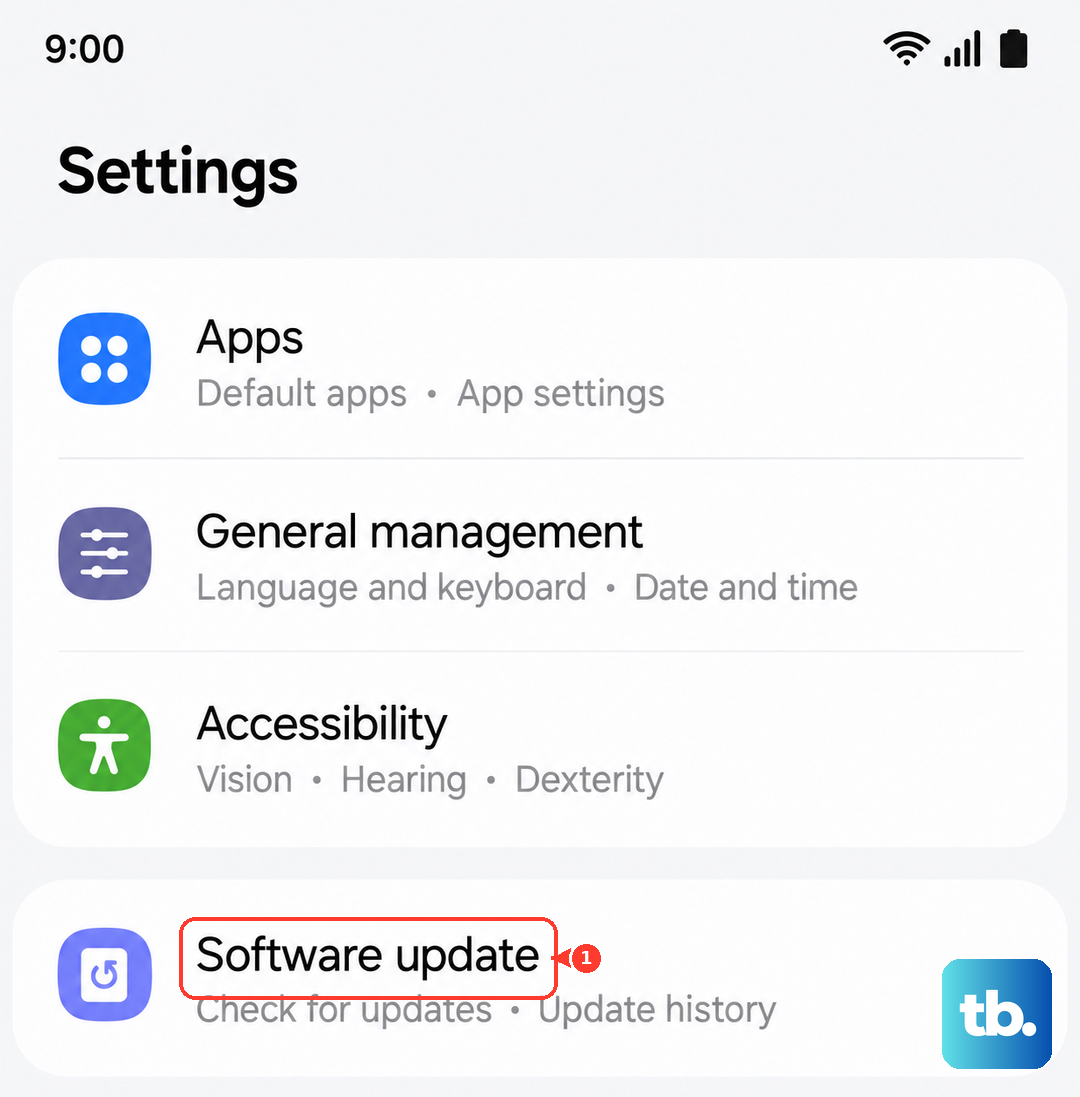
Samsung is pretty good about pushing out fixes for display-related bugs, especially with a new chipset like the Snapdragon 8 Elite. Open Settings, scroll down to Software update, and tap Download and install. If there's an update waiting, let it install. I've seen updates specifically target performance throttling and display stability.
Close Background Apps and Boot into Safe Mode
A third-party app you installed could be the culprit. Start by closing all your recent apps from the multitasking view. If that doesn't help, boot into Safe Mode. This temporarily disables all downloaded apps. Press and hold the power button until the power menu appears, then tap and hold the Power off icon. Tap Safe mode when prompted.
If the flickering stops in Safe Mode, you know a downloaded app is causing it. Restart normally and start uninstalling recent apps one by one until the problem goes away. Pay attention to any apps that heavily use the display or overlay functions.
Adjust the Screen Refresh Rate
The S25 Ultra can switch between 1Hz and 120Hz. Try forcing it to a standard rate to see if the adaptive refresh is glitching. Go to Settings > Display > Motion smoothness. Switch from Adaptive to Standard (60Hz). This isn't a permanent solution, but it helps diagnose if the issue is with the variable refresh rate logic.
Reset All Settings
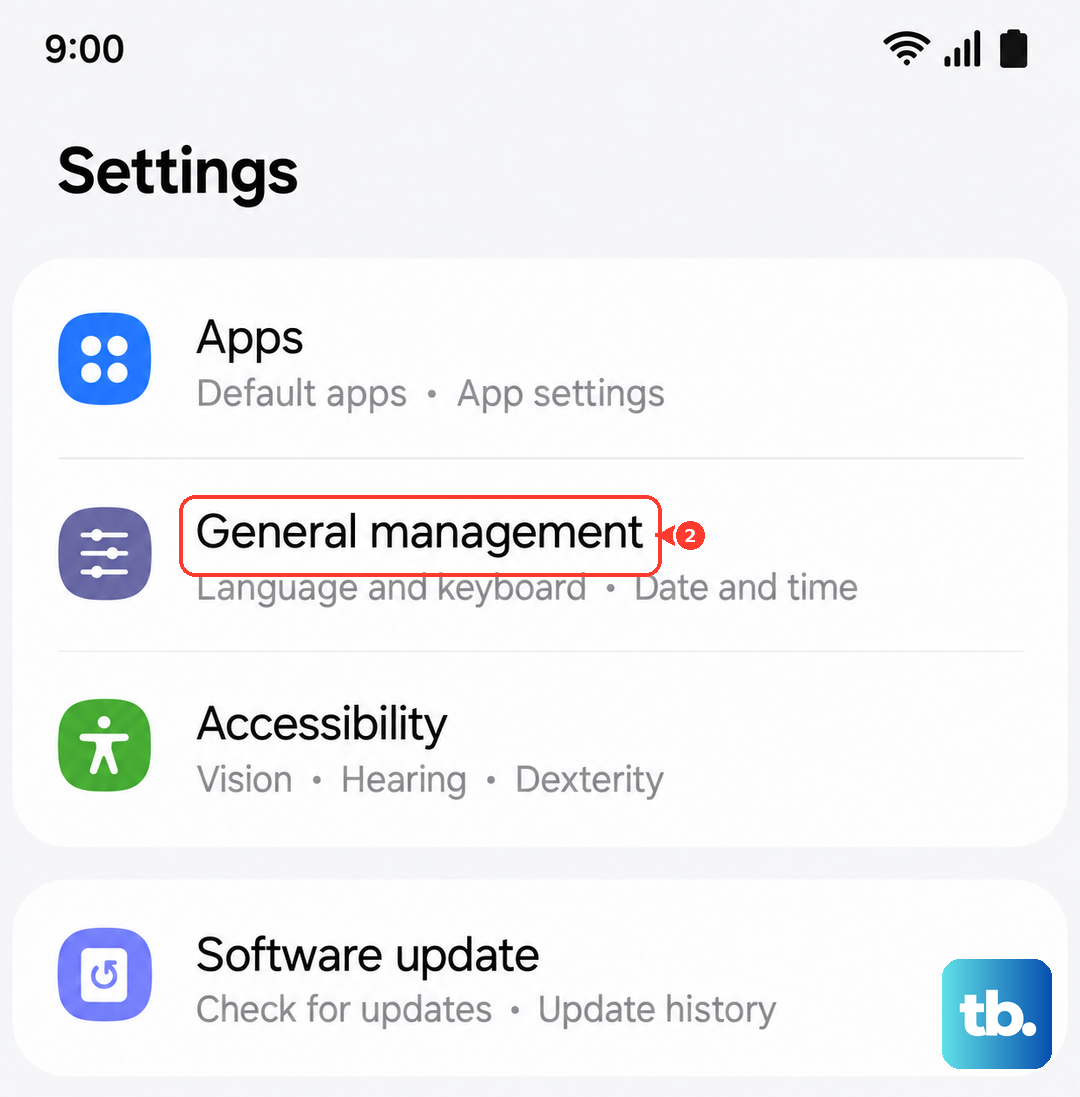
This is a deeper fix without erasing your photos or apps. It resets every system setting back to default, Wi-Fi, Bluetooth, display, notifications, everything. Go to Settings > General management > Reset > Reset all settings. You'll need to re-enter passwords and reconfigure things like your always-on display, but it can resolve weird configuration conflicts causing the flicker.
Inspect for Physical Damage
If the flickering started after a drop or impact, it's time for a physical check. Look closely at the screen, especially near the edges. Even with Gorilla Armor 2, a hard hit can damage the internal display cable or OLED panel itself. Check for any new hairline cracks, spots where touch doesn't work, or areas of discoloration. These are clear signs of internal damage.
Perform a Factory Reset
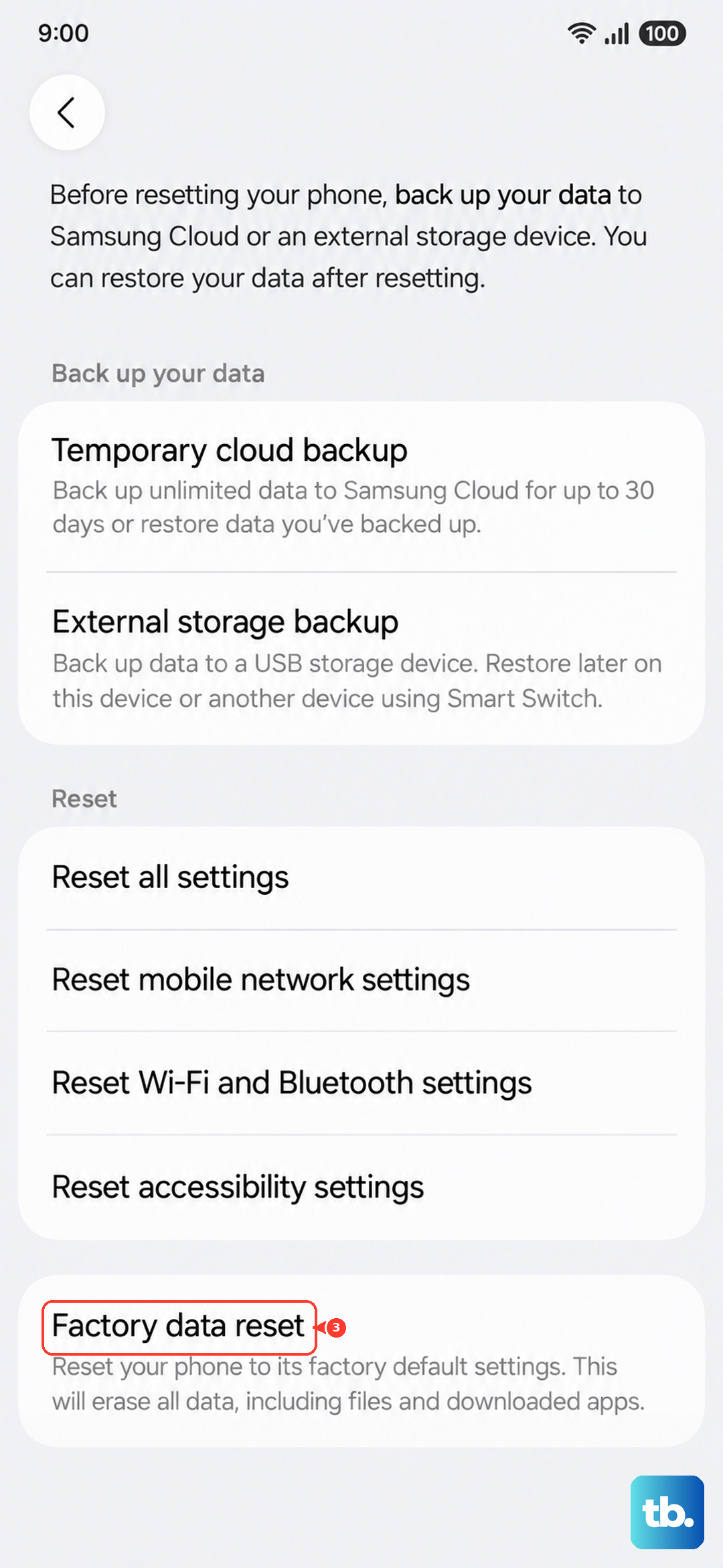
This is the nuclear software option. First, make absolutely sure your data is backed up to Samsung Cloud or your Google account. Then, go to Settings > General management > Reset > Factory data reset. Tap Reset and confirm. The phone will erase itself and reboot. If the flickering is gone on a completely fresh install of One UI, it was a software issue. If it persists, the problem is almost certainly hardware.