
Missing notifications on your Galaxy S25 Ultra can mean missing important messages, emails, or alerts. It's a common hiccup with Android 15 and One UI 7, but usually straightforward to fix. Let's get your alerts working again.
Check Your Focus and Notification Settings First
One UI has several features that can silently block notifications. Open Settings > Notifications and tap on Do Not Disturb. Make sure it's turned off, or check your schedules and allowed apps.
Also, swipe down twice from the top of your screen to open the Quick Settings panel. Look for icons like a circle with a line through it or a moon. If they're highlighted, tap them to turn off any active focus modes.
Restart Your Galaxy S25 Ultra
A simple restart clears out temporary glitches in the system that might be stopping notifications. Just press and hold the Side button and Volume Down button, then tap "Restart" on the screen.
If the phone is unresponsive, you can force a restart. Press and hold the Volume Down button and the Side button together for about 10 seconds until you feel a vibration and see the Samsung logo.
Verify App-Specific Notification Permissions
Sometimes, the issue is with a single app like Gmail or WhatsApp. Go to Settings > Notifications and then tap App notifications. Find the problematic app in the list and tap on it.
Make sure the toggle at the top is set to "On." Then, check that the notification categories you want (like "Inbox" or "Messages") are also enabled and not set to silent. I've seen this fix it more often than not.
Disable Adaptive Notifications and Battery Optimization
Samsung's software can be a bit too helpful. Go to Settings > Notifications > Advanced settings. Look for options like "Adaptive notifications" and turn them off. This feature sometimes hides alerts it thinks are unimportant.
Next, check battery optimization. Go to Settings > Battery. Tap Background usage limits. Make sure the app you're having trouble with is not in the "Deep sleeping apps" or "Sleeping apps" lists. If it is, remove it.
Clear the Cache for the Notification Service
The system service that handles alerts can get bogged down. Go to Settings > Apps. Tap the three-dot menu in the top right and select Show system apps.
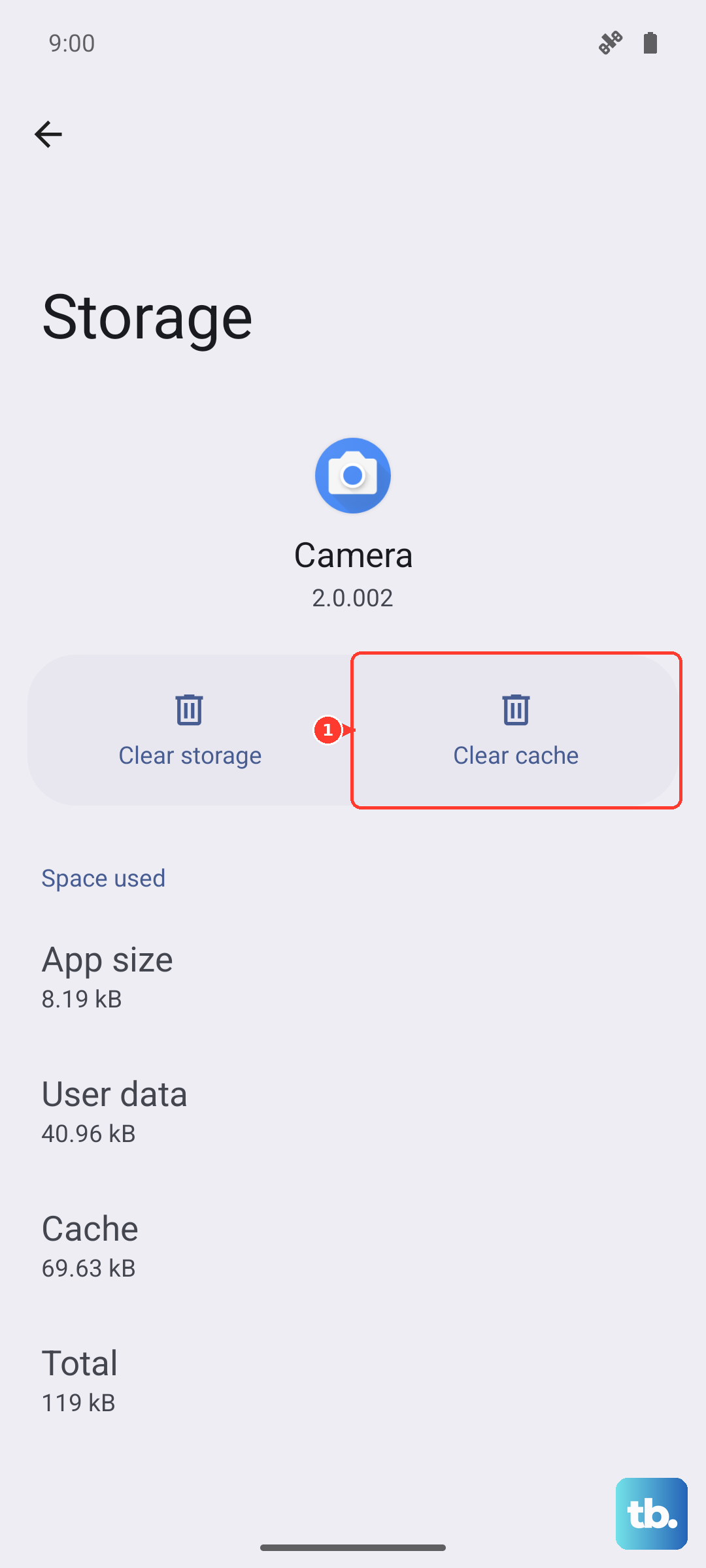
Scroll down and find the app simply called "Notification." Tap on it, then go to Storage. Tap "Clear cache." This won't delete any of your data, just temporary files.
Check for a Software Update
Samsung frequently releases updates that fix bugs, including notification problems. Connect to Wi-Fi and go to Settings > Software update > Download and install.
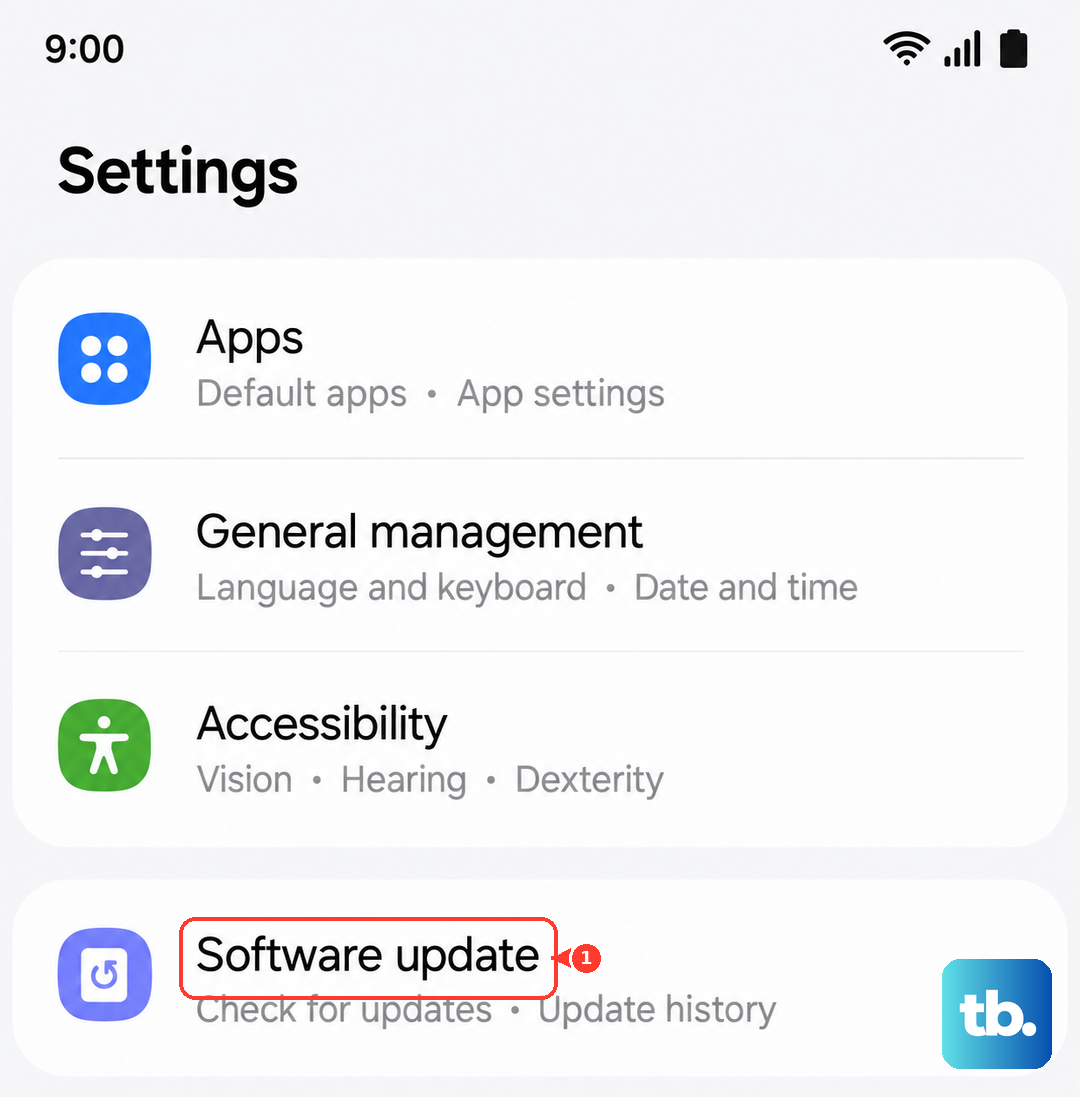
If an update is available, install it. This is especially important for a new device like the S25 Ultra, as early software can have quirks that get ironed out.
Reset All App Preferences
This resets permissions, background data restrictions, and notification settings for all apps back to their defaults, but it won't touch your personal data. It's a good middle-ground step.
Go to Settings > Apps. Tap the three-dot menu and select Reset app preferences. Confirm the action. You'll then need to re-allow notification permissions for your apps when you next use them.
Review Edge Lighting and Pop-Up Settings
On the S25 Ultra, you might have visual alerts set up that aren't working as expected. Go to Settings > Notifications > Advanced settings > Edge lighting style.
Make sure it's enabled and set to a style you can see. Also, check Settings > Notifications > Pop-up notification style. Try switching it to "Brief" to see if standard alerts come through.
Clear the System Cache Partition
This clears cached data from the entire operating system, which can resolve deeper software conflicts. First, turn off your phone.
Press and hold the Volume Up button and the Side button. When you see the Samsung logo, release both buttons. You'll now be in Recovery Mode. Use the Volume Down button to highlight "Wipe cache partition." Press the Side button to select it. Confirm, then select "Reboot system now."
Ensure Background Data is Unrestricted
Mobile data or Wi-Fi restrictions can stop apps from fetching new notifications. Go to Settings > Connections > Data usage > Mobile data usage.
Find the app and tap on it. Make sure "Allow background data usage" is enabled. Also, check in Settings > Apps > [Your App] > Mobile data to ensure both "Allow background data usage" options are on.
Perform a Network Settings Reset
If notifications only fail on mobile data, a network refresh can help. This will reset Wi-Fi, Bluetooth, and cellular settings. Go to Settings > General management > Reset.
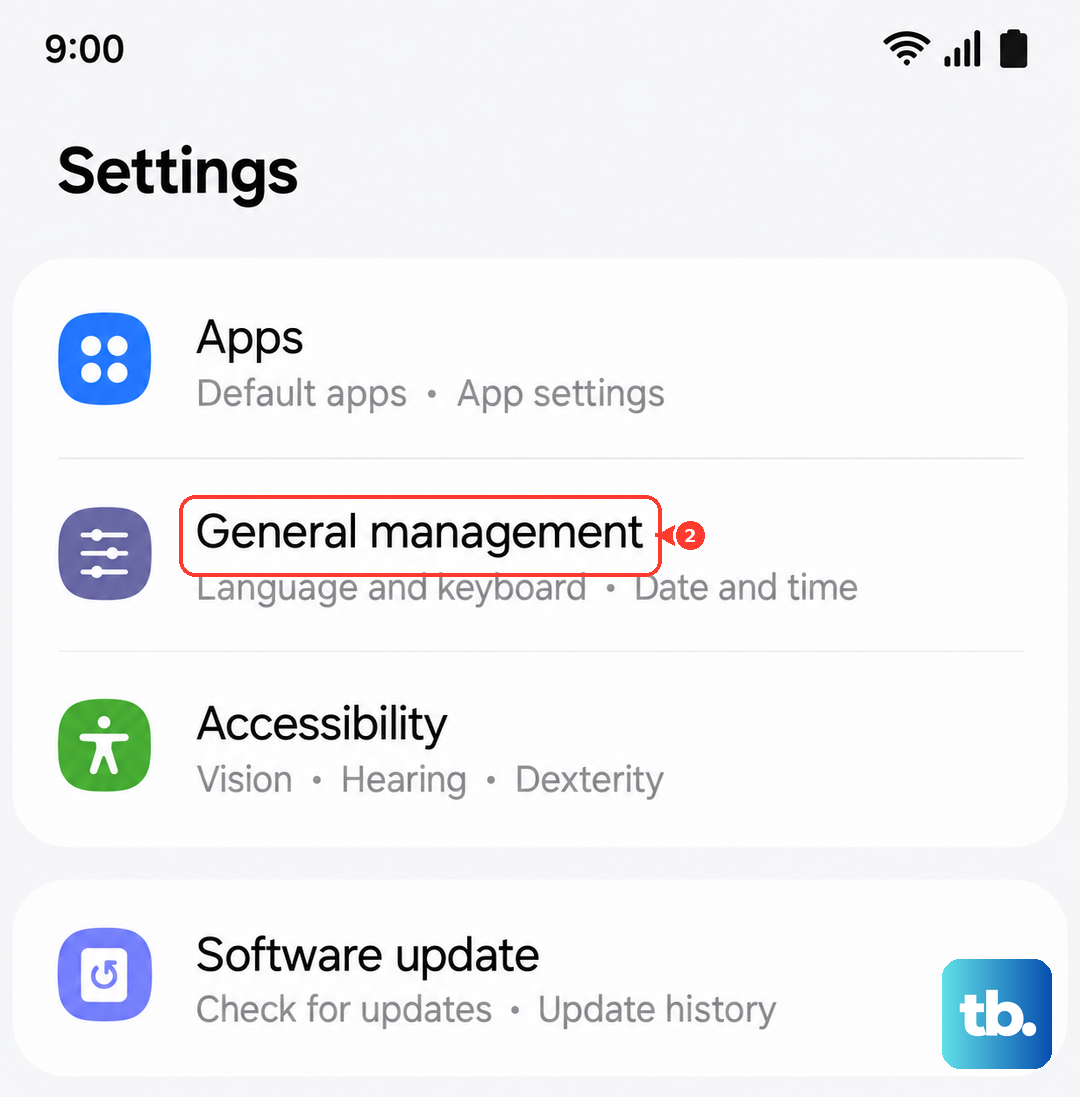
Tap "Reset network settings." You'll need to re-enter Wi-Fi passwords and re-pair Bluetooth devices, but it can clear up connection-related notification delays.