If your Samsung Galaxy S25 Ultra is starting to feel sluggish, you're not alone. Even with the powerful Snapdragon 8 Elite chip, performance can dip over time. The good news is that Android and One UI give you a lot of control to speed things back up.
Lag on the S25 Ultra often comes from a few common places. Storage getting too full, too many background apps, or even the phone's thermal management kicking in during heavy use can cause slowdowns. I'd start with a simple restart and work through these steps.
Perform a Force Restart
This is the universal first step for any weird phone behavior. A force restart clears the phone's temporary memory and stops any stuck processes. On the S25 Ultra, press and hold the Volume Down button and the Side (power) button together for about 10 seconds.
Keep holding until you see the Samsung logo appear on the screen. This is different from just turning the screen off and on, and it often resolves minor glitches instantly.
Close Recent Apps
While Android manages memory well, having dozens of apps in the recent menu can sometimes cause background resource use. Swipe up from the bottom of the screen and hold to enter the recent apps view. You can swipe each app card away to close it individually.
For a faster method, tap the three dots in the bottom right corner of the recent apps screen and select 'Close all'. This gives your S25 Ultra a clean slate to work from.
Check Your Available Storage
When your phone's internal storage gets critically low, below 10%, everything can slow down. Go to Settings > Device care > Storage. Here, you'll see a clear breakdown of what's using space.
The S25 Ultra has a ton of space, but 4K videos and high-res photos from its advanced cameras can fill it fast. Use the 'Clean now' suggestion or manually review large files and unused apps. Moving media to a cloud service or a microSD card can free up significant room.
Update Your Software and Apps
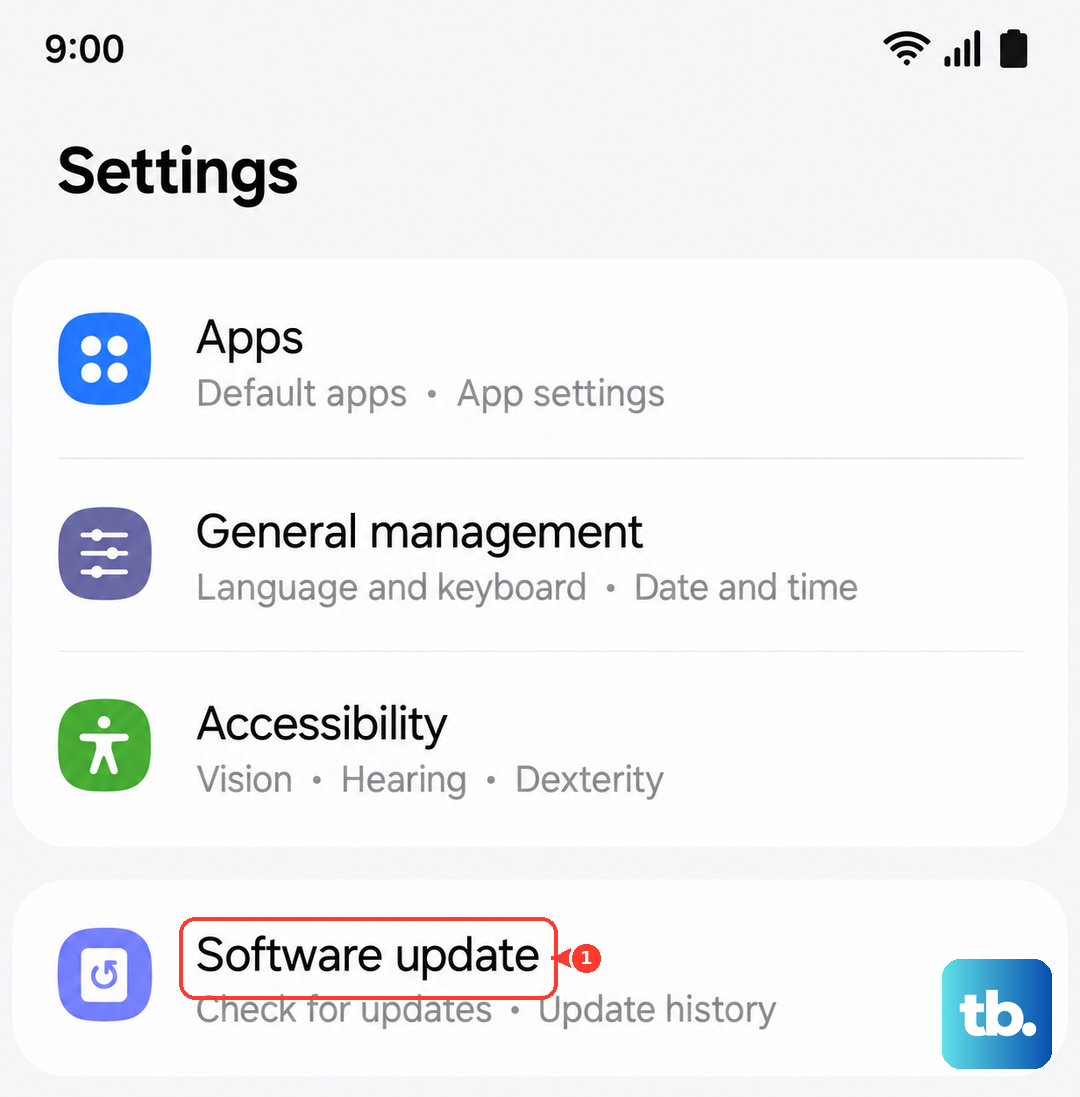
Outdated software is a common culprit for performance bugs. Samsung regularly releases updates that include optimizations. Go to Settings > Software update > Download and install to check for the latest Android and One UI patches.
Don't forget your apps. Open the Galaxy Store and Google Play Store, tap your profile icon, and check for updates. App developers frequently release patches that improve efficiency and fix memory leaks.
Manage Background Activity
One UI has powerful tools to control what runs in the background. Head to Settings > Apps, then tap the three-dot menu and select 'Special access'. Here, you'll find 'Optimize battery usage'.
You can set apps to 'Optimized' or restrict background activity for specific ones that you don't need constant updates from, like certain games or social media apps. This prevents them from draining resources when you're not using them.
Enable Enhanced Processing
This is a specific setting for the S25 Ultra that can boost performance. Go to Settings > Battery > More battery settings. Look for the 'Enhanced processing' toggle and turn it on.
This setting allows the phone's processor to run at higher speeds for longer, which is great for gaming or multitasking. Just be aware it will use more battery, so you might want to toggle it off when you need to conserve power.
Clear App Caches
Over time, apps store temporary data that can become corrupted or bloated. You can clear the cache for individual apps without deleting your login info or personal data. Go to Settings > Apps, select the app that's feeling slow, then tap 'Storage'.
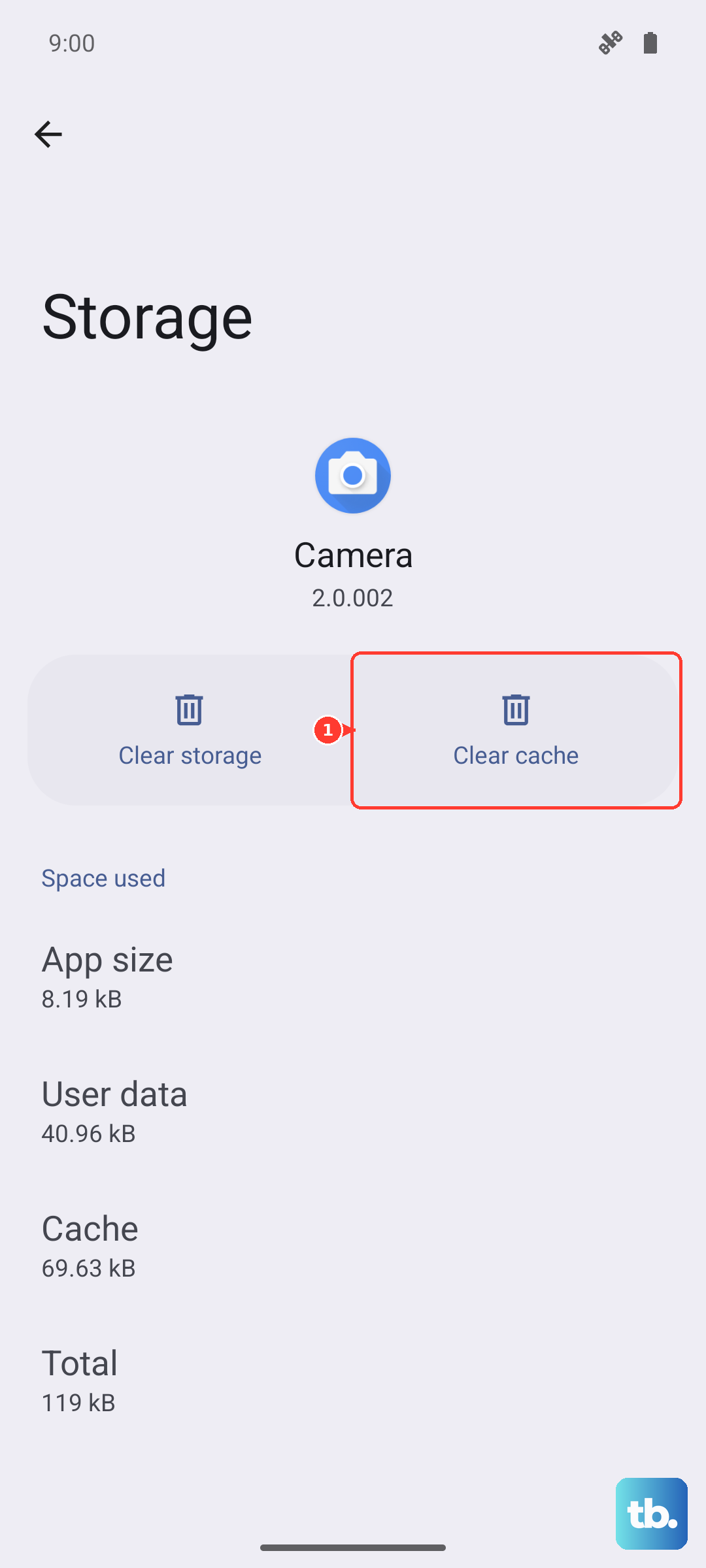
Tap 'Clear cache'. This is a good move for browsers like Chrome or Samsung Internet, social media apps, and any app you use constantly. Avoid 'Clear data' unless you want to reset the app completely.
Reduce Animations and Visual Effects
Smooth animations look great but require processing power. You can scale them back. First, enable Developer Options by going to Settings > About phone > Software information and tapping 'Build number' seven times.
Then, go back to Settings and find 'Developer options'. Scroll to the 'Drawing' section and look for 'Window animation scale', 'Transition animation scale', and 'Animator duration scale'. Change each from 1x to 0.5x. This makes UI transitions feel much snappier.
Review Your Home Screen and Widgets
A home screen packed with widgets, especially live-updating ones for weather or news, can impact smoothness. Try removing widgets you don't actively check by long-pressing them and tapping 'Remove'.
Also, consider using a simpler wallpaper. While the S25 Ultra's display is stunning, live wallpapers or very high-resolution images can use more graphics processing power than a static one.
Perform a Soft Reset (Reset Settings)
If you've tried everything and the phone is still laggy, a soft reset can help. This resets all your system settings (like Wi-Fi passwords and ringtones) to default without touching your personal photos, messages, or apps.
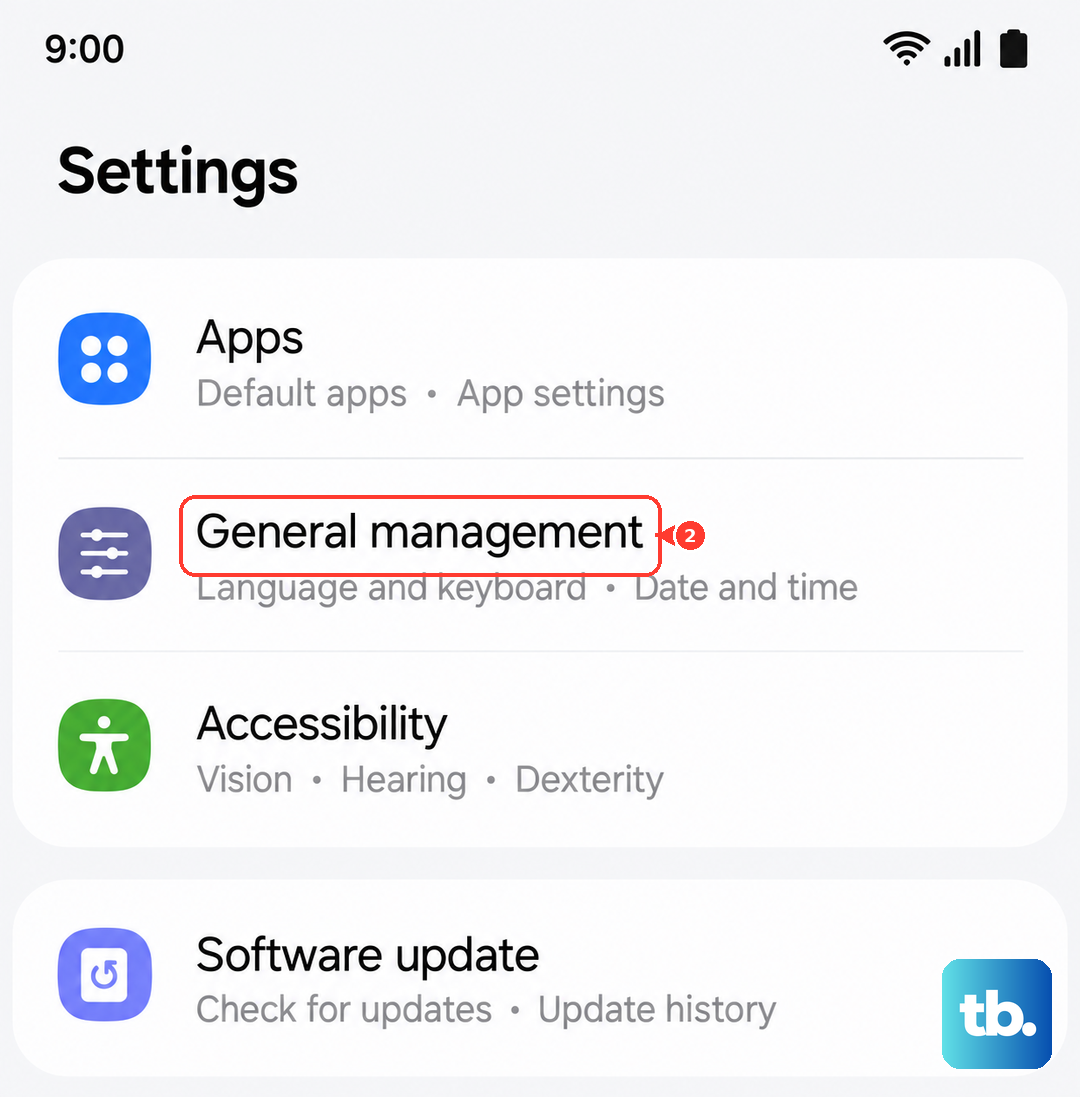
Go to Settings > General management > Reset > Reset all settings. Enter your PIN if prompted and confirm. After the phone reboots, you'll need to reconfigure your preferences, but it can clear out any conflicting settings causing slowdowns.