You plug your earbuds into the USB-C port on your Galaxy S25 Ultra, start a video, and hear nothing, or you pair a Bluetooth headset and the sound keeps blasting out of the phone speaker instead. It is a frustrating gap between a flagship phone and a pair of headphones that should just work. The good news is that most headphone faults on the S25 Ultra come down to volume routing, a connection that needs reseating, or a Bluetooth output setting, and you can work through all of them yourself.
It helps to confirm what actually works before changing settings. Run a quick headphone test, note which channels and frequencies play correctly, and match the result against the steps below.
One thing to settle first, the Galaxy S25 Ultra has no 3.5mm headphone jack. Samsung's newest Galaxy models no longer include a dedicated 3.5mm socket, so wired headphones connect through the USB-C port, and everything else connects over Bluetooth. The fixes below are ordered from the quickest and safest to the most involved, ending with a built-in reset and the path to official service.
Start With Media Volume and the Mute State
The most common cause of silent headphones is a media volume that is set low or muted, and the S25 Ultra keeps a separate level for connected audio devices. Press the Volume up button while audio is actually playing, since the on-screen slider you see depends on what is currently making sound.
To set levels precisely, go to Settings > Sounds and vibration > Volume and drag the Media slider up. An additional volume level appears for audio devices connected through Bluetooth or USB-C, so make sure that level is raised too. The media volume icon appears gray and crossed out when audio is muted, which is an easy thing to miss.
Reseat the USB-C Connector or Confirm You Have the Right Adapter
Because the S25 Ultra has no 3.5mm socket, wired headphones must use the USB-C port, and a loose or partly inserted connector is enough to kill the sound. Unplug your headphones and firmly reseat the USB-C connector until it is fully home.
If you are trying to use 3.5mm headphones, a plain passive adapter will not produce sound on this phone. You need a USB Type-C to 3.5mm Headset Jack Converter Adapter with a built-in DAC. Without the built-in DAC, the conversion does not happen and the headphones stay silent.
Isolate Whether It Is the Headphones, the Port, or the Phone
A quick swap test tells you where the fault really lives before you change any settings. Try another set of headphones on your phone, or try your current headphones with another device, to find out whether the problem is the phone or the headphones.
While you have everything in hand, do a physical check. Disconnect any cases, charms, or skins, and inspect for dust buildup, cracked cases, water damage, or bent components on both the headphones and the phone's USB-C port. Lint packed into the port is a frequent reason a USB-C connector will not seat properly.
Confirm the Bluetooth Calls and Audio Output Switches
For Bluetooth headphones, the phone has individual output switches that decide whether call audio and media audio route to the headset, and either one can be off. Go to Settings > Connections > Bluetooth, tap the settings icon next to the connected headphones, and make sure the output switches next to 'Calls' and 'Audio' are turned on.
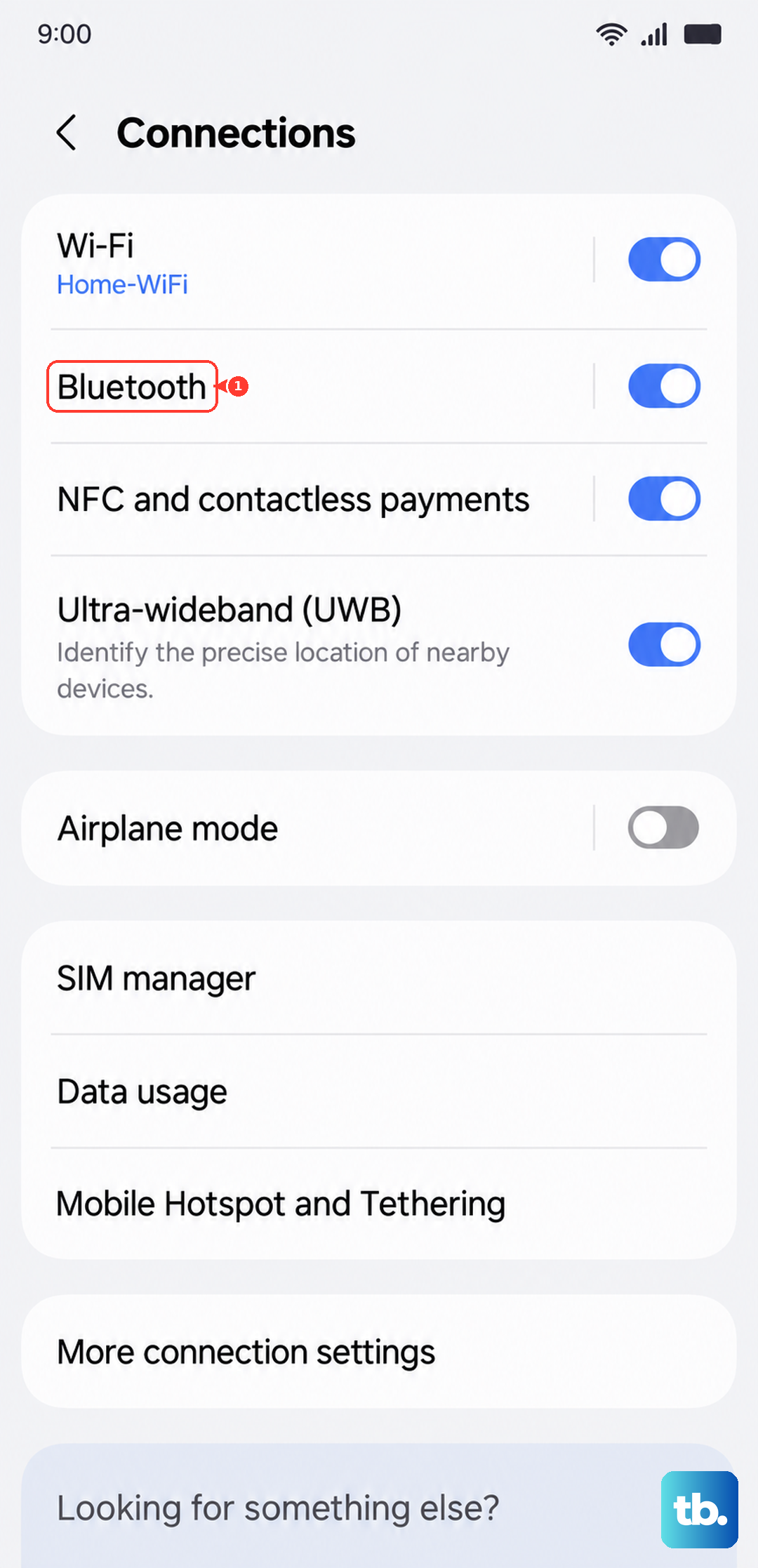
If those are on and the sound is still patchy, distance and interference are usually to blame. Keep the headphones close to the phone and away from other sources of wireless interference that can disrupt the signal.
Make Sure Separate App Sound Is Not Hijacking Your Audio
The S25 Ultra can send one app's media to a different audio device, and if that feature is enabled and pointed at the wrong place, your headphones will seem silent even though everything else looks fine. Go to Settings > Sounds and vibration > Separate app sound to check it.
If the setting is on and misconfigured, turn it off or correct the assigned audio device so that all of your audio plays through your headphones again. This is an easy setting to overlook because it only affects one chosen app at a time.
Force Restart When the Phone Is Frozen or the Audio Is Stuck
Sometimes the audio path locks up and a restart clears it. For a normal restart, press and hold the Volume down button and the Side button simultaneously, then tap Restart twice.
If the phone is frozen or unresponsive, perform a force restart instead. Press and hold the Volume down button and the Side button (or Power button) simultaneously until the device turns off and turns back on. Samsung's instructions say to hold the buttons until it restarts and do not specify an exact number of seconds, so simply keep holding until the screen cycles.
Forget the Bluetooth Headphones and Pair Them Again
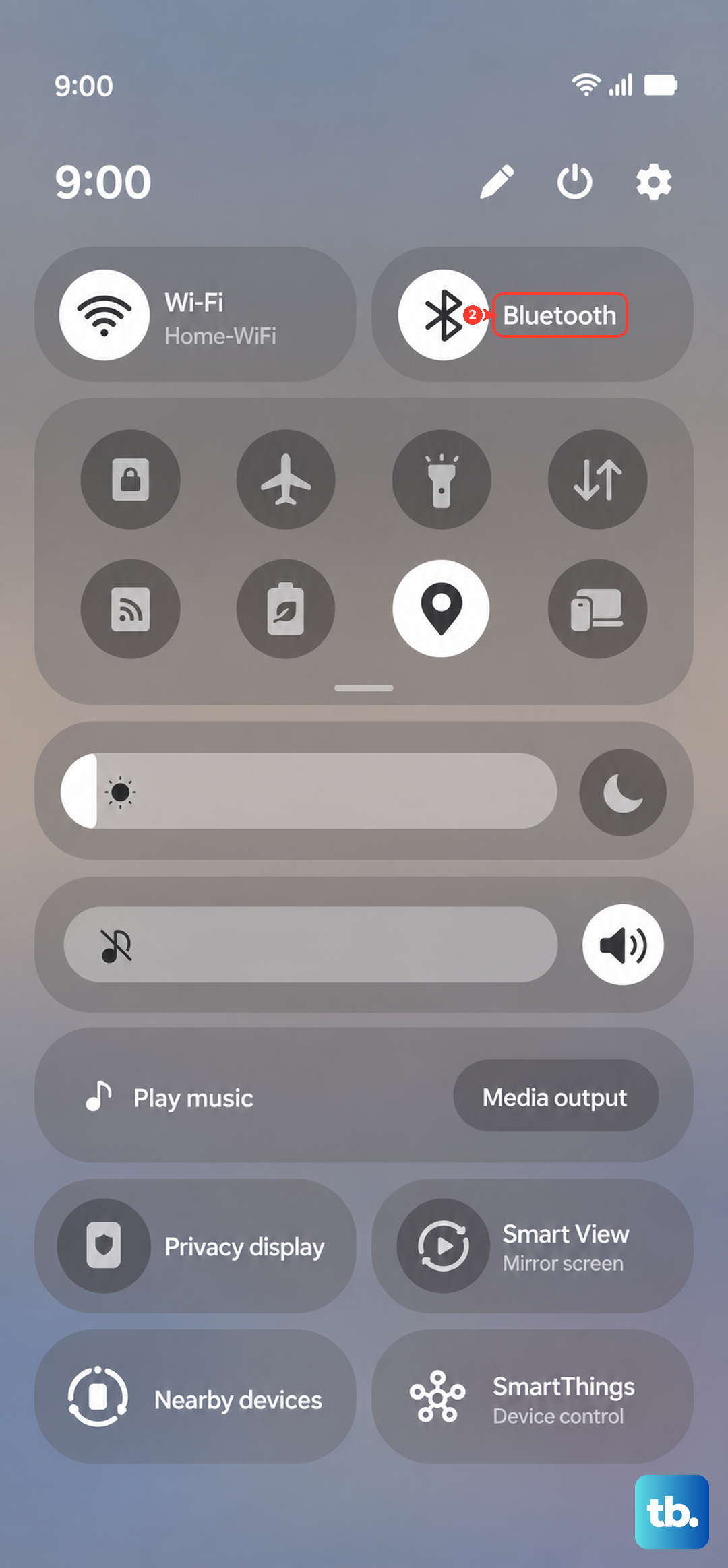
A stale or half-broken Bluetooth pairing often refuses to pass audio, and re-pairing from scratch resolves it. Open the Quick settings panel and touch and hold the Bluetooth icon, then make sure Bluetooth is on. Forgetting and re-adding the headphones removes their saved pairing, so you may need any device-specific PIN or setup details to add them again.
- 1.Put your headphones into pairing mode first, following their own instructions.
- 2.From the Bluetooth settings menu, tap Scan.
- 3.Select your headphones from the list of available devices.
- 4.Tap OK or enter a PIN if you are prompted.
If your headphones do not appear or will not connect, they may still be connected to another device, such as a laptop or tablet. Disconnect them from that device first, then try the scan again.
Install the Latest Software Update
Audio driver and firmware fixes arrive through software updates, so an outdated build can be the reason headphones misbehave. Swipe down from the top of the screen with two fingers and tap the Settings icon, tap Software update (or System updates), then tap Download and install (or Check for software updates).
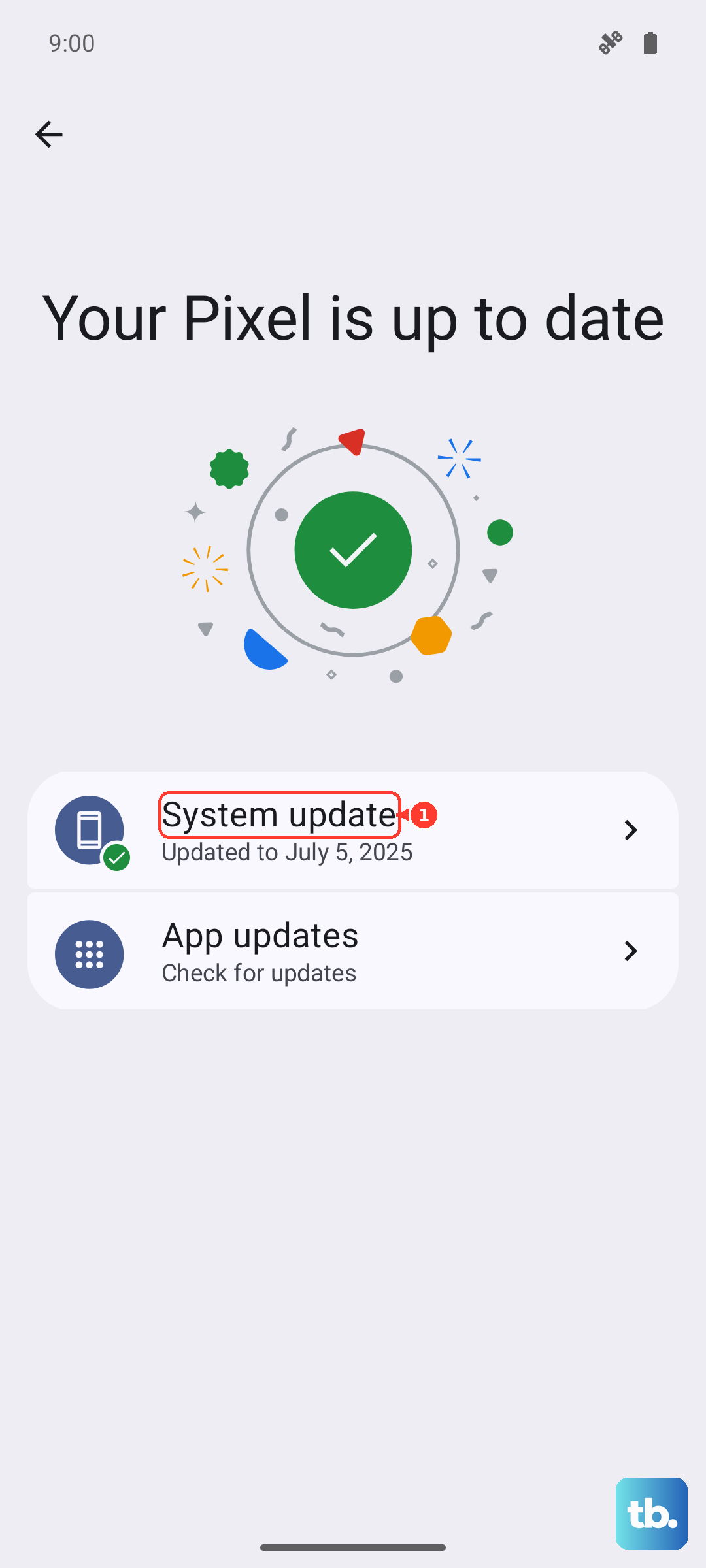
Some carriers require a Wi-Fi connection for the download. Note that the device cannot be used and your files are inaccessible while the update is being applied, so run it when you can leave the phone alone for a while.
Boot Into Safe Mode to Rule Out a Downloaded App
If a third-party app is intercepting or misrouting your audio, Safe mode will tell you, because it loads the phone with only its built-in apps. Power off the phone, then turn it on and press and hold the Volume down button when the Samsung logo appears, and 'Safe mode' shows in the bottom-left corner. Alternatively, press and hold the Side button and the Volume down button at the same time, touch and hold the Power off icon, then tap the Safe mode icon.
Test your headphones in Safe mode. If they work normally there, a downloaded app is the cause, so remove apps you added around the time the problem started. Restart the phone to exit Safe mode.
Factory Data Reset and Samsung Support as the Last Step
If nothing above restores your headphones, a factory data reset returns the phone's software to its original state, but it erases the device, so treat it as a true last resort. Back up your data first, because after a reset your personal data may not be recovered.
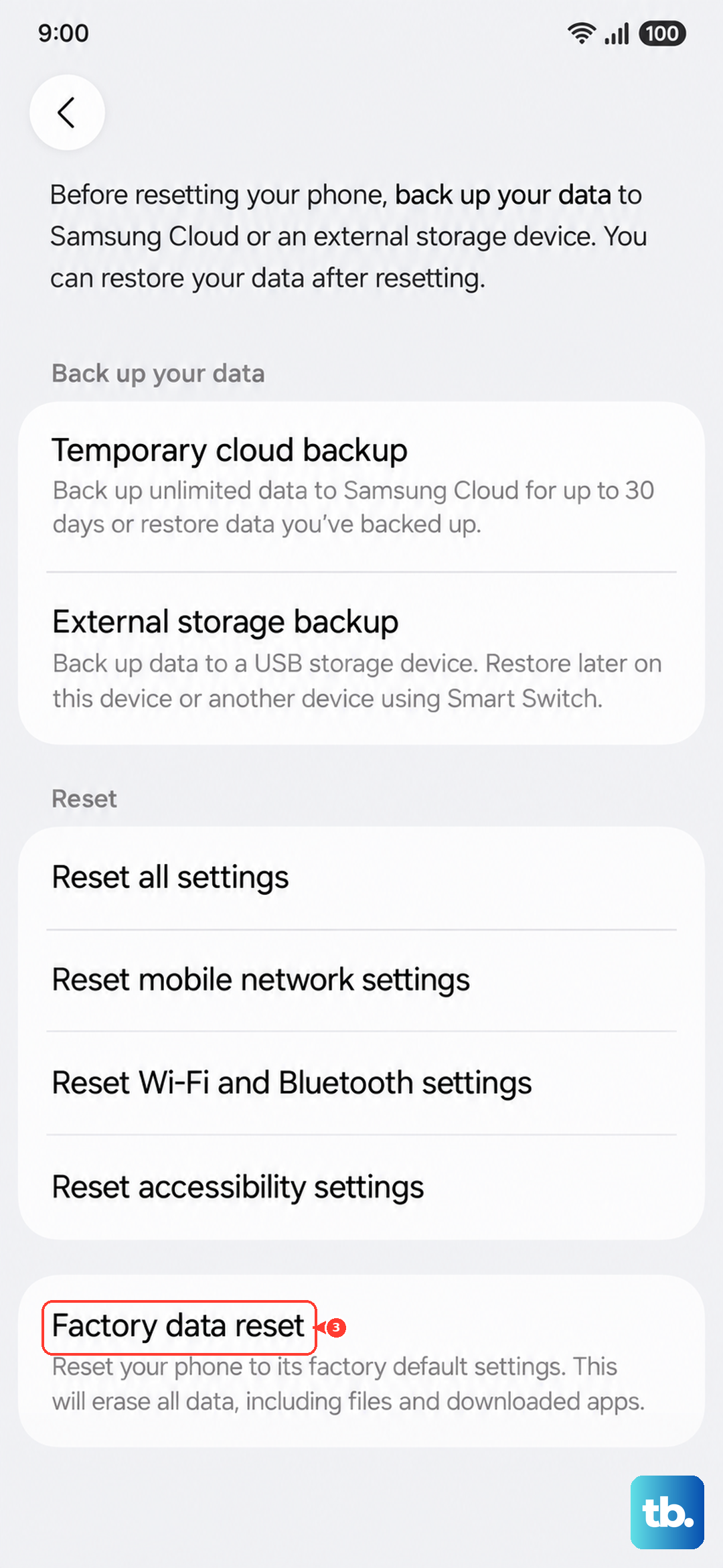
When you are ready, go to Settings > General management > Reset > Factory data reset, review the information, swipe to and tap Reset, then tap Delete all. If your headphones still do not work after the reset, the problem is likely hardware, and you should request service through Samsung Support.
Frequently Asked Questions
Does the Galaxy S25 Ultra have a headphone jack?
No. The Galaxy S25 Ultra does not have a 3.5mm headphone jack, in line with Samsung's newest Galaxy models that no longer include a dedicated 3.5mm socket. Wired headphones connect through the USB-C port, and all other headphones connect over Bluetooth.
Can I use my old 3.5mm headphones with the S25 Ultra?
Yes, but only with the right adapter. You need a USB Type-C to 3.5mm Headset Jack Converter Adapter that has a built-in DAC. A plain passive adapter without a DAC will not produce any sound.
Why do my Bluetooth headphones connect but play no sound?
Check the output routing. Go to Settings > Connections > Bluetooth, tap the settings icon next to the connected headphones, and make sure the switches next to 'Calls' and 'Audio' are turned on. Also confirm the media volume for the connected device is raised in Settings > Sounds and vibration > Volume.
How do I restart the S25 Ultra if it freezes while audio is stuck?
Press and hold the Volume down button and the Side button (or Power button) simultaneously until the device turns off and turns back on. Samsung does not specify an exact number of seconds, so keep holding until the screen cycles.
What should I do if headphones still fail after a factory reset?
If headphones do not work even after a factory data reset, the issue is likely hardware rather than software. At that point, request service through Samsung Support to have the device examined.