Your Galaxy S25 Ultra was running fine, and now the screen sits there refusing to react to a single tap, swipe, or S Pen stroke. Maybe it locked up mid-app, maybe it stalled on a black screen, or maybe the whole interface just stutters and stops cold. A frozen phone is unnerving, but on the S25 Ultra it almost always traces back to something fixable, such as a stuck app, full storage, out-of-date software, or a misbehaving download. Work through the fixes below in order, starting with the safest, fastest move and saving the data-erasing options for last.
Force restart when the screen will not respond
When nothing on screen reacts, you cannot reach the normal restart menu, so you need a forced reboot that works even on a dead, unresponsive display. This is the single safest first step, and it does not erase any of your data.
Press and hold the Volume down button and the Side button (or Power button) at the same time.
Keep holding them simultaneously until the device turns off and turns back on.
The screen will turn black when the device turns off, and then the Samsung logo will appear.
Once the logo shows, you can let go. Samsung demonstrates this exact sequence on the Galaxy S25 Ultra in its official restart guidance, so the buttons and behavior described here match your specific model. A forced reboot clears the temporary state that caused the lock-up without touching your apps, photos, or settings.
Do a clean restart and let Device care clear the clutter
Once the phone is responding again, give it a clean, intentional restart rather than relying only on the forced reboot. A normal restart shuts everything down in an orderly way and refreshes system memory, which clears apps that may have gotten stuck in the background.
Press and hold the Volume down button and the Side button (or Power button) at the same time.
After a few seconds, different power options will appear. Tap Restart, and then tap Restart again.
After it boots back up, hand the cleanup over to Samsung's built-in tool. Go to Settings > Battery & Device Care and tap Optimize now. This closes background apps and scans the device for issues that can drag performance down and cause freezing.
Install the latest software update
Outdated software is one of the most common reasons a phone freezes and crashes, and Samsung lists updating as a recommended fix for a device that freezes or crashes. Updates patch the bugs that cause apps and the system to hang, so it is worth checking even if you do not remember missing one.
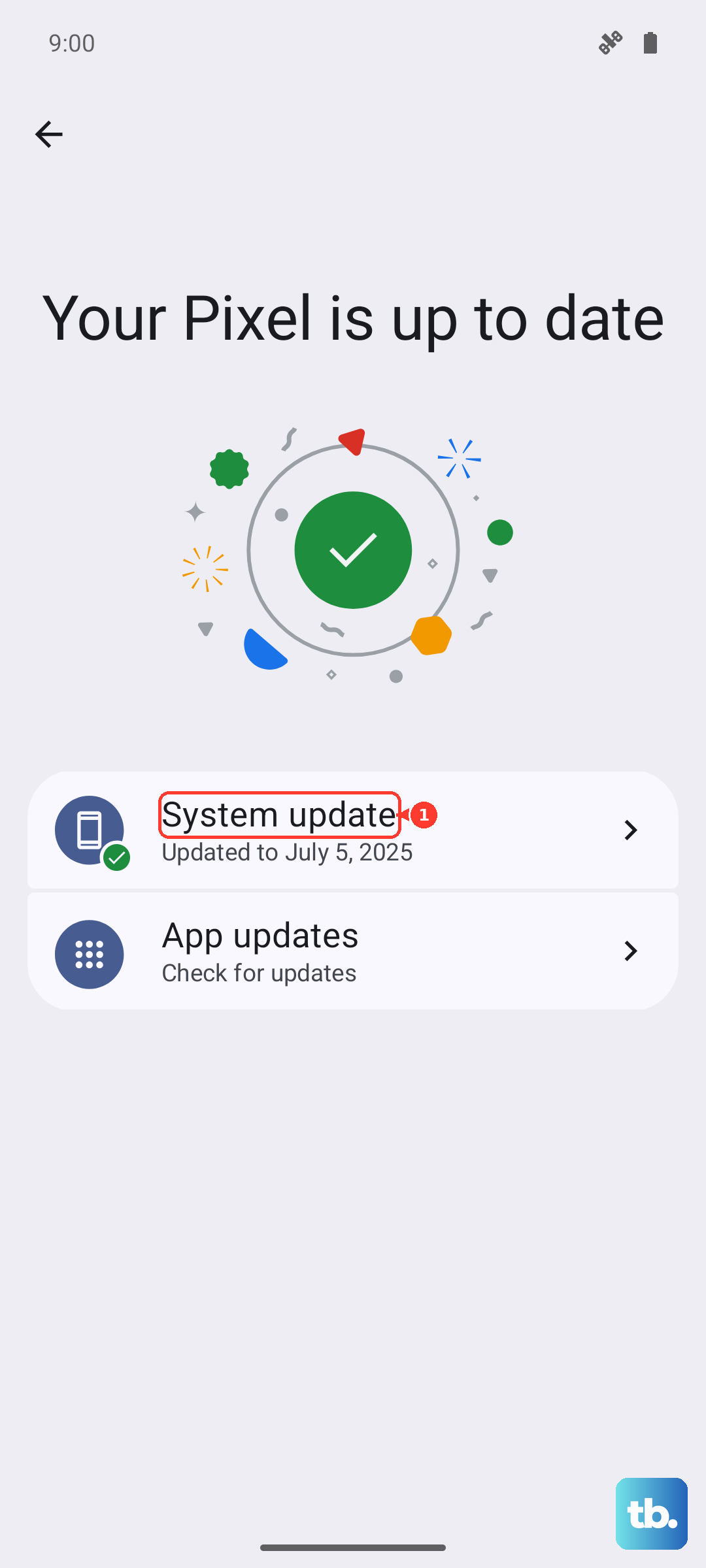
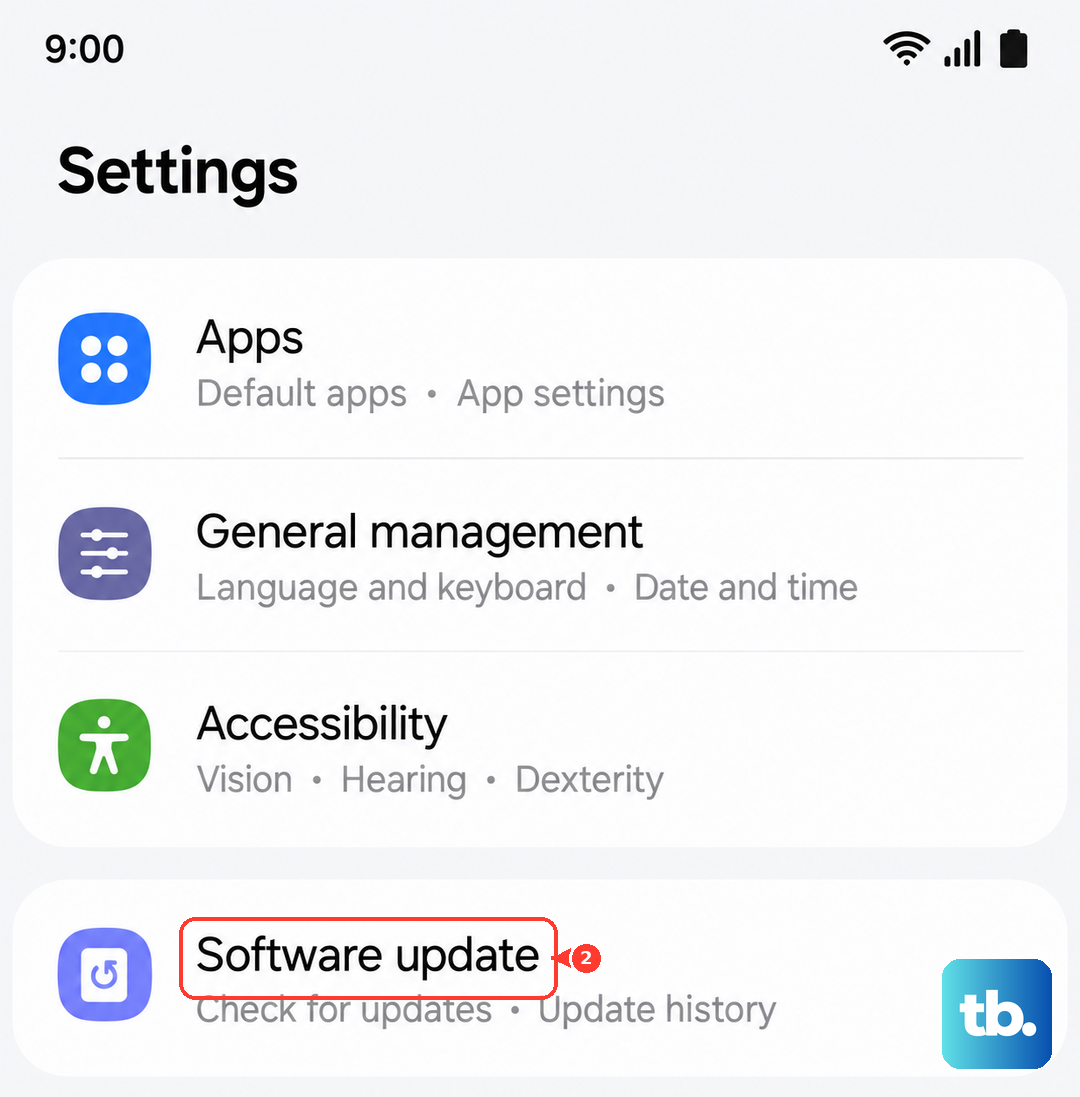
Open Settings and tap Software update (depending on your carrier this may be labeled System updates).
Tap Download and install (your phone may show this as Check for software updates or Check for system updates instead).
Follow the on-screen instructions to install the update.
The S25 Ultra shipped on Android 15 with One UI 7, and it has continued to receive newer One UI versions since launch, so keeping it current matters more the longer you own it. Let the phone finish installing and restart on its own before you judge whether the freezing is gone.
Clear the cache of an app that keeps locking up
If the freezes always seem to happen inside one particular app, that app's temporary files may have become corrupted. Clearing its cache wipes those temporary files without removing your account, logins, or saved content.
Open Settings, and then swipe to and tap Apps.
Select or search for the app you want to clear.
Tap Storage, and then tap Clear cache.
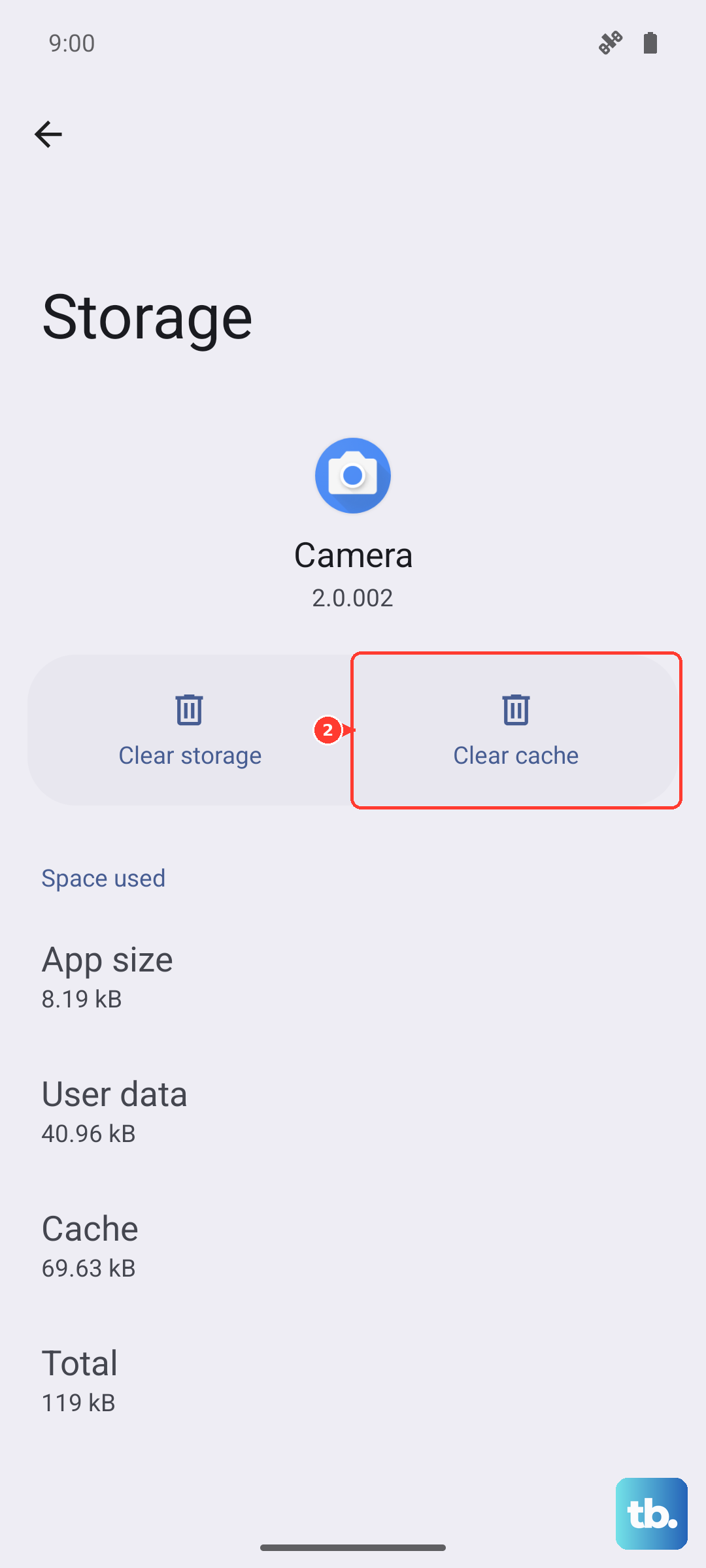
Be careful not to confuse this with the option next to it. Tapping Clear data instead will reset the app to factory default settings, and any personal settings or data saved on the app will be removed. For a freezing fix, stick to Clear cache first, and only consider Clear data if clearing the cache makes no difference and you are willing to lose that app's saved settings.
Free up storage so the phone can breathe
A nearly full phone runs slowly and can freeze when it has no room to work with temporary files. The S25 Ultra holds a lot, but high-resolution photos, long videos, and large apps add up faster than you might expect.
Open Settings > Battery & Device Care > Storage to see what is taking up space. Remove unused files or apps to free up room, focusing on large downloads, old videos, and apps you no longer open. Even clearing a few gigabytes can noticeably steady a phone that has been stuttering and locking up.
Use Safe Mode to expose a problem app
If the phone still freezes after the steps above, a downloaded app may be the culprit. Safe Mode temporarily disables all third-party apps so you can see whether the phone behaves normally without them.
Press and hold the Side or Power button until the Power menu appears.
Touch and hold the Power off icon until the Safe mode icon is displayed.
Tap Safe mode. The words "Safe mode" will appear in the lower-left corner of the screen.
Use the phone normally for a while in this state. If it no longer freezes, you have confirmed that a downloaded app is causing the problem. Restart the phone to exit Safe Mode, then go to Settings > Apps and uninstall recently added or unrecognized apps, starting with anything you installed right before the freezing began.
Back up and perform a factory data reset
A factory data reset is a last-resort fix that returns the phone to its original software state, wiping out a deep software problem that nothing else cleared. Because it erases everything on the phone, back up everything you care about first. Samsung warns, "Please save any information you need prior to the factory reset because your personal information may not be recovered."
- 1.Make sure your photos, contacts, and other data are backed up before you begin.
- 2.Open Settings and tap General management.
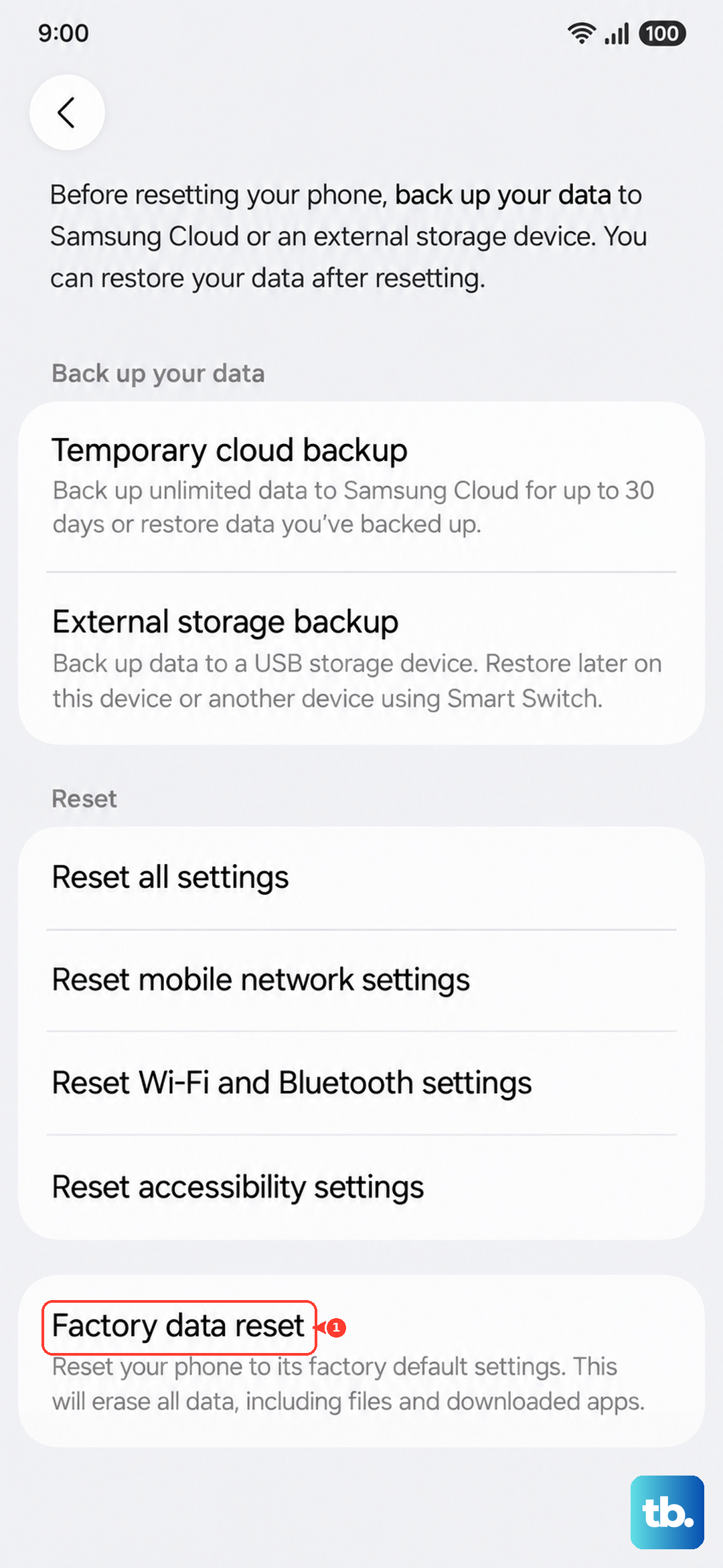
- 3.Tap Reset, then tap Factory data reset.
- 4.Review the information on screen, then tap Reset.
You may need your screen lock and Samsung account password to complete the process, so have those ready before you start. Set the phone up fresh afterward, and add your apps back gradually so you can spot any single one that brings the freezing back.
Contact Samsung Support or book a service appointment
If the phone still freezes even after a clean factory data reset, the cause is more likely hardware than software at that point. There is no benefit to repeating software fixes once you have ruled them out this thoroughly.
Reach out through Samsung's official support to chat, call, or book a repair. You can start a request on Samsung's official support site or through the Samsung Members app, where you can describe the freezing behavior and arrange warranty or service options for your S25 Ultra.
Frequently Asked Questions
How do I force restart a frozen Galaxy S25 Ultra?
Press and hold the Volume down button and the Side button (or Power button) at the same time, and keep holding until the device turns off and turns back on. The screen will go black, then the Samsung logo will appear, at which point you can release the buttons. This works even when the screen is completely unresponsive, and it does not erase any data.
Will any of these fixes delete my data?
Force restarting, optimizing with Device care, updating software, clearing an app's cache, freeing up storage, and using Safe Mode all leave your data intact. The exceptions are tapping Clear data on an app, which resets that app to defaults, and the factory data reset, which erases the whole phone. Always back up before a factory reset, because Samsung warns your personal information may not be recovered afterward.
How can I tell if a downloaded app is causing the freezing?
Boot into Safe Mode by holding the Side or Power button until the Power menu appears, then touch and hold the Power off icon until the Safe mode icon shows and tap it. If the phone stops freezing in Safe Mode, where third-party apps are disabled, a downloaded app is the cause. Restart to exit Safe Mode, then uninstall recent or unrecognized apps from Settings > Apps.
Could outdated software be making my S25 Ultra freeze?
Yes. Outdated software can cause freezing and crashing, which is why Samsung lists updating as a recommended fix. Go to Settings > Software update > Download and install, then follow the on-screen instructions to bring the phone current.
What should I do if it still freezes after a factory reset?
If freezing continues after a clean factory data reset, it may be a hardware issue rather than software. Contact Samsung's official support to chat, call, or book a repair through Samsung's official support site or the Samsung Members app.