
If your Samsung Galaxy S25 Ultra's fingerprint scanner suddenly stops recognizing you, it can lock you out of your phone and apps. The good news is this is usually a quick software or sensor issue to fix.
I'd start with the simplest solution first. Give the screen a quick restart by pressing and holding the Volume Down and Side button together for about ten seconds. Wait for the Samsung logo to appear, then try unlocking with your fingerprint again.
Clean the Screen and Your Finger
The S25 Ultra uses an ultrasonic in-display sensor, which means it reads your fingerprint through the screen. Any smudges, dirt, or moisture on the screen or your finger can block the signal.
Wipe the entire lower portion of your screen with a soft, dry microfiber cloth. Make sure your finger is completely clean and dry, too. Lotions, oils, or even a little sweat can be enough to cause a misread.
Check Your Screen Protector
This is one of the most common culprits. Not all screen protectors are compatible with ultrasonic fingerprint sensors. If you recently applied a new protector, that's likely the issue.
Try removing the screen protector temporarily to see if the scanner starts working. If it does, you'll need to find a protector specifically marketed as compatible with the Galaxy S25 Ultra's fingerprint sensor. Re-register your fingerprints after applying the new one.
Re-register Your Problem Fingerprint
Sometimes the stored fingerprint data gets corrupted. Removing and re-adding your fingerprint often clears this up. Go to Settings > Biometrics and security > Fingerprints.
Enter your PIN, password, or pattern. Tap on the fingerprint giving you trouble and select Remove. Now, add it again, making sure to follow the prompts carefully and roll your finger to capture the edges.
Update Your Phone's Software
Outdated software can have bugs that affect the biometric sensors. Samsung regularly releases updates that include fixes for these kinds of issues.
Head to Settings > Software update > Download and install. If an update is available, install it and restart your phone. This takes a few minutes but can resolve a lot of underlying glitches.
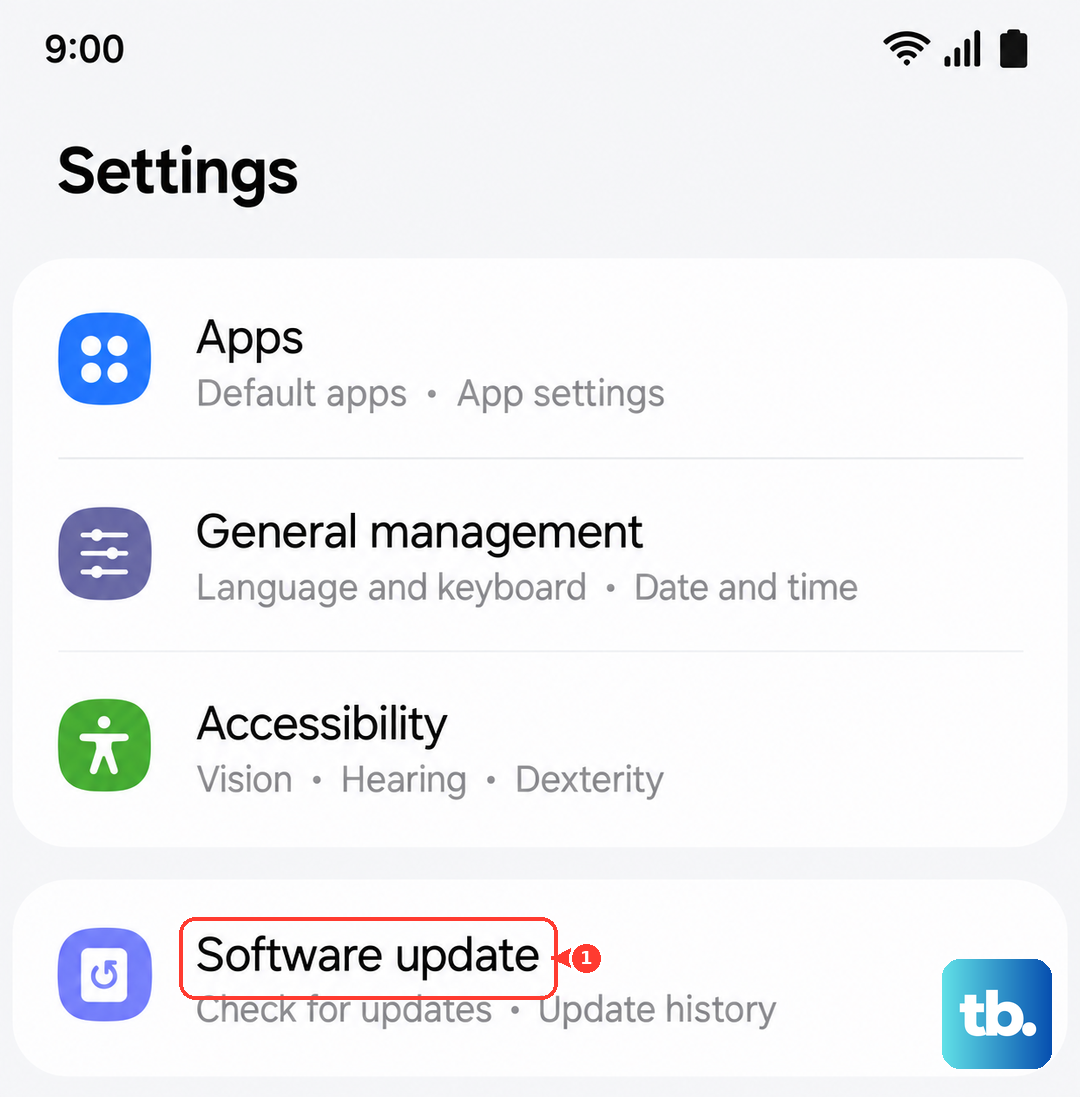
Boot Into Recovery Mode to Clear Cache
If the problem persists after an update, a corrupted system cache might be interfering. This doesn't delete any personal data. First, turn off your S25 Ultra completely.
Connect it to your computer with a USB-C cable. Then, press and hold the Volume Up and Side button until the Android Recovery screen menu appears. Note that Samsung removed the Wipe cache partition option from the Android Recovery menu on the Galaxy S25 series with the February 2026 update, so this step is no longer available; the phone now clears the system cache automatically each time you install a software update.
Confirm, then select Reboot system now. This process clears temporary system files that could be causing the sensor to malfunction.
Review Your Security Settings
Certain security features can affect biometrics. Go to Settings > Biometrics and security > More biometrics settings.
Make sure Fingerprint always on is enabled if you want to use it from the always-on display. Also, check if you have any device administration apps or high-security work profiles that might be temporarily disabling fingerprint access.
Consider Environmental Factors
The ultrasonic sensor can be finicky in very dry or cold conditions. If your fingers are exceptionally dry, try moisturizing them. In my experience, extremely cold weather can also make fingerprints harder to read temporarily.
Also, if you were just using wireless charging, wait a moment. The electromagnetic field can very rarely cause temporary sensor interference, though this is less common with modern Qi2 chargers.
If you've tried all these steps and the sensor still doesn't work, the issue may be physical. Before assuming the worst, try registering a different finger entirely to rule out a change in your primary fingerprint. If even a new fingerprint won't register, it's likely a hardware fault with the in-display sensor module that would require professional repair.