
When your Galaxy A56 stops recognizing your fingerprint, it locks you out of your own phone. It's a common hiccup that usually has a simple fix, and I'd start with the most obvious one first.
Give the sensor area a quick wipe with a soft, dry cloth. The optical sensor under the screen needs a clean surface to see your fingerprint clearly. Avoid any liquids or cleaners, as they can damage the display.
Restart Your Galaxy A56
A quick restart clears out temporary software glitches that can confuse the sensor. Press and hold the Volume Down button and the Side key (power button) together for about 10 seconds.
You'll see the Samsung logo appear as the phone forces a restart. Once it boots back up, try unlocking with your fingerprint again.
Check Your Finger and the Screen
Your fingerprint itself can be the issue. Make sure your finger is clean, dry, and free of any lotions or grease. A small cut or dry skin can also throw off the reading.
Also, check your screen protector. Not all protectors play nicely with in-display fingerprint sensors. If yours is thick, poorly applied, or scratched, it might be blocking the sensor's light. Try removing it temporarily to see if that fixes the problem.
Re-register Your Fingerprint
This is often the most effective fix. Your stored fingerprint data can get corrupted, or your finger might have changed slightly since you first set it up.
Go to Settings > Biometrics and security > Fingerprints. Enter your PIN, password, or pattern. Tap on the fingerprint that's failing and select Remove.
Now, add it again. When the phone prompts you, press your finger down firmly and cover all angles, the edges, the tip, and the pad. Register the same finger twice for better accuracy.
Update Your Phone's Software
Outdated software can have bugs that affect system features like the fingerprint sensor. Samsung regularly releases updates with fixes.
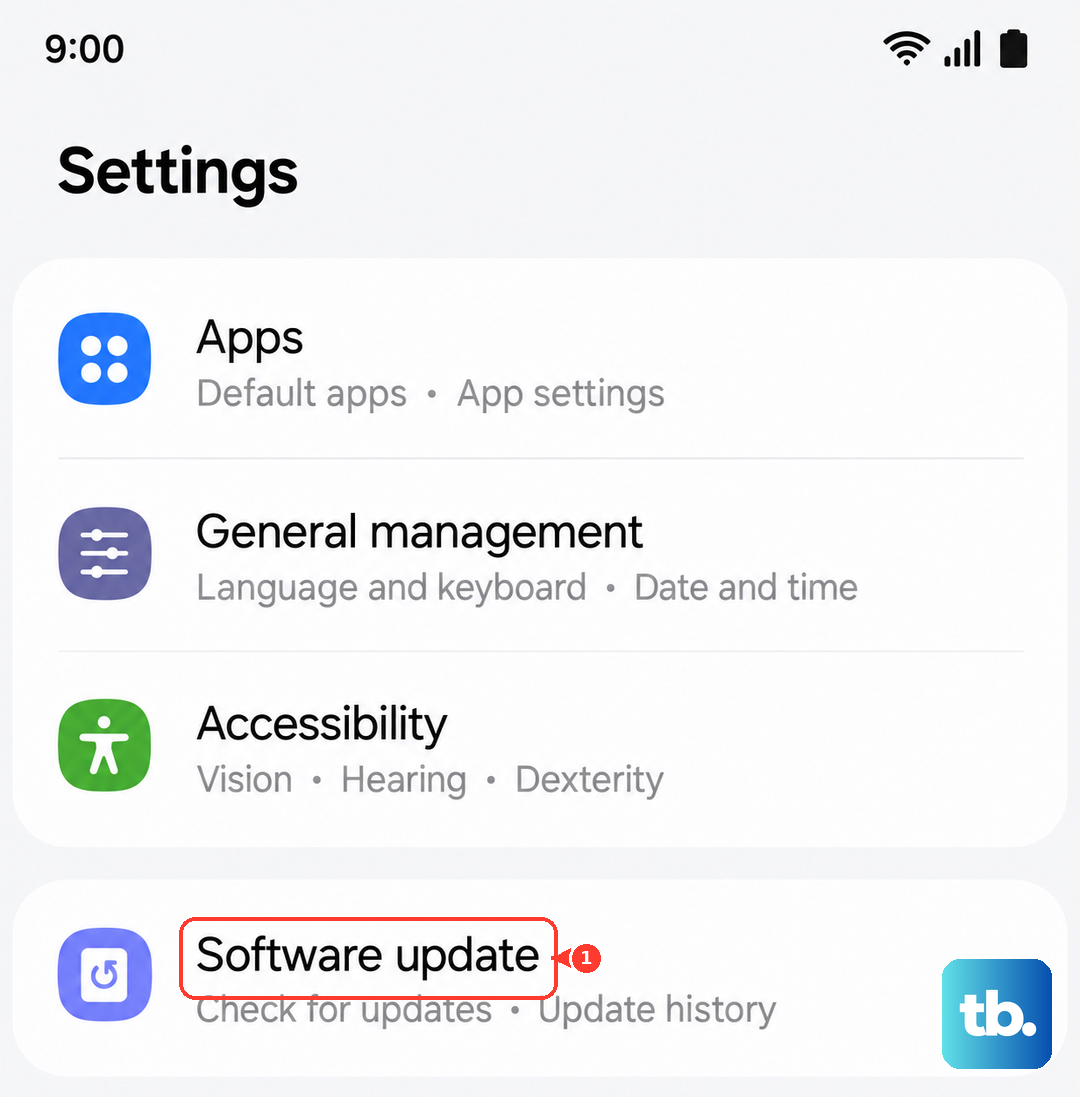
Head to Settings > Software update > Download and install. If an update is available, install it and restart your phone. This keeps your A56 running smoothly and can resolve sensor issues.
Clear the System Cache
Sometimes, cached system data gets corrupted and interferes with hardware functions. Clearing this cache is safe and won't delete your personal data.
First, turn off your Galaxy A56 completely. Press and hold the Volume Up button and the Side key. When you see the Android recovery menu, release the buttons.
Use the Volume Down button to highlight Wipe cache partition, then press the Side key to select it. Confirm, and then choose Reboot system now.
Check for App Conflicts in Safe Mode
A recently installed app might be causing a conflict. Booting into Safe Mode temporarily disables all third-party apps.
Press and hold the Side key until the power menu appears. Tap and hold the Power off option until you see the Safe Mode prompt, then tap it to restart.
If the fingerprint sensor works in Safe Mode, a downloaded app is likely the culprit. You'll need to uninstall apps one by one, starting with the most recent, to find the bad one.
Review Your Security and Display Settings
A couple of settings in One UI can impact the sensor. First, make sure your screen is bright enough for the sensor to work properly.
Also, check if you have any battery-saving modes turned on, like Power saving or Adaptive battery. These can sometimes limit background processes the sensor relies on. Try turning them off temporarily to test.
Disable Fingerprint Gestures
The Galaxy A56 lets you use the fingerprint area for gestures, like swiping to pull down the notification panel. This feature can sometimes interfere with the primary scanning function.
To turn it off, go to Settings > Advanced features > Motions and gestures. Find the toggle for Finger sensor gestures and switch it off. Restart your phone and test the scanner again.
Check for Moisture or Hardware Issues
The Galaxy A56 has moisture detection for its USB-C port, but physical damage is also possible. Inspect the screen around the sensor area for any new cracks or deep scratches.
If you've recently had the phone in a humid environment, let it dry out completely. While the A56 doesn't have wireless charging, using it while plugged into a faulty or non-certified 25W charger could theoretically cause other issues.
If you've tried every step here and the sensor is completely unresponsive, the hardware itself may be faulty. The fingerprint sensor is integrated into the display, so a repair would involve a screen replacement.