You plug your Galaxy S25 Ultra in, expect that familiar "Super fast charging" message, and instead it just says the battery is charging at an ordinary crawl. Maybe it tops out at 80 percent and refuses to budge, or it briefly recognizes the charger and then drops the connection.
The good news is that the S25 Ultra absolutely supports fast charging, so a slow or stalled charge almost always traces back to a setting, an accessory, or a safety feature doing its job rather than a broken phone. Work through the fixes below in order, from the quickest checks to the official reset and repair path, and you will usually have full speed back in a few minutes.
Before you start, it helps to know what your phone is actually capable of. Samsung confirms the Galaxy S25 Ultra supports 45W Super Fast Charging 2.0 over a wired connection, along with Fast Wireless Charging 2.0 and Wireless PowerShare.
There is one catch built into the box. No wall adapter ships with the phone, only a USB-C cable and the S Pen. To reach the full 45W, you need a separate Super Fast Charging 2.0 adapter, such as Samsung's 45W PD Power Adapter paired with a 5A USB-C cable.
Start with the fast charging switch in Settings
The single most common reason an S25 Ultra charges at normal speed instead of Super Fast is that the fast charging option is simply turned off. Samsung's guidance is to check this first whenever charging seems slow. It is a one-minute fix and it costs you nothing to confirm.
- 1.Open Settings.
- 2.Tap Battery and device care.
- 3.Tap Battery.
- 4.Tap More battery settings.
- 5.Confirm that Fast charging and Super fast charging are enabled (this menu also lets you check the status of Fast wireless charging).
If those toggles were already on, leave them on and move to the next fix. If one of them was off, turn it on, reconnect your charger, and watch for the Super Fast charging notice on the lock screen.
Make sure the charger and cable can actually deliver 45W
Because the S25 Ultra ships without a wall charger, plenty of people end up using whatever spare adapter is lying around, and most of those cannot hit Super Fast speeds. To reach 45W Super Fast Charging 2.0 you need a Super Fast Charging-capable adapter. Samsung sells a 45W PD Power Adapter with a 5A USB-C cable made for exactly this purpose.
The cable matters as much as the brick. Samsung advises using an authentic Samsung charger and a certified cable, since low-quality or non-approved chargers and cables can cause slow charging or intermittent disconnection. If you are using a thin or unbranded cord, swap it for a proper Samsung-certified USB-C cable rated for the 45W adapter and try again.
Inspect the port, cable, and adapter for damage or debris
A surprising number of slow-charge complaints come down to a dirty or damaged connection rather than electronics. Lint, pocket dust, and grit pack into the USB-C port over time and physically block a solid contact, and the phone may refuse to charge for safety if something is lodged inside.
Look over the device, charger, and cable for physical damage. Then check the USB-C port and the cable connector for corrosion or bent pins. If you can see dust or debris in the port, gently remove the foreign object with a soft brush.
After that, plug the cable back in and try charging again. Avoid metal tools or anything sharp that could bend a pin.
Clear a water or moisture warning before charging over USB-C
The S25 Ultra will not charge over USB-C if it detects water or moisture in the port. This is a deliberate safeguard. Samsung states that if moisture is detected inside the USB port or the cable, the device notifies you and shuts off charging to prevent damage.
If you see a moisture or water-detected alert, disconnect the cable. Next, let the port air-dry fully before trying again. Do not force the cable back in while the warning is showing. If you need power in the meantime, you can use wireless charging while the port dries, since the moisture safeguard applies to the wired USB-C connection.
Charge cool, and leave the phone alone while it tops up
Temperature has a direct effect on charging speed. Samsung recommends charging at room temperature for fast, stable charging, and if the device or its surroundings get too hot or too cold, a built-in safeguard slows the charge to protect the battery. A phone sitting in direct sun or on a warm surface will often charge noticeably slower.
How you use the phone while it charges matters too. Browsing, watching video, or gaming while plugged in leads to a slower charging rate to prevent overheating, so set the phone down and leave it idle if you want the quickest top-up. Pulling a hot case off can also help heat escape faster.
Check whether Battery Protection is capping the charge
If your S25 Ultra consistently stops somewhere around 80 to 85 percent and will not climb higher, that is by design, not a fault. A battery protection feature limits the maximum charge to extend long-term battery health, and it is easy to mistake for a charging problem.
Open Settings. Tap Battery. Make sure the switch next to Protect Battery or Battery Protection is turned off. It will appear gray when disabled.
Turning this off allows the phone to charge to 100 percent again. If you only need full capacity occasionally, you can leave the feature on most of the time and switch it off before a long day away from a charger.
Restart the phone to clear a stuck charging handshake
Sometimes the phone and charger fail to negotiate Super Fast speeds correctly, and a restart resets that handshake. Try the standard restart first. Press and hold the Volume down button and the Side button (or Power button) at the same time, then tap Restart and tap Restart again when the power options appear.
If the phone is frozen or unresponsive, use a force restart instead. Press and hold the Volume down button and the Side button (or Power button) simultaneously until the device turns off and turns back on. If the phone died and now will not power on after a failed charge, disconnect it from the charger and try to turn it on by pressing and holding the Power button for 15 to 20 seconds.
Install the latest software update
Charging behavior is controlled by software, and Samsung periodically ships fixes for charging-related bugs through One UI updates. Keeping the phone current is a low-effort way to rule out a known issue.
Open Settings. Tap Software update (this may be labeled System updates on some models). Tap Download and install (depending on your carrier this may read Check for software updates or Check for system updates). Follow the on-screen prompts to install any available update.
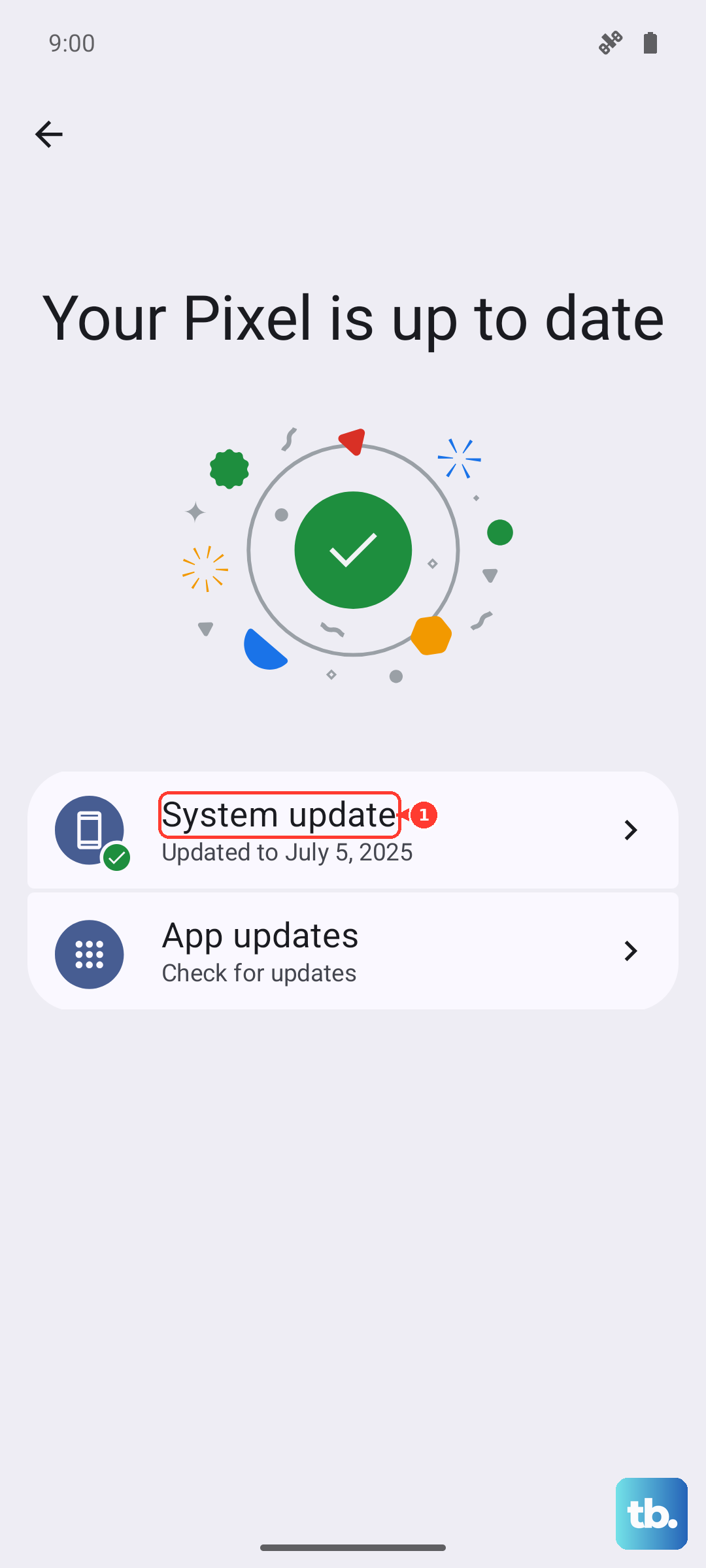
If the phone has too little charge to update over the air, let it charge for a while first, then check for the update again once the battery has recovered enough.
Run a charging diagnostic in Samsung Members
Before you escalate to a reset or a repair visit, let the phone test itself. The built-in Samsung Members app includes a Diagnostics feature that checks the battery and charging hardware directly, which can tell you whether the fault is the cable, the wireless charging coil, or the battery itself.
Open Samsung Members. On the Discover tab, tap Diagnostics. Tap Phone diagnostics. Run Battery status, Cable charging, or Wireless charging, or tap Test all.
The results help you narrow the problem before booking service. If the cable charging test fails but wireless charging passes, for example, you have strong evidence that the issue is the cable or the USB-C port rather than the battery.
Factory reset as a last resort, then contact Samsung
If charging still fails after everything above, a factory reset clears any deep software conflict, but it erases the phone, so treat it as a last step. Back up your data first. Samsung's warning is explicit. "Please save any information you need prior to the factory reset because your personal information may not be recovered."
Open Settings. Tap General management. Tap Reset. Tap Factory data reset.
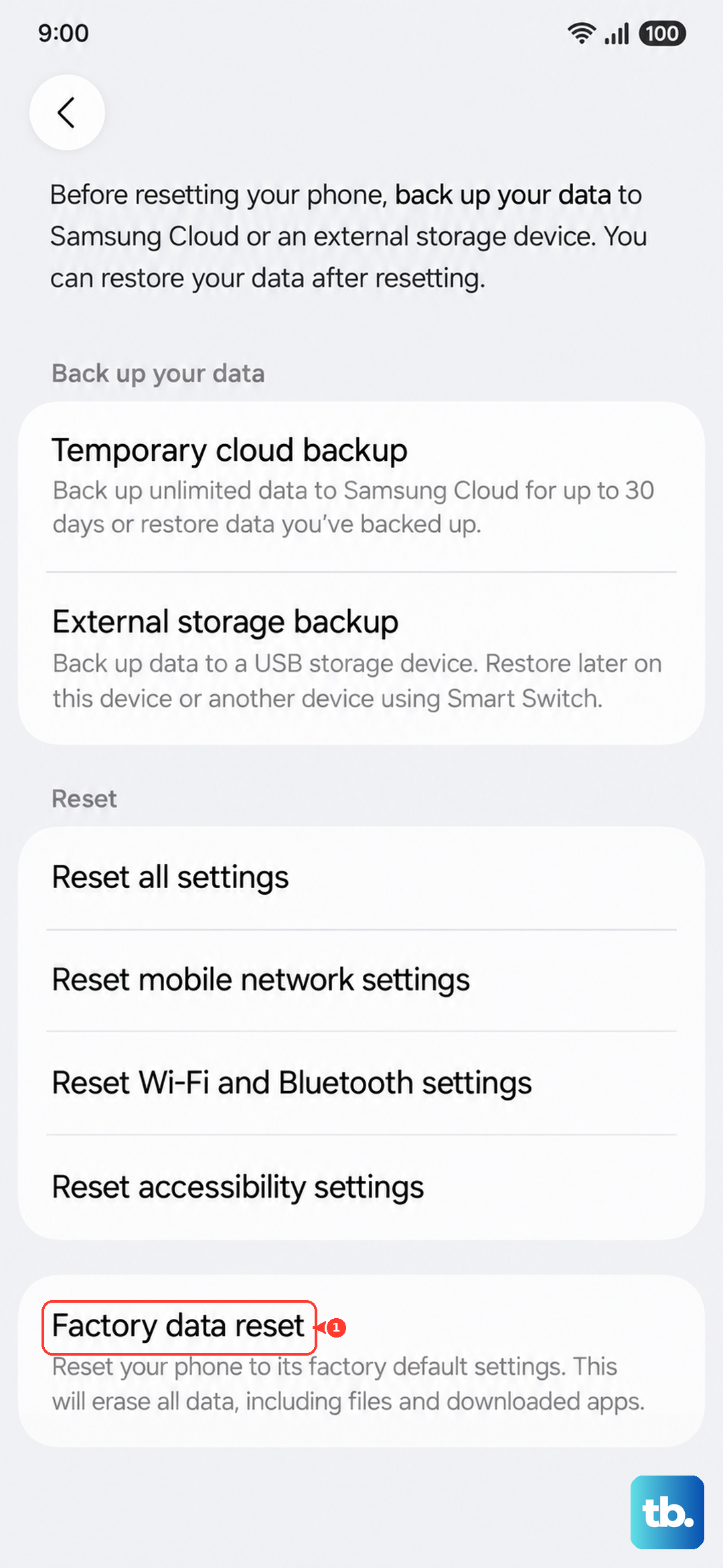
Review the information, then tap Reset. If the problem persists even after a clean reset, the cause is likely hardware. At that point, visit a Samsung walk-in service center or schedule an online repair so a technician can inspect the port and battery.
Frequently Asked Questions
Does the Galaxy S25 Ultra come with a fast charger in the box?
No. The S25 Ultra ships with only a USB-C cable and the S Pen, with no wall adapter included. To reach the full 45W Super Fast Charging 2.0 speed, you need a separate Super Fast Charging 2.0 adapter, such as Samsung's 45W PD Power Adapter, used with a 5A USB-C cable.
Why does my S25 Ultra stop charging at around 80 percent?
That is almost always the battery protection feature, which caps the charge to preserve long-term battery health. Go to Settings, then Battery, and make sure the switch next to Protect Battery or Battery Protection is turned off. It appears gray when disabled, after which the phone will charge to 100 percent again.
My phone says there is moisture in the charging port. What should I do?
The S25 Ultra will not charge over USB-C while it detects water or moisture, because a safeguard shuts off wired charging to prevent damage. Disconnect the cable, let the port air-dry completely, then try again. You can use wireless charging while the port dries if you need power right away.
How can I tell if the problem is my cable or the battery itself?
Use the built-in Samsung Members app. Open Samsung Members, tap Diagnostics on the Discover tab, choose Phone diagnostics, then run Battery status, Cable charging, or Wireless charging (or tap Test all). The individual results help you identify whether the cable, wireless charging, or the battery is at fault before you book a repair.
What if it still will not fast charge after all the fixes?
If a factory reset does not resolve it, the cause is most likely hardware. Visit a Samsung walk-in service center or schedule an online repair so a technician can inspect the USB-C port and battery directly.