Your Galaxy S25 powered on, flashed the Samsung logo, and then just sat there. The screen never moves past that glowing name, and no amount of waiting seems to push it into the home screen. A logo hang on the S25 is frustrating, but it is usually fixable at home, and most of the time you do not lose a single photo. Below are the safe fixes in the order Samsung's own guidance suggests, starting with the gentlest steps and saving the erase-everything option for the very end.
The S25 runs One UI 7 based on Android 15, and it may already be on a newer One UI build if it has updated. It uses a Side button with separate Volume keys rather than an old Home or Bixby button. That matters, because the correct recovery and restart moves on this phone are different from older Galaxy models. Follow the sequences below exactly as written, since a wrong button combination will not help and could send you in circles.
Start by charging the phone, then try to wake it
A stuck logo is sometimes nothing more than a battery that drained to almost nothing. Before you try any button tricks, plug the S25 into the cable it came with and an appropriate Samsung charger, and put the adapter directly into a wall outlet rather than a power strip or extension cord. Let it charge for at least 1 hour so the battery has real headroom to boot.
Be patient with the screen at first. If the battery was completely drained, the charging indicator can take up to 10 minutes to appear. This first step does double duty. It gives the phone the power it needs, and it quietly confirms your charger, cable, and port are all working before you try anything more involved.
Force restart the S25 with Volume down and the Side button
With the screen frozen on the Samsung logo, a forced restart is the single most effective fix. First make sure the battery is at least 5%. If it was drained, charge it for at least 15 minutes with a Samsung charger before you start. Then run the exact sequence Samsung publishes for a phone stuck at the logo.
- 1.Press and hold the Volume down and Side buttons simultaneously for approximately 10 seconds.
- 2.A Power menu may appear on screen. Do not let go. Just continue pressing the buttons until the Samsung logo appears again.
- 3.Release the buttons once the screen goes black and the logo reappears, then let the phone attempt to boot normally.
This forces the system to drop everything and restart cleanly, which clears the temporary glitch behind most logo hangs. If it works the first time, you can stop here.
Clear a moisture warning if charging is being blocked
If your S25 will not take a charge, or you see a water-drop icon, the phone may have detected moisture in the USB-C port and refused to charge for safety. When that happens, gently shake the device to help remove water or moisture from the port, then set it aside to dry. According to the official guidance, water will naturally evaporate from the charging port within approximately 1 to 2 hours.
While it dries, do not charge it wet and do not push tissue, cotton swabs, or anything else into the port. Here is where the S25 has an advantage. Wireless charging is not affected by moisture or foreign materials in the charging port. If you have a wireless charger, set the phone on it to top up the battery so it has enough power to boot once the port clears.
Boot into Safe mode to rule out a misbehaving app
Sometimes the S25 gets past the logo intermittently, or it boots once after a forced restart and then hangs again. When the phone is responsive enough to reach this menu, Safe mode is the cleanest way to find out whether a downloaded app is the culprit, because it loads only the original software and blocks third-party apps.
- 1.Touch and hold Power off until the Safe mode icon is displayed.
- 2.Tap Safe mode to start your device in Safe mode.
If the phone runs normally in Safe mode, a downloaded app is causing the problem. Restart the phone normally, then uninstall the apps you added most recently, especially anything installed just before the trouble began. If the hang returns even in Safe mode, the cause is more likely a system issue, so move on to the software steps below.
Install any pending software update
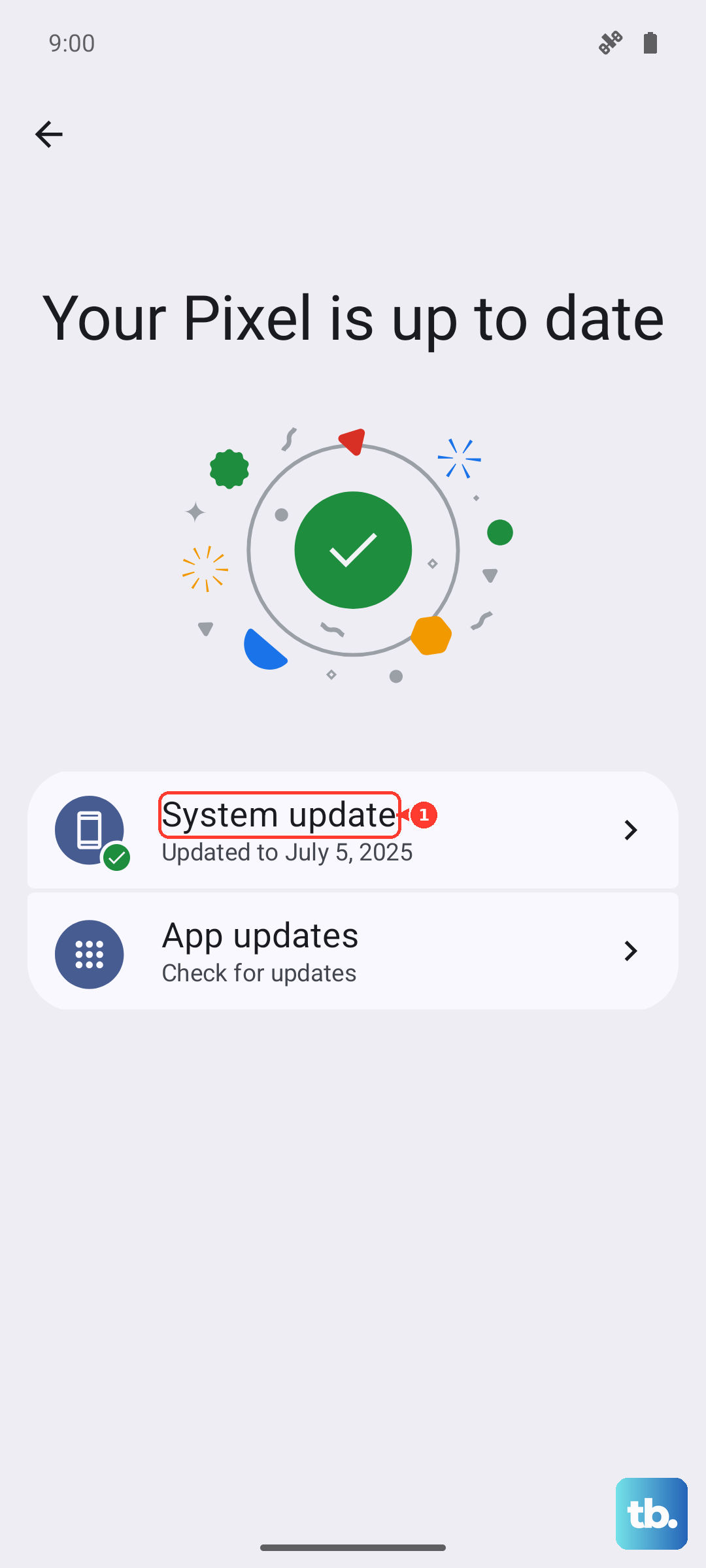
Once the phone boots, an update can quietly resolve the exact startup and stability bugs behind a logo hang. Keep the S25 on Wi-Fi and charged, then check for an update.
Go to Settings > Software update > Download and install. Depending on your model and carrier, the entry may read "Software update" or "System updates," and the button may read "Download and install," "Check for system updates," or "Check for software updates." Let any available update download and finish completely, and do not pull the cable or restart mid-install.
Back up your data before going further
The next fix erases the phone, so this is the moment to protect anything you care about. As Samsung puts it plainly, "Please save any information you need prior to the factory reset because your personal information may not be recovered." Treat that warning as final, because once the reset runs, your data is gone.
If the phone is usable enough to reach its menus, back up to your Samsung account or Google backup. If you would rather keep a full copy on a computer, use Samsung Smart Switch on a PC or Mac to back up before you reset. Do not skip this step on the assumption that you have nothing important on the device.
Perform a factory data reset as the last do-it-yourself step
If the S25 still hangs and you can still reach the settings menus, a factory reset is the final fix you can do yourself. It permanently deletes all personal data, accounts, messages, photos, and downloaded apps, and returns the phone to the initial setup screen. Only do this after you have completed the backup above.
- 1.Open Settings > General management > Reset > Factory data reset.
- 2.Tap Reset.
- 3.Tap Delete all to confirm and erase the device.
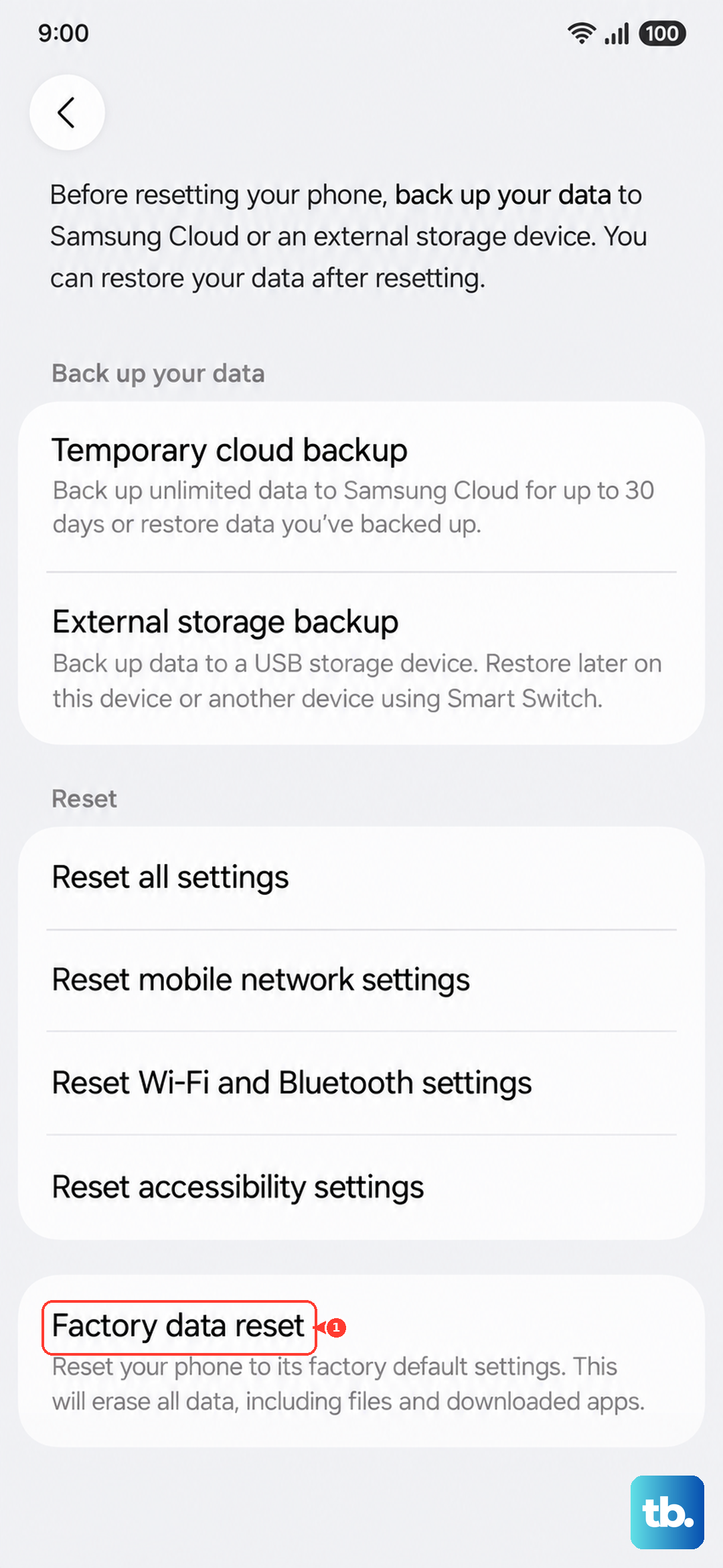
When it finishes, the phone restarts to the same setup screen you saw out of the box. From there, sign back in and restore your backup. If the reset itself completes normally and the phone boots cleanly afterward, the problem was software, and you are done.
When to contact Samsung Support or book a repair
If the S25 still will not get past the logo after a force restart, software update, and factory reset, or if it will not power on at all, the issue is beyond a home fix and the phone needs service. The same is true if there is any sign of physical or liquid damage, since that points to a hardware problem rather than a software glitch.
For a phone that refuses to power on, you can also try one more wake attempt. Press and hold the Power button (or Side button) and Volume down button simultaneously until the device restarts, which can take up to 60 seconds. If a fully drained phone is involved, first charge it for at least 1 hour using the cable that came with it and an appropriate charger plugged straight into a wall outlet. The charging indicator can take up to 10 minutes to appear on a completely drained battery.
When none of that works, visit the Samsung Support Center to request service, schedule a repair online, or take the phone to a Samsung walk-in service center. The built-in Samsung Members app also offers support, diagnostics, and service booking if the phone is usable enough to open it.
Frequently Asked Questions
Why does my Galaxy S25 keep getting stuck on the Samsung logo?
A logo hang is usually a temporary software glitch, a nearly drained battery, or a misbehaving downloaded app. Charging the phone, performing a force restart with Volume down and the Side button, and checking it in Safe mode address the most common causes. If those do not help, a pending software update or, as a last resort, a factory reset often resolves it.
What is the correct force restart for the Galaxy S25?
Press and hold the Volume down and Side buttons simultaneously for approximately 10 seconds. If a Power menu appears on screen, keep holding the buttons until the screen goes black and the Samsung logo reappears. The S25 has no Home or Bixby button, so older Galaxy restart sequences do not apply to this model.
Will a force restart erase my data?
No. A force restart simply reboots the phone and does not delete anything. The only step in this guide that erases your data is the factory data reset, which is why you should back up first and treat that step as a last resort.
Charging is blocked and I see a water-drop icon, so what should I do?
Your S25 has detected moisture in the USB-C port and paused charging for safety. Gently shake the device to remove water from the port and let it dry, since water naturally evaporates within approximately 1 to 2 hours. Do not charge it while wet or insert objects into the port, and in the meantime use a wireless charger if you have one, because wireless charging is not affected by moisture in the port.
What should I do if the phone will not power on at all after a reset?
Press and hold the Power button (or Side button) and Volume down button simultaneously until the device restarts, which can take up to 60 seconds. If the battery may be fully drained, charge it for at least 1 hour with the included cable and an appropriate charger plugged directly into a wall outlet first. If it still will not turn on, or there is any physical or liquid damage, contact the Samsung Support Center or visit a walk-in service center.