You tap Settings, expecting your Galaxy S25+ to pull down the latest One UI update, and nothing happens. Maybe the download stalls partway, maybe the install fails and reboots you back to the same version, or maybe the phone insists you are already up to date when you know you are not. It is a frustrating place to be on a flagship that is supposed to handle this automatically.
The good news is that the Galaxy S25+ (SM-S936 series) fully supports over-the-air firmware updates through Settings, and Samsung officially lists it among the devices eligible for One UI 7 and the newer One UI versions that follow. That means a stuck update is almost always a fixable condition rather than a dead end. The fixes below move from the quickest and safest checks to the more involved options, so start at the top and work down only as far as you need to.
Start With the Basics That Block Most Updates
Before you dig into restarts and recovery modes, rule out the two conditions Samsung flags most often, a low battery and an unreliable connection. These are the most common reasons a Galaxy phone refuses to download or install new firmware, and they take seconds to check.
Charge the Battery Above 50 Percent
Samsung notes that a Galaxy phone may block software updates when the battery level is too low to complete the installation safely. Get your S25+ above 50 percent before you try again, and keep it plugged in while the update runs so it does not stall midway.
An interrupted install caused by a dying battery can leave the system in a half-updated state, which is exactly what you are trying to avoid. Plugging in removes that risk entirely.
Connect to Stable Wi-Fi and Check Again
Software updates need a stable connection to download and install properly. Join a reliable Wi-Fi network, then go to Settings > Software update > Download and install. Depending on your carrier, that option may instead read Check for system updates or Check for software updates.
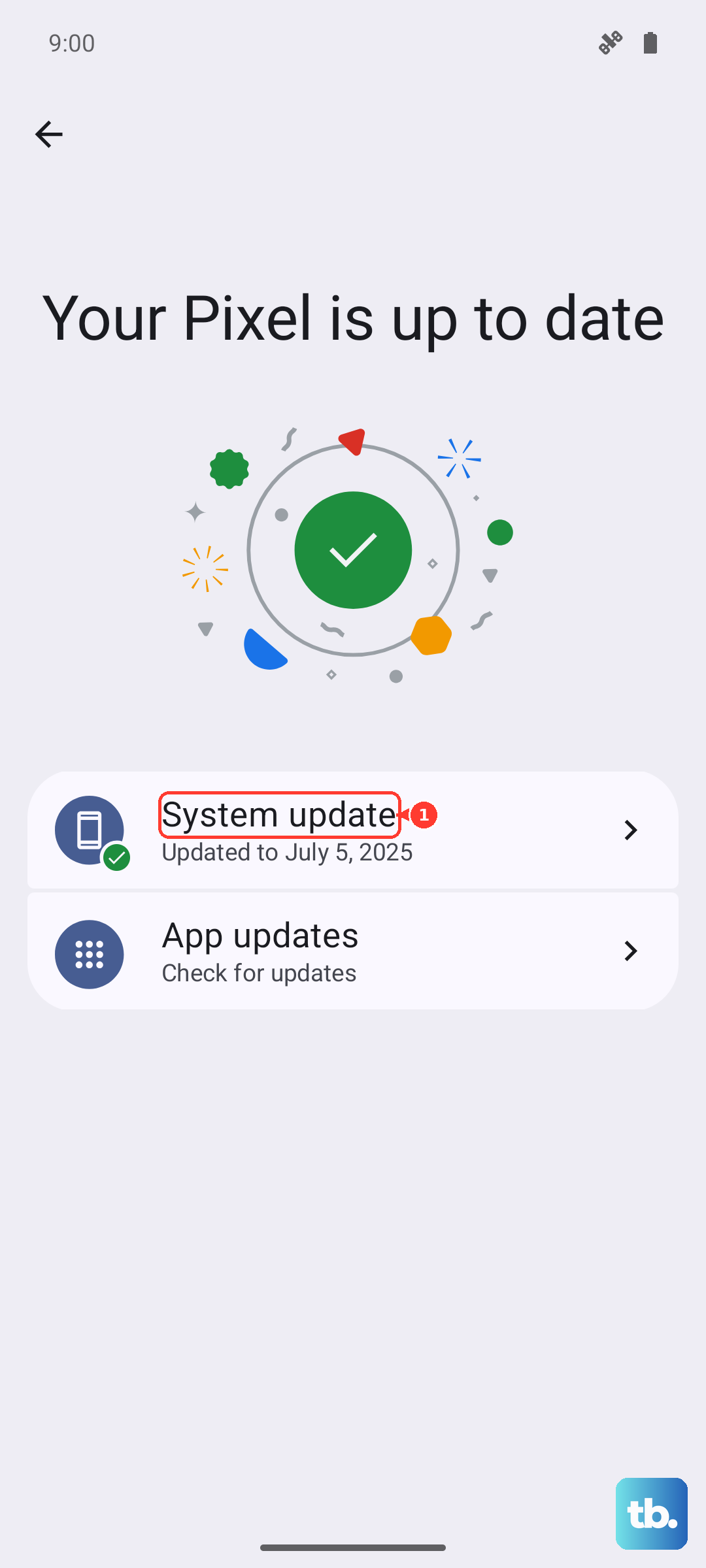
Follow the on-screen instructions from there. Keep in mind that some carriers require a Wi-Fi connection specifically to check for and install updates, so a cellular-only attempt may quietly fail.
Clear the Room the Update Needs to Land
Insufficient internal storage is a primary cause of failed updates. A firmware package needs free space to download and unpack, and if your S25+ is nearly full, the install simply will not proceed.
- 1.Open Settings > Apps, select an app you no longer use, and tap Uninstall.
- 2.To clear cached data without removing the app, go to Settings > Apps > select app > Storage > Clear cache.
- 3.For a quicker sweep, run Settings > Battery and device care > Optimize now > Done.
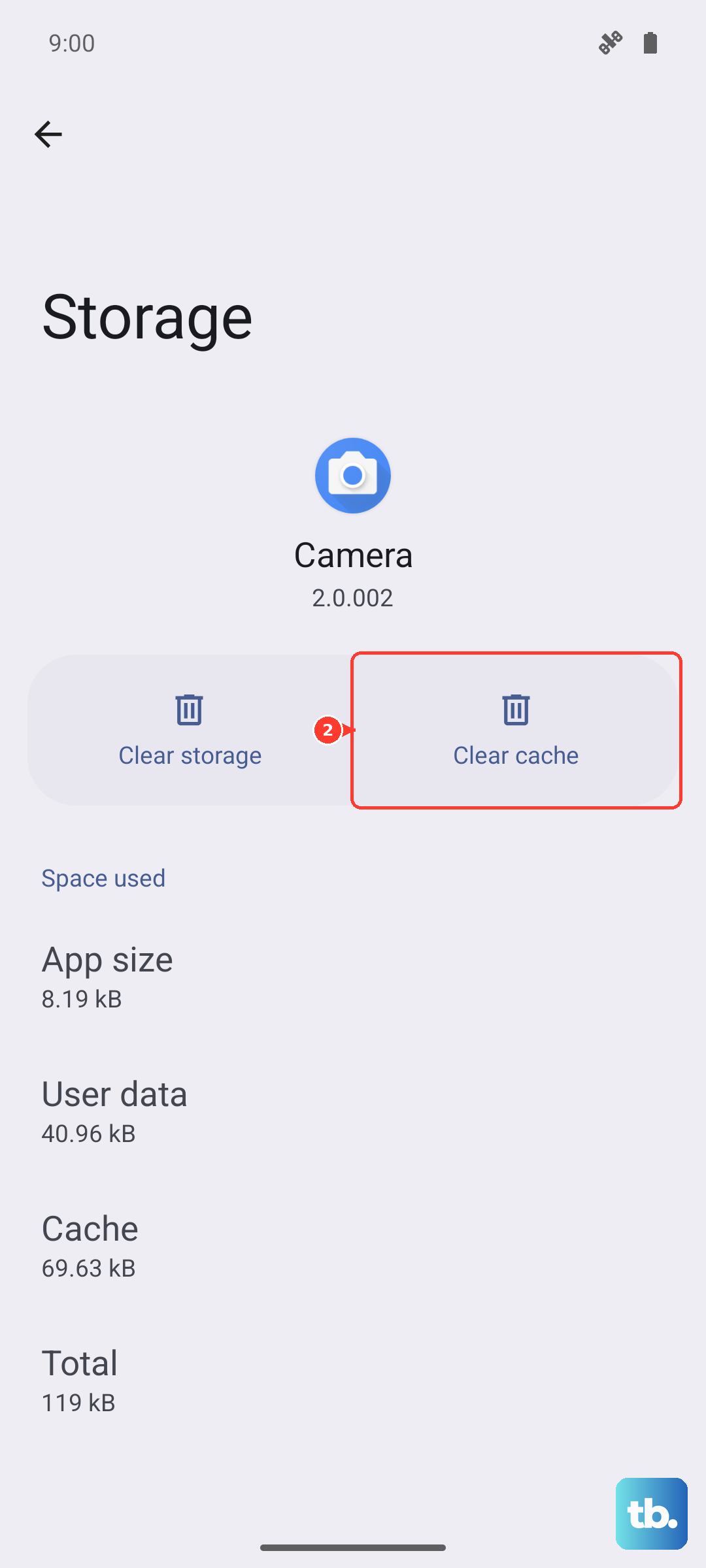
Once you have reclaimed some space, head back to Settings > Software update and try the download again. Even a few hundred megabytes of breathing room can be the difference between a clean install and a repeated failure.
Reboot to Clear Temporary Glitches
A simple restart clears the temporary glitches that can interrupt an update, and it is one of the most reliable fixes for a download that keeps stalling. It costs you nothing and resolves more update hangs than people expect.
To restart normally, press and hold the Volume down button and the Side button at the same time, tap Restart, then tap Restart again. After the phone reboots, return to Settings > Software update and check for the update once more.
Force Restart a Frozen Phone
If the screen is unresponsive during or after a failed update, a force restart will bring it back. Press and hold the Volume down button and the Side button (or Power button) at the same time until the device turns off and turns back on.
Samsung does not state a fixed number of seconds for this, so keep holding both buttons until the screen cycles off and the Samsung logo reappears. This forces the phone to power down even when the touchscreen is locked up, without erasing any of your data.
Rule Out a Misbehaving App With Safe Mode
Sometimes a third-party app interferes with the update process. Safe Mode disables those apps temporarily so you can see whether one of them is the culprit, and it is a non-destructive way to test that theory.
- 1.Press and hold Volume down and the Side key, then tap Power off.
- 2.After the screen turns off, hold both keys again.
- 3.Release the Side key when the Samsung logo appears, but keep holding Volume down.
- 4.Continue holding until Safe mode shows in the lower-left corner of the screen.
- 5.With the phone in Safe Mode, go to Settings > Software update and try the update again.
- 6.To exit, hold both keys and select Restart.
If the update installs cleanly in Safe Mode but fails in normal mode, a recently installed app is likely the cause. You can then remove suspect apps one at a time after you reboot normally.
Turn On Automatic Updates Going Forward
If you keep missing updates or forgetting to check, let the phone handle the timing for you. Turning on automatic downloads means firmware arrives when conditions are right, without you having to remember.
In Settings > Software update, tap the switch to enable Auto download over Wi-Fi. With this on, your S25+ pulls new updates over Wi-Fi in the background so they are ready to install when it suits you.
Update From a Computer Using Smart Switch
When the over-the-air route still will not cooperate, Samsung's official desktop tool, Smart Switch, can push the update over USB instead. This bypasses whatever is blocking the on-device download and is the manufacturer's recommended path when OTA updates fail.
Install Smart Switch on a Windows PC or Mac from Samsung's official website. Then follow these steps:
- 1.Connect the phone to the computer with the USB cable and open Smart Switch.
- 2.If an update is available, click Update and follow the on-screen prompts.
- 3.Let the device work through the firmware on its own, allowing it to restart as needed.
One rule matters above all here. Do not disconnect the USB cable or use your device until the update is complete. Pulling the cable mid-update is the one mistake that can genuinely damage the software, so let it finish on its own.
The Last Resort Reset and When to Call Samsung
If every step above has failed, a factory data reset gives the system a clean slate, and a stubborn update will often install on the first try afterward. This is a serious step, so treat it as the final option rather than an early one.
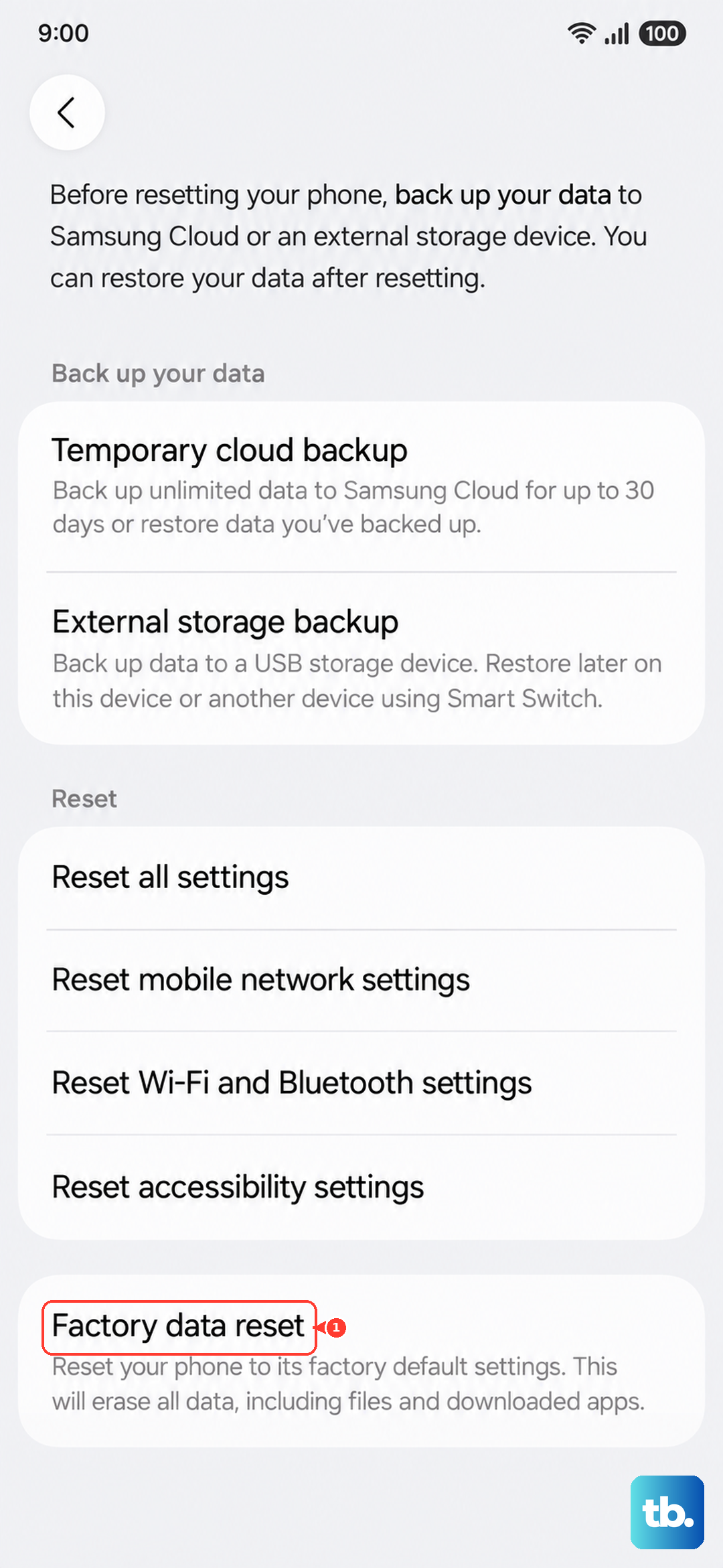
Back up your data first, because a factory reset erases everything on the device and your personal information may not be recoverable once the wipe completes. Move your photos, messages, accounts, and files somewhere safe before you begin.
When you are ready, go to Settings > General management > Reset > Factory data reset and follow the prompts. Once the phone restarts, set it up and check Settings > Software update again.
If your S25+ still refuses to update even after a full reset, the problem is beyond what you can fix at home. At that point, have the device serviced by Samsung so a technician can diagnose it directly.
Frequently Asked Questions
Where do I check for a software update on the Galaxy S25+?
Go to Settings > Software update > Download and install. Depending on your carrier, that option may read Check for system updates or Check for software updates instead, but it lives in the same Software update menu.
How much battery do I need before updating?
Samsung says a Galaxy phone may block updates when the battery is too low to install safely, so charge your S25+ above 50 percent first. It is best to keep the phone plugged in throughout the update so it does not stall.
Will updating with Smart Switch erase my data?
Updating firmware over USB with Smart Switch is a software update, not a reset, so it does not wipe your phone. Just remember not to disconnect the USB cable or use the device until the update is complete, since the phone may restart a few times during the process.
Does a factory reset delete everything on the phone?
Yes. A factory data reset erases everything on the device, and your personal information may not be recoverable afterward, so back up first. Treat it as the final option only after the other fixes have failed.
Why does the update keep failing partway through?
Common causes include low storage, an unstable connection, or a third-party app interfering with the install. Free up space through Settings > Apps and Settings > Battery and device care > Optimize now, connect to stable Wi-Fi, and if it still fails, try the update in Safe Mode to rule out an app conflict.