
Press and hold the Volume Down button and the Side button (power button) together for at least 10 seconds. Keep holding until you see the Samsung logo appear on the screen. This force restart is the single most effective fix for an unresponsive touchscreen on the Galaxy S25+, as it clears temporary software glitches without affecting your data.
Key Points
- Remove Screen Protectors and Cases : A poorly fitted screen protector or a case pressing on the screen edges can interfere with touch sensitivity.
- Clean the Screen Thoroughly : Oils, moisture, or debris on the display can completely block touch input.
- Boot into Safe Mode : This temporarily disables all third-party apps to see if one of them is causing the conflict.
- Check for Software Updates : Samsung frequently releases patches for issues like touchscreen responsiveness.
- Calibrate the Touch Screen : Use a hidden diagnostic menu to test and recalibrate the touch sensors.
- Reset All Settings : This returns system preferences to default without erasing your personal files.
- Check for Physical or Water Damage : Inspect the screen for cracks or signs of moisture exposure.
- Perform a Factory Reset : As a last resort, this erases all data and returns the phone to its original state.
I'd start with this force restart. It works for most transient software hiccups, especially those that might occur after installing an app update or if the phone has been running for a long time without a reboot.
Remove Screen Protectors and Cases
Take off any case and carefully peel off any screen protector. A tempered glass protector that isn't perfectly aligned or has started to lift at the edges can disrupt the touch sensors. Similarly, a bulky case that puts pressure on the very edges of the screen can cause dead zones.
Once everything is removed, test the touchscreen with your bare fingers. If it works perfectly, you've found the culprit. I'd recommend trying a different brand of screen protector, as some materials are more compatible with the S25+'s touch sensitivity than others.
Clean the Screen Thoroughly
Power the phone off completely. Then, use a soft, lint-free microfiber cloth to thoroughly wipe the entire display. Pay special attention to removing any oily fingerprints, lotion residue, or moisture.
Even a small amount of grime can interfere with the capacitive touch layer. Avoid using any harsh chemicals, window cleaners, or compressed air, as these can damage the screen coating. A slightly damp cloth with water is safe if the screen is particularly dirty.
Boot into Safe Mode
If the screen works during the force restart but fails again once fully booted, a third-party app is likely to blame. To check, you need to boot into Safe Mode. First, power the phone off.
Press and hold the Side button until you see the Samsung logo, then immediately press and hold the Volume Down button. Keep holding it until the phone finishes starting up; you'll see "Safe mode" in the bottom-left corner of the screen.
In Safe Mode, test the touchscreen. If it works perfectly here, a downloaded app is causing the issue. You'll need to uninstall recently added apps one by one from Settings > Apps to find the problematic one.
Check for Software Updates
Samsung has been known to release software updates that specifically address touchscreen performance. With the screen unresponsive, you can use the S Pen (if you have one) or connect a USB mouse via an adapter to navigate.
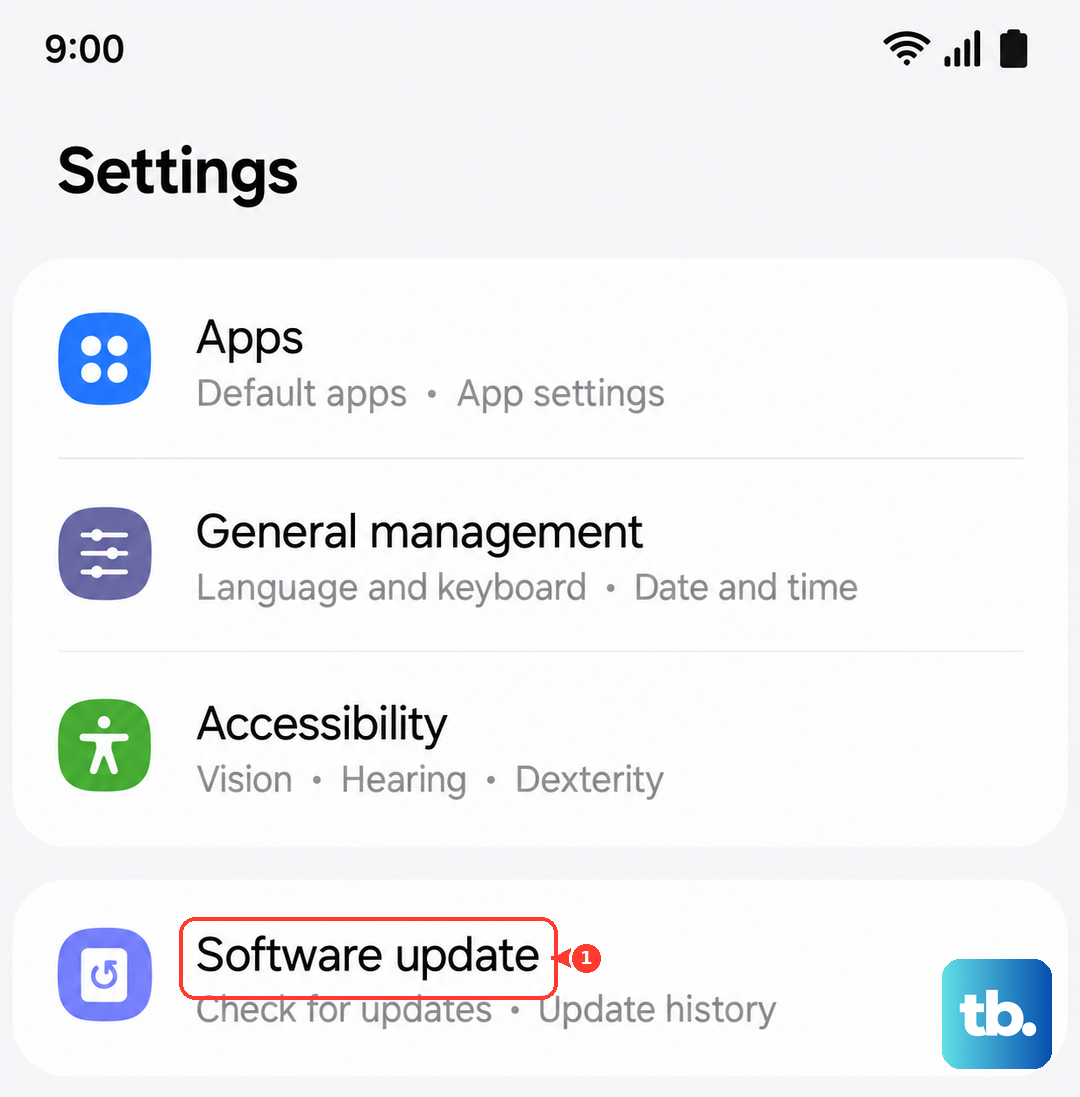
Go to Settings > Software update > Download and install. If an update is available, install it. These updates can contain crucial bug fixes for the display driver or One UI interface that directly resolve touch problems.
Calibrate the Touch Screen
The Galaxy S25+ has a built-in diagnostic tool for testing hardware. To access it, open the Phone app and dial *#0*#. This will launch the secret service menu. If you can't tap the dialer, using the S Pen or a connected mouse is again a good workaround.
Tap on "Touch" to start the diagnostic. It will display a full-screen grid; simply drag your finger across the entire screen to draw a continuous line. If there are gaps in the line you draw, it indicates a hardware fault with the digitizer in that area.
Reset All Settings
This won't delete your photos, messages, or apps, but it will reset all your system preferences to factory defaults. Things like Wi-Fi passwords, Bluetooth pairings, and home screen layouts will be cleared. It's useful for fixing misconfigured system options that might affect the display.
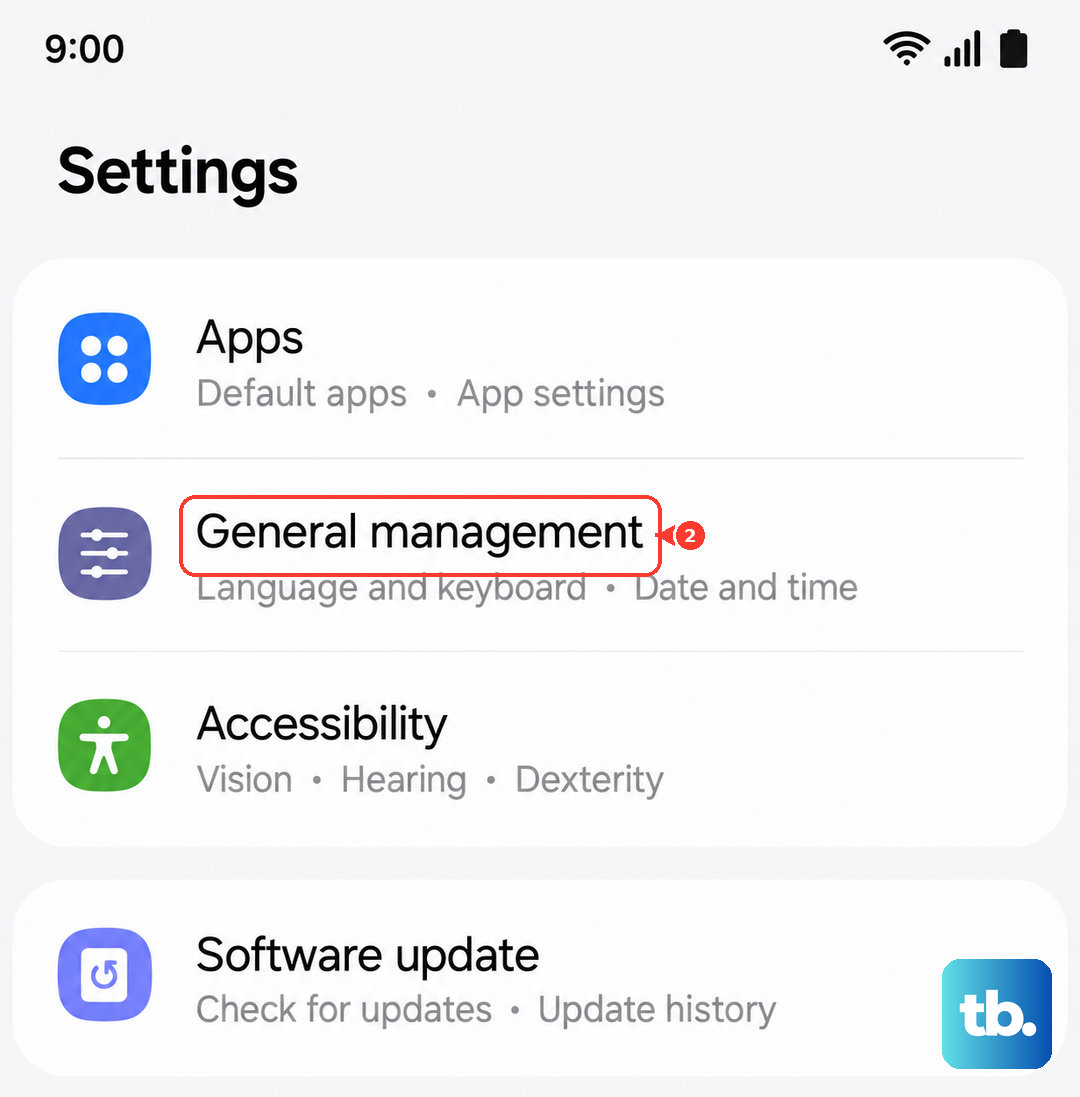
You can do this by going to Settings > General management > Reset > Reset all settings. Confirm your PIN or password and proceed. After the phone reboots, you'll need to reconfigure your preferences, but it often resolves persistent interface glitches.
Check for Physical or Water Damage
Inspect the screen closely for any hairline cracks, especially near the edges, that might not be immediately obvious. Even a small crack can damage the underlying touch digitizer. Also, check the USB-C port for any signs of corrosion or lint buildup.
While the S25+ is water-resistant, past liquid exposure can cause intermittent issues. Look for a white or silver Liquid Damage Indicator sticker inside the SIM card tray. If it's pink, red, or purple, it indicates moisture exposure that could be affecting the internal components, including the screen connectors.
Perform a Factory Reset
This is your last resort software fix and will erase everything on the phone. Before you do this, ensure you have a recent backup to Samsung Cloud or your Google account. If the touchscreen is completely dead, you can initiate this using the hardware buttons.
Power off the phone. Then, press and hold the Volume Up button and the Side button together. When the Samsung logo appears, release only the Side button but keep holding Volume Up to enter Recovery Mode. Use the volume buttons to navigate to "Wipe data/factory reset" and select it with the Side button. Confirm the reset and then choose "Reboot system now."