You hold your thumb against the screen of your Samsung Galaxy S25+, the display lights up, and nothing happens. The phone stays locked, asks you to try again, or falls back to your PIN. The in-display fingerprint reader on the S25+ sits underneath the glass, so anything from a smudge to a thick screen protector can throw off a scan that used to work the first time, every time.
The good news is that most fingerprint problems on this model are not hardware failures. They come from a dirty finger, a cover sitting over the sensor, an out-of-date scan, or a software hiccup that a restart clears. The fixes below are ordered from the quickest and safest to the most involved, so start at the top and stop as soon as your finger unlocks the phone reliably again.
Start With Your Finger and the Glass Over the Sensor
The S25+ reads the ridges of your fingerprint through the screen, so a clean, dry contact patch matters more than you might expect. Make sure both the scanner area and your fingertip are clean and dry before scanning, and check that there are no scratches or dirt on the screen over the sensor.
How you place your finger counts too. When you touch the sensor, cover the entire in-screen sensor with your finger and hold the phone the same way you did when you first registered the print. Very dry or chapped fingers, as well as overly wet ones, may not read at all, so make sure your fingertip is clean and dry before you try again.
Take Off Anything Sitting Over the In-Screen Sensor
Because the sensor lives beneath the display, a case or screen protector that covers, touches, or sits over the in-screen fingerprint area can stop it from working. This is one of the most common reasons a previously reliable scan suddenly fails after you add an accessory.
Remove any protective case and test the sensor again.
If you use a screen protector, make sure it is Samsung-certified for the in-display sensor, because an uncertified protector may interfere with reads.
Keep in mind that after changing a protector, you may need to re-register your fingerprints so the phone learns the new layer between your finger and the sensor.
Turn On Touch Sensitivity for a Screen Protector
If you do keep a screen protector on, the S25+ has a setting that helps the touchscreen, and the sensor area under it, respond through that extra layer. Turning it on can be the difference between a scan that registers and one that never wakes up.
Open Settings > Display > Touch sensitivity.
Turn the switch on so the touchscreen responds properly through the screen protector.
If you are not using a protector, leave this setting off. With no protector in place, higher touch sensitivity can make the screen feel too responsive, so only enable it when you actually have a protector installed.
Move the Phone to a Normal Temperature
Temperature can quietly break fingerprint recognition. The in-screen sensor may not work well if the phone is in an extremely hot or cold environment, such as a sun-baked car dashboard or a freezing pocket outdoors.
If you suspect this is the cause, move somewhere at a normal room temperature, give the phone a moment to adjust, and try the scan again. No setting change is needed; the sensor simply performs better once the device is no longer in the heat or the cold.
Restart the Galaxy S25+ to Clear a Software Hiccup
A simple restart clears temporary software glitches that can interrupt fingerprint reads, and it costs you nothing. Try a normal restart first, and use the force restart only if the screen is frozen and unresponsive.
To restart normally, press and hold the Volume down button and the Side button at the same time.
Then select Restart from the menu and confirm.
If the screen is frozen, force restart by pressing and holding the Volume down button and the Side button simultaneously until the device turns off and turns back on; the screen goes black, then the Samsung logo appears.
Delete and Re-Register Your Fingerprints
If your saved scan has degraded over time, or if you added it in a hurry, removing it and registering again often restores reliable unlocking. Fingerprints can also need re-registering after you change a screen protector, as noted above. You can register up to four fingerprints on the S25+, which is worth using to your advantage.
Go to Settings > Security and privacy > Biometrics > Fingerprints.
Delete your existing saved fingerprints.
Add them again, fully covering the entire sensor as you register.
Hold the phone naturally, the way you normally pick it up, while you scan.
Register more than one finger so the phone recognizes you in different positions.
Registering several fingers, and capturing each one from the natural angle you actually hold the phone, gives the sensor more reference points and makes day-to-day unlocking far more forgiving.
Try Turning Off Fingerprint Always On
The S25+ can keep the fingerprint sensor active even when the screen is off. If recognition has become unreliable, switching this feature off (or adjusting it to your preference) is worth testing.
Open Settings > Security and privacy > Screen Lock and biometrics > Fingerprints > Fingerprint Always On.
Set it to Off, or to whatever setting works best for you.
After changing this, test a few unlocks to see whether recognition steadies. If it does not make a difference, you can leave it set however you prefer.
Install the Latest Software Update
Keeping the phone and its apps current can fix recognition issues, since software updates often include sensor and security improvements. Your S25+ shipped with One UI 7 based on Android 15, and Samsung delivers fixes through these updates over time.
Go to Settings > Software update > Download and install.
If an update is available, tap Install now (or choose Schedule install).
To confirm your current version, check Settings > About phone > Software information.
If no over-the-air update appears on the phone but you want to be certain you are current, you can also update the device using Samsung Smart Switch on a Windows PC or Mac.
Back Up Your Data, Then Factory Reset as a Last Self-Service Step
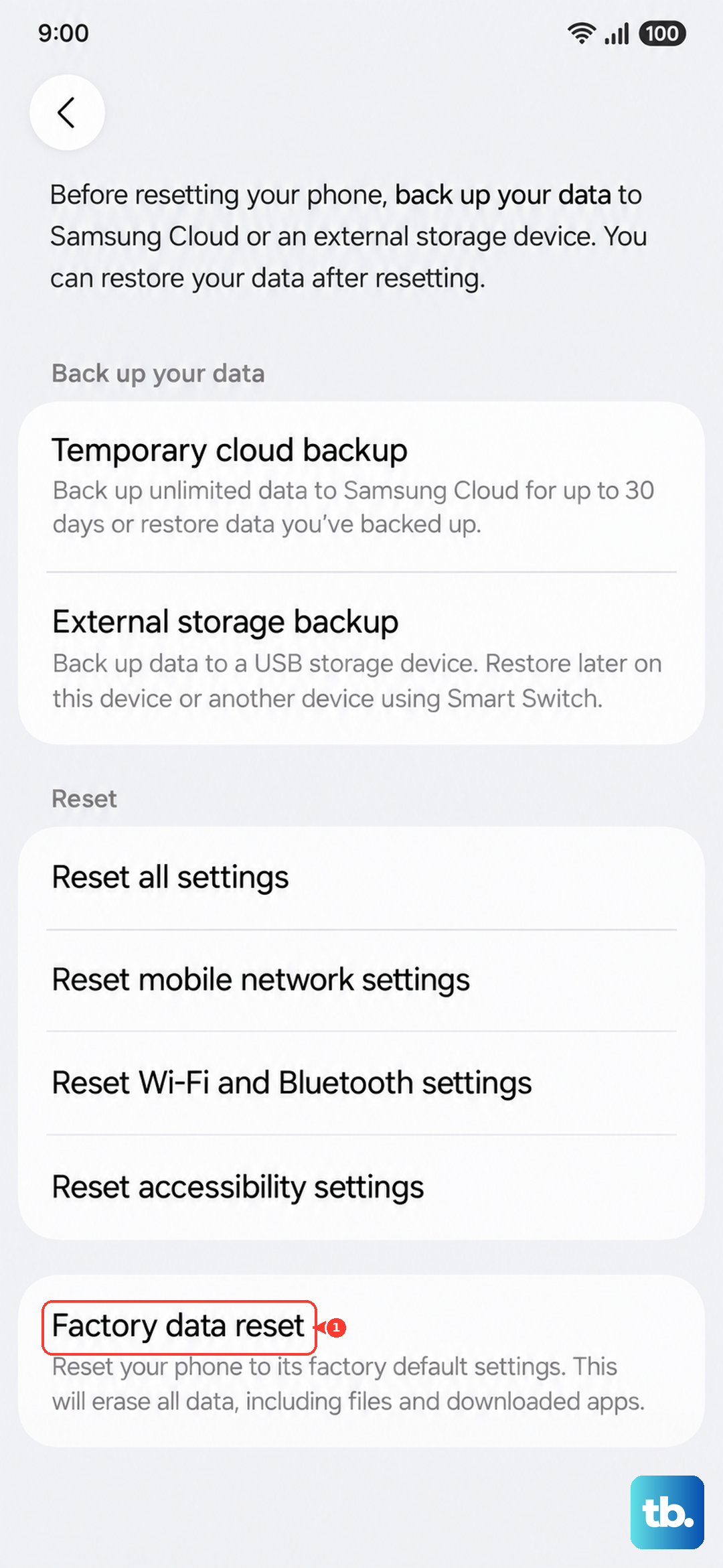
If none of the steps above restore the sensor, a factory reset is the final fix you can perform yourself. This erases everything on the phone, so back up your data first. Samsung warns to save any information you need prior to the factory reset because your personal information may not be recovered afterward.
- 1.Back up everything you want to keep.
- 2.Go to Settings > General management > Reset > Factory data reset.
- 3.Review the information shown on the screen.
- 4.Swipe to and tap Reset.
- 5.Tap Delete all, entering your security credentials and Samsung account password if prompted.
Once the phone restarts and you set it up again, register your fingerprints fresh and test whether the sensor now works on a clean system.
When to Contact Samsung Support
If the fingerprint sensor still does not work after cleaning your finger, removing covers, restarting, re-registering, updating, and even resetting, the problem may be hardware-related. At that point, contact Samsung support or a Samsung service center for assistance, so a technician can inspect the in-display sensor itself.
Frequently Asked Questions
Why does my Galaxy S25+ fingerprint scanner work sometimes but not others?
Inconsistent reads usually trace back to your finger or the screen, not a broken sensor. A dirty or very dry or wet fingertip, dirt or scratches over the sensor, or not covering the whole in-screen sensor can all cause occasional failures. Re-registering more than one finger and holding the phone the way you normally do makes recognition far more consistent.
Can a screen protector stop the S25+ fingerprint sensor from working?
Yes. A screen protector that covers or sits over the in-display sensor can interfere with scans, and an uncertified protector is a common cause. Use a Samsung-certified protector for the in-display sensor, turn on Touch sensitivity under Settings > Display, and re-register your fingerprints after installing a new protector.
How many fingerprints can I register on the Galaxy S25+?
You can register up to four fingerprints. Adding several, and capturing each one from the natural angle you hold the phone, gives the sensor more data to match against and improves day-to-day unlocking.
Will updating my phone fix fingerprint recognition problems?
It can. Software updates sometimes include fixes that improve sensor reliability, so keeping the phone current is worth doing. Check Settings > Software update > Download and install, and if no over-the-air update appears, you can update using Samsung Smart Switch on a PC or Mac.
Do I have to factory reset to fix the fingerprint scanner?
No, a factory reset is a last resort, not a first step. Try cleaning your finger, removing cases or protectors, restarting, re-registering your prints, and updating the software first. Only reset, after backing up your data, if those steps fail, and contact a Samsung service center if the problem continues afterward.